
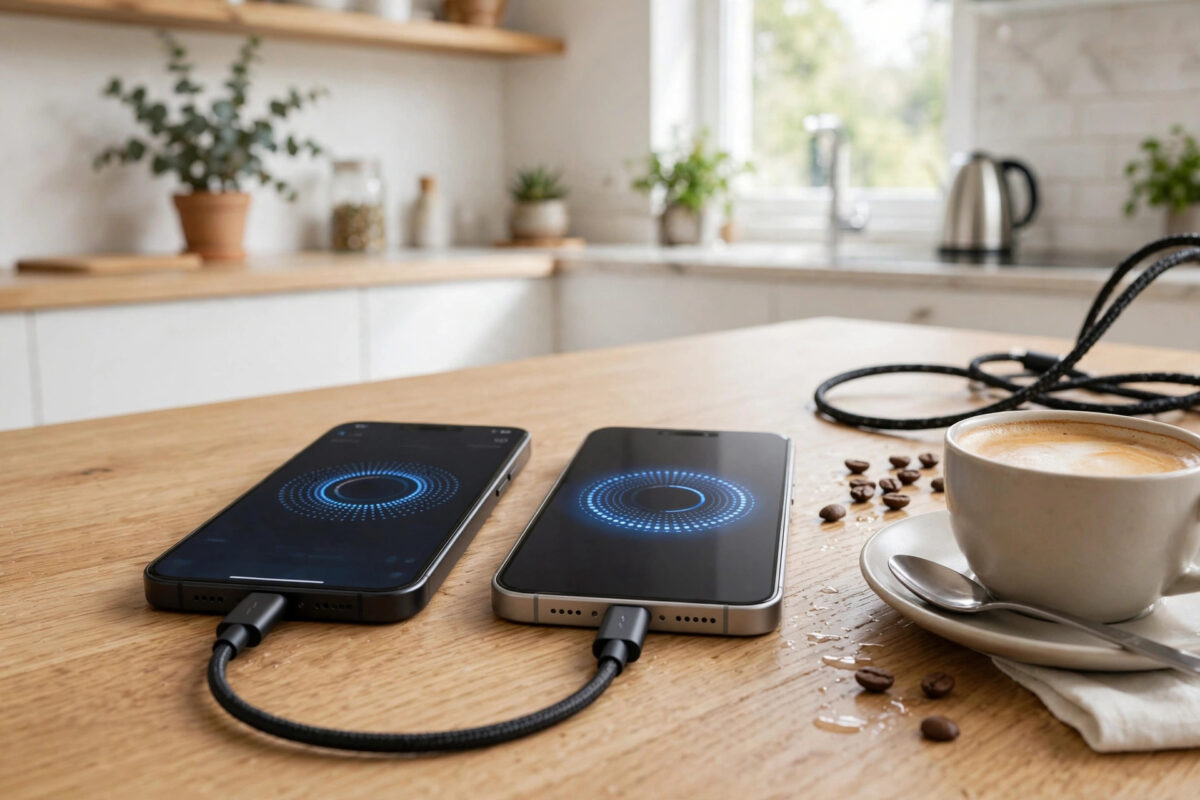
New phone day should be exciting, not stressful. The fear everyone has is losing something in the move: photos, WhatsApp chats, banking apps, two-factor codes. The good news is that moving from an old iPhone to the iPhone 18 Pro is now a polished, mostly automatic process — if you prepare properly and pick the right method.
This guide covers the preparation checklist, all three transfer methods step by step, and the post-move checks that catch the few things that do not transfer themselves.
Quick Answer
The easiest way to transfer everything to your iPhone 18 Pro is Quick Start: place your old iPhone next to the new one during setup, scan the on-screen animation with the old phone’s camera, and choose “Transfer from iPhone” — your apps, photos, settings, messages, and most logins move across in one go, usually within an hour on good Wi-Fi. Before starting, update the old phone, back it up to iCloud, and keep both phones plugged in and side by side until the transfer finishes. Alternatively, restore from an iCloud or computer backup. After the move, open your banking, authenticator, and messaging apps first, because those sometimes need a fresh sign-in.
Before You Start: The Preparation Checklist
Fifteen minutes of preparation prevents nearly every transfer horror story:
- Back up the old phone. Settings, your name, iCloud, iCloud Backup, Back Up Now. Do this even if you plan a direct transfer.
- Update the old phone’s iOS. Transfers go most smoothly when the old phone runs a recent iOS version.
- Know your Apple Account password. You will need it, and guessing wrong three times wastes everyone’s day.
- Check your storage. The new phone needs room for everything; if you bought a smaller capacity, tidy the old phone first.
- Charge both phones and stay near your router. A transfer that dies at 80 percent from a flat battery or weak Wi-Fi restarts tempers, not just progress bars.
- Note your eSIM or SIM situation. If your new phone uses eSIM, your carrier may need to be involved — see the checks after setup.
Method 1: Quick Start (Recommended)
- Turn on the iPhone 18 Pro and place it beside your old iPhone, with Bluetooth on for the old phone.
- A Quick Start prompt appears on the old phone. Confirm it is your Apple Account and tap Continue.
- Hold the old phone over the new one and centre the swirling animation in the camera viewfinder.
- Enter your old phone’s passcode on the new phone when asked.
- Set up Face ID on the new phone.
- When offered transfer choices, pick Transfer from iPhone for the most complete copy.
- Keep both phones close, plugged in, and on Wi-Fi until the progress completes and your apps finish downloading.
Depending on how much data you have, this takes from twenty minutes to a couple of hours. The phones will tell you an estimate; believe the longer end of it and do not start five minutes before you need to leave the house.
Method 2: Restore From iCloud Backup
Choose this if the old phone is already gone, damaged, or being traded in before the new one arrives:
- Make a fresh iCloud backup on the old phone first — an old backup means old data.
- Start the iPhone 18 Pro setup and choose Restore from iCloud Backup on the Apps and Data screen.
- Sign in and select the most recent backup.
- Stay on Wi-Fi while settings and data restore, then while apps and photos download in the background.
Method 3: Computer Backup (Fastest for Huge Libraries)
If your photo library is enormous or your broadband is slow, a wired computer backup is fastest. Back up the old iPhone to your Mac or PC (choose the encrypted backup option so passwords and health data come across), then connect the iPhone 18 Pro and restore that backup during setup. Apple’s official transfer guidance on Apple Support covers the computer route in detail for both Mac and Windows.
After the Transfer: The Checks That Matter
The transfer finishing is not the same as the move being complete. Work through these before wiping or trading in the old phone:
- Messages and WhatsApp: open both and confirm recent chats are present. WhatsApp restores from its own iCloud backup inside the app.
- Banking and payment apps: expect to sign in again and re-approve the new device. This is normal security, not data loss.
- Authenticator apps: verify your two-factor codes work on the new phone before erasing the old one. Losing these is the most painful transfer mistake there is.
- Photos: confirm the library count matches, and give iCloud Photos time to finish syncing the originals.
- Calls and mobile data: make a test call. If there is no service, your SIM or eSIM needs attention — our guide to setting up eSIM when switching from a physical SIM walks through the fix.
- Paired devices: re-pair your watch, car, and earbuds, which never transfer automatically.
Only when every check passes should you erase the old phone. Most experienced upgraders keep the old phone untouched in a drawer for a week, just in case.
How Much Storage Should the New Phone Have?
If you are reading this before buying, one decision decides how smooth the transfer feels: capacity. Add up your current phone’s used storage — Settings, General, iPhone Storage on the old phone shows the figure — and buy at least that, ideally one tier above, because a phone that arrives already full spends its life nagging you. If the new phone is smaller, the tidy-up has to happen on the old phone first: delete the downloaded video libraries, the duplicate photo bursts, and the games untouched since last year, then back up the slimmer phone before transferring.
Common Mistakes and Useful Tips
Skipping the backup because “Quick Start copies everything”. It does — until it does not. The backup is your insurance if the transfer fails halfway.
Wiping the old phone on day one. Authenticator codes, one forgotten app login, one unsynced note — give it a week. The old phone loses no value sitting in a drawer.
Starting on weak Wi-Fi with low batteries. Transfers stall, overheat both phones, and occasionally fail. Wait for a proper charging spot near the router.
Panicking about missing app data in the first hour. Apps download in priority order and data often arrives with them gradually. Judge completeness the next morning, not in the first fifteen minutes.
Conclusion
Transferring to the iPhone 18 Pro is genuinely easy when you prepare: back up, update, charge both phones, and use Quick Start with the devices side by side. Then do the grown-up part — check your authenticator, banking, and messaging apps before you even think about erasing the old phone. An hour of care today saves the only transfer disaster that actually matters: losing access to your own accounts.
Frequently Asked Questions
How long does the transfer to iPhone 18 Pro take?
Anywhere from about twenty minutes for a light user to two hours or more for hundreds of gigabytes of photos and apps. A wired computer backup is fastest for very large libraries; Quick Start on strong Wi-Fi is close behind.
Will my passwords and saved logins transfer?
Yes, if you use Quick Start, iCloud Keychain, or an encrypted computer backup — your saved passwords come across. An unencrypted computer backup is the exception: it leaves passwords and health data behind, which is why the encrypted option matters.
Do I need to move my SIM card to the new iPhone?
If both phones use physical SIMs, you can simply move the card. If your iPhone 18 Pro setup offers eSIM transfer, you can convert during setup instead. If you end up with no service after the move, your carrier needs to activate the new SIM or eSIM.
What does not transfer automatically?
Bluetooth pairings (watch, car, earbuds), some banking app approvals, and certain in-app downloads like offline music or maps. Face ID and Apple Pay cards must also be set up fresh on the new phone for security reasons.
Can I transfer from an Android phone to iPhone 18 Pro instead?
Yes — Apple’s Move to iOS app handles contacts, messages, photos, and more from Android. The preparation rules are the same: back up what you can, charge both phones, and check your critical apps on the new phone before wiping the old one.



[…] you can add a local travel eSIM alongside your main line. The full move-in sequence pairs with our complete guide to transferring everything to a new iPhone if you are doing the whole switch in one […]