
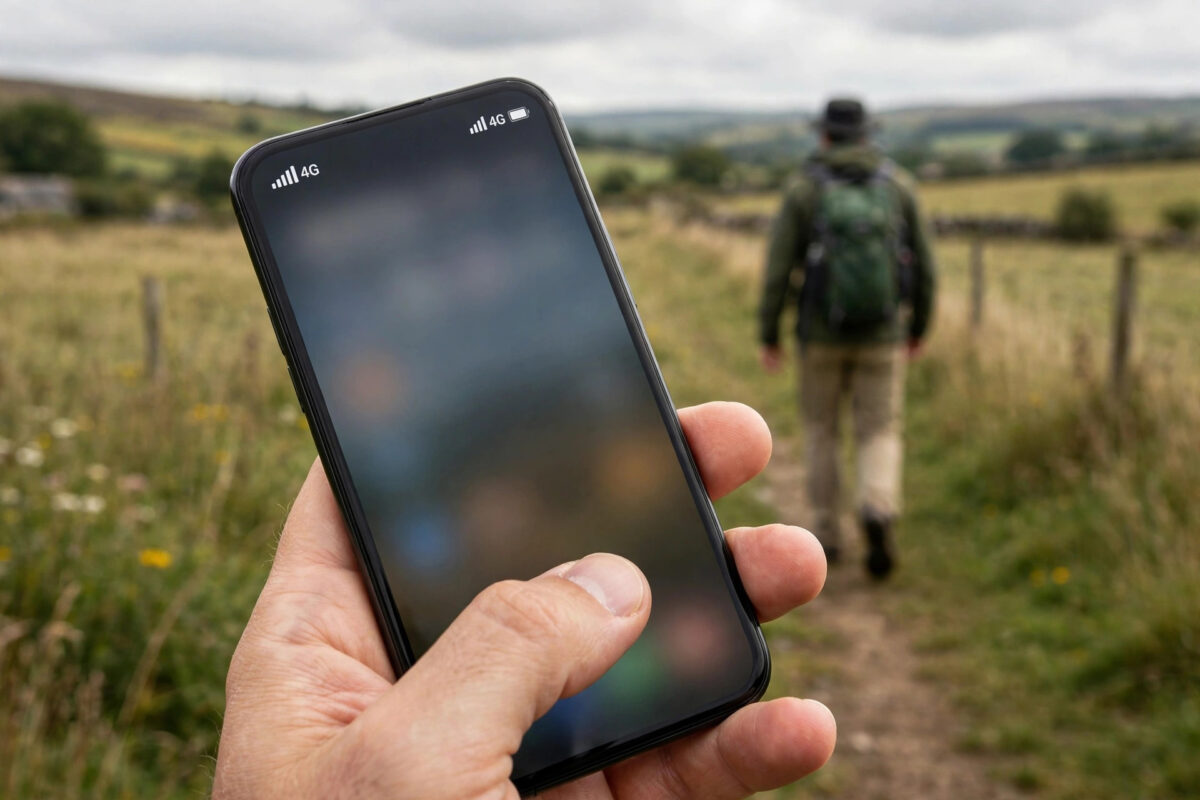
Some places have a strange problem: the 4G signal is usable, but your phone keeps abandoning it for a stronger-looking 3G or 2G signal that is painfully slow, or a faint 5G signal that delivers nothing. In that situation, locking your phone to 4G only can give you a stable, faster connection — the phone stops hunting and simply stays where you put it. It is a useful trick with real trade-offs, because a phone locked to 4G shows no service anywhere 4G does not reach, and on some networks it affects voice calls. This guide explains how to lock 4G on Android and iPhone, when it helps, and when you should absolutely leave the settings alone.
Quick Answer
To lock your phone to 4G only, Android users can usually set the preferred network type to “LTE Only” or “4G Only” in mobile network settings, or through the phone information menu opened by dialing *#*#4636#*#* on many models. Samsung phones place network mode under Settings, Connections, Mobile Networks. iPhone does not offer a true 4G-only lock; choosing LTE in Voice and Data is the closest equivalent. Remember that with 4G only set, you get no service where only 3G or 2G exists.
Why Locking to 4G Can Help
Phones choose networks by rules that favour the strongest acceptable signal, not always the fastest one. In a fringe area, a booming 3G signal from a nearby mast can look more attractive to the phone than a modest 4G signal, even though the 4G connection would deliver several times the data speed. The result is a phone parked on a slow network, or worse, bouncing between the two every few minutes, which stutters data and drains battery. This is the behaviour explained in our guide on why your phone keeps switching between 4G and 3G.
Locking removes the choice. The phone holds the 4G connection through dips that would normally trigger a fallback, giving steadier speeds for streaming, hotspot work, and video calls in places where you know 4G exists but is not the strongest signal in the room.
How to Lock 4G on Android
Through Settings (Try This First)
- Open Settings and go to Network and Internet or Connections, then Mobile Networks.
- Tap Preferred network type or Network mode.
- If the list offers LTE Only, 4G Only, or similar, select it. Many phones only offer combinations like “4G/3G/2G auto”, in which case use the method below.
- Note your original setting before changing anything, so you can restore it exactly.
Through the Phone Information Menu
- Open the Phone app and dial *#*#4636#*#*. On many Android phones a Testing menu opens immediately.
- Tap Phone Information.
- Find Set Preferred Network Type and open the dropdown.
- Select LTE Only. (Options with “LTE” plus other technologies are combination modes, not a lock.)
- Exit and test. The status icon should stay on 4G even in your usual weak spots.
Some manufacturers block this code or move the setting. Samsung hides the information menu on many models but offers network mode choices in Settings, and several brands respond to their own service codes. If neither route exists on your phone, a reputable network-mode app from the Play Store can open the same system screen — avoid any app asking for unrelated permissions. Google’s own documentation for developers on Android telephony settings confirms the preferred network type is a standard system control, even if some brands conceal it.
How to Get Closest to 4G Only on iPhone
Apple does not provide a 4G-only lock. The nearest approach is Settings, Mobile Data, Mobile Data Options, Voice and Data, and choosing LTE (or “4G”) instead of 5G options, which at least stops the phone chasing weak 5G. The phone will still fall back to 3G or 2G when LTE disappears, which many users actually prefer for reliability. If your problem is specifically a useless faint 5G signal, this setting solves it without the risks of a hard lock.
The Risks and Trade-Offs You Must Understand
- No service in 4G dead zones. Rural areas, tunnels, and deep indoor spots served only by 3G or 2G will show nothing. Emergency calls also cannot connect if no 4G network is reachable — treat this seriously.
- Voice calls need VoLTE. A 4G-locked phone can only make calls if VoLTE is enabled and supported, because classic calls fall back to 3G or 2G, which the lock forbids. If your network lacks VoLTE, a 4G-only lock can leave you able to browse but unable to call. Read our guide on what VoLTE is and how to enable it before locking.
- Battery impact in fringe areas. Forcing the phone to cling to a weak 4G signal can use more power than letting it rest on a strong 3G signal.
- Travelling breaks the assumption. The lock that helped at home can strand you abroad or in the countryside. Make reverting part of your routine when you leave your known area.
When Locking Is the Right Tool — and When It Is Not
Locking shines for a fixed location with proven 4G: a home office in a fringe suburb, a workshop, a static caravan, or a 4G router SIM in a phone used as a hotspot. It also helps diagnose problems: if a locked phone delivers great speeds all day, your issue was network selection, not coverage.
It is the wrong tool if you move around a lot, live rurally with patchy 4G, rely on your phone for emergency contact everywhere, or your network has no VoLTE. In those cases, automatic mode with good positioning habits is safer and usually just as fast in the places that matter.
Common Mistakes to Avoid
- Locking and forgetting. Weeks later, in a new place with no service, the lock is the last thing people suspect. Revert when your situation changes.
- Choosing “LTE Only” options that include other letters without reading. Entries like “LTE/UMTS” are automatic combinations, not locks. Read the whole label.
- Locking a phone with no VoLTE and blaming the network for failed calls. The lock did it. Test a call immediately after locking.
- Using unknown dialer codes from random videos. Stick to the standard information menu and your manufacturer’s documented settings.
Conclusion
Locking your phone to 4G only is a legitimate, reversible fix for places where your phone keeps choosing slow networks over a perfectly usable 4G signal. Do it through settings or the phone information menu, test calls straight away, and remember the bargain you have made: steadier speed in known 4G areas, in exchange for no service anywhere 4G does not reach.
Frequently Asked Questions
Does locking to 4G only improve speed everywhere?
No. It only helps where a usable 4G signal exists but the phone was choosing something slower. Where 4G is genuinely absent or extremely weak, locking gives you no service or a worse experience than automatic mode.
Can I still make emergency calls with 4G only set?
Only if a 4G network is reachable and supports emergency calling over it. If you are somewhere with only 2G or 3G coverage, a locked phone cannot connect. This is the most important risk to understand before locking.
Why is there no LTE Only option in my settings?
Many manufacturers show only automatic combinations in the normal menu. The phone information menu reached by dialing *#*#4636#*#* exposes the full list on many models, though some brands block it entirely.
Will locking to 4G stop my calls working?
If your phone and network support VoLTE and it is switched on, calls work normally over 4G. Without VoLTE, calls need 3G or 2G, which the lock blocks, so test a call right after changing the setting.
How do I undo the 4G lock?
Return to the same menu and choose the automatic option you noted earlier, such as “4G/3G/2G auto” or “LTE/UMTS auto”. Restart the phone and it will resume choosing networks normally.

Leave a Reply