
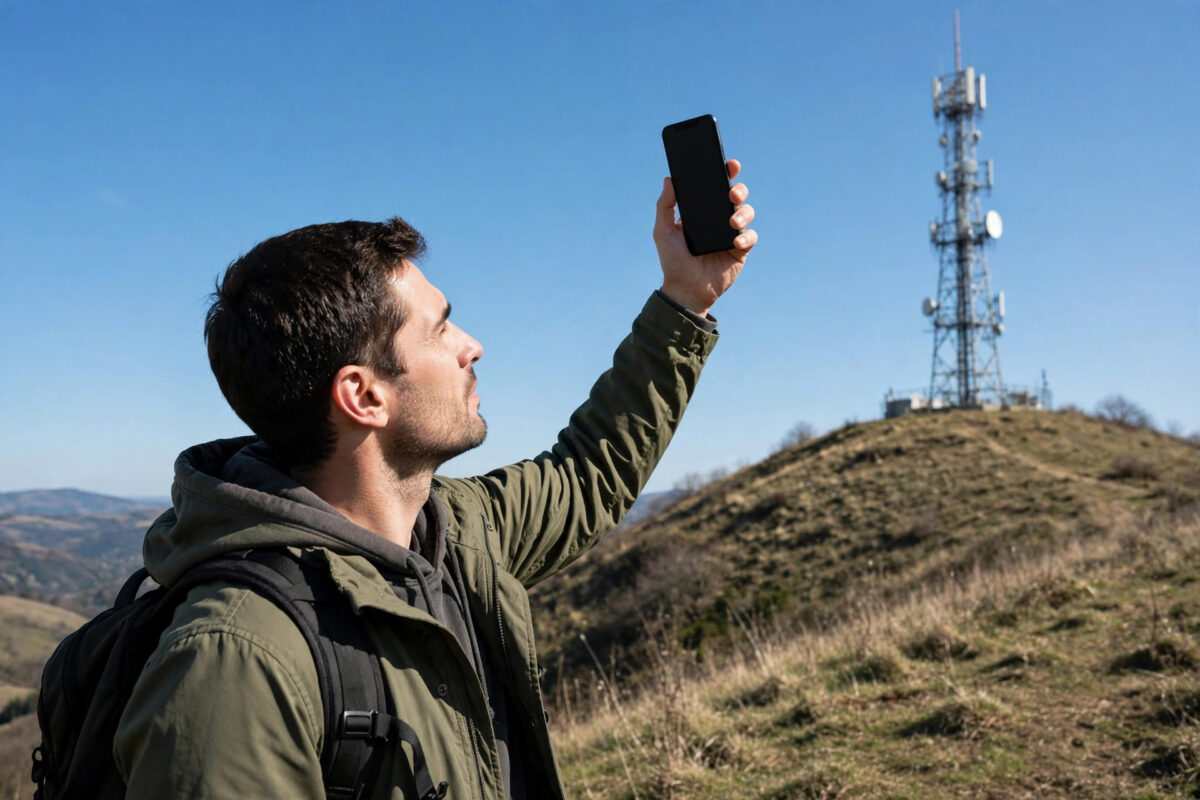
Two phones on the same network, in the same room, can get wildly different speeds. Often the reason is invisible: they are connected to different frequency bands. Mobile networks broadcast on several bands at once — low bands that travel far, and high bands that carry more data — and your phone picks one automatically, not always the fastest. Knowing which band you are on explains slow speeds, helps you position a router or booster, and tells you whether a new phone would even work well with your network. This guide shows how to see your current band on Android and iPhone, what the band numbers mean, and how to use the information.
Quick Answer
To check which network band your phone is using, open the phone’s engineering or field test screen. On most Android phones, dial the field test code for your brand or install a free network information app that shows the band and frequency. On Samsung phones, dialing *#0011# shows the serving cell details. On iPhone, dial *3001#12345#* to open Field Test and look for the band number under the LTE or 5G cell information. The band number, such as Band 20 or n78, tells you the frequency your phone is connected to.
What Network Bands Are, in Plain Language
A band is simply a labelled slice of radio spectrum. Regulators divide the airwaves into numbered ranges, and each mobile technology uses specific ones. For 4G LTE, common bands include Band 20 (800 MHz), Band 3 (1800 MHz), Band 1 (2100 MHz), and Band 7 (2600 MHz). For 5G, bands have an “n” in front, such as n28 (700 MHz), n78 (3500 MHz), and n258 (mmWave).
The frequency shapes the behaviour. Low bands under 1 GHz travel for miles and pass through walls, but their channels are narrow, so speeds are modest. Mid bands between 1 and 6 GHz balance range and capacity. High bands are speed kings with tiny coverage areas. Networks blend all three: low band for reach, mid band for capacity, and the phone moves between them as you move. The GSMA’s 5G overview pages show how these bands fit into global network plans if you want the wider picture. Our comparison of the difference between 4G, 5G, and LTE explains how these pieces fit together.
Check the Band on Android
Using Built-In Codes and Menus
- Samsung: open the Phone app and dial *#0011#. The service menu shows the current band, frequency, and signal values for the serving cell.
- Many other Android phones: dial *#*#4636#*#* to open the Testing menu, then tap Phone Information. This shows the network type and signal, and on some models the band or EARFCN channel number, from which the band can be worked out.
- Settings: some brands show basic band information under Settings, About Phone, SIM Status, though most show only the network type and signal strength in dBm.
Using a Network Information App
Free apps make this much easier and show the band in plain text, along with a history as you move around. They read the same system data the phone itself uses, so they are safe and need no special permissions beyond location (which Android requires for cell data). An app view typically shows: technology (4G or 5G), band number, frequency, channel bandwidth in MHz, signal strength (RSRP) and quality (SINR), and whether carrier aggregation is combining several bands at once. Aggregation is shown as something like “4G+ B3+B20”, meaning two bands are bonded for higher speed.
Check the Band on iPhone
- Open the Phone app and dial *3001#12345#*, then tap the call button. The Field Test dashboard opens.
- Tap the menu and look under the LTE or 5G sections for Serving Cell Info or Cell Info.
- Find the field labelled Band or “freq_band_ind”. That number is your current band.
- Note the signal values too: RSRP near -80 dBm is strong, below -110 dBm is weak.
Apple does not offer a normal settings screen for bands, and there is no App Store equivalent of the Android network apps because iOS restricts that data. Field Test is the official window, and Apple describes many of its radio terms indirectly through carrier documentation; the band field itself is self-explanatory once you know the numbering above.
How to Use Band Information
- Diagnose slow speed. If you are stuck on Band 20 (800 MHz) indoors while a faster Band 3 or Band 1 signal exists upstairs, your phone has chosen range over speed. Repositioning can flip it, and our guide on why 4G internet is slow in your area explains the full picture.
- Judge a new phone. Compare the phone’s supported bands with your network’s bands. A cheap import missing your network’s main band will disappoint no matter how good its other specs look.
- Set up a 4G or 5G router. Routers can often be locked to a band in their admin pages. A slightly weaker mid-band signal frequently beats a strong low-band signal for speed.
- Aim a booster or antenna. Knowing the band your network uses at your address tells you which frequencies your booster must support and which tower direction matters.
- Understand 5G at your home. If your phone only ever shows n28, you have wide-area 5G that is a small step up from 4G. n78 is the band that delivers the headline speeds.
Common Mistakes to Avoid
- Chasing bands obsessively. Your phone re-selects bands constantly and normally does a good job. Check the band to diagnose a problem, not as a daily ritual.
- Assuming higher frequency always means better. A weak, noisy mid-band signal can be slower than a clean low-band one. Signal quality (SINR) matters as much as the band.
- Locking bands without a backup plan. If you lock a router or phone to one band and the tower changes, you can lose service. Note the original settings before experimenting.
- Confusing Wi-Fi bands with mobile bands. The 2.4 GHz and 5 GHz Wi-Fi bands are unrelated to the mobile bands in this guide.
Channel Width: The Other Number That Matters
The band tells you where your connection lives; the channel width tells you how much room it has. Widths are measured in megahertz, and wider is faster: a 20 MHz channel can carry far more data than a 5 MHz channel on the same band. This is why two connections both showing “Band 3” can perform very differently — one tower may offer a wide 20 MHz channel while another, older site offers only 10 MHz. Network apps display the width alongside the band, and carrier aggregation effectively adds widths together by bonding several channels at once. When you compare locations or judge a router’s performance, read band, width, and signal quality as a trio rather than fixating on the band alone, and you will predict your real speed far more accurately.
Conclusion
Your current band is one dial code or one free app away, and it explains a great deal: why speeds differ between rooms, why a friend’s phone is faster, and whether new hardware will help. Learn to read the band, the signal strength, and the quality together, and you will understand your mobile connection better than most support agents expect.
Frequently Asked Questions
Which 4G band is fastest?
Generally the higher mid bands like Band 3, Band 1, and Band 7, especially with wide channels and carrier aggregation. But a strong low-band signal can beat a weak mid-band one, so real-world results depend on your exact spot.
What does the “n” mean in 5G bands like n78?
The “n” stands for New Radio, the 5G radio standard. n78 at 3500 MHz is the most widely used 5G band for fast city coverage worldwide.
Can I force my phone to use a specific band?
Some Android phones and most 4G/5G routers allow band locking through engineering menus or admin pages, but it is not a standard user setting on iPhone. Locking can improve speed in fixed locations and cause no service elsewhere, so use it carefully.
Why does my band keep changing at home?
The phone constantly re-evaluates signals as they fluctuate with weather, network load, and people moving. Changing bands at a fixed desk usually means two signals are closely matched where you sit.
Do all phones support the same bands?
No. Band support varies by model and by the region the phone was made for. Always check the exact model’s band list against your network before buying, especially with imported phones.

Leave a Reply