
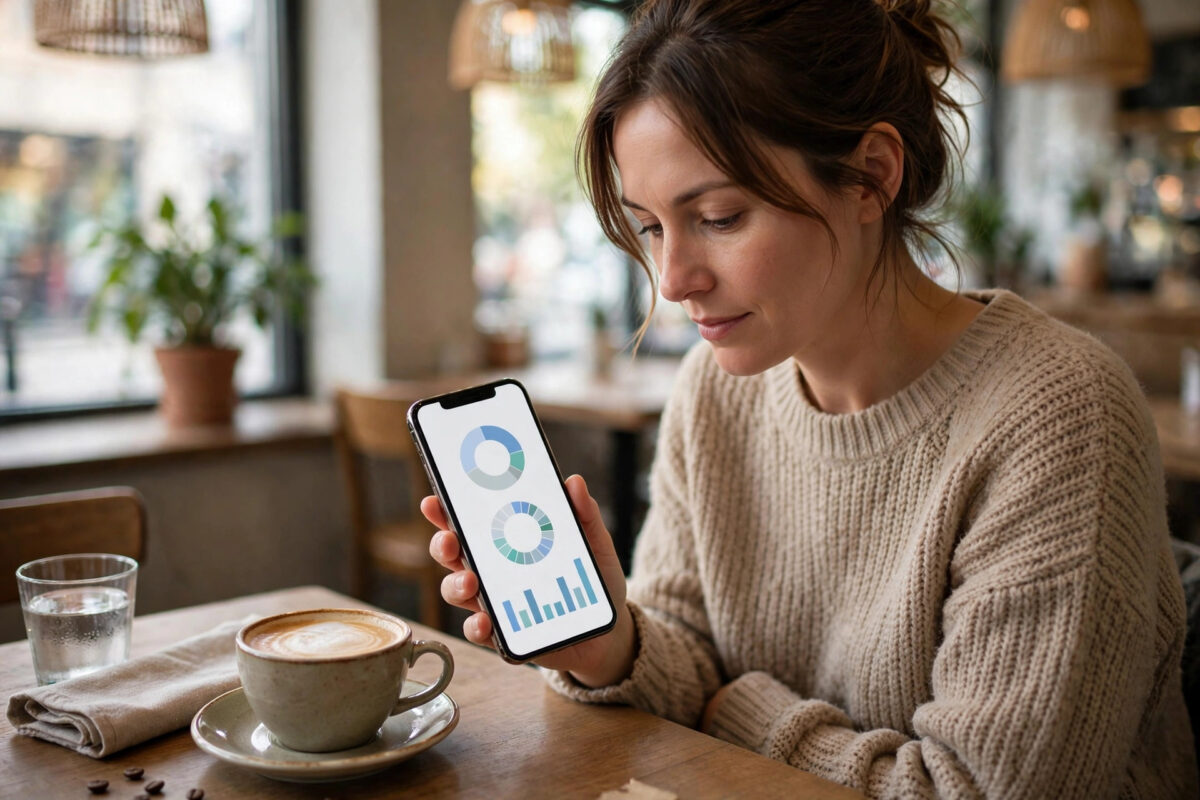
Running out of mobile data halfway through the month is a modern headache: speeds crawl, extra charges appear, or the connection simply stops. The best defence is checking your remaining balance regularly, and there are more ways to do it than most people realise. Your phone tracks its own usage, your provider tracks the official total that actually counts, and short codes or apps can show the balance in seconds. This guide explains every method for Android and iPhone, why the phone’s figures and the provider’s figures sometimes disagree, and how to set warnings so you never get caught out again.
Quick Answer
The most accurate way to check your remaining mobile data balance is through your network provider’s official app or website, because that is the total you are billed on. You can also dial your provider’s free balance code, send a balance text, or check your phone’s own counter in Settings under Mobile Data or Data Usage. Use the provider’s figure for decisions, and set a data warning on your phone so you get alerted before the balance runs out.
Method 1: Your Provider’s App or Website
Every major network has an official app and an account website that show your remaining data, minutes, and texts, updated close to real time. This is the number that matters, because it is the network’s own record.
- Download your provider’s official app from your app store, or open their website and sign in to your account.
- The home screen normally shows a data gauge with “X GB left of Y GB” and the date your allowance renews.
- Many apps also show a daily or per-app breakdown, predicted usage, and the option to buy a data add-on if you are running low.
- Turn on the app’s notifications. Most providers can alert you at 80 percent usage and again when data is exhausted.
If you have not registered for the online account yet, you will usually need your mobile number and a verification text to set it up the first time. After that, checking takes seconds.
Method 2: Dial a Balance Code or Send a Text
USSD codes are the oldest and fastest method, and they work without internet. Each provider has its own code, printed in your welcome pack and listed on their help pages. You dial the code like a phone number, and the balance appears on screen or arrives by text within moments. Common patterns include codes beginning with * and ending with #, but the exact digits differ by network and country, so always use your own provider’s published code.
This method is perfect when your data has already run out, because it works even when you cannot open a single website. It is also useful for checking a child’s or family member’s SIM that is not signed into an app.
Method 3: Check on Android Settings
- Open Settings and tap Network and Internet (or Connections on Samsung).
- Tap SIMs or Mobile Network, then Data Usage or App Data Usage.
- You will see total data used in the current cycle, plus a list of apps ranked by usage.
- Make sure the billing cycle dates match your provider’s renewal date. If your plan renews on the 15th but the phone counts from the 1st, the figures will mislead you. Most Android phones let you set the cycle start date to match.
Google explains these counters in its Android data usage help guide. Remember the phone counts everything it sends and receives, which is close to, but not always identical to, the provider’s measurement.
Method 4: Check on iPhone Settings
- Open Settings and tap Mobile Data.
- Scroll down to see “Current Period” usage and a per-app list.
- The catch: the iPhone does not reset this counter automatically each month. Scroll to the very bottom and tap Reset Statistics on your renewal day if you want the phone’s figures to track your billing month.
- To stop a greedy app, you can switch off its mobile data access in the same list.
Because of the manual reset, iPhone owners are better off relying on the provider’s app for the true balance and using the phone’s list mainly to spot which apps are the heavy users.
Why Your Phone and Your Provider Show Different Numbers
Small differences are normal. The network measures data at its own systems and may update in batches, so very recent usage might not appear yet. Some providers zero-rate certain traffic, such as their own app or specific services, which the phone still counts. Rounding also plays a part: networks often round sessions up to set block sizes. If you want to use less overall, our guide on how to stop mobile data from finishing too quickly covers the settings and habits that cut usage dramatically.
A large difference, though, is worth questioning. If the provider says you used far more than your phone shows, ask them for a day-by-day breakdown and check whether a hotspot session, a system backup over mobile data, or another device on a shared plan explains it.
Set a Warning So You Never Run Out Unexpectedly
On Android, open Data Usage and switch on Set Data Warning, choosing a level a few gigabytes below your full allowance, then switch on Set Data Limit if you want the phone to cut mobile data at a hard ceiling. On iPhone there is no built-in monthly warning, so use the provider’s app alerts instead, or a trusted data-tracking app, and make a habit of checking on the same day each week. Families on shared plans should check the main account holder’s app, since individual phones cannot see the group’s total.
Common Mistakes to Avoid
- Trusting the phone counter with the wrong cycle date. Align the dates with your provider or the numbers mean nothing.
- Forgetting hotspot and dual SIM usage. Data used by a second SIM or by tethered devices counts against the same allowance but may be tracked separately on the phone.
- Checking only when data stops. A quick weekly check and an 80 percent alert prevent nasty surprises and emergency add-on prices.
- Confusing Wi-Fi and mobile totals. Make sure you are reading the mobile data figure, not the combined or Wi-Fi statistics.
Conclusion
Your provider’s app or website gives the balance that actually counts, USSD codes work when data is already gone, and your phone’s counters are best for spotting which apps are eating your allowance. Set a warning level, keep your billing dates aligned, and running out of data mid-month becomes a problem you simply stop having.
Frequently Asked Questions
How often is my provider’s data balance updated?
Most providers update within minutes to a few hours. Usage while roaming abroad can take longer to appear, sometimes a day or more, so be extra careful with data when travelling.
Does checking my balance use data or cost money?
Balance codes and texts are normally free. Opening the provider’s app uses a tiny amount of data, and many networks zero-rate their own app so it works even with no balance left.
Why did my data balance drop overnight?
Apps update, photos back up, and emails sync while you sleep if Wi-Fi drops out or Wi-Fi Assist style features switch you to mobile data. Check the per-app list in the morning to find the culprit.
Can I check the balance of a data-only SIM in a tablet or router?
Yes. Sign in to the provider’s website with that SIM’s number, put the SIM in a phone briefly to receive the verification text, or use the provider’s app registered to the account.
What happens when my data balance reaches zero?
Depending on your plan, data either stops, slows to a trickle, or continues at pay-per-megabyte rates. Check your terms, and consider an add-on from the app, which is almost always cheaper than out-of-plan rates.


[…] can exceed 50 GB by itself. If you want to watch your usage against these figures, our guide on how to check your remaining mobile data balance shows how to track it week by […]