
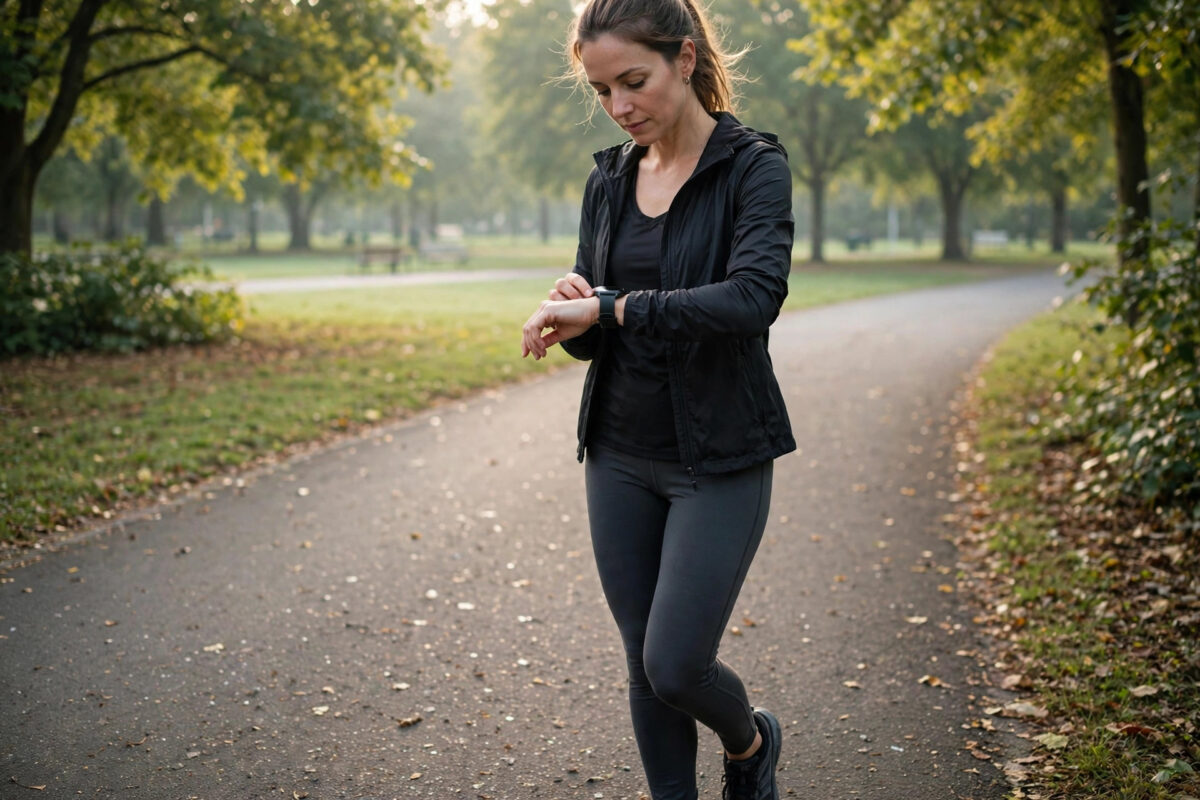
Your smartwatch says you burned 900 calories on a rest day, credits you with steps while you were driving, and counts a different distance for the same run every week. Sound familiar? Smartwatch fitness tracking is genuinely useful, but only when it is set up for your body and worn correctly. The sensors are small and the algorithms make assumptions — feed them the right personal data and a good fit on your wrist, and the numbers tighten up dramatically. This guide shows you how, platform by platform.
Quick Answer
Accurate tracking starts with three things: enter your correct height, weight, age, and sex in the health app (the watch calculates stride and calories from these), wear the watch snugly one to two finger-widths above your wrist bone with the sensor flat on your skin, and start workouts manually with GPS given a few seconds to lock on. Recheck your details every few months and after any weight change of more than a few kilos.
Step 1: Fix Your Personal Profile
Every calorie and distance figure flows from your profile. An error here skews everything, permanently:
- Apple Watch: On iPhone, open the Health app > your profile picture > Health Details. Check date of birth, sex, height, and weight. Also open the Watch app > Workout and confirm your fitness level settings if offered.
- Galaxy Watch: Samsung Health > profile (top right) > edit height, weight, age, and activity level. Then Samsung Health > Settings > check that units (km/miles, kg/lb) match what you actually think in — a watch set to miles while you plan in kilometres confuses every target.
- Fitbit / Google Pixel Watch: Fitbit app > profile > personal details, including stride length if you have measured it (Fitbit lets you enter a manual walking and running stride under advanced settings).
- Garmin: Garmin Connect > user settings — set height, weight, and if you know them, your max heart rate and heart-rate zones; Garmin’s calorie and training-load maths leans on these heavily.
Set your weight honestly and update it when it changes by 3–4 kg either way. A watch calibrated for 90 kg will over-credit calories for a 75 kg person on every single workout.
Step 2: Wear It Correctly
The optical heart-rate sensor shines green light into your skin and reads blood flow from the reflection. Anything that breaks contact breaks the data:
- Position: One to two finger-widths up the arm from the wrist bone (toward the elbow), not sitting on the bone itself.
- Tightness: Snug enough that the watch does not slide or wobble when you shake your arm, loose enough to stay comfortable. For workouts, tighten one notch from your all-day fit.
- Clean sensor, dry skin: Wipe the back of the watch after sweaty sessions; sunscreen and moisturiser films genuinely scatter the light and cause dropouts.
- Tattoos: Dark, dense tattoos under the sensor can defeat optical readings. If your readings vanish on one wrist, test the other wrist or use a chest strap for serious training.
- Cold weather: In winter, blood flow to the wrist drops and readings lag. Warm up for a few minutes before judging the numbers.
Battery anxiety makes some people loosen settings until tracking suffers — if that is you, our explainer on what drains a smartwatch battery shows which savings cost you data and which cost nothing.
Step 3: Start Workouts Properly
- Start the workout manually and pick the correct type (outdoor run vs treadmill are measured completely differently — treadmill uses arm swing, outdoor uses GPS).
- Wait for the GPS lock: stand still outdoors for 10–30 seconds until the watch confirms GPS connected before you move off. Starting instantly is the main cause of runs that begin with a straight line through buildings and a wrong first kilometre.
- End accurately: stop the workout when you actually stop. Auto-pause helps at traffic lights on runs and rides; turn it on in workout settings.
- Carry your phone consistently: watches that borrow the phone’s GPS (many mid-range models) measure differently when the phone is left at home. Either always carry it or never — consistency makes trends trustworthy even if absolutes are slightly off.
Step 4: Calibrate
Apple Watch Calibration
Apple Watch improves its stride model from outdoor walks and runs with good GPS. To reset and rebuild it: Watch app > Privacy > Reset Fitness Calibration Data, then do a few 20-minute outdoor walks/runs at your normal paces. Also confirm Location Services > System Services > Motion Calibration & Distance is on (iPhone Settings > Privacy & Security).
Stride Length on Fitbit and Garmin
Measure your stride properly once: walk 100 metres at natural pace counting steps, divide distance by steps, and enter it. Do the same at running pace if the app accepts a separate running stride. The Fitbit help centre documents where the stride fields live in current app versions, since the menus move occasionally.
Distance Sanity Checks
Run a known route — a measured parkrun course or a track — once per season and compare. A consistent 2–3% error you know about is far more useful than numbers you blindly trust: you can mentally adjust, and trends remain valid.
What the Numbers Can and Cannot Tell You
Set realistic expectations and the data gets more valuable, not less:
- Steps: Arm-based counting over-credits gestures, driving on rough roads, and DIY; under-credits pushing a pram or trolley. Treat steps as a consistency metric against your own history, not an absolute truth.
- Calories: Wrist-based calorie estimates carry the widest error bars of anything the watch reports — 20% or more either way is common in studies. Use them for patterns, never as permission slips calculated to the last biscuit.
- Heart rate: Very good at rest and steady exercise; less reliable during intervals, weightlifting, and racket sports where the wrist flexes constantly. A chest strap remains the gold standard for serious heart-rate training.
- Sleep: Good at total duration and rough stages; treat “deep sleep” scores as indicative, not medical.
Common Mistakes to Avoid
- Wearing the watch loose like a bracelet and then distrusting every reading.
- Never updating your weight after it changes — the silent saboteur of calorie data.
- Comparing your numbers with a friend’s different watch: different brands use different algorithms; the same workout will never match exactly.
- Starting runs before GPS locks and then blaming the watch for a short distance.
- Double-counting: carrying a phone that also logs steps into the same health app can inflate totals — in Apple Health and Google Fit, check the data-source priority so the watch wins.
Conclusion
A smartwatch is a measuring instrument, and like any instrument it needs calibration and correct handling: right body data, right position, snug fit, a few seconds’ patience for GPS, and a seasonal sanity check against a known route. Do those things and the numbers stop being entertainment and start being genuinely useful for training and health decisions.
Frequently Asked Questions
Why does my watch count steps while I am driving?
The accelerometer interprets bumps and arm movements as steps. Rough roads are the worst offender. It inflates the day’s total slightly, but your workout data is unaffected — and you can delete obvious driving periods in some apps, or simply compare like-for-like days.
Is a smartwatch or a chest strap better for heart rate?
For steady running and cycling, a modern watch is close. For intervals, weights, and any sport with heavy wrist movement, a chest strap reads electrical signals directly and is clearly more accurate. Many serious runners use both: watch for everything, strap for key sessions.
Why is my GPS distance different from my friend’s on the same run?
Different sampling rates, antenna positions, and smoothing algorithms — plus which wrist and whether a phone assisted. Differences of 1–3% between brands on the same route are normal and nothing to fix.
How often should I update my profile details?
Whenever your weight changes by more than about 3 kg, and at least once a year to confirm height (for younger users still growing) and age are current. It takes thirty seconds in the app.
Does wearing the watch on the other wrist change accuracy?
It can change step counting slightly because your dominant arm gestures more. Set the wrist and dominance correctly in the app (most ask during setup), and wear it on the non-dominant wrist for the most honest step counts.



Leave a Reply