
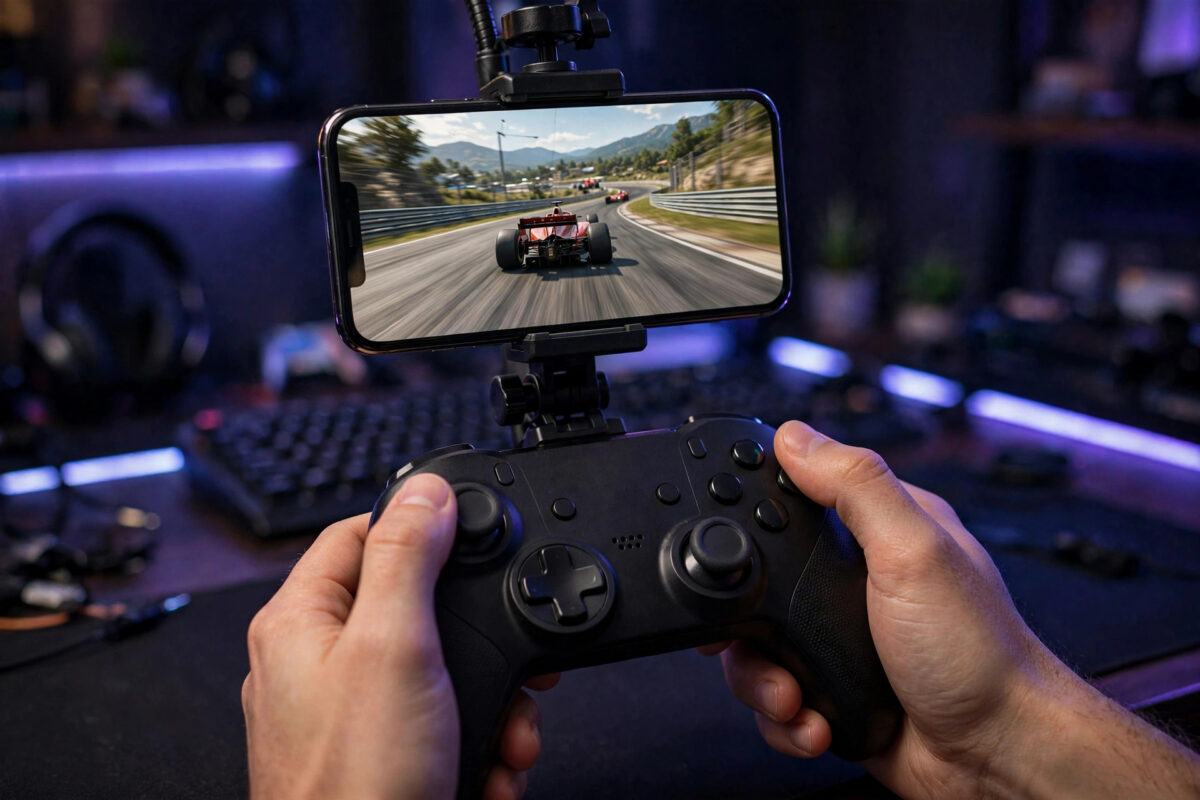
Mobile games are brilliant, but playing a racing game or a shooter with thumbs on glass is nobody’s idea of precision. The good news: the controller you already own — from a PlayStation, Xbox, or Nintendo Switch — almost certainly works with your phone, and so do dozens of dedicated mobile controllers. Connecting takes a minute once you know the pairing trick for each controller type. This guide covers Android and iPhone pairing for all the major controllers, how to check a game supports them, and fixes for lag and wrong-button problems.
Quick Answer
Put the controller in Bluetooth pairing mode (PS button + Share/Create on PlayStation controllers; the small pair button on top of Xbox controllers; the sync button on Nintendo controllers), then open your phone’s Settings > Bluetooth and select the controller when it appears. On iPhone: Settings > Bluetooth, same steps. Most modern controllers — DualSense, DualShock 4, Xbox Wireless Controller (model 1708 and later), Switch Pro — work with both platforms.
Compatibility at a Glance
- PlayStation DualSense (PS5) and DualShock 4 (PS4): Work with Android 10+ and iOS 13+. Touchpad and some haptics features do not carry over to phones.
- Xbox Wireless Controller: Models with Bluetooth (1708, 1914 — the ones with a USB-C port or the share button) pair with Android and iOS. The original 1537/1697 Xbox One controllers have no Bluetooth and need a cable.
- Nintendo Switch Pro Controller and Joy-Cons: Pair with Android well; iOS supports the Pro Controller from iOS 16. Joy-Cons work as a combined pair on newer phones.
- Dedicated mobile controllers: Backbone One, Razer Kishi, and GameSir models either clip onto the phone with USB-C/Lightning (zero lag, no charging) or connect by Bluetooth with a phone grip.
- Wired option: Any of the above also work over a USB-C cable (with an OTG adapter if needed) — the fallback when Bluetooth misbehaves, and the lowest-latency option for competitive games.
Pairing Steps by Controller
PlayStation DualSense / DualShock 4
- Make sure the controller is off and not lighting up when you press the PS button — if it turns a console on, turn that console fully off or unplug it first.
- Hold the Create button (DualSense) or Share button (DualShock 4) and the PS button together for about five seconds, until the light bar flashes rapidly in double bursts.
- On the phone, open Bluetooth settings and select “DualSense Wireless Controller” or “DUALSHOCK 4 Wireless Controller”.
- The light bar settles to a steady colour. Open a game and test the sticks and buttons.
Xbox Wireless Controller
- Press the Xbox button to turn the controller on.
- Hold the small Pair button on the top edge (near the USB port) for three seconds, until the Xbox button flashes rapidly.
- In the phone’s Bluetooth list, choose “Xbox Wireless Controller”.
- Note: if the controller is also paired to an Xbox, double-pressing the Pair button switches it between the console and the phone on newer firmware — a genuinely useful trick.
Nintendo Switch Pro Controller
- Hold the small Sync button on the top of the controller until the player LEDs run back and forth.
- Select “Pro Controller” in the phone’s Bluetooth settings.
- Be aware the button layout is Nintendo-style (A/B swapped versus Xbox), and some Android games assume the Xbox layout — many let you remap in settings.
Checking a Game Supports Controllers
Support is per-game, not per-phone. Most premium and console-ported titles do: Call of Duty Mobile, Minecraft, Genshin Impact, Stardew Valley, Dead Cells, and the Xbox Game Pass, GeForce NOW, and PlayStation Remote Play apps all work well. On the Play Store, look for “controller support” in the game’s description; on iOS, the App Store listing shows a controller icon under “Supports”. If a favourite game lacks support, Android users can map touch controls to buttons with apps like Mantis Gamepad Pro — it works, but set-up per game takes patience. The game controller overview on Wikipedia explains why the Xbox layout became the default standard most mobile games assume.
Reducing Input Lag
- Use a cable for competitive games: Bluetooth typically adds 10–30ms. A USB-C connection removes most of it.
- Put the TV/monitor out of the chain: If you are casting the phone to a TV, the stream adds far more delay than the controller does. Play on the phone screen, or connect the phone to the TV by cable.
- Turn off Bluetooth scanning extras: Other busy Bluetooth devices nearby (especially cheap fitness trackers constantly syncing) can add jitter. Forget unused devices in Bluetooth settings.
- Update the controller: Xbox controllers update through the Xbox Accessories app on console or Windows; DualSense updates through a PS5 or Sony’s Windows updater. Newer firmware noticeably improves phone reconnection.
- Keep the controller charged: A nearly flat controller throttles its radio and drops inputs — the same battery behaviour we discuss for other gadgets in our guide on why wearable batteries drain quickly; radios under power stress are a theme across all small devices.
Troubleshooting
- Controller connects to the console instead: The console is waking and claiming it. Unplug the console or remove its power during pairing, or pair the controller to the phone first and switch devices afterwards.
- Phone sees the controller but pairing fails: “Forget” any old entry for it in Bluetooth settings, restart the phone’s Bluetooth, and re-pair. On Android, also clear the Bluetooth cache: Settings > Apps > (system apps) > Bluetooth > Storage > Clear cache.
- Buttons do the wrong things in one game: The game assumes a different layout (usually Nintendo vs Xbox). Look for a layout or remap option in the game’s controller settings.
- Controller disconnects mid-game: Usually a low battery or the phone’s battery optimisation killing the Bluetooth service. Charge the controller, and exempt the game from battery saving.
- Two controllers for multiplayer: Both Android and iOS accept multiple Bluetooth controllers at once — pair each in turn and assign players inside the game. Streaming services like Game Pass handle this natively.
Common Mistakes to Avoid
- Trying to pair while the controller is still linked to a running console — the most common failure of all. Power the console down first.
- Buying a “phone controller” that only supports one platform: Check Android/iOS compatibility in the listing; USB-C models need a recent Android phone or iPhone 15+, and Lightning models only fit older iPhones.
- Assuming every game supports controllers: Many casual touch-first games never will. Check before buying a controller for one specific title.
- Ignoring stick drift on mobile: If a character moves by itself, test the controller in another app — drift is a hardware issue, not a phone setting.
Conclusion
If you own a modern console, you own a phone controller: hold the right button combination to enter pairing mode, select it in your phone’s Bluetooth menu, and most major games just work. Use a cable when every millisecond matters, keep the controller’s firmware and battery healthy, and remember the one golden rule — pair while the console is off, or the console will win the tug of war every time.
Frequently Asked Questions
Can I use a PS5 controller with an iPhone?
Yes — the DualSense works with iPhones running iOS 14.5 or later. Pair it via Settings > Bluetooth after holding the Create and PS buttons until the light bar flashes. Adaptive triggers do not function in most mobile games, but all standard buttons and sticks do.
Does the controller work with Xbox Game Pass and Remote Play on a phone?
Yes — cloud gaming and remote play apps are among the best-supported uses. An Xbox controller is the natural fit for Game Pass, while a DualSense suits PlayStation Remote Play.
Why is there a delay between pressing a button and the action?
Small delays come from Bluetooth; big delays usually come from the display chain — casting to a TV adds far more. Play on the phone screen or use a wired controller and a wired display connection to minimise it.
Can I connect a controller and Bluetooth headphones at the same time?
Yes, phones handle several Bluetooth devices simultaneously. Just be aware that some phones reduce Bluetooth bandwidth when many devices are active, which can occasionally add minor controller latency.
How do I use the controller with my console again afterwards?
Plug it into the console with a cable once, or re-pair from the console’s controller settings. Xbox controllers with newer firmware can double-press the Pair button to hop between the last console and phone connections.



Leave a Reply