
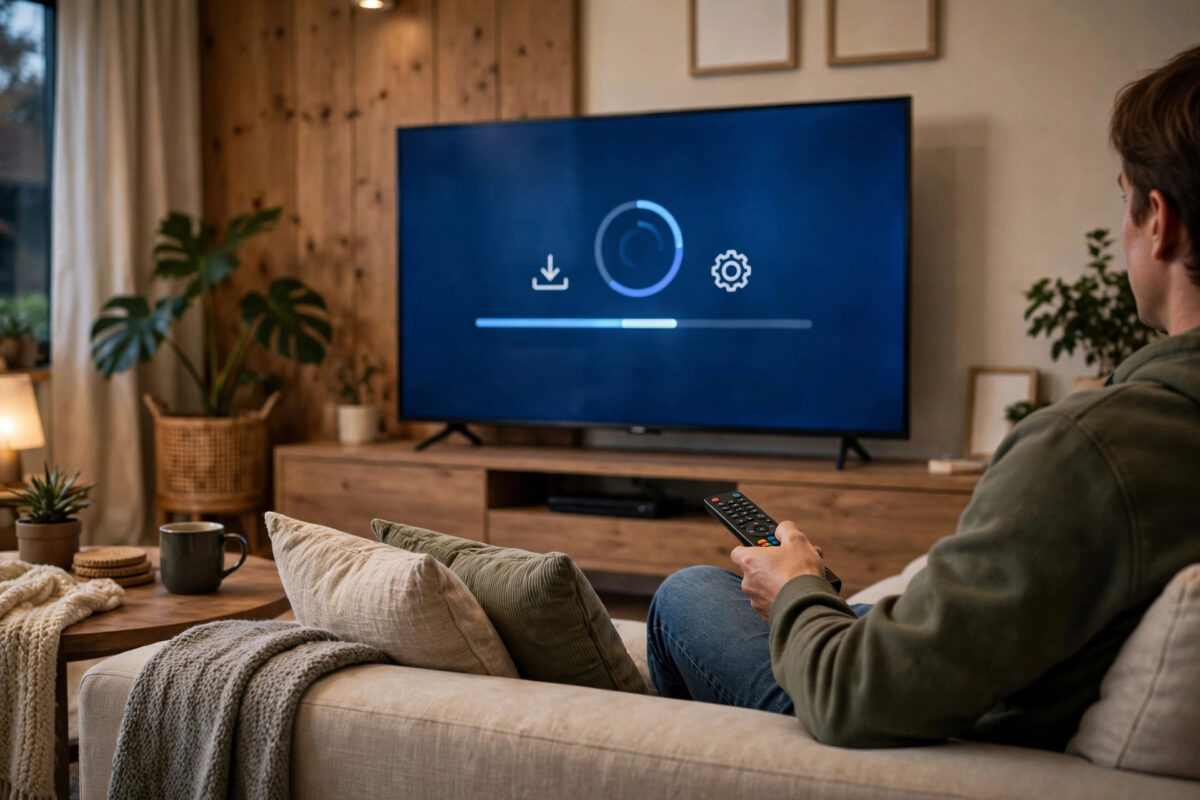
Updating your smart TV’s software is the single best piece of maintenance you can do. Updates fix bugs, patch security holes, improve streaming performance, and sometimes add entirely new features to a TV you have owned for years. Yet many people never check, because the menus differ across Samsung, LG, Sony, and the budget brands. This guide covers the exact update steps for every major platform, how to enable automatic updates properly, and what to do when an update will not install.
Quick Answer
On most TVs, open Settings > Support (or Device Preferences) > Software Update and choose “Update Now” while the TV is connected to the internet. Samsung: Settings > Support > Software Update. LG: Settings > All Settings > Support > Software Update. Google TV/Android TV: Settings > System > About > System software update. The TV downloads the update, restarts, and installs it in about 5–15 minutes.
Why Updates Matter
- App compatibility: Netflix, Disney+, and others periodically drop support for old TV software versions. An out-of-date TV is the top reason an app suddenly disappears or refuses to open.
- Security: Smart TVs are internet-connected computers; updates patch vulnerabilities that have been publicly documented.
- Performance: Manufacturers optimise memory use and fix memory leaks in updates — a TV that has grown sluggish often feels new again. If your apps stutter, an update belongs on the checklist alongside the network fixes in our streaming stutter troubleshooting guide.
- Features and formats: Updates have historically added AirPlay, new HDR formats, voice assistants, and gaming features like ALLM to existing models.
Update Steps by Brand
Samsung (Tizen)
- Press Home on the remote, then go to Settings > Support > Software Update.
- Select Update Now. The TV checks online and shows the available version.
- Choose Update and let the TV restart itself — do not switch it off during installation.
- In the same menu, turn on Auto Update so future versions install overnight while the TV is in standby.
LG (webOS)
- Press the Settings (gear) button and choose All Settings.
- Go to Support > Software Update.
- Select Check for Updates. If one is available, choose Download and Install.
- Enable “Allow Automatic Updates” on the same screen so the TV stays current by itself.
Google TV and Android TV (Sony, TCL, Hisense, Philips, and others)
- From the home screen, open Settings (gear icon, top right).
- Go to System > About > System update (on older Android TV models: Device Preferences > About > System software update).
- Select Check for update / Download. The TV typically downloads in the background and offers to restart to install.
- Under the same About section, confirm “Automatic system updates” is on if the option is shown.
Amazon Fire TV (Fire TV Edition televisions)
- Go to Settings > My Fire TV > About.
- Select Check for Updates, then Install Update if one is found.
- The TV restarts to apply it. Fire TVs update automatically in standby by default, so this is mainly a way to force a check sooner.
Roku TV
- Go to Settings > System > Software update > Check now.
- Roku TVs check daily in standby anyway; this menu is for impatient manual checks.
Do Not Forget the Apps Themselves
The TV’s system update and its app updates are separate things, and both matter. An updated TV can still run a two-year-old Netflix app that buffers and crashes. Open the TV’s app store (Google Play Store on Google TV, Apps on Samsung, LG Content Store) and check for pending app updates, or turn on “auto-update apps” so you never think about it again. While you are there, check your current software version against the support site: Settings > Support > About this TV (Samsung) or Settings > System > About (Google TV) shows the installed version number, which tells you immediately whether the TV is behind and whether a USB update would jump you ahead of the staged rollout. Make a note of the version before and after any manual update so you can confirm it actually changed.
Updating by USB When the TV Will Not Go Online
If the TV’s network connection is broken, or an online update repeatedly fails, you can update from a USB stick:
- Find your exact model number (sticker on the back of the TV, or Settings > Support > About this TV).
- On a computer, go to the manufacturer’s support site — for example the Samsung UK support site — enter the model, and download the firmware file, checking it is newer than the version on your TV.
- Copy the file to a USB stick exactly as the site instructs (some brands want the file unzipped, some want a specific folder name).
- Plug the stick into the TV, open the software update menu, and choose the USB option if offered; many TVs detect the update automatically.
- Never unplug the TV or the stick during installation — interrupting a firmware write can brick the TV.
The same model-number page on the support site is where you download manuals, so it is worth bookmarking for your TV.
Troubleshooting Failed Updates
- “No update available” but apps say your software is too old: Updates roll out gradually by region and serial number; the USB method above usually has the newest file first. Also confirm the TV’s date and time are correct — a wrong clock breaks update checks.
- Download stalls or fails partway: Your Wi-Fi is dropping. Move the TV or router, restart both, or connect an Ethernet cable just for the update.
- Not enough storage: Delete unused apps (Settings > Apps) and clear caches, then retry. Some TVs need several hundred MB free.
- Update installed but the TV misbehaves: Do a full power reset (unplug for 60 seconds). If problems persist, a factory reset from the support menu is the last resort — note it erases apps and settings, so photograph your picture settings first.
- The TV is very old and receives no updates: That is normal after roughly five years. A cheap streaming stick (Fire TV Stick, Chromecast) on an HDMI port gives the TV a modern, updated brain while the panel keeps working — see our Chromecast setup guide for how painless that is.
Common Mistakes to Avoid
- Switching the TV off mid-update: The screen may go black for minutes during installation — that is normal. Leave it alone until the home screen returns.
- Installing firmware for a similar model number: One different letter can mean a different panel or region. Match the full model code, including suffixes.
- Turning automatic updates off because one update changed the home screen: The security and app-compatibility benefits are worth the occasional rearranged menu. Re-arranging your apps takes a minute.
- Updating five minutes before guests arrive: Updates occasionally take 20 minutes with restarts. Do them at a quiet time.
Conclusion
Check for an update today using your brand’s menu path above, and switch on automatic updates while you are there. It takes five minutes, it is the fix behind a surprising number of “my app stopped working” problems, and it keeps an internet-connected TV secure. If the TV has stopped receiving updates altogether, a streaming stick is the sensible next chapter rather than a new television.
Frequently Asked Questions
How often do smart TVs get software updates?
Major brands typically release updates every few months for current models, plus urgent fixes when needed. Support usually continues for around five years from the model’s launch, tapering off after that.
Will updating delete my apps or settings?
No. A normal software update keeps your apps, accounts, channels, and picture settings. Only a factory reset erases them, and the TV will never do that on its own during an update.
Why does my TV say the software is up to date when a newer version exists online?
Updates are released in stages by region and serial-number batches to limit server load and catch problems early. The manufacturer’s website (for USB updates) often has the file days or weeks before your TV is offered it automatically.
Should I update straight away or wait?
For most people, automatic updates with a few days’ delay is the sweet spot. If an update is reported to be buggy, brands pause it quickly. Security fixes, though, are worth installing promptly.
Can I downgrade if I dislike a new update?
Generally no — TV firmware cannot be rolled back by users. That is another reason to let automatic updates handle it in the background rather than chasing day-one releases manually.



[…] While you are in the TV’s settings, install any pending software update — remote and Bluetooth bugs are a frequent silent fix in updates, as covered in our smart TV software update guide. […]