
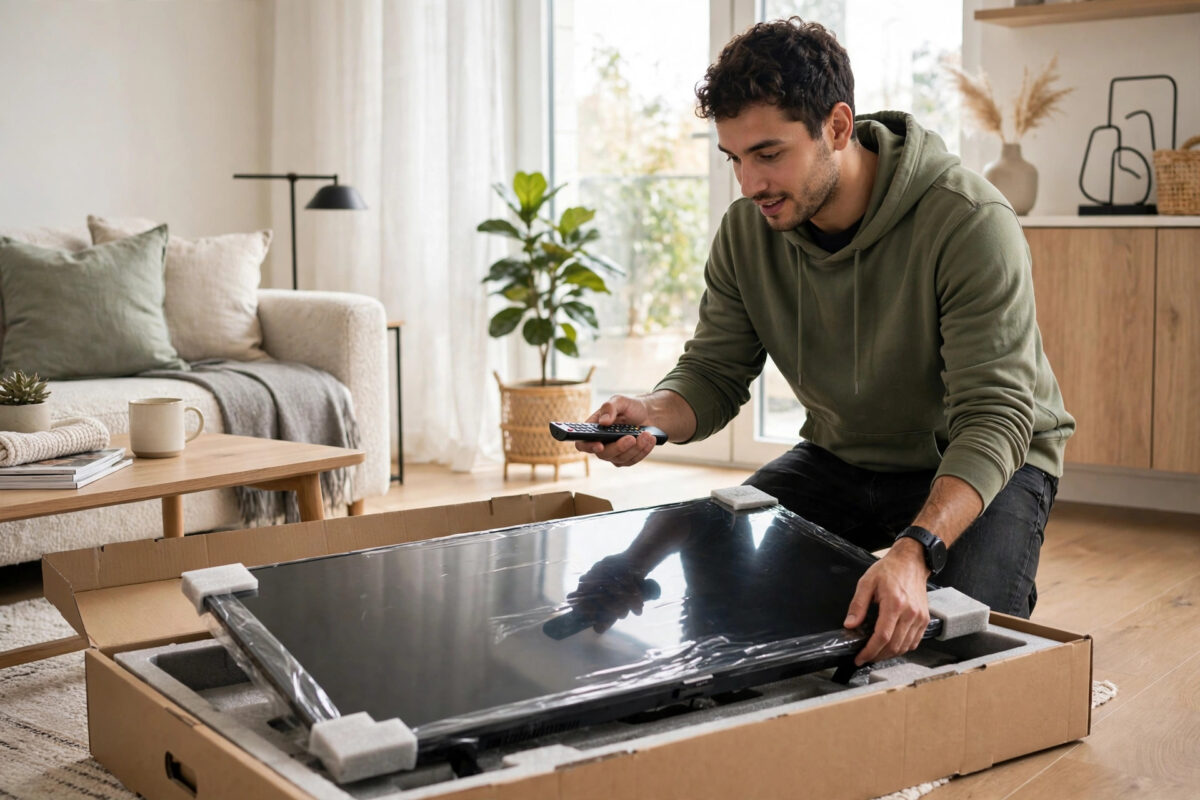
Unboxing a new smart TV is exciting, but the setup screens can feel overwhelming when all you want to do is sit down and watch something. The good news is that every modern smart TV — whether it runs Samsung Tizen, LG webOS, Google TV, Android TV, or Amazon Fire TV — follows roughly the same first-time setup flow. This guide walks you through each stage in the right order, from plugging in the cables to fine-tuning the picture, so you end up with a TV that is connected, updated, and ready to stream within about 20 minutes.
Quick Answer
Connect the TV to power and your aerial or cable box, switch it on, choose your language and country, connect it to your Wi-Fi network, sign in to (or create) the platform account for your TV brand, let it install the first software update, and then sign in to your streaming apps. Accept the essential privacy terms, skip the optional data-sharing ones if you prefer, and finish by running the built-in channel scan if you use an antenna.
Before You Switch It On
A little preparation saves a lot of frustration later. Do these checks first:
- Position the TV: Place it on a stable stand or wall mount, leaving a few centimetres of space behind it for ventilation. The main HDMI ports and the power socket are usually on the back left or right side.
- Find your Wi-Fi password: You will need it during setup. It is printed on a sticker on your router if you never changed it.
- Gather your accounts: Have your email address and passwords ready for Netflix, YouTube, Prime Video, or whichever services you use. You will also create or sign in to a Samsung, LG, Google, or Amazon account depending on the TV.
- Put batteries in the remote: Most remotes pair automatically over Bluetooth during setup, but some budget models work by infrared only, so point the remote at the TV for the first steps.
- Connect an aerial if you watch broadcast TV: Plug the coaxial cable into the ANT IN socket before you power on, so the channel scan finds everything in one pass.
Step-by-Step First-Time Setup
Step 1: Power On and Choose Language and Region
Plug the TV into the wall socket and press the power button on the remote. The first screen asks for your language and country. Choose correctly — the country setting controls which apps appear in the store and which broadcast standard the tuner uses, and changing it later sometimes requires a factory reset.
Step 2: Connect Your Other Devices
The setup wizard will ask what is plugged into each HDMI port. Connect your cable box, games console, or soundbar now. Use the HDMI ARC or eARC port (usually HDMI 3) for a soundbar or AV receiver, because that port sends audio from the TV back to the speaker system and lets one remote control the volume. For a games console, use any HDMI 2.1 port if your TV has one, as that unlocks 4K at 120Hz on supported models.
Step 3: Connect to Wi-Fi
- Select your home network from the list of available networks.
- Enter the password carefully — passwords are case-sensitive, and the on-screen keyboard is slow, so double-check each character using the show-password option if offered.
- If your router has both 2.4GHz and 5GHz bands, choose 5GHz for a TV that sits in the same room as the router, as it is faster. Choose 2.4GHz if the TV is several rooms away, because it travels through walls better.
If the TV will live close to the router, a wired Ethernet cable is even better: it removes buffering problems entirely and frees up Wi-Fi for your other devices. Most TVs still include an Ethernet port on the back.
Step 4: Sign In to the TV Platform Account
Each platform wants an account: Samsung account for Tizen, LG account for webOS, Google account for Google TV and Android TV, Amazon account for Fire TV. You can skip this on some models, but app downloads and voice assistants will not work properly without it. If the TV offers a phone-based sign-in (a code you type into a browser or scan with a QR code), use it — it is much faster than typing a password with the remote.
Step 5: Agree to Terms and Install the First Update
You must accept the basic terms and conditions to use the smart features. Optional agreements about viewing data and personalised advertising can be declined without losing anything important. After the terms, the TV will almost always find a software update — install it before doing anything else. First updates often fix bugs in the launch software and improve app performance. If your TV behaves oddly later, our guide on updating your smart TV software covers manual update checks for every major brand.
Step 6: Scan for Channels and Set Up Apps
If you connected an aerial, run the auto-tuning or channel scan and wait for it to finish — it normally takes three to five minutes. Then open the app store and install your streaming services. Most TVs let you arrange the home screen: press and hold on an app icon to move your most-used apps to the front of the row.
Settings Worth Changing Straight Away
Picture Mode
New TVs usually ship in a vivid or dynamic picture mode that looks impressive in a bright shop but harsh at home. Switch to Movie, Cinema, or Filmmaker Mode in Settings > Picture for accurate colours. Turn off motion smoothing (called TruMotion on LG, Auto Motion Plus on Samsung, Motionflow on Sony) if films look like soap operas.
Energy and Screen Saver Settings
Disable any eco sensor that dims the screen automatically if the picture seems too dark in the evening, and set a screen saver or pixel-shift option if your TV is an OLED model, as that helps protect against image retention.
Parental Controls
If children will use the TV, set a PIN and content ratings now rather than later. Our dedicated guide on setting up parental controls on a smart TV explains the menus for Samsung, LG, and Google TV step by step.
Common Mistakes to Avoid
- Skipping the first software update: Many “my new TV is slow” complaints are fixed by the day-one update.
- Using the wrong HDMI port for a soundbar: Only the ARC/eARC port passes TV audio back to the soundbar.
- Choosing the wrong country: This hides apps from the store and can break the TV guide.
- Accepting every data-sharing option: You can decline optional tracking and still use every feature.
- Throwing away the box immediately: Keep it for the return window in case of a faulty panel or dead pixels.
Conclusion
Setting up a smart TV for the first time is mostly a matter of working through the wizard in order: language and region, devices, Wi-Fi, account, update, channels, and apps. Spend two extra minutes switching the picture mode to Movie or Filmmaker and installing the first update, and your TV will look better and run more smoothly from day one. After that, everything else — extra apps, voice control, screen mirroring — can be added whenever you are ready.
Frequently Asked Questions
Do I need an account to use a smart TV?
You can watch broadcast channels and HDMI devices without one, but downloading apps, using voice assistants, and syncing preferences require signing in to the platform account for your TV brand.
Should I connect my TV by Wi-Fi or Ethernet?
Ethernet is more stable and is the better choice if the router is in the same room. Wi-Fi is fine for most streaming, including 4K, as long as the signal is strong; use the 5GHz band when the router is nearby.
How long does first-time setup take?
About 15 to 25 minutes including the first software update and a channel scan. Typing passwords with the remote is the slowest part, so use QR-code or phone sign-in when offered.
Why is my new TV picture too bright or unnatural?
It is almost certainly the showroom picture mode. Change Settings > Picture > Picture Mode to Movie, Cinema, or Filmmaker Mode and turn off the eco brightness sensor for normal home viewing. The overview of smart TV platforms on Wikipedia also explains how the main operating systems differ if you are comparing brands.
Can I skip the channel scan if I only stream?
Yes. If you never watch antenna or cable channels, skip auto-tuning. You can run it later from the broadcasting or channels section of the settings menu if you change your mind.



[…] you have only just wall-mounted or set the TV up, also confirm the basics in our smart TV first-time setup guide, particularly the input and picture-mode […]
[…] you are setting up a new TV, peel the protective film and clean once straight away; our first-time smart TV setup guide includes where the films hide (there is often one on the bezel […]
[…] control. If you are upgrading from TV speakers for the first time, our walkthrough on setting up a smart TV for the first time explains the HDMI ARC connection both options rely […]
[…] it is because many of them also appear when you first set the TV up — our walkthrough on setting up a smart TV for the first time flags the same settings worth changing on day […]