
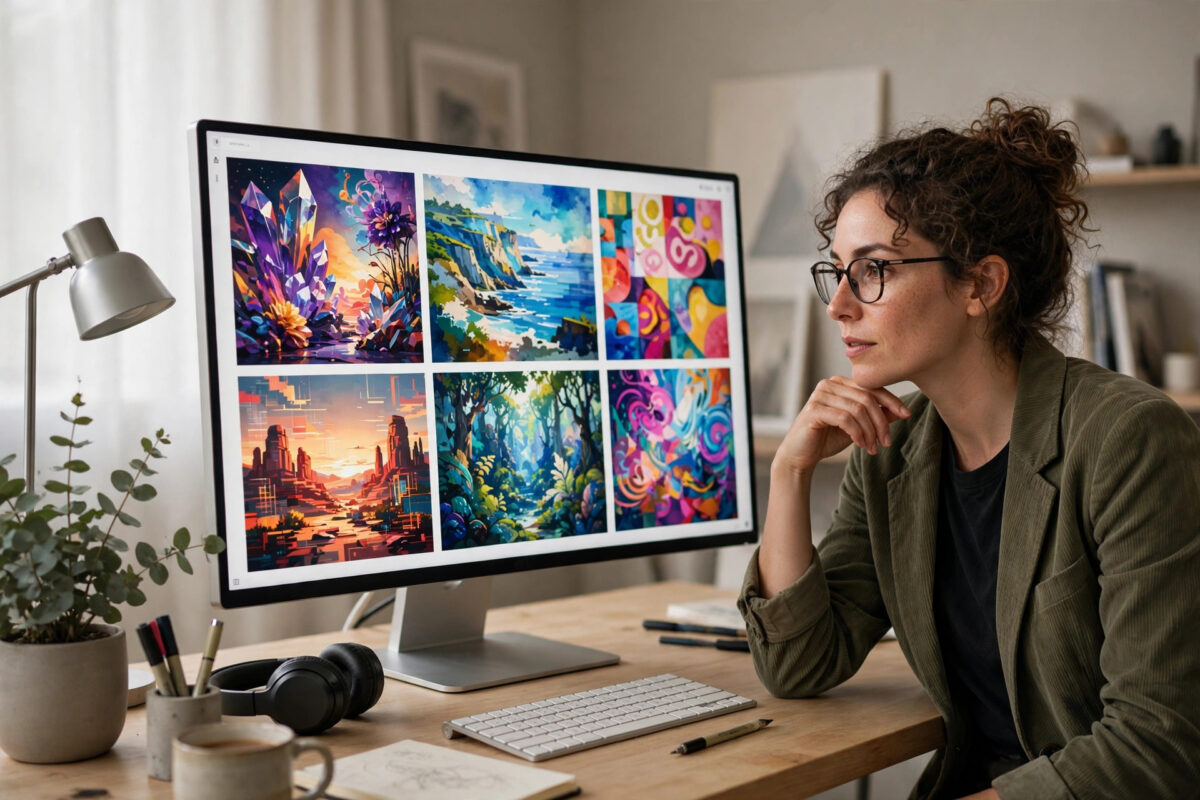
A few years ago, creating a custom image for a blog post, presentation, or social media campaign meant either paying for stock photography, hiring a designer, or spending hours learning complicated design software. AI image generators have changed that completely. Today you can describe almost any scene in plain words and watch a detailed, original image appear in less than a minute — and many of the best tools will do it for free.
The catch is that free tools vary a lot. Some give generous daily credits but add watermarks; others produce beautiful results but limit resolution. Knowing which tool fits your project, and how to write prompts that work, is the difference between a blurry generic picture and an image you are proud to publish.
This guide walks you through the whole process: choosing a free generator, writing effective prompts, refining the result, and using your images legally and responsibly.
Quick Answer
You can create images for free by signing up for a free-tier AI generator such as Microsoft Designer Image Creator, Leonardo AI, Ideogram, or Craiyon, typing a detailed text description of the image you want, choosing a style and aspect ratio, and generating several variations. Refine the best result with follow-up prompts or editing tools, then download it — checking the tool’s licence terms before using it commercially.
Step 1: Choose the Right Free AI Image Generator
Start by matching the tool to the job. There is no single best free generator; there is only the best one for what you are making today.
- For quick, no-fuss images: Browser-based tools powered by models such as DALL-E and Flux are excellent. Microsoft’s Image Creator, available through Bing and Designer, gives free generations linked to a Microsoft account, with boosts that refresh over time.
- For artistic and stylised work: Leonardo AI offers a free plan with a daily token allowance, strong style presets, and good control over composition — popular with game artists and illustrators.
- For images containing text: Most generators mangle words, but Ideogram is known for rendering short headlines, logos, and poster text far more reliably than rivals, and it has a usable free tier.
- For total beginners: Craiyon requires no account at all and is perfect for experimenting, though quality and speed are lower.
- For full control on your own computer: Stable Diffusion is open source and free to run locally if you have a capable graphics card, with no credits or watermarks at all.
Step 2: Create Your Account and Understand the Free Limits
Free rarely means unlimited. Before you invest time in a project, read the pricing page of your chosen tool and note three things: how many free generations you get per day or month, whether free images carry a watermark, and what resolution you can download. Paid tiers generally remove watermarks, raise resolution, speed up generation, and grant broader commercial rights — but you do not need them to learn or to produce good work.
- Sign up with your email or an existing Google or Microsoft account.
- Open the pricing or credits page and confirm exactly what the free plan includes.
- Check whether the free plan allows commercial use, and whether attribution is required.
- Note when your credits refresh, so you can plan larger projects across several days.
Step 3: Write a Prompt That Gets Results
The prompt is everything. A vague prompt like “a dog” produces a vague, stock-like image. A specific prompt gives the model the subject, setting, lighting, style, and mood it needs to make something distinctive.
The Anatomy of a Strong Prompt
- Subject: State exactly what the image shows — “a golden retriever puppy wearing a tiny red scarf.”
- Action and setting: Add what the subject is doing and where — “sitting in a snowy park at sunrise, breath visible in the cold air.”
- Style: Name the look you want — photorealistic, watercolour painting, flat vector illustration, cinematic film still, or 3D render.
- Lighting and mood: Words like “soft golden-hour light,” “moody shadows,” or “bright cheerful daylight” dramatically change the feel.
- Composition: Specify “close-up portrait,” “wide landscape shot,” or “viewed from above” to control framing.
- Details and quality cues: Terms such as “highly detailed,” “sharp focus,” and “natural skin texture” help with realism.
A complete example: “Photorealistic close-up of a barista pouring latte art in a small sunlit café, steam rising from the cup, warm morning light through large windows, shallow depth of field, cosy atmosphere.” Compare that with “coffee shop picture” and you will immediately see why prompt craft matters more than which free tool you picked.
Set Size, Ratio, and Negative Prompts
Before generating, choose the aspect ratio that fits your destination: square for many social posts, widescreen 16:9 for YouTube thumbnails and presentations, and vertical 9:16 for stories and reels. Some tools also offer negative prompts — things you do not want, such as “blurry, distorted hands, extra fingers, watermark, low quality.” Using negative prompts is one of the fastest ways to clean up common AI artefacts, especially hands, teeth, and background text.
Step 4: Generate, Compare, and Refine
- Generate your first batch, usually four variations at once.
- Pick the strongest composition, not just the prettiest image — you can fix colour and detail later, but a bad composition stays bad.
- Use the tool’s variation or remix feature to create versions of the winner with small changes.
- Adjust one prompt element at a time — change the lighting, then the setting — so you learn what each word does.
- Upscale or enhance the final choice if the free plan allows it, and download the highest resolution available.
Expect to generate ten or twenty images to get one excellent result. The skill is in selecting and refining, not in getting perfection on the first click.
Step 5: Fix Small Flaws With Editing Tools
Free generators increasingly include editing features. Inpainting lets you select a flawed area — a strange hand, a garbled sign — and regenerate only that part. Outpainting expands the canvas beyond the original edges, useful when you need a wider banner. Background removers and simple editors such as the free tiers of popular design platforms can then help you add the image to a layout, overlay your own real text, and export in the right format. Adding text yourself in an editor is always more reliable than asking the generator to spell it.
For more practical guides like this, explore the tutorials and technology explainers published on NetworkUstad’s technology guides and tutorials, where complex tools are broken down into simple steps.
Step 6: Use Your Images Legally and Ethically
Ownership rules differ by tool and by plan. Some free tiers grant you full commercial rights; others allow personal use only, or claim a licence to reuse your creations. Read the terms before using a free image on a product, advertisement, or client project. The U.S. Copyright Office guidance on AI-generated material explains why purely machine-generated images may receive limited copyright protection in some jurisdictions — another reason to add your own creative edits and keep records of your process.
Avoid generating images that imitate a living artist’s distinctive style for commercial work, depict real people in misleading situations, or reproduce trademarked characters and logos. When an image could be mistaken for a real photograph of a real event, label it as AI-generated. Platforms increasingly require this disclosure, and honesty protects your reputation.
Common Mistakes and Pro Tips
- Writing one-line prompts. Add subject, setting, style, lighting, and composition every time.
- Ignoring aspect ratio. Generating a square image for a widescreen banner guarantees awkward cropping.
- Accepting the first result. Generate in batches and refine; the best image is rarely in the first four.
- Asking AI to spell long text. Keep in-image text to a few words, or add text later in an editor.
- Forgetting the licence check. Free to generate does not always mean free to sell.
- Overusing the same style words. Vary your prompts or every image you publish will look identical.
Pro tip: Build a personal prompt library organised by use case — blog headers, product shots, portraits, backgrounds. Reusing proven structures saves credits and keeps your visual style consistent across projects.
Conclusion
Free AI image generators are genuinely powerful: with the right tool, a well-built prompt, and a few rounds of refinement, you can produce original visuals that would once have required a designer or a stock-photo budget. Start with one free tier, learn its limits, master prompt structure, and always check the licence before publishing. The technology will keep improving, but the core skill — describing clearly what you want to see — is yours to keep.
Frequently Asked Questions
Are free AI image generators really free?
Yes, within limits. Most offer a free tier with daily or monthly credits, sometimes with watermarks or lower resolution. Paid plans add volume, speed, and commercial rights, but the free tiers are enough for learning and many small projects.
Can I use free AI-generated images for commercial projects?
Sometimes. It depends on the tool and the plan — some free tiers allow commercial use, others restrict it. Always read the terms of service for the specific generator and plan you used before selling or advertising with an image.
Which free AI image generator is best for beginners?
Tools integrated into platforms you already use, such as Microsoft’s Image Creator, are the easiest starting point because they need no installation and accept plain-language prompts. Craiyon is even simpler, requiring no account at all.
Why do AI images often have strange hands and text?
Hands are anatomically complex and text requires exact letter sequences, both of which challenge image models trained on patterns rather than rules. Shorter prompts for text, negative prompts, inpainting fixes, and choosing text-friendly tools like Ideogram all help.
Do I own the copyright to images I generate?
It varies by country and by how much human creativity you contributed. Purely machine-generated output may not qualify for copyright protection in some jurisdictions, so check local guidance and the tool’s terms if ownership matters for your project.

Leave a Reply