
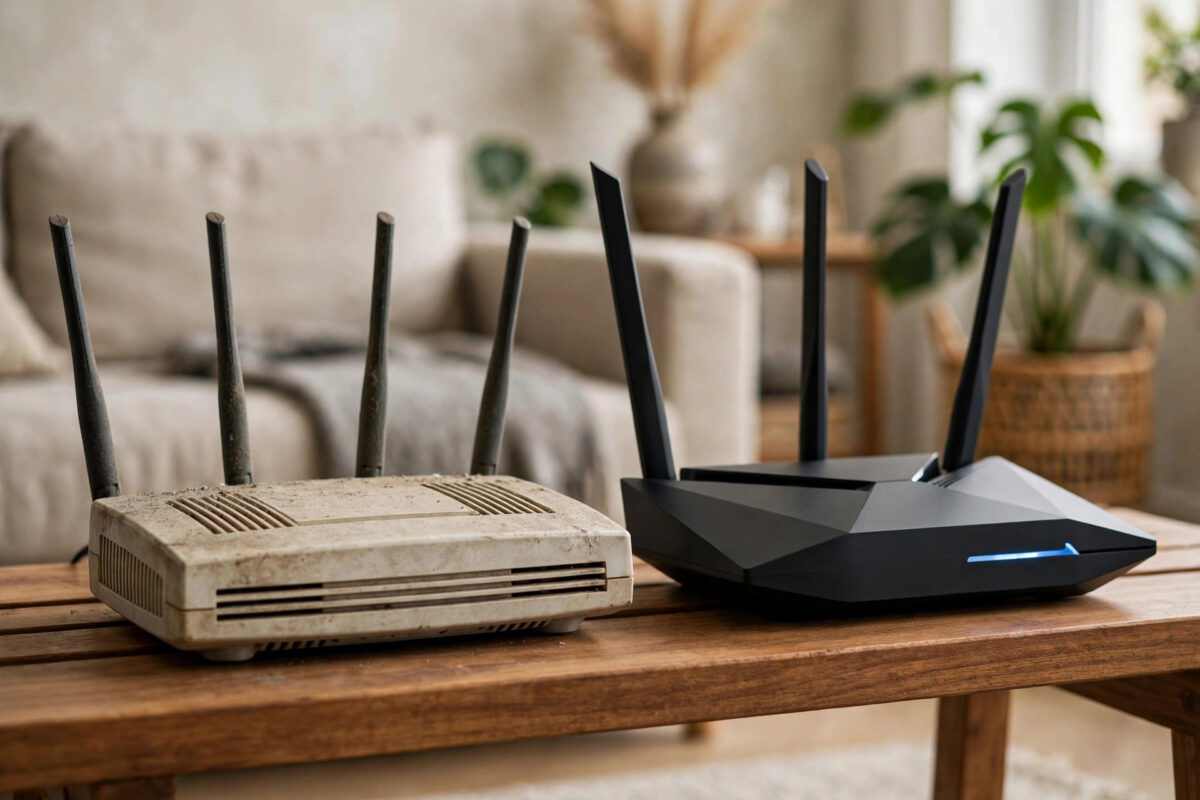
That router your provider sent you five years ago was never brilliant, but lately it feels worse: video calls stutter, the Wi-Fi drops in the back bedroom, and restarting it has become a weekly ritual. Before you blame your broadband line, consider that the box itself may be the bottleneck.
Routers age quietly. Standards move on, security patches stop, and the number of connected devices in a typical home has roughly tripled in a decade. A router designed for fifteen devices now juggles forty, from doorbells to TVs to heat pumps, and it shows.
This guide helps you confirm whether your ISP router is genuinely outdated, what to ask your provider for first, and when buying your own router is money well spent.
Quick Answer
If your ISP router is more than four to five years old, lacks Wi-Fi 6, or no longer receives firmware updates, contact your provider and request a free replacement — most will send a newer model if you are out of contract or renewing. If they refuse or their hardware is still weak, buy a modern third-party router and connect it to your ISP hub in modem or bridge mode.
Signs Your Router Really Is the Problem
Not every slow connection is a router fault, so diagnose before you spend. The pattern matters more than any single bad evening.
Age and Wi-Fi Standard
Check the model number on the base of your router and search for its launch date. If it only supports Wi-Fi 5 (802.11ac) — or worse, Wi-Fi 4 (802.11n) — it predates Wi-Fi 6 features like OFDMA that handle many devices efficiently. A household that bought smart plugs, cameras and voice assistants since 2020 will overwhelm an older design even if its headline speed looks fine.
Symptoms That Point to the Router
Warning signs include Wi-Fi dropping while a wired connection stays solid, speeds that are fast next to the router but collapse one room away on the 2.4GHz band only, the router running hot, and reboots temporarily fixing everything. Also check whether firmware updates have stopped — manufacturers publish end-of-life dates, and an unpatched router is a genuine security risk, not a minor inconvenience.
Run a wired speed test with a laptop plugged directly into the router. If you get close to your package speed wired but a fraction of it over Wi-Fi in the same room, the line is fine and the router’s radios or processor are struggling. The overview of Wi-Fi 6 technology on Wikipedia explains why newer standards cope so much better with crowded homes.
Step One: Ask Your ISP for a Free Replacement
Always start here, because the replacement is free and officially supported. Providers would rather ship you a £60 hub than lose a £35-a-month customer.
- Check your contract end date in your online account. Your leverage is highest in the last 30 days of a contract or after it has ended.
- Call retentions rather than technical support, and describe specific faults: dropouts, dead zones, and the router’s age. Faults trigger replacements more reliably than requests for an upgrade.
- Ask directly which model they currently ship to new customers on your package, and request that model by name.
- If the first agent refuses, note that you are considering leaving. Retention teams have authority to send hardware and credit accounts that front-line support does not.
- When the new hub arrives, keep the old one until the return window closes and confirm the new unit is stable before sending anything back.
Most major UK providers refresh their hubs every three to four years, so a customer on a five-year-old box is simply overdue. If your provider still will not help, that itself is useful information at renewal time — and our guide to testing your real broadband speed at home will help you document the problem with evidence rather than impressions.
Step Two: Buying Your Own Router
A third-party router costing £80 to £180 will outperform almost any bundled ISP hub on range, device handling and features. The key is understanding how it connects to your line.
Fibre to the Cabinet (FTTC) Connections
On older part-fibre connections, your ISP hub handles the modem function. The simplest setup is to switch the ISP hub to modem mode where supported, or disable its Wi-Fi and connect your new router’s WAN port to one of its LAN ports. With providers that do not offer modem mode, this double-NAT setup usually still works fine for everyday use, though purists can set the new router’s IP in the hub’s DMZ.
Full Fibre (FTTP) Connections
Full fibre is easier. Your wall-mounted ONT is the modem, and many providers let you plug a third-party router straight into it using PPPoE credentials published in their help pages. BT, Sky and others vary in how openly they support this, so check the provider’s community forums for your exact package before buying.
What to Look For When Buying
Prioritise Wi-Fi 6 or Wi-Fi 6E, a quad-core processor, and at least four Gigabit LAN ports. Mesh systems suit larger or awkwardly shaped homes better than a single powerful router. Ignore headline numbers like AX6000 as a buying guide — real-world performance depends on antenna design and firmware quality, where established brands with regular updates win every time.
Setting Up Your Replacement Router Properly
A new router installed carelessly performs like the old one. Take twenty minutes to do it right.
- Update the firmware before changing any settings, then enable automatic updates so security patches apply without you remembering.
- Keep your existing Wi-Fi name and password. Every device in the house reconnects automatically, saving an evening of re-pairing smart bulbs.
- Place the router centrally, raised, and away from thick walls, fish tanks and metal cabinets. Height helps more than any setting.
- Split or merge the 2.4GHz and 5GHz bands deliberately. Smart home gadgets often prefer a dedicated 2.4GHz network, while laptops and TVs belong on 5GHz or 6GHz.
- Change the admin password from the default and disable remote management unless you specifically need it.
- Re-run your wired and wireless speed tests and save the results. This baseline makes future troubleshooting ten times easier.
The Ofcom broadband speeds code of practice gives you a minimum guaranteed speed for your line, which is useful ammunition if a new router reveals the line itself — not the hardware — was the real problem all along.
Common Mistakes to Avoid
The classic mistake is buying an expensive router to fix a line fault. If your wired speed is half your package speed at the router, no router purchase fixes that — log a fault with your provider instead.
Another is throwing away the ISP hub. Many providers require their hub for diagnostics, TV services or digital voice phone lines, and support will refuse to help without it connected. Keep it in a cupboard.
Finally, avoid placing a new mesh system exactly where the old router failed. Nodes placed in the same dead zone inherit the same weak backhaul. Put nodes halfway between the main unit and the problem room, where they still receive a strong signal themselves.
Conclusion
An outdated ISP router is one of the cheapest broadband problems to fix, because the first solution — asking your provider for a current model — costs nothing. If that fails, a modern third-party router or mesh system is a one-off purchase that transforms Wi-Fi coverage and stability for every device you own.
Diagnose first with a wired test, exhaust the free option, then buy once and set up carefully. Your broadband package has probably been fine all along; it was the ageing box in the corner quietly letting it down.
Frequently Asked Questions
How long should an ISP router last?
Three to five years is a realistic service life. After that, Wi-Fi standards, security support and device counts move on even if the hardware still powers up. If yours is older than five years, a replacement is overdue.
Can I use my own router with any provider?
Usually yes, but the method varies. Full fibre connections are the easiest, often allowing a direct connection to the ONT. Some providers restrict certain services like digital voice to their own hub, so check before buying.
Will a new router increase my broadband speed?
It cannot exceed the speed your line delivers, but it can recover speed you are losing to weak Wi-Fi, old standards and an overloaded processor. Many homes see wireless speeds double after replacing a five-year-old hub.
Is Wi-Fi 7 worth paying extra for?
For most homes, Wi-Fi 6 or 6E offers the best value today. Wi-Fi 7 benefits homes with compatible new devices and Gigabit-plus packages, but the premium is hard to justify if your broadband is under 500 Mbps.
Should I return my old ISP router?
Most providers require it and may charge £50 or more for unreturned equipment. Wait until the replacement is proven stable, then use the prepaid returns label and keep the tracking receipt.



Leave a Reply