
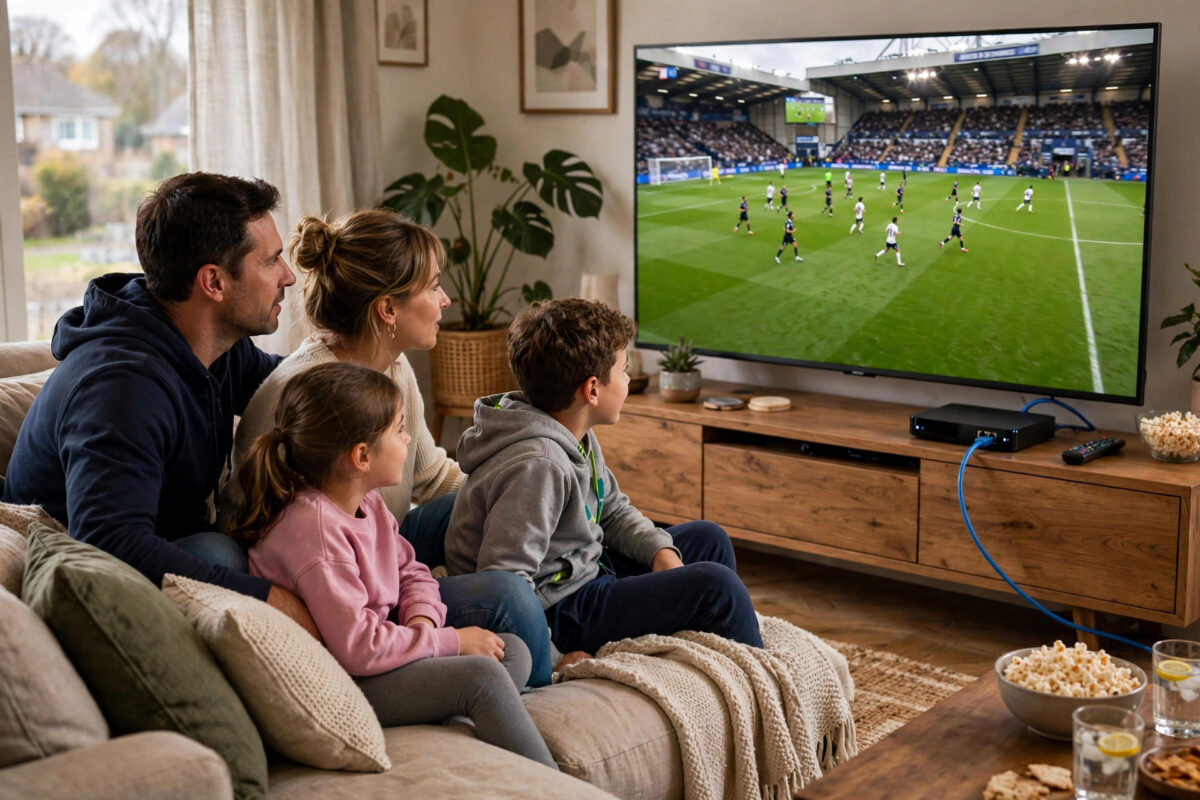
Few things ruin a big match like the picture freezing just as a striker pulls his foot back, or a stream slipping thirty seconds behind so you hear next door celebrate a goal you have not seen yet. Live sports buffering is especially painful because, unlike a film, you cannot simply pause and catch up. The moment is gone.
The encouraging part is that most sports buffering is not caused by your broadband provider being too slow. It is caused by a weak Wi-Fi signal to the TV, an overloaded network at kick-off time, a streaming app’s default settings, or a device that cannot keep up. Work through the fixes in this guide in order, and you can usually transform a stuttering stream into a smooth one before the next match starts.
Quick Answer
To reduce buffering on live sports streams, connect your TV or streaming device with an Ethernet cable if possible, ensure at least 25 Mbps of free bandwidth for a 4K stream or 10 to 15 Mbps for HD, close other heavy downloads during the match, and switch your device to the 5 GHz Wi-Fi band or move it closer to the router. Wiring the connection alone eliminates the majority of live streaming problems.
Know the Speeds Live Sport Actually Needs
Live sport is more demanding than films because fast motion needs more data to stay sharp, and broadcasters cannot pre-load as much of the picture in advance. As a practical guide, standard definition needs about 3 Mbps, HD at 720p needs 5 Mbps, full HD at 1080p needs 10 to 15 Mbps for smooth sport, and 4K needs 25 to 40 Mbps. These figures match the guidance in the Netflix recommendations for internet download speeds, and sports broadcasters sit at the top of each range because of the fast camera movement.
Those numbers are per stream, and they must be available at the moment of the match, not just on an empty Tuesday morning speed test. If your household broadband is 70 Mbps and two other people are streaming in 4K while a console downloads a 60 GB game update, your match does not have the headroom it needs, however fast your package looks on paper. Run a test with a trusted online speed test at Speedtest.net about an hour before kick-off, on the same device and in the same room as you will watch, to see your real usable speed.
The Fixes, in the Order You Should Try Them
Fix 1: Wire It With an Ethernet Cable
- Check the back of your TV or streaming box for an Ethernet port, which most modern sets and boxes include.
- Run a Cat5e or Cat6 cable from your router to the device; flat cables tuck neatly along skirting boards and under doors.
- If running a cable is impractical, use a pair of powerline adapters, which typically deliver 100 to 400 Mbps through your mains wiring.
- Open the network settings on the device, confirm it shows a wired connection, and disable Wi-Fi if the device allows it.
- Restart the streaming app and test with any live channel before match day arrives.
A wired connection removes Wi-Fi interference, distance, and contention from the equation in one step. In real homes it routinely halves latency, from around 20 to 40 ms on Wi-Fi to under 5 ms wired, and delivers your full line speed consistently, which is exactly what live video needs.
Fix 2: If You Must Use Wi-Fi, Optimise It
Use the 5 GHz band for the streaming device, as it offers far higher speeds and less interference than 2.4 GHz, provided the device is within roughly one room of the router. Keep the router in the open, elevated, and away from fish tanks, mirrors, and thick walls. If the TV sits in a weak spot, a mesh Wi-Fi node placed in the same room, with the TV wired into that node, gives you almost all the benefit of a full cable run. Our guide to improving your Wi-Fi signal throughout your home walks through placement and channel settings in more detail.
Fix 3: Clear the Network Before Kick-Off
- Pause game downloads, console updates, and cloud photo backups on every device in the house.
- Ask household members to drop their streams to HD rather than 4K during the match if your line is under 100 Mbps.
- Turn on Quality of Service, or device prioritisation, in your router settings and select your TV or streaming box as the priority device.
- Restart the router earlier in the day, not five minutes before kick-off, so it begins the match with a clean state.
- Close unused apps on the streaming device itself, as older smart TVs slow down noticeably with several apps open.
Fix 4: Adjust the App and Device Settings
Many apps let you trade a little picture quality for a lot of stability. If buffering persists, step down manually from 4K to 1080p or from 1080p to 720p rather than letting the app jump up and down automatically, because constant switching is what produces the most visible stutter. Turn off motion smoothing and other heavy picture processing on the TV, which frees processing power and can also fix lip-sync drift. Finally, keep the app and the TV firmware updated, as broadcasters regularly improve their live playback in updates.
Understanding Delay Versus Buffering
Buffering, where playback stops and a spinner appears, means data is not arriving fast enough. Delay, where the stream runs smoothly but sits 30 to 90 seconds behind the live action, is different: it is built into how internet streaming works and is shortened by a stronger connection and by broadcasters’ low-latency modes, but never fully removed. If delay bothers you because of social media spoilers, avoid your phone during key moments, and check whether your app offers a low-latency or live-edge setting in its playback options.
When the Problem Is the Broadcaster, Not You
Occasionally a major final overwhelms the streaming service itself, and no home fix will help. The giveaway is that other apps stream perfectly, your speed test is strong, and social media is full of identical complaints. In that case, switch to an alternative source if you have one, such as the broadcaster’s other app, a terrestrial aerial feed, or radio commentary, and wait for the service to recover.
Common Mistakes to Avoid
- Testing speed on your phone by the router: that measures your best-case Wi-Fi, not the TV’s connection across the house. Always test on the watching device itself.
- Paying for faster broadband to fix weak Wi-Fi: doubling your package does nothing if the TV only receives a fraction of the signal. Fix coverage or wire the device first.
- Leaving downloads running: a single game update can consume your entire line. Scheduling updates outside match hours solves more buffering than any setting.
- Using an ancient streaming stick: devices older than five years often struggle with modern 4K sports streams. A current streaming stick is a cheap, dramatic upgrade.
- Restarting the router at kick-off: routers take two to five minutes to reconnect fully. Restart earlier in the day if you suspect it needs one.
Conclusion
Smooth live sport comes down to headroom and stability, not headline speed. Give the stream a clear path by wiring the device or optimising its 5 GHz Wi-Fi, keep at least 25 Mbps free for 4K or 10 to 15 Mbps for HD, clear downloads and competing streams before kick-off, and set the app to a fixed quality your connection sustains easily. Do those things once, test before the big match, and the only drama you will see is on the pitch.
Frequently Asked Questions
How much speed do I need for live sports in 4K?
Allow 25 to 40 Mbps for the 4K sports stream itself, plus whatever the rest of the household is using. On a shared connection, a 100 Mbps package or faster keeps a 4K match smooth while others browse and stream in HD.
Why does my stream buffer only during big matches?
Big matches strain both ends of the connection: more people in your home and street are online at once, and the broadcaster’s servers face their highest demand. Wiring your device and clearing household downloads gives you the headroom to ride out both peaks.
Is an Ethernet cable really better than Wi-Fi for streaming?
Yes, decisively. Ethernet delivers consistent full speed with latency under 5 ms and no interference, while Wi-Fi speed can halve through one wall. For a fixed TV, a cable or powerline adapter is the single most effective anti-buffering upgrade.
Why is my stream behind the live score apps?
Internet streams are assembled and delivered in segments, which adds roughly 30 to 90 seconds of delay compared with live play. A faster, wired connection and any low-latency mode in the app reduce it, but streaming will always trail terrestrial broadcasts slightly.
Will a Wi-Fi booster stop my sports stream buffering?
Only if the root cause is weak signal, and a mesh node near the TV works far better than a cheap extender, which can halve your speed. Test the signal first, and consider wiring the TV into a mesh node for the best wireless result.

Leave a Reply