
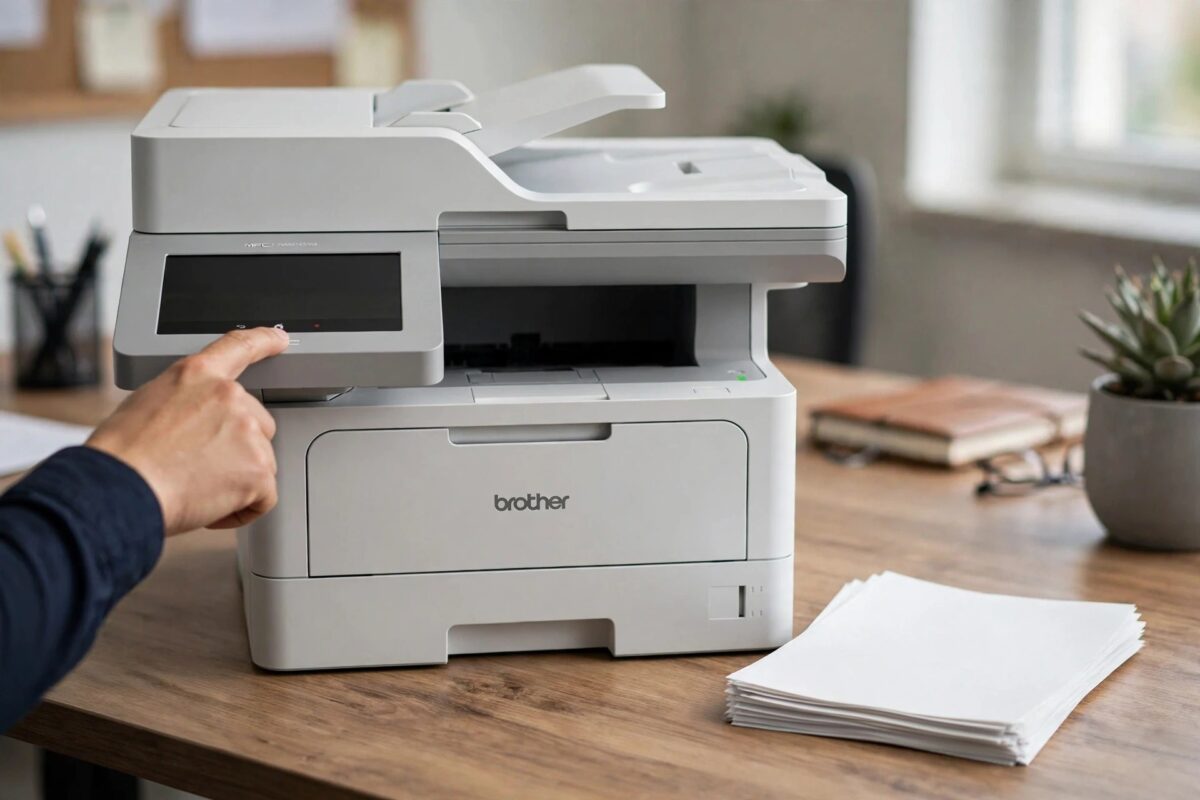
Many Brother MFC owners find their printer producing fax reports they never asked for — transmission reports after every fax, activity lists, and error pages that quietly use paper and toner. These pages usually appear because report settings are switched on by default, not because anything is wrong with the machine. The good news is that each report has its own setting, and you can turn them off in a few minutes.
This guide explains what each fax report is, where its setting lives in the Brother menu, and how to stop the ones you do not want while keeping the records you genuinely need. It also covers reports triggered by failed faxes and by other people sending faxes to your number.
Quick Answer
To stop a Brother printer from printing fax reports, open the fax settings on the machine and turn off the reports you do not need: set Transmission Verification Report to Off, set the Fax Journal or Activity Report interval to Off, and turn off other automatic print options such as caller ID reports. On most models this is under Settings, Fax, Report Settings. Reports for failed faxes can also be switched off in the same area, though keeping an error-only report is often wiser than printing nothing at all.
Know the Reports Before You Switch Them Off
Brother machines can print several different fax reports, and each has a separate control. Turning off the wrong one can leave you without a record you actually need, so it helps to know what each page is.
- Transmission Verification Report (TX Report): Prints after you send a fax, showing whether it reached the number. This is the most common unwanted report and is often set to On or On with an image of the first page.
- Fax Journal / Activity Report: A list of recent sent and received faxes, printed automatically at a set interval, such as every 50 faxes or every few hours or days.
- Error and failed fax reports: Printed when a sent fax does not go through, sometimes with part of the failed page.
- Caller ID and received fax reports: Lists of incoming numbers or received faxes on some models and regions.
- User settings and configuration lists: These print only when requested from the menu, so they are never the cause of surprise pages.
Before changing anything, pick up the last unwanted report and read its heading. The title on the page tells you exactly which setting to change, which saves a lot of guessing.
Turn Off the Transmission Verification Report
This report prints after every sent fax, so it is usually the biggest paper user.
- On the machine, press Settings, or Menu on models without a touchscreen.
- Go to Fax, then Report Settings, then Transmission Report. On some models the path is Setup, Fax, and then Report Setting.
- Choose Off. You may see options such as On, On with Image, Error Only, or Off, depending on the model.
- Press OK or Set to confirm, then Home or Stop/Exit to leave the menu.
- Send a one-page test fax to a number you control and confirm that no report prints.
Consider choosing Error Only instead of Off if your office needs proof when a fax fails but does not need a page for every successful send. You get the warning that matters without the daily pile of paper. The exact menu names for your model are shown in the Brother official manual for your MFC model, under the fax reports chapter.
Turn Off the Automatic Fax Journal
The journal prints on a schedule even when nobody asks for it, which is why reports sometimes appear overnight or first thing in the morning.
- Open Settings, then Fax, then Report Settings.
- Select Journal Period, Fax Journal, or Activity Report Setting, depending on your model.
- Change the interval to Off. Other choices are usually Every 50 Faxes, Every 6, 12, or 24 Hours, or Every 2 or 7 Days.
- Confirm with OK and exit the menu.
You can still print the journal manually whenever you need it from the Reports menu. Turning off the automatic interval does not delete the machine’s fax history; it only stops the scheduled printing.
Other Automatic Pages and How to Stop Them
Reports Caused by Other People’s Faxes
If pages appear after incoming faxes, check the received fax and caller ID report settings in the same Report Settings area and turn off automatic printing there. Also check whether the machine is set to print a banner or first page copy with each received fax on your model.
Failed Fax and Error Pages
Repeated error reports often mean faxes are failing repeatedly — for example a wrong number stored in a one-touch or group dial that the machine keeps retrying. Fix the number as well as the report setting, or the failures will continue silently after the reports stop. Advice on stored numbers sits alongside the guide to setting up speed dial and address book numbers on a Brother fax.
Reports from Software on Your Computer
If you send faxes from a computer using Brother PC-Fax software, check the software’s own sending options. Some versions ask to print or save a sending report from the computer side. Turn that option off in the PC-Fax settings if your unwanted pages come from the computer rather than the machine. Confirm which by sending one fax directly from the machine’s keypad and watching what prints.
For model-specific setting names, the Brother official fax support and settings help pages list the report options for each MFC series.
Keep the Records You Actually Need
Stopping paper reports does not have to mean losing your paper trail. Many offices need fax proof for orders, legal documents, or medical referrals.
- Use the Error Only option for transmission reports, so only failures print.
- Print the journal manually once a week or month and file it, instead of letting the machine print it on its own schedule.
- On models that support it, use fax forwarding or PC-Fax receiving to save incoming faxes as files instead of paper.
- Write down the date you changed the settings, so colleagues know why the familiar report pages stopped appearing.
Common Mistakes and Helpful Tips
- Changing one report and expecting all to stop: Transmission reports and the journal have separate settings. Read the heading on the unwanted page and change that specific report.
- Looking in printer settings instead of fax settings: On an MFC, report controls live under the Fax section of the menu, not with normal printing options.
- Turning everything off in a regulated office: Some workplaces must keep transmission proof. Use Error Only or a manual weekly journal rather than removing all records.
- Ignoring repeated failure reports: They are a symptom of a bad number or line problem. Fix the cause, not just the printing.
- Tip: Menu layouts vary slightly by model and region. If a named option is missing, search the on-screen menu for the word “Report” and work through each item there.
- Tip: After changing settings, send one successful test fax and wait through one old journal interval if practical, to confirm both report types have stopped.
Conclusion
Unwanted Brother fax reports come from default settings, not faults. Read the heading on the page you do not want, then turn off that report in Fax, Report Settings — the transmission report for after-send pages, and the journal interval for scheduled lists. Choose Error Only if you still need failure warnings, and print the journal manually when you need a record. A few minutes in the menu ends the steady waste of paper and toner for good.
Frequently Asked Questions
Why does my Brother printer print a report after every fax I send?
Because the Transmission Verification Report is set to On. Change it to Off, or to Error Only if you still want a warning when a fax fails, under Fax and Report Settings.
Will turning off reports delete my fax history?
No. The machine still keeps its activity log in memory. You can print the journal manually from the Reports menu at any time; only the automatic printing stops.
Why do report pages appear overnight when nobody is faxing?
That is the automatic Fax Journal printing on its set interval, such as every 24 hours. Set the journal period to Off in Report Settings to stop scheduled printing.
I turned reports off but error pages still print. Why?
Failed fax notifications may be a separate option, or your setting may be Error Only, which prints exactly when a fax fails. Check for repeated failures to the same number and fix that number or line issue.
Can I get fax confirmations without printing them?
On many models you can view transmission results on the screen or in the fax journal through the menu, and PC-Fax software can save records on your computer. Check your model’s manual for its on-screen report viewing options.


Leave a Reply