
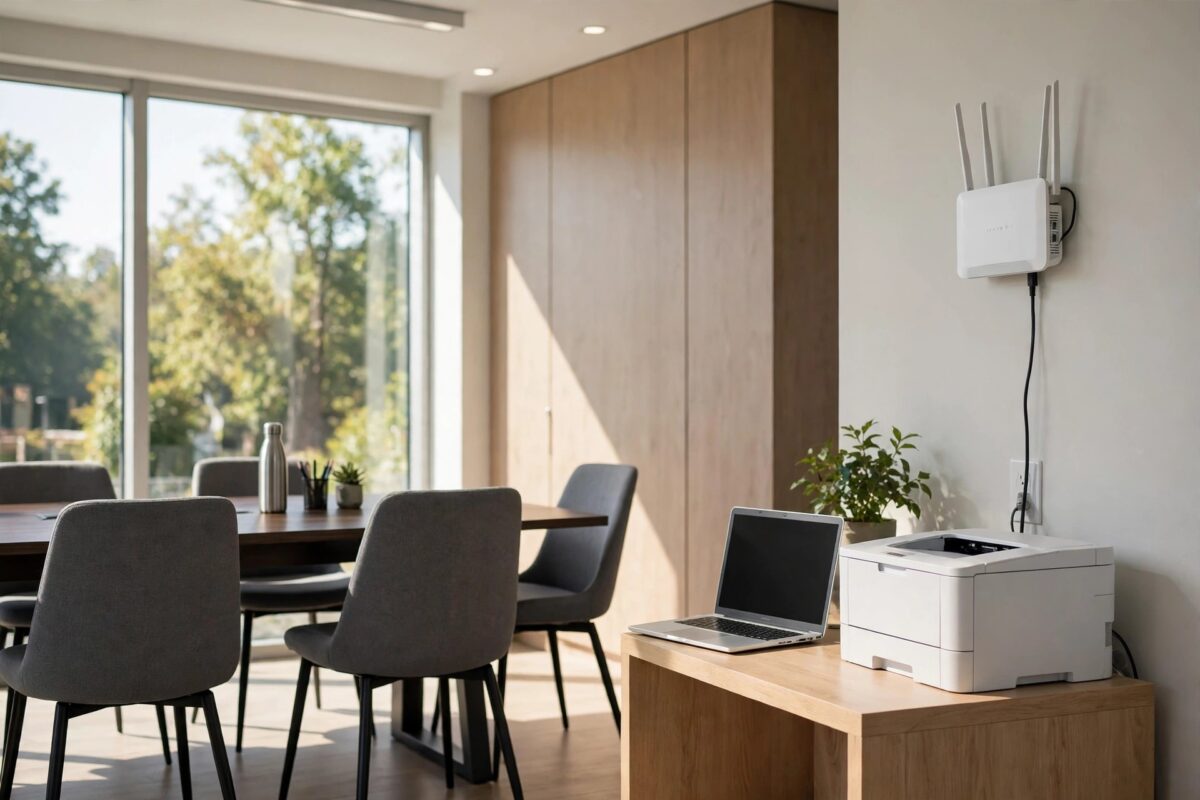
Visitors, contractors, and clients often need to print in an office, but giving them the main company Wi-Fi password creates a security risk. A guest Wi-Fi network solves that problem by keeping visitors on a separate network. The challenge is that a Brother printer joined to the guest network must be set up carefully, or staff and guests will not be able to find it when they need it.
This guide explains how guest networks work, what to check before you start, and the exact setup steps for placing a Brother printer on office guest Wi-Fi. It also covers the common reason guest printing fails — client isolation — and how to plan around it honestly rather than fighting the network.
Quick Answer
To set up a Brother printer on office guest Wi-Fi, connect the printer to the guest network name (SSID) using the printer’s Network and WLAN setup wizard, enter the guest password, and print a Network Configuration report to confirm the connection and IP address. Guests must be on that same guest network to discover the printer, and if the guest network has client isolation turned on, devices cannot see each other, so ask IT to create a printing exception or place a dedicated printer on the guest network. Test printing from a guest laptop and phone before visitors arrive.
Understand Guest Wi-Fi Before You Start
A guest network is a separate Wi-Fi name broadcast by the same router or access points as your main network. It gives internet access while blocking access to office computers, servers, and file shares. That separation is the whole point, and it also affects printing.
Most printers are found automatically by computers using network discovery. Discovery only works between devices on the same network. A printer on the guest network will not appear for staff on the main office network, and a printer on the main network will not appear for guests. Decide in advance who this printer is for.
Two Sensible Office Layouts
- A dedicated guest printer: One Brother printer lives on the guest network only, for visitors and meeting rooms. Staff keep using their normal printers. This is the cleanest and safest layout.
- A shared printer with IT help: IT creates a specific rule that lets the guest network reach one printer on the main network, and nothing else. This needs router or firewall changes that only the network administrator should make.
Trying to move one printer back and forth between networks each time a visitor arrives causes confusion and lost settings. Pick one layout and label the printer clearly.
What to Check Before Setup
- Guest network name and password: Get the exact spelling, including capitals. Guest passwords often rotate, so confirm the current one with the office manager or IT.
- Client isolation setting: Ask IT whether the guest network isolates devices from each other. If it does, normal discovery will not work and you need the exception described below.
- Band support: Many Brother printers connect only to 2.4 GHz Wi-Fi. If the guest network is 5 GHz only, the printer cannot join it. Ask IT to enable a 2.4 GHz guest band.
- Captive portal: Some guest networks show a sign-in or terms page in a browser. Printers cannot complete those pages. IT must whitelist the printer by its MAC address, or guest Wi-Fi printing will never connect.
- Signal strength: Check that the printer’s location gets a strong guest signal, not just a strong main network signal. They can differ.
The printer’s MAC address is printed on the Network Configuration report and usually on a label on the back of the machine. Give that address to IT if they ask for it for whitelisting or a reserved IP address.
Step-by-Step: Join the Printer to Guest Wi-Fi
- Place the printer in its final position and turn it on. Moving it after setup can change signal quality.
- On the printer screen, open Settings, then Network, then WLAN, then Setup Wizard. On models without a touchscreen, use the Menu, Network, and WLAN options with the arrow keys.
- The printer searches for networks. Select the guest network name from the list. If it does not appear, wait a minute and search again, and confirm the guest network is broadcasting its name.
- Enter the guest password carefully. Wi-Fi passwords are case-sensitive, and the on-screen keyboard makes mistakes easy. Take your time with special characters.
- Wait for the “Connected” message. If it fails, the most common causes are a wrong password, a 5 GHz-only network, or a captive portal blocking the printer.
- Print a Network Configuration or WLAN report from the Network menu. Confirm the SSID shown is the guest network, the connection is active, and note the IP address.
- Label the printer with a small sign, for example “Guest Printer — connect to Office-Guest Wi-Fi”, so visitors know which network to join.
Brother’s model-specific wireless instructions are available through the Brother official wireless setup and support guides, which are worth opening alongside these steps if your model’s menu names differ slightly.
Install the Printer on Guest Computers
Each guest device must be connected to the same guest Wi-Fi before it can print.
Windows and Mac Laptops
- Join the guest Wi-Fi network.
- Add the printer through the normal printer settings. It should appear automatically if discovery is allowed.
- If it does not appear, add it manually using the IP address from the Network Configuration report.
- Install the full driver from the Brother official driver download page for your printer model if basic printing works but scanning does not, because scanning needs the full software package.
- Print a test page and check it comes out on the correct machine, especially in offices with several printers.
Phones and Tablets
Most Brother Wi-Fi models support AirPrint for Apple devices and Mopria or the Brother print service for Android. The phone must be on the guest network, not on mobile data or the main office Wi-Fi. If the printer does not appear in the print menu, client isolation is the likely cause.
Reception staff benefit from a short printed instruction card near the printer. For help writing one, the office guide to printing from a phone to a Brother printer covers the exact taps for both iPhone and Android.
When Client Isolation Blocks Printing
Client isolation, sometimes called AP isolation or guest isolation, stops devices on the guest network from seeing each other. It is a good security feature, but it also hides the printer from every guest laptop.
There are three honest options. First, IT can add an exception that lets guest devices reach only the printer’s IP address. Second, the office can place the printer on the guest network and turn off isolation for that network only, accepting a small trade-off. Third, guests can send files to reception, who print from the main network. Turning off all guest security just to make printing easy is not recommended.
Also remember that a rotating guest password will break the printer’s connection each time it changes. Ask IT for a stable password for the printer, a separate hidden setup, or a reserved arrangement that survives password rotations.
Common Mistakes and Helpful Tips
- Joining the printer to the main network by mistake: Always confirm the SSID on the printed network report, not just the “Connected” message.
- Forgetting the captive portal: If the guest network needs a browser sign-in, the printer cannot join until IT whitelists its MAC address.
- No test from a real guest device: Testing from a staff laptop on the main network proves nothing. Test from the guest network itself.
- Sharing the main password “just this once”: This defeats the guest network entirely. Fix the guest printing setup instead.
- Tip: Ask IT to reserve a fixed IP address for the printer. Manual connections keep working even when automatic discovery is limited.
- Tip: Put the guest network name, printer name, and a one-line printing instruction on the meeting room table card.
Conclusion
Setting up a Brother printer on office guest Wi-Fi is straightforward once the network basics are right: the printer joins the guest SSID, guests join the same network, and IT handles captive portal whitelisting and any client isolation exception. Decide whether the printer is guest-only or shared, confirm the connection with a printed network report, and test from a genuine guest device. Done properly, visitors can print without ever touching your main office network or its password.
Frequently Asked Questions
Why can guests not see the printer on the guest network?
The most likely reason is client isolation, which stops guest devices from seeing each other. Ask IT to allow access to the printer’s IP address, or use a layout where reception prints files for guests.
Can staff print to a printer that is on the guest network?
Not normally. Discovery and printing stay inside one network. Staff would need to join the guest Wi-Fi, or IT would need to create a specific rule between the networks.
The printer will not connect to guest Wi-Fi at all. What should I check?
Check the password first, then confirm the guest network offers a 2.4 GHz band, and ask whether a captive portal sign-in page is blocking the printer. Those three causes explain most failed connections.
What happens when the guest Wi-Fi password changes?
The printer loses its connection and must be rejoined with the new password. Ask IT for a stable arrangement for the printer so routine guest password changes do not break printing every time.
Is it safe to let guests print to an office printer?
Yes, when the printer sits on the guest network or behind a specific IT rule, and guests have no route to office computers or files. Collect printed pages promptly, since the risk with guest printing is usually paper left in the tray, not the network.
Leave a Reply