
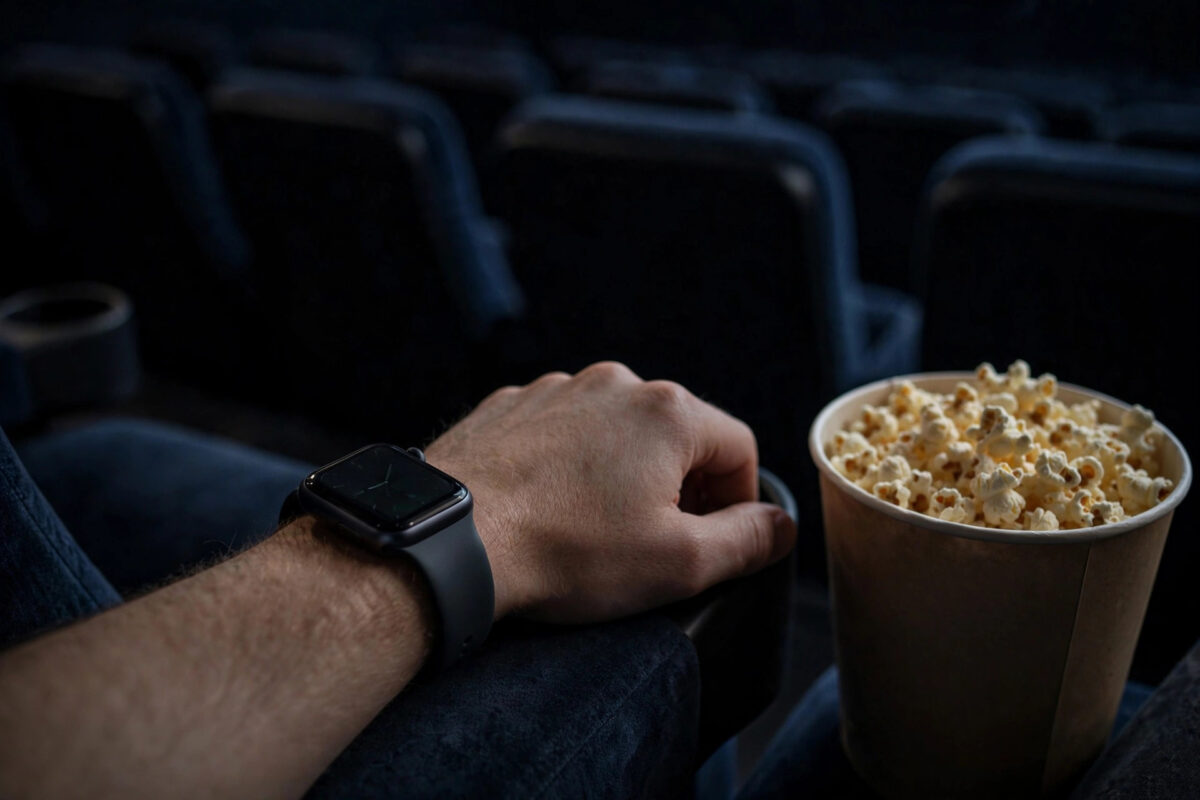
Few things feel more awkward in a cinema than your wrist suddenly glowing in the dark. You lower your arm for a sip of a drink, turn to whisper to a friend, or reach for popcorn, and your Apple Watch lights up the row. In a theater, a concert hall, or even your own bedroom at night, that bright screen is distracting for everyone.
The good news is that Apple built a mode for exactly this situation, and it works in seconds once you know where it is. This guide explains how to stop your Apple Watch screen lighting up in a dark theater, how to set it up before the film starts, and how to stop accidental wake-ups at night as well.
Quick Answer
Turn on Theater Mode before the film starts: swipe up to open Control Centre on your Apple Watch and tap the theatre masks icon so it turns orange. Theater Mode silences your watch and keeps the screen dark until you tap it, press a button, or turn the Digital Crown on purpose. For extra safety, also lower brightness, turn off Raise to Wake animations by relying on Theater Mode, and enable a Sleep Focus at night.
What Theater Mode Actually Does
Theater Mode, called Cinema Mode in some regions, was designed for dark venues where a glowing, chiming wrist would spoil the show for everyone.
Screen Stays Dark Until You Act
With Theater Mode on, raising your wrist does not light up the screen. The watch face stays dark until you deliberately tap the display, press the side button, or press or rotate the Digital Crown. On newer models with an Always On display, Theater Mode also dims and effectively hides that always-on face, so there is no constant glow either.
Sound Is Silenced at the Same Time
Theater Mode also turns on Silent Mode. Notifications still arrive quietly in the background, but there are no alert sounds and no chimes in the middle of a quiet scene. Your alarms and important timers still follow their own rules, so check any alarm you set before the film if you truly need total silence. Walkie-Talkie availability is also paused while the mode is on, which prevents a friend’s voice from suddenly playing in the cinema.
How to Turn On Theater Mode Step by Step
- Before you sit down, wake your watch and swipe up from the bottom of the watch face to open Control Centre. On newer watchOS versions, press the side button once to open Control Centre instead.
- Find the icon that looks like two theatre masks, one happy and one sad.
- Tap the masks icon. When it fills in and turns orange or highlighted, Theater Mode is on.
- Check the top of your watch face for the small masks icon, which confirms the mode is active.
- To turn it off after the film, open Control Centre again and tap the masks icon so it is no longer highlighted.
Apple describes this control in Apple’s guide to using Theater Mode on Apple Watch. It takes less than five seconds once you have done it twice, so make it part of your routine alongside silencing your iPhone.
Waking the Screen While Theater Mode Is On
If you do need to check the time during the film, tap the screen once or press the Digital Crown. On many models, slowly turning the Digital Crown gradually brightens the screen and then dims it again when you stop, which is far less distracting than a full-brightness wake. Keep the watch under your sleeve for that quick check if you can.
Extra Settings for Dark Places and Night-Time
Theater Mode solves the cinema problem, but a few related settings help if your watch also lights up in bed, at a play, or during an evening presentation.
Use Sleep Focus for the Night
If the problem is your watch glowing while you sleep or waking your partner, Theater Mode every night is the wrong tool. Instead, set up Sleep Focus on your iPhone, which can dim the watch, simplify the face, and silence notifications on a schedule. Guidance in Apple’s instructions for setting up Sleep Focus and tracking sleep with Apple Watch shows how to link the schedule to your watch. For a one-off evening event that is not a cinema, such as a dinner, you can also use Do Not Disturb from Control Centre, though that alone will not stop Raise to Wake from lighting the screen.
Lower Brightness and Manage Always On
- On your watch, go to Settings, Display and Brightness, and set brightness to the lowest comfortable level before an evening event.
- If your model has Always On, you can turn it off in Settings, Display and Brightness, Always On, for a fully dark wrist even without Theater Mode.
- Choose a darker, simpler watch face for the evening. A bright photo face at full brightness is far more noticeable than a plain dark face.
- Review notification settings for noisy apps. Fewer alerts means fewer reasons for the watch to tap you in the dark, even in silent modes.
These tweaks pair well with habits covered in other troubleshooting, such as fixing an Apple Watch Digital Crown that is not scrolling smoothly, because a clean, responsive crown makes the gentle dim-wake in Theater Mode work properly.
Do Not Confuse Theater Mode With Other Modes
Control Centre has several similar icons, and tapping the wrong one leaves the screen problem unsolved.
- Silent Mode (bell icon): Stops sounds but the screen still lights up when you raise your wrist.
- Do Not Disturb / Focus (moon icon): Reduces notifications but does not by itself stop Raise to Wake.
- Airplane Mode: Cuts connections, which is unnecessary for a film and still does not control the display in the same way.
- Water Lock: Locks the screen against water taps during swimming; it is not designed for cinemas and will eject water with a sound when you unlock it.
Theater Mode is the only single tap that combines silence with a dark screen. If you remember just one icon, remember the masks.
What to Do If the Screen Still Lights Up
If you turned on Theater Mode and your watch still glows, work through these checks before the next screening.
- Confirm the masks icon is still shown at the top of the face. A restart or a mode change can turn Theater Mode off.
- Check that you did not tap the screen or press a button by accident with a sleeve, seat arm, or bag strap.
- Restart the watch if Control Centre behaves oddly, then test Theater Mode at home in a dark room.
- Update watchOS, because Control Centre layout and behaviour have changed between versions, and an old version may need a side-button press rather than a swipe.
- Check Accessibility settings for anything that forces the display on, and review whether a workout is running, as an active workout keeps the screen more responsive.
Common Mistakes to Avoid
- Only silencing your iPhone: Your watch has its own sounds and display. Silence and darken the watch itself.
- Using Silent Mode and expecting a dark screen: Silent Mode does nothing about Raise to Wake. You need Theater Mode for the display.
- Turning it on after the film starts: The setup taps themselves light up the screen. Switch it on in the lobby.
- Forgetting to turn it off: After the film, you may miss audible alerts and Walkie-Talkie calls until you disable Theater Mode.
- Leaving Always On at full brightness for bed: Use Sleep Focus overnight rather than relying on willpower or a covered wrist.
Conclusion
A glowing watch in a dark theater is easy to prevent. Swipe or press into Control Centre, tap the theatre masks, and your Apple Watch will stay silent and dark until you deliberately wake it. Add lower brightness, a simple dark face, and Sleep Focus for night-time, and you will never light up a row of seats again. It takes seconds, and everyone around you will be glad you did it.
Frequently Asked Questions
Does Theater Mode stop notifications from arriving?
No. Notifications still arrive silently and wait in Notification Centre for you to check later. Theater Mode stops the sounds and the screen lighting up, rather than blocking the messages themselves.
Will my alarm still sound in Theater Mode?
Alarms can still play depending on your settings, because they are treated differently from normal app alerts. If you need complete silence for a performance, check and disable any watch alarm set for that time before you go in.
How do I check the time without lighting up the whole row?
Tap gently or slowly turn the Digital Crown, which brightens the display gradually on supported models. Shield the watch with your other hand or keep it under your sleeve for that brief glance.
Is Theater Mode the same as Sleep Mode?
No. Theater Mode is a manual, short-term mode for shows and films. Sleep Focus is a scheduled night-time mode that also tracks sleep, simplifies the face, and follows your bedtime routine.
Why can I not find Theater Mode in Control Centre?
Your watchOS version may open Control Centre with the side button rather than a swipe, and the layout can be customised. Press the side button, scroll through the controls, and look for the two masks icon. Updating watchOS restores the standard layout if controls are missing.


Leave a Reply