
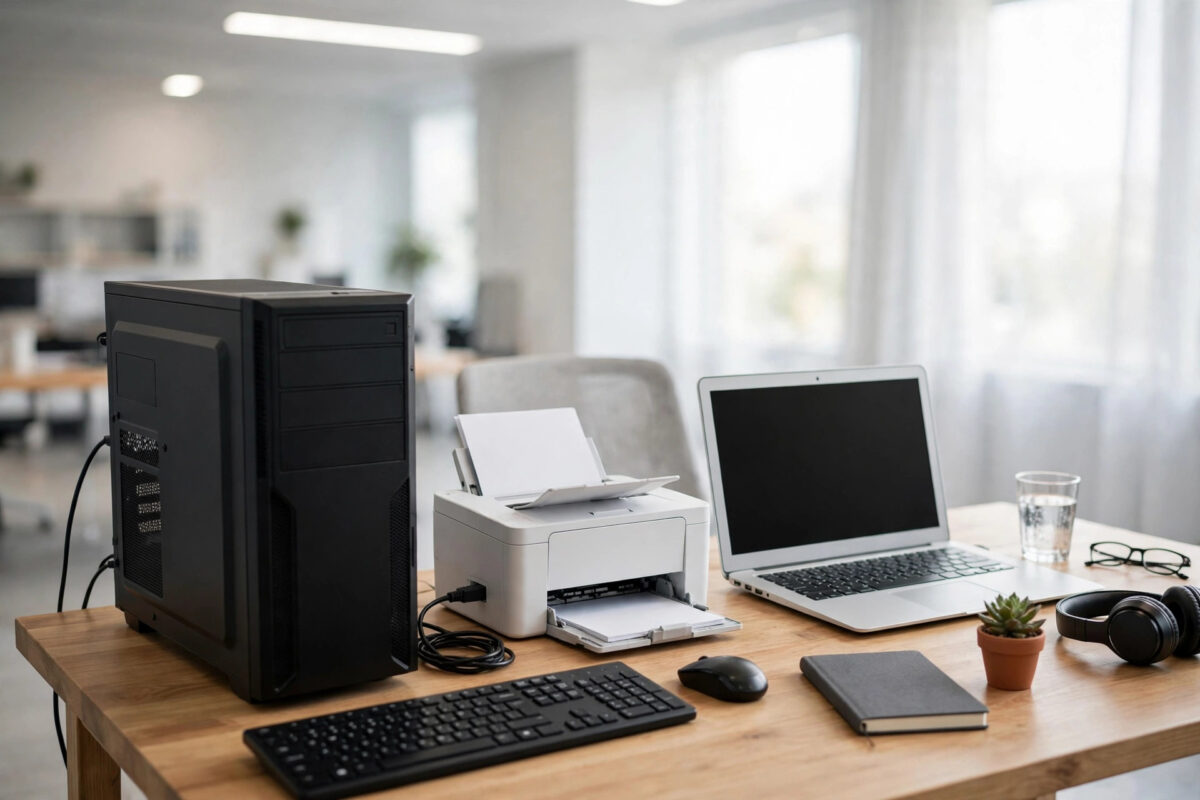
You browse to the shared printer on a colleague’s computer, double-click it, and Windows stops you with a short, unhelpful message: Windows cannot connect to the printer, error 0x0000011b. The printer itself is fine. The host PC prints all day without a single problem. Yet every other computer that tries to connect gets refused.
This error became common after Microsoft released security updates that hardened the Windows print spooler against the PrintNightmare vulnerability. Those updates changed how a client PC must prove itself to the host PC before it is allowed to install and use a shared printer. When the two computers disagree about that security check, the connection fails with 0x0000011b.
The good news is that this is fixable in most homes and small offices without new hardware and without replacing the printer. Work through the steps below in order. Most of the work happens on the host PC — the computer the printer is physically connected to and shared from.
Quick Answer
Error 0x0000011b means the client PC failed the stricter authentication check Windows now applies to shared printers. First, install the latest Windows updates on both computers and restart them, then add the printer again. If it still fails, create a registry value named RpcAuthnLevelPrivacyEnabled and set it to 0 on the host computer only, restart the host’s Print Spooler service, and reconnect from the client.
What Actually Causes Error 0x0000011b?
Before the security updates, a Windows PC could connect to a shared printer with very little verification. The PrintNightmare fixes changed that: the host now expects the connection to use a more private, authenticated form of RPC communication. Error 0x0000011b (often shown with the text “Operation failed with error 0x0000011b”) appears when that expectation is not met. The usual triggers are:
- Mismatched updates. The host PC has the security update installed but the client does not, or the other way around.
- A leftover failed install. An earlier attempt half-installed the driver on the client, and every retry trips over the remains.
- A stricter host setting. The host enforces the new privacy level while an older or unpatched client cannot satisfy it.
- Host-side sharing problems. The printer is not truly shared, the network profile is set to Public, or the host PC is asleep when the client tries to connect.
Understanding this matters, because it explains why the fix is almost always about the pair of computers rather than the printer itself.
Step 1: Update and Restart Both Computers
This sounds basic, but it fixes the majority of cases, because the error is usually caused by the two PCs running different update levels.
- On the host PC, open Settings > Windows Update and select Check for updates.
- Install everything offered, including optional quality updates if any are listed.
- Restart the host PC, even if Windows does not ask you to.
- Repeat the same update check on the client PC that shows the error.
- Restart the client PC, then try adding the shared printer again.
If the error is gone, stop here. You do not need the registry change in Step 3 if updates solved it.
Step 2: Check the Sharing Basics on the Host PC
While you are on the host, confirm the printer is genuinely shared and reachable:
- Open Settings > Bluetooth & devices > Printers & scanners, select the printer, and open Printer properties.
- On the Sharing tab, make sure Share this printer is ticked and the share name is short with no spaces, for example
OfficeHP. - Open Settings > Network & internet, select your connection, and confirm the network profile is Private, not Public. Sharing is heavily restricted on Public networks.
- Make sure the host PC is switched on and not asleep when other people print. In Settings > System > Power, lengthen the sleep timer or set it to Never for a busy office host.
Step 3: Adjust the RPC Privacy Setting on the Host PC
If updates and sharing checks did not help, this is the fix that resolves most remaining cases. You will add one registry value on the host PC. Take care: editing the registry incorrectly can cause problems, so follow the steps exactly and make a backup first.
- On the host PC, press Windows key + R, type
regedit, and press Enter. Approve the administrator prompt. - First, back up: click File > Export, choose All under Export range, and save the file somewhere safe.
- Navigate to
HKEY_LOCAL_MACHINE\SYSTEM\CurrentControlSet\Control\Print. - Right-click the Print key, choose New > DWORD (32-bit) Value, and name it exactly
RpcAuthnLevelPrivacyEnabled. - Double-click the new value and set its data to
0. - Close Registry Editor.
- Restart the Print Spooler service: press Windows key + R, type
services.msc, find Print Spooler, right-click it, and choose Restart. If the service ever misbehaves, our full walkthrough on how to restart the Print Spooler and clear stuck print jobs covers every method. - Go back to the client PC and add the printer again.
A note on safety: setting this value to 0 relaxes one authentication requirement for incoming print connections on that host. On a trusted home or office network this is a widely used workaround, but you should still keep Windows fully updated, and you can delete the value later once both PCs are patched to the same level and printing works without it.
Step 4: Remove the Failed Printer and Add It Again on the Client
Old, broken connection attempts can keep the error alive even after the host is fixed. Remove them and connect cleanly:
- On the client PC, open Settings > Bluetooth & devices > Printers & scanners.
- Select the problem printer if it is listed and choose Remove.
- Press Windows key + R, type the host path, for example
\\OFFICE-PCor\\192.168.1.50, and press Enter. - If asked, sign in with a user name and password that exist on the host PC, and tick Remember my credentials.
- Double-click the shared printer in the window that opens and let Windows install the driver.
- Print a test page from Printer properties > Print Test Page.
If the Error Still Appears
Two more tricks are worth trying before you give up. First, install the printer driver on the client manually from the manufacturer’s website before connecting; when the correct driver is already present, Windows often completes the connection without complaint. Second, try the Local Port method: add a printer manually, choose Create a new port > Local Port, and enter the path \\HOSTNAME\ShareName as the port name, then pick the driver from the list. This older connection style bypasses the check that triggers 0x0000011b in many setups. Microsoft’s own guidance in the official Windows support pages also recommends keeping both machines on the latest cumulative update, which remains the cleanest long-term fix.
Mistakes to Avoid
- Editing the registry on the client PC. The
RpcAuthnLevelPrivacyEnabledvalue belongs on the host that shares the printer. - Downloading “one-click fix” registry files from random websites. You cannot see what else they change. Type the single value yourself instead.
- Disabling the Print Spooler permanently. That stops all printing and is not a fix.
- Skipping restarts. Updates and registry changes often only take effect after the host restarts or the spooler service restarts.
- Using long share names with spaces. They make manual paths error-prone; keep share names short and simple.
Conclusion
Error 0x0000011b is a security-check failure between two Windows PCs, not a broken printer. Updating both computers resolves it most of the time. When it does not, the single registry value on the host, followed by a spooler restart and a clean reconnect from the client, clears nearly every remaining case. Work through the steps in order and test after each one — you will usually be printing again within fifteen minutes.
Frequently Asked Questions
Is error 0x0000011b caused by a virus?
No. Ironically, it is caused by Microsoft’s security fixes against a printing vulnerability. It is a permissions and authentication mismatch between the host and client PCs, not malware.
Do I need to change the registry on every computer?
No. The value is set on the host PC that shares the printer only. Client PCs need to be updated and restarted, but they do not need the registry change.
Does this error happen on Windows 10 as well as Windows 11?
Yes. The same security updates were released for both systems, so a Windows 10 host with a Windows 11 client (or the reverse) can hit the same error and the same fixes apply.
Will setting RpcAuthnLevelPrivacyEnabled to 0 make my PC unsafe?
It relaxes one authentication requirement for print connections on that machine. On a trusted private network the risk is low, but keep Windows updated, keep the network profile set correctly, and remove the value later if printing works without it.
What if the host PC is a Windows Server or an old PC?
The principle is identical: patch both sides to current levels first, then apply the host-side setting. On a server, schedule the spooler restart outside working hours because it briefly interrupts everyone’s printing.
Leave a Reply