
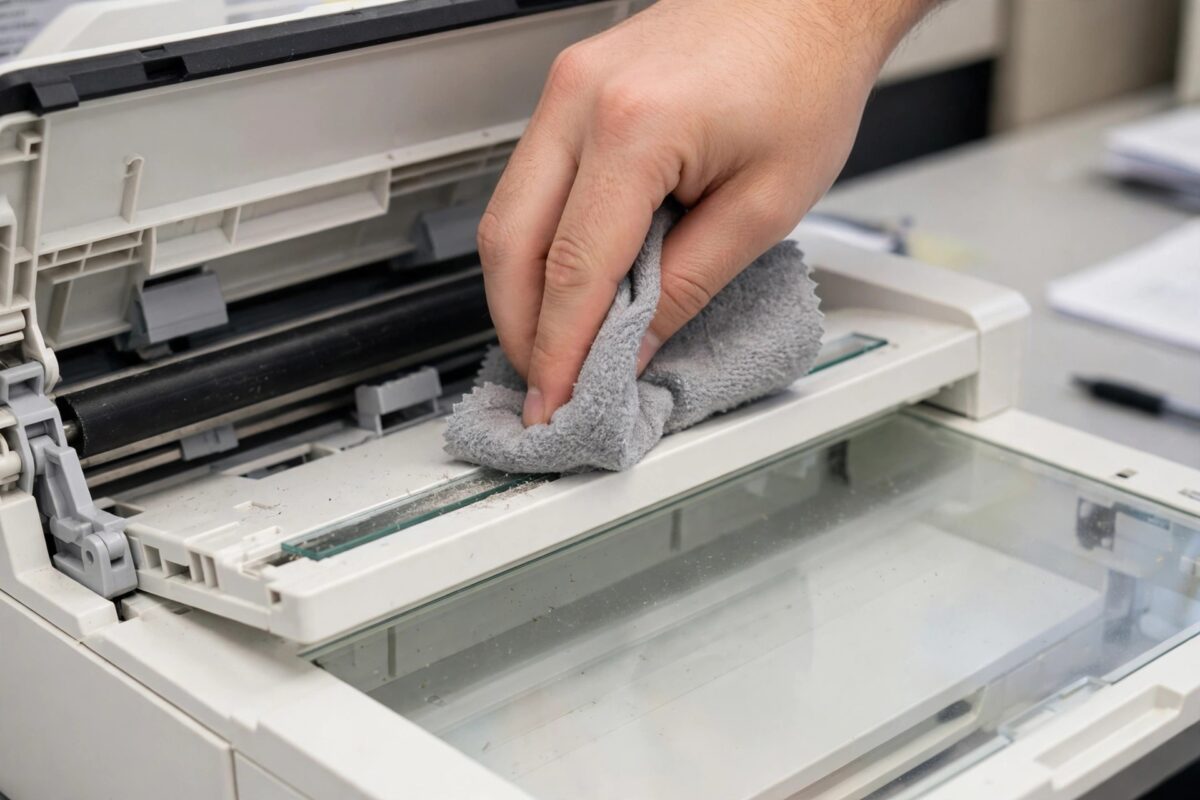
Vertical white streaks on scans from a Brother MFC automatic document feeder are one of the easiest scanning problems to recognise. The lines run straight down the page, in the same place on every scan, and they only appear when you use the feeder — scans from the flatbed glass usually look perfect. That pattern points to one small area of glass, not to your documents or your software.
This guide explains why feeder scans use a different strip of glass, how to clean it the right way, and what to check if the streaks stay after cleaning. The fix takes about five minutes and needs only a soft cloth, yet many people replace perfectly good machines over it.
Quick Answer
Vertical white streaks on Brother MFC feeder scans are almost always caused by dirt, correction fluid, ink, or a sticky label mark on the narrow scanner glass strip that the automatic document feeder reads through. Turn the machine off, open the feeder cover, and clean that thin glass strip and the white plastic strip opposite it with a soft, lint-free cloth lightly dampened with water. Dry it fully and scan a blank page to test. In most cases the streaks disappear completely after this one cleaning.
Why Feeder Scans Get Lines but Flatbed Scans Do Not
When you scan on the flatbed, the scanner head moves under the large glass and reads the whole page. When you use the automatic document feeder, the scanner head stays still and your paper moves past it. Every page is read through one narrow strip of glass on the left side, often called the ADF glass or scanner strip.
Because the paper always passes the same fixed point, a single speck of dirt on that strip blocks the same spot on every line of the scan. The scanner sees no image at that spot, page after page, which produces a clean, straight white line from the top of the page to the bottom.
This also explains the colour of the line. Dirt that blocks light completely gives a white streak on scans. On copies sent through the feeder, the same dirt can show as a black or grey line, because the printer fills the missing area differently. Either way, a line in the exact same position on every feeder page means contamination on the strip.
Common Things Stuck on the Strip
- Correction fluid or correction tape flakes from edited documents.
- Wet ink or highlighter that transferred from a freshly printed or written page.
- Glue or sticky residue from labels, sticky notes, and taped pages.
- Paper dust built up into a small lump, common in busy offices.
- A tiny scratch or chip in the glass itself, which is the one cause cleaning cannot fix.
Step-by-Step: Clean the ADF Glass Strip
- Turn the MFC off and unplug it. This protects both you and the machine while the feeder is open.
- Open the automatic document feeder cover on top of the machine, the same cover you lift to clear feeder jams.
- Find the narrow glass strip. On most Brother MFC models it sits to the left of the main flatbed glass, under where feeder pages pass. It is only about a centimetre or two wide and runs front to back.
- Find the white plastic or foam strip on the underside of the feeder cover that presses against the glass. Dirt on this white strip matters too.
- Dampen a soft, lint-free cloth with clean water. Wring it almost dry. The cloth should be damp, never dripping.
- Wipe the glass strip firmly along its full length. Stubborn marks, especially correction fluid, may need several passes and a little patience rather than more pressure on one spot.
- Wipe the white strip on the cover as well, removing dust and ink marks.
- Dry both strips with a clean, dry part of the cloth, then wait a few minutes so no moisture remains.
- Close the cover, plug in, and turn the machine on. Scan one blank white page through the feeder. Any remaining streak tells you exactly which spot still needs attention, because its position matches the dirt’s position.
Brother’s own cleaning illustrations for each model are available in the Brother official manual download centre for your MFC model, and checking the diagram for your machine helps if your feeder cover opens differently.
If Streaks Remain After Cleaning
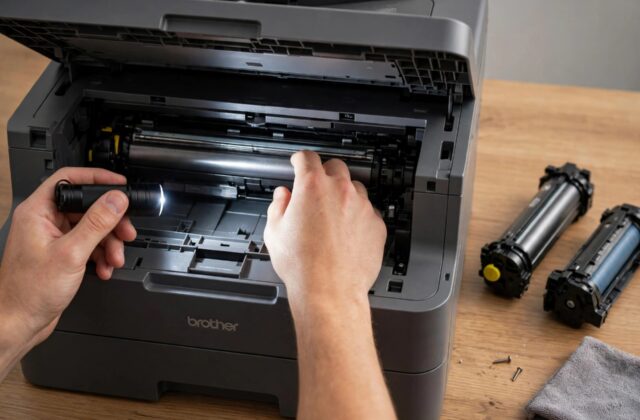
Clean once more, but this time inspect closely before you wipe. Use a torch held at an angle so small specks shine against the glass. A mark near the front of the strip makes a line at one side of the page; a mark near the back makes a line at the other side. Match the line position on your test scan to the strip and focus on that exact spot.
Other Causes to Rule Out
- Dirt on the white backing strip: Already covered above, but it is the most common reason a “cleaned” machine still shows lines — people clean the glass and forget the strip facing it.
- A scratched strip: Run a fingertip very lightly over the glass. If you feel a nick in the same place as the line, the glass is damaged and needs a replacement part from a service technician.
- Dirty flatbed edge: If lines also appear on flatbed scans near one edge, clean the full flatbed glass and the underside of the lid as well.
- Feeder rollers: Dirty rollers cause skewed, smeared, or uneven scans rather than clean straight white lines, but wiping them with a damp cloth keeps feeding straight and prevents new dirt reaching the strip.
- Software settings: A line that appears only in one app and not in copies made on the machine itself is a driver or app issue. Update the full driver package in that case.
For keeping the whole scanning path in good shape, the guide to cleaning Brother scanner glass and feeder parts covers flatbed glass, lid backing, and roller care in one routine.
Prevent Streaks from Coming Back
Feeder streaks return when dirty originals pass over the strip. A few habits keep it clean for months.
- Let ink, highlighter, and correction fluid dry fully before scanning a page through the feeder.
- Never feed pages with exposed sticky tape, loose labels, or sticky note adhesive facing the glass. Scan those pages on the flatbed instead.
- Remove staples and paper clips, and brush loose dust off old or stored documents before loading them.
- Use the flatbed for fragile, thick, or dirty originals, and save the feeder for clean office paper.
- Wipe the strip briefly once a month in a busy office. A quick routine wipe is far easier than scrubbing dried correction fluid later.
If your office follows the care advice on the Brother official support page for scan quality problems, note that Brother also recommends water only — household glass cleaners can leave a film that attracts dust and smears scans.
Common Mistakes and Helpful Tips
- Cleaning only the big flatbed glass: The feeder does not read through that glass. Cleaning it alone changes nothing for feeder scans.
- Using paper towels or tissues: They leave fibres all over the strip. Use a microfibre or other lint-free cloth.
- Spraying liquid directly on the glass: Fluid can run under the glass edges. Always apply it to the cloth.
- Using solvents or rough pads: These can damage the glass coating and the white strip. Water and patience remove almost everything.
- Tip: Scan a blank page after cleaning. Lines on a blank scan are easy to see and measure, with no document content hiding them.
- Tip: If one tiny spot resists wiping, a wooden cocktail stick wrapped in the damp cloth can lift it without scratching the glass. Never use metal.
Conclusion
Straight white streaks that appear only on feeder scans are a classic sign of dirt on the narrow ADF glass strip of your Brother MFC. Clean that strip and the white strip opposite it with a damp lint-free cloth, dry both, and test with a blank page. Repeat with a torch if a faint line remains. Only a scratched strip or a line that survives a truly clean strip needs a technician. With dry-ink habits and a short monthly wipe, the problem rarely returns.
Frequently Asked Questions
Why do the streaks appear in the same place on every scan?
The feeder moves paper past a fixed scanner position. Dirt at one point on the glass strip blocks that same point on every page, so the line lands in exactly the same place each time.
Why are my feeder copies showing black lines instead of white streaks?
It is the same dirt. Scans show the blocked area as white, while the copying process can render it as a dark line. Clean the ADF glass strip and the white backing strip to fix both.
Can I use glass cleaner on the scanner strip?
Brother recommends water only on a lint-free cloth. Glass cleaners can leave a residue that smears scans and attracts more dust, making the problem come back faster.
What if cleaning does not remove the line at all?
Inspect the strip with a torch and feel very lightly for a scratch or chip at the matching position. A damaged strip needs replacement by a service technician; further cleaning will not help.
How often should I clean the ADF glass strip?
In a busy office, a quick wipe once a month prevents most build-up. Clean it immediately whenever a straight line appears, because fresh marks are far easier to remove than dried ones.


Leave a Reply