
A Brother printer that sits silent for several minutes before printing the first page, then prints the rest of the job quickly, is frustrating but rarely broken. That long wait almost always happens before the first page, not during printing. Once you understand what the printer is doing during that pause, you can usually cut it down to a few seconds.
The delay is not one single fault. It is usually a mix of deep sleep settings, a slow network wake-up, an old driver, or a computer that takes a long time to prepare the job. This guide explains each cause in plain language and walks through the fixes in the order that works for most people.
Quick Answer
Your Brother printer most likely takes several minutes because it is waking from Deep Sleep mode, reconnecting to Wi-Fi, and waiting for your computer to build the print job. Turn off or shorten Deep Sleep, move the printer to a stronger Wi-Fi signal or a wired connection, update the driver, and disable the slow BR-Script or high-quality settings you do not need. In most homes and offices, those four steps bring the first page down to under 20 seconds.
What Happens Before the First Page Prints
Printing looks instant on screen, but several steps happen in the background. Your computer first turns the document into print data, which is called spooling. Then it sends that data to the printer. The printer wakes up, checks its toner or ink, warms its fuser unit if it is a laser model, and only then pulls the first sheet of paper.
If any step is slow, the whole job feels stuck. A large PDF with many images takes longer to spool. A printer in Deep Sleep takes longer to wake. A weak Wi-Fi signal causes the data to be sent again and again. The good news is that the second page is fast because all of those wake-up steps are already done.
Deep Sleep and Sleep Mode Are Different
Brother printers have two power-saving levels. Sleep mode dims the screen and rests the printer, but it can wake fairly quickly. Deep Sleep uses even less power and turns off more parts, including parts of the network connection. Waking from Deep Sleep can take much longer, especially on Wi-Fi models.
This is why the problem often appears first thing in the morning or after lunch. The printer has been idle for hours, so it has dropped into its deepest power-saving state.
Fix 1: Change the Sleep and Deep Sleep Settings
Start here, because this is the most common cause.
- On the printer screen, press the Settings or Menu button.
- Go to All Settings, then General Setup, then Ecology.
- Open Sleep Time and set a longer time, such as 30 or 50 minutes, so the printer does not sleep too quickly during the workday.
- Look for Auto Power Off and Deep Sleep options in the same area and turn Deep Sleep off if your model allows it.
- On your computer, open the Brother Utilities or Printing Preferences and check for a setting that keeps the connection awake.
Turning off Deep Sleep will use a little more electricity. For most offices, the small cost is worth the time saved. At home, you can keep a longer sleep timer instead and simply send a small one-page job to wake the printer before a big job.
Fix 2: Improve the Network Connection
A printer that has lost its Wi-Fi connection must find the network, get its address again, and reply to your computer before it can print. On a weak signal, that can take minutes and sometimes fails completely.
Simple Network Checks
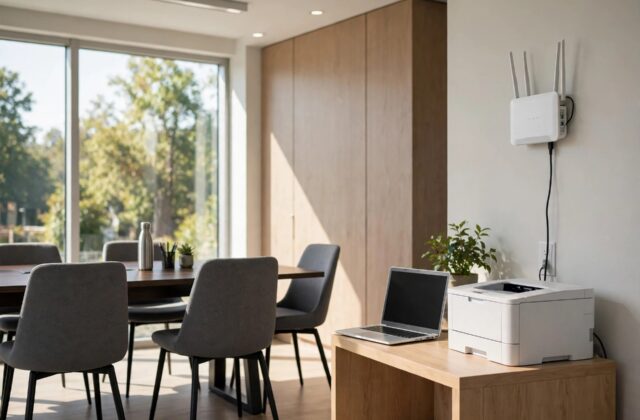
- Place the printer in the same room as the router if possible, or at least away from thick walls, metal cabinets, and microwaves.
- Connect the printer to the 2.4 GHz Wi-Fi band if your model supports it. It is slower than 5 GHz but reaches farther and is more stable for printers.
- Restart the router, wait two minutes, then restart the printer so it makes a fresh connection.
- If you can, use a network cable. A wired connection removes wake-up delays almost completely and is the best fix for a busy office.
- Print a Network Configuration report from the printer menu and check the signal strength. A very low number means the printer is too far from the router.
If your printer keeps dropping offline as well as printing slowly, work through the steps for fixing a Brother printer that keeps showing offline before changing anything else.
Fix 3: Update or Reinstall the Printer Driver
An old or wrong driver can make your computer take a long time to prepare each job. This is common after a Windows or macOS update, or when the computer uses a generic driver instead of the full Brother driver.
- Remove the printer from your computer’s printer list.
- Restart the computer.
- Download the Full Driver and Software Package for your exact model from the Brother official driver and software download page.
- Install the package, choose the same connection type you use every day, and restart again if asked.
- Print a simple one-page text document as a test before trying a large file.
Avoid driver updater tools from random websites. They often install the wrong driver and make the delay worse.
Fix 4: Check Print Settings That Slow the First Page
Some settings look harmless but force the printer or computer to do extra work for every job.
- Print quality: The highest quality or 1200 dpi setting is useful for final documents, but it is slow for drafts. Use normal quality for daily work.
- Quiet Mode: This reduces noise by printing more slowly. Turn it off if speed matters more than noise.
- BR-Script or PostScript driver: Some models offer two drivers. If the BR-Script driver is slow on your system, try the standard Brother driver for everyday documents.
- Start printing after last page is spooled: In Windows printer properties, under Advanced, choose to start printing immediately instead of waiting for the whole job to spool.
- Large files: Flatten a PDF, reduce image size, or print a large document in smaller sections to see if one page is causing the delay.
Fix 5: Warm-Up, Toner, and Hardware Causes
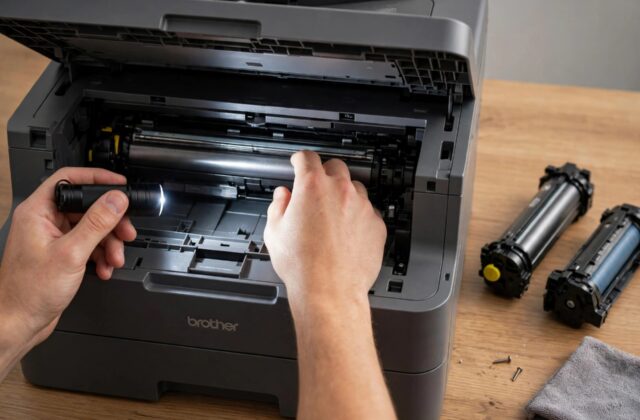
Laser printers need to heat the fuser unit before the first page. In a cold room, that warm-up takes longer. Keep the printer in a normally heated room and away from open windows in winter.
Low toner, a third-party cartridge the printer struggles to read, or a firmware update waiting to finish can also add delay. Check the printer screen for warnings. If a firmware update is available for your model, install it using the instructions on the Brother official support and troubleshooting page, and do not turn the printer off while it updates.
For inkjet models, a long cleaning cycle after weeks without printing can look like a delay. Print a small colour page once a week to keep the print head ready and reduce long cleaning cycles.
Common Mistakes and Helpful Tips
- Turning the printer off at the wall every night: This forces a full start-up and network reconnect every morning. Leave it on and let sleep mode do the work.
- Sending the job again and again: This queues duplicate jobs and makes the wait longer. Send once, then check the print queue.
- Ignoring the queue: One stuck old job at the front of the queue can block everything behind it. Cancel old failed jobs before testing.
- Using Wi-Fi Direct for daily office printing: Direct connections are handy for guests but slower to reconnect. Join the printer to your normal network for daily use.
- Tip: Time the first page after each fix. Change one thing at a time so you know what actually helped.
- Tip: Keep the printer firmware, driver, and your operating system updated together. A mismatch between old and new software is a frequent hidden cause.
Conclusion
A slow first page on a Brother printer is usually a wake-up problem, not a printing problem. Shorten or disable Deep Sleep, give the printer a strong and stable network connection, install the correct full driver, and remove print settings that add extra work. Test with a simple one-page document after each change. If the delay stays at several minutes even on a wired connection with a fresh driver, note any error code on the screen and contact Brother support, because a failing fuser or main board may need a technician.
Frequently Asked Questions
Why is only the first page slow and the rest fast?
Because the wake-up, warm-up, network reconnect, and spooling all happen once at the start. After the first page, the printer is awake and the data is already flowing, so the following pages print at normal speed.
Does turning off Deep Sleep damage the printer?
No. It only means the printer uses a little more power while idle. It will still enter normal sleep mode, and all safety and warm-up systems work as normal.
How long should a Brother printer take to print the first page?
Most models should produce the first page in about 10 to 30 seconds from sleep, depending on the model, connection, and file size. A regular wait of several minutes is not normal.
Will a wired connection really make a difference?
Yes, in many offices it makes the biggest difference. A network cable removes Wi-Fi wake-up, weak signal retries, and router delays, so the printer stays reachable and ready.
What if the delay happens with only one document?
Then the document is likely the cause. Try printing a plain text page. If that is fast, reduce image sizes in the slow file, flatten the PDF, or print it in smaller sections.
Leave a Reply