
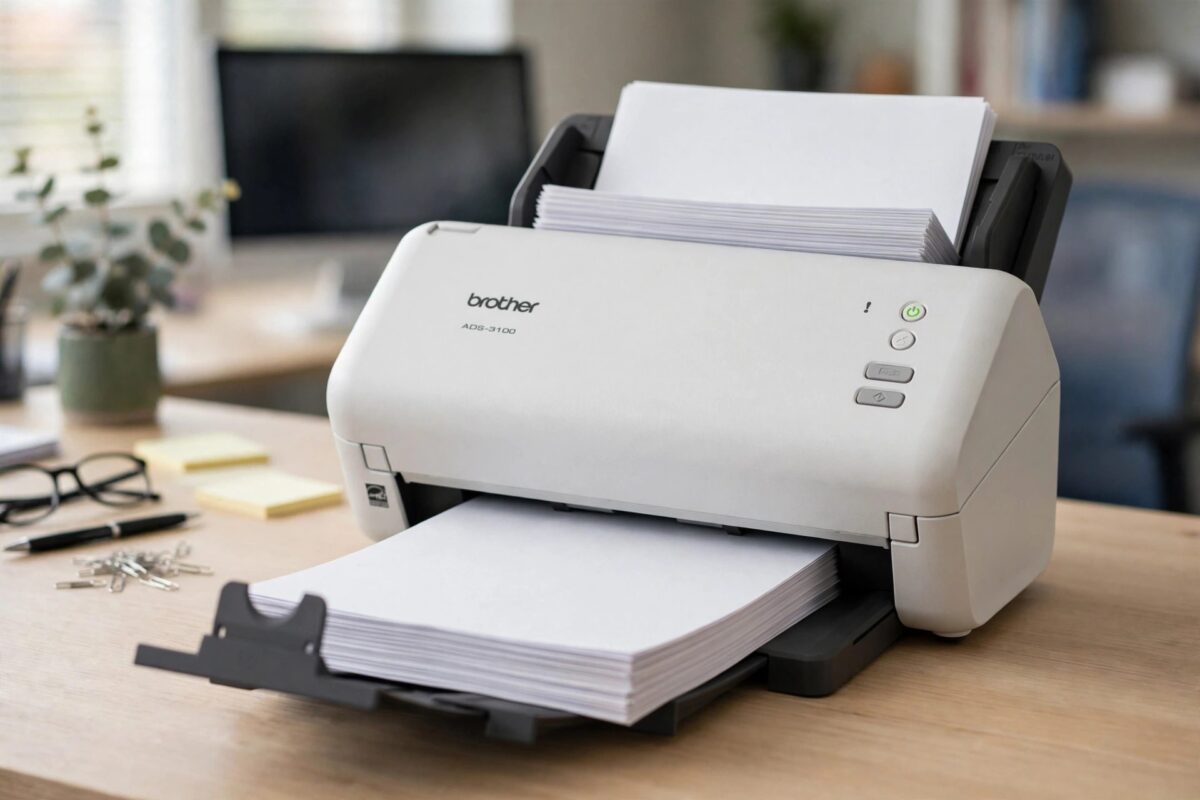
Scanning a stack of double-sided documents one side at a time, turning every page over by hand, is slow and easy to get wrong. Pages end up out of order, a side gets missed, and you waste time fixing the file afterwards. If you own a Brother ADS-3100 desktop scanner, you do not need to work that way. It has a duplex system that captures both sides of a page in a single pass.
Many owners never turn duplex on, because the setting sits in different places depending on whether you scan from computer software, the scanner panel, or to a USB drive or network folder. This guide shows you how to set up two-sided scanning correctly in each workflow, how to load documents so both sides feed cleanly, and how to fix blank pages, wrong order, and skewed results.
Quick Answer
To scan both sides with a Brother ADS-3100, load your documents face up in the automatic document feeder, open Brother iPrint and Scan or your scanning software, set Scan Sides to 2-sided or Duplex, choose your file type and resolution, and start the scan. The ADS-3100 scans both sides in one pass and saves them in the correct order. Enable Skip Blank Page if some sheets are single-sided so empty backs are removed automatically.
How Duplex Scanning Works on the ADS-3100
The ADS-3100 is a sheet-fed desktop scanner with two image sensors, one for the front of a page and one for the back. As a sheet passes through the feeder once, both sensors capture their side at the same time. The software then places the images in the right order, so page one front, page one back, page two front, page two back, and so on, appear as a single ordered document.
This is different from scanners that scan one side, flip the paper mechanically, and scan again. Single-pass duplex is faster, gentler on thin paper, and less likely to jam during a flip. Your job is simply to tell the software that you want both sides, because many profiles default to one-sided to save file size. Once you set a two-sided profile and save it, you can reuse it in one click.
Preparing Your Documents
Good preparation prevents most jams and misfeeds, which matter more in duplex because a jam in the middle disrupts the page order for the whole document.
- Remove all staples, paper clips, sticky notes, and tape.
- Straighten folded corners and flatten curled edges. Fan the stack gently to separate pages stuck together.
- Make sure all pages face the same way and point in the same direction. For the ADS-3100 feeder, load pages face up with the top edge entering first, unless your profile specifies a different orientation.
- Align the stack neatly and slide the paper guides so they touch the edges without bending the paper. Loose guides cause skew, tight guides cause misfeeds.
- Do not overload the feeder. For a large document, scan in smaller batches and combine the PDFs afterwards.
- Scan very thin, torn, or damp pages one at a time, because they are most likely to misfeed.
Method 1: Scan Both Sides Using Brother iPrint and Scan
This is the most common method for Windows and Mac users, and it gives you the clearest control over the duplex setting.
- Turn on the ADS-3100 and connect it to your computer by USB or ensure both are on the same network, depending on how you installed it.
- Load your document in the feeder and wait for the scanner to detect paper.
- Open Brother iPrint and Scan, select the ADS-3100 if needed, and choose Scan.
- In the scan settings, set the source to the document feeder if asked. Find the option labelled 2-sided Scan, Duplex Scan, or Scan Sides, and set it to On or 2-sided.
- If you see Binding options, choose Long Edge for normal portrait documents bound on the left, such as reports and contracts. Choose Short Edge for documents that flip over the top. The wrong binding setting makes back pages appear upside down.
- Choose Colour, Grey, or Black and White. For text documents, 200 to 300 dpi in Grey or Black and White is clear without making huge files. For small print or photos, use 300 dpi Colour.
- Set File Type to PDF for multi-page documents. If you need to search or copy text later, choose Searchable PDF if listed, which adds text recognition.
- Turn on Skip Blank Page if your batch mixes single and double-sided sheets. Set its sensitivity to the middle to start.
- Click Scan. Watch the first few pages appear in the preview in the correct order and orientation.
- When scanning finishes, review the thumbnails, rotate any page that needs it, remove any remaining blank page, and save with a clear file name and folder.
The current settings for this model are documented in the official Brother support pages and user guide for the ADS-3100, including exact menu labels for your operating system.
Method 2: Scan Both Sides to USB, Email, or a Network Folder
If you use the ADS-3100 as a shared office scanner, you can set duplex in the machine options for scan-to destinations.
- Load the document in the feeder.
- On the touch panel, choose your destination, such as Scan to USB, Scan to PC, Scan to Network, or Scan to Email, depending on what has been set up.
- Open Options or Settings for that job before you press Start. Set 2-sided Scan to On and choose Long Edge or Short Edge binding as above.
- Set file type, resolution, and blank page skip in the same options screen if offered.
- Press Start and wait for the whole stack to feed. Confirm the file arrived at its destination and opens in order.
If a destination shows no two-sided option, an administrator can edit that profile in the scanner web interface to make duplex the default.
Method 3: Save a Duplex Preset
If you scan the same type of document often, save your settings. In iPrint and Scan and in most Brother utilities, you can create a custom preset with duplex, resolution, PDF type, and save folder already chosen. Name it clearly, such as Duplex Contracts PDF. Next time, load paper, select the preset, and scan. Presets remove the most common error, which is forgetting to turn duplex back on after a one-sided job changed the default.
Our broader guide to fixing a Brother scanner that is not working or not detected is useful if the ADS-3100 does not appear in the software at all before you can reach these settings.
Fixing Common Duplex Problems
Back Pages Are Upside Down
This is a binding setting problem, not a loading error. Change Binding from Long Edge to Short Edge or the reverse, depending on how your document flips. Rescan a two-page test document to confirm before scanning a large stack again.
Blank Back Pages Appear in the File
Turn on Skip Blank Page and raise its sensitivity slightly if very light backs are still kept. If a back page has a stamp or light print, the scanner may correctly treat it as content, so delete that page manually in the preview before saving.
Pages Are Out of Order or Missing
This usually follows a misfeed where two sheets went through together. Fan the stack, reduce the batch size, clean the feeder rollers if misfeeds are frequent, and rescan the affected section. Always check the page count in the preview against your original count.
Common Mistakes and Useful Tips
- Leaving the profile on one-sided: Check the duplex setting every time you change workstations or profiles. It is the biggest cause of missing backs.
- Choosing the wrong binding edge: Use Long Edge for normal left-bound documents. Test with two pages if you are unsure.
- Loading pages in mixed directions: Keep every sheet the same way up and the same way round for a batch.
- Scanning everything at maximum resolution: Very high dpi makes huge files with no benefit for normal text. Use 200 to 300 dpi for office documents.
- Forgetting searchable PDF: If you will need to find text later, select Searchable PDF at scan time.
- Not counting pages: Count originals before and after, and compare with the preview count. It takes seconds and catches misfeeds early.
Conclusion
Scanning both sides with the Brother ADS-3100 is a one-pass job once duplex is switched on. Prepare a clean, aligned stack, load it face up in the feeder, set 2-sided Scan with the correct Long Edge or Short Edge binding in iPrint and Scan or in your scan-to profile, choose PDF at 200 to 300 dpi, and use Skip Blank Page for mixed batches. Save the setup as a preset, check the preview order and page count, and you will turn a slow manual task into a fast, accurate routine every time.
Frequently Asked Questions
Does the Brother ADS-3100 scan both sides at the same time?
Yes. It is a single-pass duplex scanner with sensors for both sides. A sheet passes through once and both sides are captured together, which is faster and reduces jams compared with flip-style duplex.
Why are my two-sided scans saving as separate files?
Your file type or profile is set to image files or to split by page. Change File Type to PDF for a single multi-page document, and check that any option to create a new file per page is turned off.
What resolution is best for two-sided document scanning?
For normal text, 200 dpi is readable and compact, and 300 dpi is better for small print, detailed forms, or searchable PDFs. Higher settings are only needed for photos or graphics.
How do I stop blank back pages appearing in duplex scans?
Enable Skip Blank Page in the scan settings and set its sensitivity to a middle value. Review the preview thumbnails and delete any remaining blank page before saving.
Can I scan a mix of single-sided and double-sided pages together?
Yes. Load them as one stack in the correct order with duplex and Skip Blank Page turned on. The scanner will capture both sides and the software will remove the empty backs.
Leave a Reply