
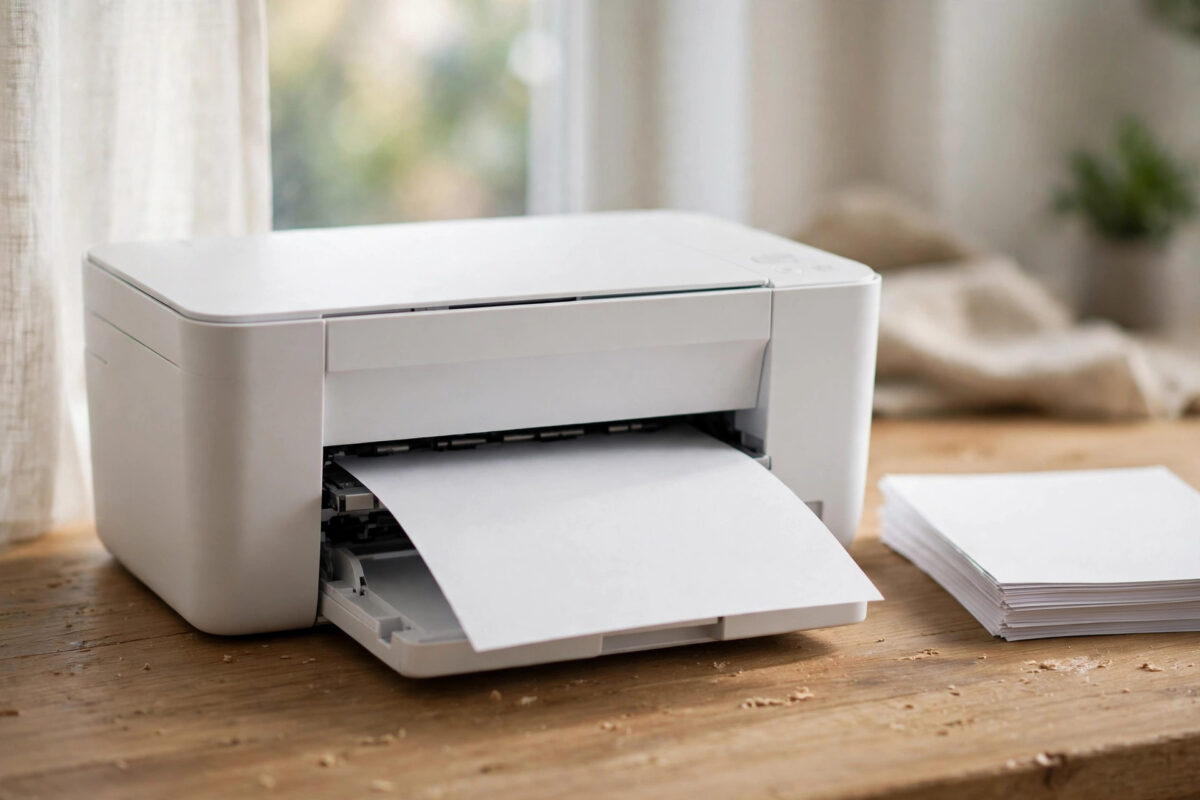
Your Epson printer starts a page normally, prints about half of it, then stops and pushes the unfinished sheet out. Sometimes the rest of the job disappears and sometimes the next page starts in the middle of a document. It feels random, but this fault follows a clear pattern.
Half-page printing with an early eject usually points to a paper size mismatch, wrong paper settings, a communication interruption, or a feed and sensor problem. The printer thinks the page has ended or loses the job data halfway. Most cases are settings, not a serious hardware failure.
Quick Answer
Check that the paper size in the driver, the app, and the tray are all exactly the same, such as A4 or Letter. Load fresh paper with the guides set correctly, turn off borderless and duplex for a test, and update the driver. If copies also fail, clean the paper path and check the rollers and sensors.
What Half-Page Ejection Means
An inkjet printer ejects a sheet when it believes the printable area is finished, when it receives an end-of-page signal, or when it detects a feed error and clears the sheet. If the image is cut off cleanly, settings are likely. If printing fades, stops mid-line, or the paper hesitates, data flow or feeding is more likely.
Do one key test early. Make a standalone copy using only the printer panel, with no computer involved. If the copy also ejects halfway, the problem is inside the printer or its paper handling. If copies are perfect but computer prints fail, focus on the driver, app settings, and connection.
Cause 1: Paper Size Mismatch
This is the number one cause. If the document is set to Letter but the tray holds A4, or the driver is set to A4 while the app sends a custom size, the printer runs out of expected length and ejects the sheet early.
- Check the actual paper in the tray. Measure it if needed, because A4 and Letter look very similar.
- On the printer panel, confirm the size and type registered for that tray matches the loaded paper.
- On your computer, open Epson printer preferences and set the same Document Size and Paper Type.
- In the app, check Page Setup or Print settings. Apps such as Word, Acrobat, and browsers can override the driver.
- Print one plain page at 100 percent scale with fit-to-page turned off.
Many Epson models ask you to confirm size and type when the cassette is reinserted. If you dismissed that prompt or chose the wrong size, every job will be wrong until it is corrected.
Cause 2: Paper Type and Borderless Settings
Paper type changes how the printer feeds and dries each page. Selecting a thick or glossy type for plain paper, or using borderless printing for a normal document, can cause early ejection or cut-off margins.
For a test, set Paper Type to Plain Paper, Quality to Standard, and turn Borderless off. Print a simple one-page text document. If it completes, change your original settings back one at a time until the fault returns. That tells you which setting triggers it.
Cause 3: Paper Loading and Guides
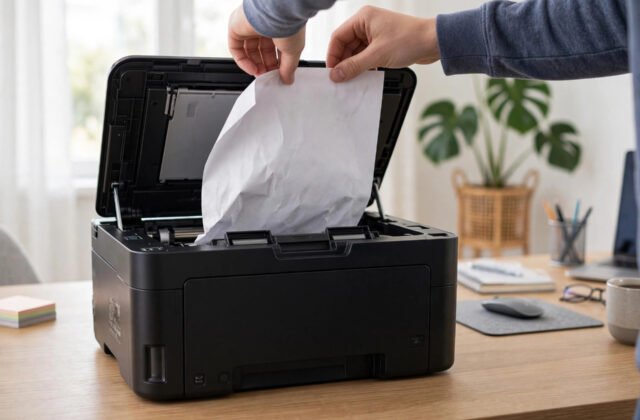
If the stack is skewed, the guides are too loose, or sheets stick together, the printer may detect a feed problem halfway through and eject the sheet instead of jamming it.
- Remove all paper from the tray or rear feed.
- Fan the stack to separate sheets and tap it square on a flat surface.
- Load no more than the recommended number of sheets.
- Slide the edge guides so they touch the paper lightly without bending it.
- Make sure paper sits under the tabs or marks inside the tray.
- Try a fresh pack if the current paper feels damp, curled, or dusty.
Damp or curled paper slips on the rollers and feeds poorly. Store paper flat in its wrapper, away from heat and humidity.
Cause 4: Driver, Queue, and Connection Problems
If the printer loses job data halfway, it may print what it has received and eject the sheet. Causes include a damaged driver, a stuck spooler, weak Wi-Fi, or a faulty USB cable.
Wi-Fi printing
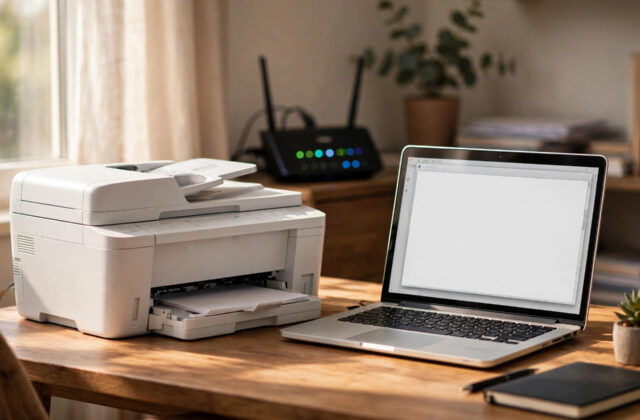
A printer at the edge of Wi-Fi range can receive the start of a large photo or PDF job and then lose connection. Check signal strength on the network status sheet, restart the router and printer, and test with a small text file first.
USB printing
Try a different cable and a different port directly on the computer, not through a hub. Cables fail internally without visible damage and often stop jobs at a similar point each time.
Clear the queue
- Cancel all pending jobs.
- Turn the printer off for 30 seconds.
- Restart the computer to restart the print spooler.
- Turn the printer on and send one fresh test page.
If the fault remains, download the latest package from the official Epson support and drivers page, uninstall the old driver, restart, and install fresh. If Wi-Fi jobs are also slow or drop offline, our guide on fixing a printer offline error and restoring a stable connection helps rule out network dropouts.
Cause 5: Dirty Rollers and Sensors
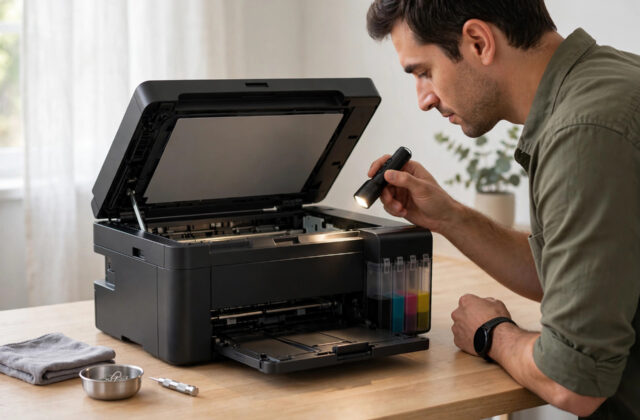
When copies also fail, inspect the paper path. Dust, fibres, and ink residue build up on rollers. The roller slips, the paper moves more slowly than expected, and a sensor decides the page length is wrong.
- Turn the printer off and unplug it.
- Open all covers and remove loose paper or debris, using a torch to see inside.
- Check the rear access area if your model has a removable duplexer.
- Clean accessible rollers gently with a soft, lint-free cloth slightly dampened with water.
- Let everything dry for 10 minutes before reconnecting power.
- Run the paper guide cleaning function if your model offers one in Maintenance.
Never use sharp tools inside the path and never force a roller to turn. A small sensor flag stuck down by dust or a scrap of paper can also cause this fault, so look carefully along the path.
Cause 6: Duplex and App-Specific Settings
Double-sided, booklet, and multi-page layouts change how the printer calculates each side. A fault that only happens with duplex jobs, or only from one app, points to those settings.
Test with duplex off, booklet off, and one page per sheet. If the document prints fully, turn duplex back on and check the binding edge and paper size for both sides. In PDF readers, choose Actual Size instead of Fit for a test. Avoid Print as Image unless needed, as it creates a much larger job that is more likely to stall on a weak connection.
For model-specific maintenance steps, check the Epson support library and product manuals section before deeper cleaning on your printer.
Testing in the Right Order
- Standalone copy test to separate printer faults from computer faults.
- Plain paper with size confirmed everywhere, borderless and duplex off.
- Reload fresh paper with correct guides.
- Try a different connection, such as USB if you normally use Wi-Fi.
- Clear the queue, restart everything, and update the driver.
- Clean the rollers and inspect the paper path.
Stop when a test page succeeds twice in a row. Changing everything at once makes the real cause harder to find.
Common Mistakes and Useful Tips
- Mixing A4 and Letter: Keep one size in the tray and register it correctly on screen.
- Ignoring the tray prompt: Always confirm size and type when you reload paper.
- Overfilling the cassette: Stay below the maximum load line.
- Blaming the printer for one app: Test from a simple text editor first.
- Using old paper: Swap to a fresh pack early. It is a cheap test.
- Forgetting firmware: Check for a firmware update. Epson sometimes fixes feed bugs in firmware.
Conclusion
An Epson that prints half a page and ejects the paper is usually reacting to a size mismatch, a feed slip, or lost job data. Match the paper size everywhere, reload fresh paper correctly, simplify settings for a test, and use the copy test to decide whether to focus on the driver and connection or on rollers and sensors. Work through those checks in order and most printers return to finishing full pages.
Frequently Asked Questions
Why does my Epson print only the top half of every page?
The most common reason is a paper size mismatch between the app, driver, and tray. Confirm all three show the same size, turn off borderless and fit-to-page, and print a simple document as a test.
Why does it happen only with photos and PDFs?
Photos and PDFs are larger jobs and often use different size and quality settings. A weak Wi-Fi connection or borderless setting can cause the job to stop partway. Test with a small text file, then check the photo settings.
Can worn rollers cause half-page printing?
Yes. If paper slips, the printer misjudges page position and may eject the sheet early. Cleaning the rollers and using fresh, flat paper often fixes the feeding.
Why do copies work but computer printing fails?
That points to the driver, app settings, queue, or connection rather than the printer hardware. Clear the queue, check driver size settings, try a different connection, and reinstall the driver if needed.
Should I reset my printer to factory settings?
Only as a later step, after noting your Wi-Fi and paper settings. A reset removes the network connection, so try paper and driver checks first.
Leave a Reply