
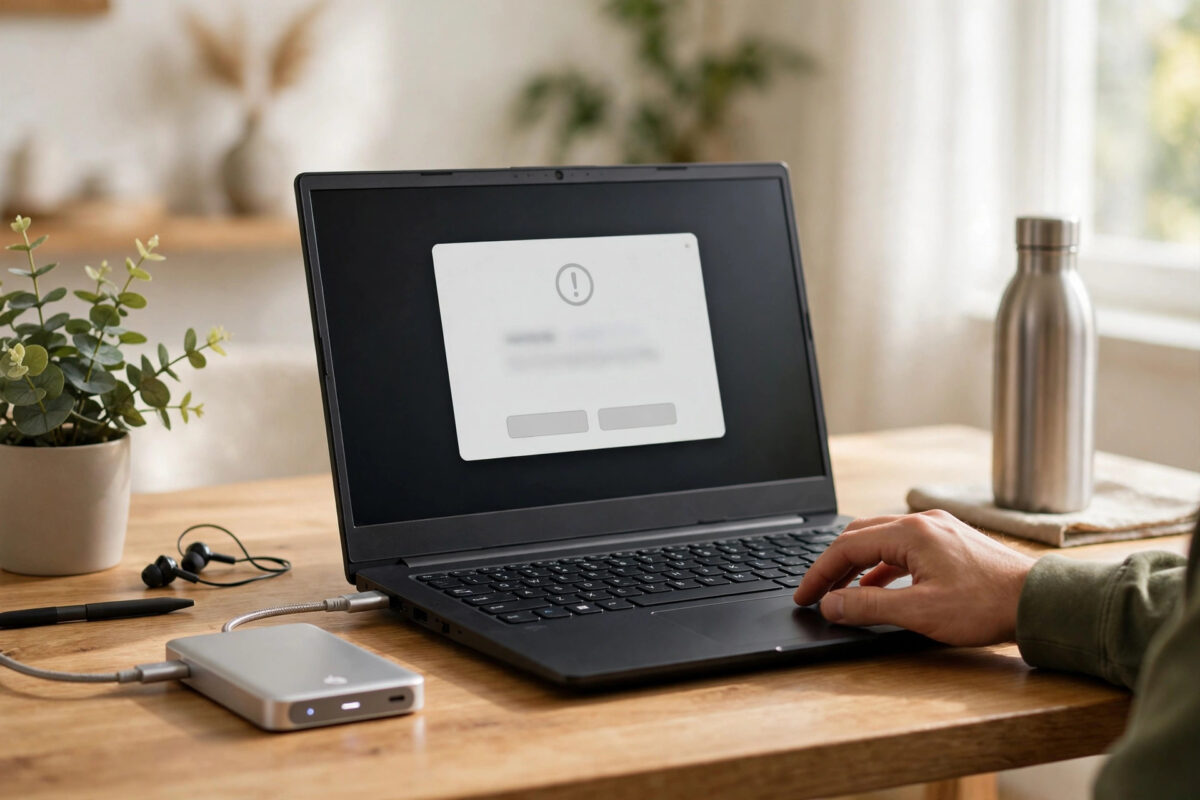
You plugged a Mac drive into your Windows PC to copy photos or project files, and Windows answered with a frightening message: it wants to format the disk before you can use it. Stop right there. That drive is almost certainly formatted as HFS+, the classic Mac file system, which Windows can see well enough to offer to erase, but cannot read on its own. Formatting would wipe the very files you connected it to save.
The good news is that you have several safe ways to read an HFS+ drive on Windows without changing the drive at all. This guide explains how to recognise the format, which method suits simple copying versus regular use, and the exact steps to copy your files off safely.
Quick Answer
Never click Format when Windows prompts you. Cancel the message, then use a read-only HFS+ tool on Windows, connect the drive to a Mac and copy over the network or a properly formatted USB stick, or copy the files via cloud storage from the Mac. For a one-off job, a trusted read-only reader is fastest. For important data, copy, do not convert, and keep the Mac drive untouched.
Why Windows Cannot Read HFS+ Natively
Every drive is organised by a file system, which is the rulebook that says where files live and how their names, dates, and folders are recorded. Windows uses NTFS and exFAT. Older Macs and older macOS versions used HFS+, also called Mac OS Extended, for many years before Apple moved to APFS. Windows ships with no HFS+ driver, so Explorer shows no readable files and Disk Management may label the volume in a way that looks like a fault.
It is not a fault. The files are intact and readable by a Mac or by Windows software that understands HFS+. Your only real risk is a Windows action that writes a new file system over the old one, which is why the format prompt is so dangerous.
How to confirm the drive is HFS+ before you choose a method
- Cancel every format or initialise prompt the moment it appears.
- If the drive came from a Mac, check its history. A drive used with Time Machine on an older Mac, or formatted in Disk Utility as Mac OS Extended (Journaled), is HFS+.
- On Windows, open Disk Management only to look. A Mac partition layout with an EFI partition and a large volume Windows cannot assign a readable file system to is a strong clue. Do not change, delete, or format anything in this window.
- If you have access to any Mac, plug the drive into it. If it opens normally in Finder with all folders visible, the drive is healthy and your problem is purely compatibility.
Method 1: Use a Read-Only HFS+ Reader on Windows
For a one-time copy job, this is usually the quickest route. You install a small utility whose only job is to open HFS+ volumes in read-only mode and let you copy files out. Read-only matters, because it means the tool cannot alter the Mac drive even if something crashes.
- Choose a reputable HFS+ reader that clearly states read-only access for HFS+ on Windows. Download it only from the maker’s official website.
- Install it on your Windows PC and restart if the installer asks you to.
- Connect the Mac drive with a suitable USB cable, dock, or adapter. Remember that a bare 3.5-inch drive also needs its correct external 12V power supply before Windows can detect it properly.
- Cancel the Windows format prompt again if it pops up on connection.
- Open the reader app instead of File Explorer. Browse the HFS+ volume by folder.
- Select the files and folders you need and copy or extract them to a folder on your Windows drive, not back onto the Mac drive.
- Open a sample of each type of copied file, photos, documents, and videos, to confirm the copies are complete and readable.
- Eject the drive safely from the reader and from Windows before you unplug it.
Method 2: Copy the Files Using a Mac as the Bridge
If you still have the Mac, or can borrow one for half an hour, this method needs no extra Windows software at all and is the safest choice for large or precious collections.
- Plug the HFS+ drive into the Mac and confirm it opens in Finder.
- Prepare a destination Windows can read. Use a USB drive or external SSD formatted as exFAT, which both Mac and Windows read and write natively, with no 4GB single-file limit that the older FAT32 format has.
- Copy your chosen folders from the HFS+ drive onto the exFAT drive using Finder. Let the copy finish fully and eject properly on the Mac.
- Plug the exFAT drive into your Windows PC and copy the files onto your Windows disk.
- Alternatively, copy from the Mac to a cloud drive or across your home network to a shared Windows folder. This is slower for very large video libraries but avoids buying or formatting any intermediate drive.
Apple’s own guidance is the best reference for the Mac side of this process. The Apple Support information on file system formats available in Disk Utility explains Mac OS Extended, APFS, and exFAT, and helps you confirm which format a drive uses before you move it between systems.
Method 3: Paid Software If You Need Regular Access
If you move between Mac and Windows every week, dedicated paid drivers exist that integrate with Explorer so the Mac drive appears like a normal drive. Install them from the official vendor, and create copies first with a read-only method if the data is irreplaceable. The Microsoft Support pages for Windows file management and external drives cover the Windows handling side.
Whichever method you pick, the wider workflow in our guide to transferring files from a Mac to a Windows PC without losing data will help you plan folder order, free space, and second copies once the HFS+ drive opens for you.
What to Do If the Drive Does Not Appear at All
- Check power and cables first. Swap the USB cable, try a port directly on the PC, and for a desktop-size drive confirm the external power supply is connected and switched on.
- Listen to the drive. Silence with no spin suggests a power problem. Repeated clicking suggests a failing drive, and you should stop and avoid repeated power-on attempts.
- Look in Disk Management only to see whether Windows detects a disk device at all. Detection without a readable volume supports the HFS+ explanation. No detection at all points to cable, power, adapter, or hardware failure instead.
- Test the drive on a Mac if possible. A drive that opens perfectly on a Mac but not on Windows is a compatibility case. A drive that fails on both needs recovery care, not format tools.
Common Mistakes That Cause Real Data Loss
- Clicking Format Disk: This is the number one disaster. Windows is not fixing your Mac drive. It is offering to erase its file system so Windows can use the empty space. Always cancel.
- Initialising the drive in Disk Management: Initialise is also a write operation for a disk Windows does not understand. Looking is safe. Initialising, deleting volumes, and assigning changes are not.
- Letting a tool convert the only copy: Never convert an HFS+ drive to NTFS or exFAT in place when it holds your only copy. Copy the files out first, verify them, and only reformat a drive you have deliberately cleared for reuse.
- Copying back onto the same Mac drive: Always copy to a different disk. Writing to a drive you are trying to preserve defeats the read-only approach.
- Unplugging without ejecting: A yanked cable during a large copy can corrupt the files being written on the destination. Eject on both Mac and Windows, every time.
Conclusion
An HFS+ drive on Windows looks broken only because Windows lacks the driver to read it, not because your files are gone. Cancel the format prompt every single time, then open the drive with a read-only reader, bridge the copy through a Mac and an exFAT drive, or use a reputable paid driver for regular work. Copy to a different disk, verify what you copied, and keep the original Mac drive untouched until you are certain everything you need is safe in two places.
Frequently Asked Questions
Will clicking Format really delete everything on my Mac drive?
Yes, for practical purposes. Formatting replaces the HFS+ file system with one Windows understands, and the original files become lost or far harder and costlier to recover. Cancel the prompt and use a reading method instead.
Can Windows read HFS+ without any extra software?
No. Windows has no built-in HFS+ support. You need a reader utility, a paid driver, or a Mac to bridge the copy. Windows does read exFAT natively, which is why exFAT is the best go-between format.
Is this the same problem as an APFS drive on Windows?
It is similar but not identical. APFS is Apple’s newer file system and needs its own reader support. Many tools cover both, so check that your chosen software explicitly lists the exact format of your drive before you rely on it.
I only need a few small files. What is the fastest safe method?
Use a read-only HFS+ reader on Windows, copy just those files to your PC, and verify them. If no reader is available, copy the files on a Mac to cloud storage or an exFAT USB stick and bring them across that way.
Should I reformat the drive to exFAT after copying?
Only if you no longer need it as a Mac drive and your verified copies exist in two places. After copying and checking everything, reformatting to exFAT makes the drive convenient for both systems in future.



Leave a Reply