
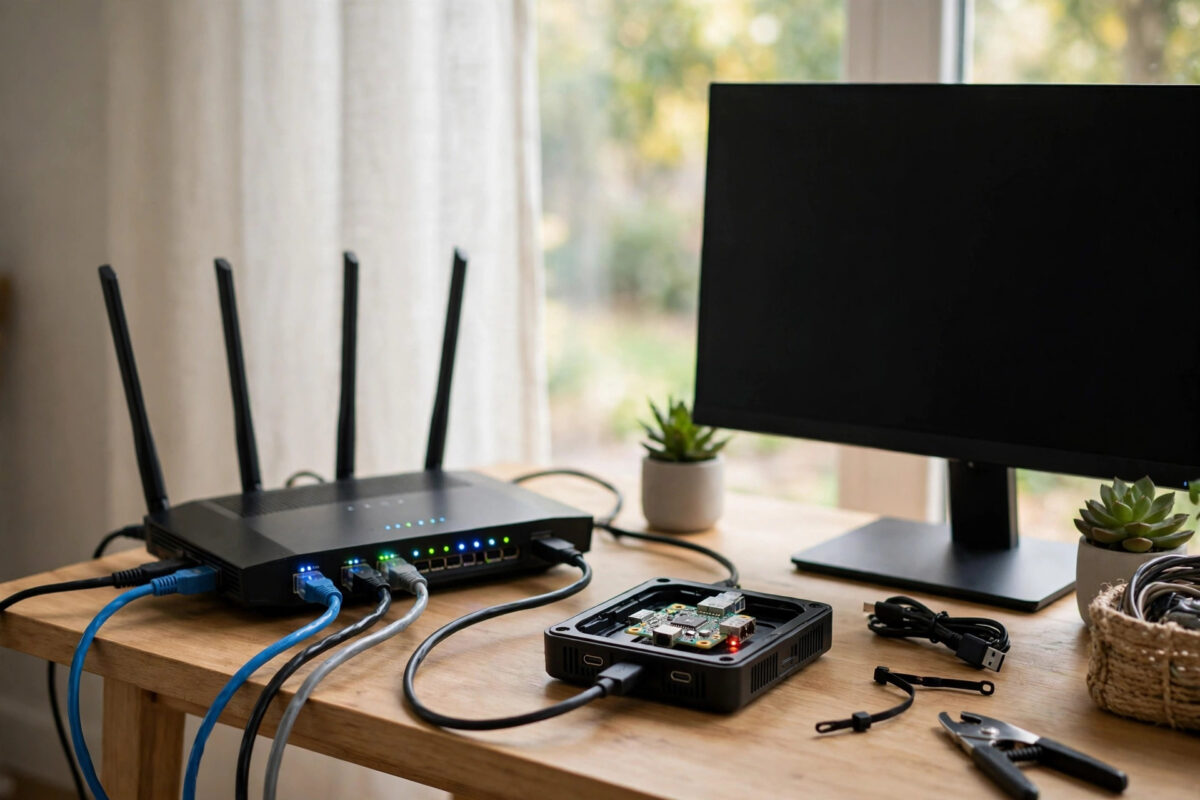
You changed your router IP range, perhaps from 192.168.1.x to 192.168.50.x or to 10.0.0.x, and now the Pi-hole admin page will not load at all. The internet may still work, or DNS may be failing too, and typing the old Pi-hole address just gives a timeout.
This is a very common problem. Pi-hole was configured with a fixed address on the old range. When the network range changed, that address no longer fits the network, so your browser cannot reach it. The fix is to give Pi-hole a correct address on the new range and update your router to use it.
Quick Answer
To fix a Pi-hole admin page that will not load after changing your router IP range, connect to the Pi-hole device directly with a keyboard and monitor or by finding its new address, then assign it a static IP inside the new range and update its gateway and DNS settings. Next, set your router DHCP to hand out the new Pi-hole address as DNS, restart networking, and open the admin page at the new address using http://NEW-IP/admin.
What Actually Changed When You Changed the IP Range
Every device on your home network needs an IP address, a subnet mask, a gateway, which is the router, and a DNS server. When your router used 192.168.1.1, your Pi-hole might have been fixed at 192.168.1.10. That worked because both were in the same range.
If the router is now 192.168.50.1, a Pi-hole still fixed at 192.168.1.10 is effectively on a different street. Your computer, now on 192.168.50.x, tries to reach it and fails. The Pi-hole computer itself may be powered on and healthy. It is simply unreachable at the old address.
Signs This Is Your Problem
- The admin page worked before the router change and stopped right after.
- Pinging the old Pi-hole IP gives timeouts or destination unreachable.
- Your router client list does not show Pi-hole, or shows it with an unexpected address.
- Devices that still point to the old Pi-hole for DNS load websites very slowly or not at all.
Step 1: Find the New Router Address and Range
On a computer that can get online, or at least connect to the router, check its network details. On Windows run ipconfig and note the IPv4 address and Default Gateway. On macOS or Linux check Wi-Fi details or run ip route. The gateway is your router address, for example 192.168.50.1. Your computer address tells you the new range, for example 192.168.50.23 means the range is 192.168.50.x.
Also log in to the router and note the DHCP pool, such as 192.168.50.100 to 192.168.50.250. You should pick a Pi-hole static address inside the same range but outside the DHCP pool, for example 192.168.50.10, so the router never gives that same address to another device.
Step 2: Reach the Pi-hole Device Directly
Because the network path is broken, you may need direct access for a few minutes.
Option A: Keyboard and Monitor
This is the most reliable method, especially for a Raspberry Pi. Plug in a monitor and keyboard, log in, and you can fix the network settings locally even if no other device can reach it.
Option B: Try to Find It on the New Network
Sometimes Pi-hole was set to DHCP, not static, so it already picked up a new address. Check the router attached devices list for a hostname such as pihole or raspberrypi. Try that address in your browser. You can also try http://pi.hole/admin only if DNS is still somehow working, which it often is not in this situation, so do not rely on it.
If you find a new address and the admin page loads, you still need to make that address static. Otherwise the same problem will return.
Step 3: Set a Correct Static IP on the New Range
The exact tool depends on your operating system. Many Pi-hole installs run on Raspberry Pi OS or Debian with dhcpcd or NetworkManager.
On Systems Using dhcpcd
- Open the config file with
sudo nano /etc/dhcpcd.conf. - Find the static block for your interface, usually
eth0for wired orwlan0for Wi-Fi. - Update it to the new range, for example:
interface eth0static ip_address=192.168.50.10/24static routers=192.168.50.1static domain_name_servers=192.168.50.1
- Save the file and reboot with
sudo reboot.
On Systems Using NetworkManager
- Run
nmcli connection showto find the connection name. - Run
sudo nmcli connection modify "Wired connection 1" ipv4.method manual ipv4.addresses 192.168.50.10/24 ipv4.gateway 192.168.50.1 ipv4.dns 192.168.50.1, adjusting the name and addresses to match your network. - Restart the connection or reboot the device.
For reference, the official Pi-hole post-install documentation explains why a static address is required and how routers should point to Pi-hole for DNS.
Step 4: Reconfigure Pi-hole If Needed
Once the device is back on the right range, you can run the Pi-hole reconfigure command to confirm its listening address and interface:
pihole -r
Choose Reconfigure, confirm the correct network interface, and confirm the new static address when prompted. This rewrites Pi-hole settings to match the current network and often clears leftover references to the old address. Let the process finish completely and note any errors before rebooting again.
Step 5: Update Your Router DNS and DHCP Settings
Fixing the Pi-hole address alone is not enough. Your router must tell all devices to use the new address.
- Log in to the router admin page at the new gateway address.
- Go to LAN or DHCP settings.
- Set the primary DNS server to the new Pi-hole IP, for example
192.168.50.10. - Remove any old Pi-hole address from DNS fields.
- Save, and renew leases by reconnecting devices or restarting the router if the router asks for it.
On each computer, you may need to renew its lease manually. On Windows use ipconfig /release followed by ipconfig /renew and ipconfig /flushdns. On phones, toggle Wi-Fi off and on. Until a device renews, it may keep trying the old DNS address and appear broken even though Pi-hole is fixed.
Step 6: Test the Admin Page and DNS
- Open
http://192.168.50.10/adminusing your own new address. - Log in and check the dashboard shows queries arriving.
- On a client device, run
nslookup google.com 192.168.50.10to test DNS directly against Pi-hole. - Browse a few normal websites and one site with ads to confirm blocking still works.
If the admin page loads by IP but not by pi.hole, the core fix worked. The name pi.hole resolves only when the device is actually using Pi-hole for DNS, so fix the router DNS step and renew the client lease.
If you are still rebuilding your setup after a router change, our detailed guide on changing router DNS settings for Pi-hole walks through vendor menus and the checks to run afterwards.
What If the Admin Service Itself Is Down?
Sometimes the IP is correct but the web service is not running. If you can SSH or use the local console, check:
pihole statusto see if DNS is active.sudo systemctl status pihole-FTLfor the core service.sudo systemctl status lighttpdor the web server service used in your version, for the admin interface.pihole -dto run diagnostics and generate a debug log for review.
Restart DNS with pihole restartdns and reboot the device once after network changes.
Common Mistakes to Avoid
- Picking a static IP inside the DHCP pool: Another device can be given the same address, causing a conflict that breaks both. Always pick outside the pool.
- Forgetting the gateway: A correct IP with the old gateway still cannot reach the router or the internet properly.
- Updating Pi-hole but not the router: Clients keep using the old DNS address and you will think Pi-hole is still broken.
- Testing only on one old device: That device may hold a cached old lease. Renew it or test with a freshly reconnected device.
- Using the old address in bookmarks: Update bookmarks, shortcuts, and monitoring tools to the new admin address.
- Changing the range back and forth: Pick one home range, document it, and keep router, Pi-hole, and reservations consistent.
Conclusion
When a router IP range changes, Pi-hole does not break, it just gets left behind on the old network. Give it a static address on the new range with the correct gateway, reconfigure Pi-hole if needed, point your router DNS to the new address, and renew client leases. Test by IP first, then by name. Once those pieces line up, the admin page loads again and network-wide blocking returns to normal.
Frequently Asked Questions
Why can I ping the router but not the Pi-hole?
Your computer and router are on the new range, while Pi-hole is still fixed on the old range. Devices on different ranges cannot talk directly without routing between them. Assign Pi-hole an address in the new range and reboot it.
Should Pi-hole use a static IP or a DHCP reservation?
Either is reliable if done correctly. A static IP set on the Pi-hole device itself is the traditional recommendation. A DHCP reservation in the router also works, as long as the reservation matches the device MAC address and always gives the same address.
I found Pi-hole on a new DHCP address. Can I just use that?
You can use it to regain access, but do not leave it as a random DHCP address. Make it static or reserved straight away, then update the router DNS setting to that address. Otherwise it can change again after a reboot or lease expiry.
The admin page loads but no queries are showing. What is wrong?
Most likely your clients are not using Pi-hole for DNS yet. Check the router LAN DNS field points to the new Pi-hole IP, then renew the client lease or reconnect Wi-Fi. Once a client uses Pi-hole, its queries appear in the dashboard within seconds.
Will changing the Pi-hole IP break my whitelist and blocklists?
No. Blocklists, whitelists, groups, and settings live on the Pi-hole device and do not depend on the IP address itself. Changing the address only changes how devices reach Pi-hole, not the rules stored inside it.



Leave a Reply