
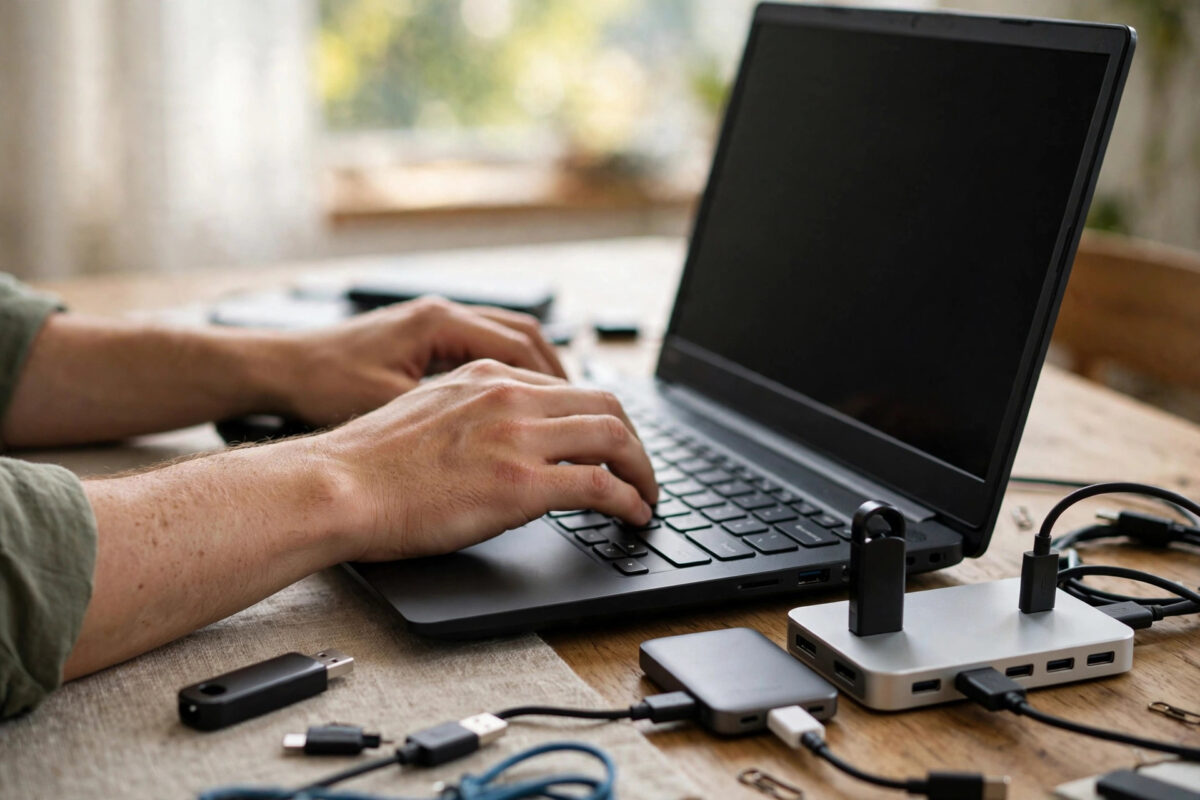
Your Ubuntu laptop wakes on its own: in your bag, at night, or seconds after you suspend it. Something attached to it is sending a wake signal, and until you identify it, every fix is a guess. The terminal can tell you exactly which device did it.
This guide shows you the process step by step: list allowed wake devices, read the log to catch the wake event, test devices one at a time, and remove wake permission from the culprit. No extra software is needed.
Quick Answer
Run cat /proc/acpi/wakeup to see every device that can wake your laptop and whether it is enabled. After an unwanted wake, run journalctl -b 0 | grep -i wake and check dmesg for the wake reason, then disable the guilty device by writing its name back to the same file, for example sudo sh -c 'echo XHC > /proc/acpi/wakeup'. Also inspect USB devices with lsusb and their wakeup settings under /sys/bus/usb/devices/.
Understanding Wake Sources Before You Start
A sleeping laptop is not fully off. Small parts stay alert for signals they may act on, which is useful for your keyboard or lid. It becomes a problem when a device you never think about also has permission, or a faulty device sends wake signals for no reason.
The usual suspects, in rough order of how often they cause trouble, are:
- The USB controller, reacting to a hub, dock, mouse receiver, or a device reconnecting.
- The wired network card, especially with Wake-on-LAN enabled.
- The Wi-Fi or Bluetooth radio, responding to reconnection attempts.
- A keyboard, mouse, or touchpad generating tiny phantom inputs.
- A lid switch or power button fault, which is rarer but does happen.
Your job is detective work: gather suspects, catch the machine in the act using the logs, and remove wake permission from the confirmed culprit. The Arch Wiki wakeup triggers guide explains these mechanisms well and applies to Ubuntu too.
Step 1: List All Devices That Can Wake the Laptop
Start with the master list the kernel keeps for ACPI wake-up devices.
- Open a terminal with Ctrl+Alt+T.
- Run
cat /proc/acpi/wakeup. - Read each line. The first column is a short device name, such as
XHC,GLAN,LID, orPBTN. Further along, the status column says enabled or disabled, and the last part often hints at the hardware, such as pci or platform. - Write down every enabled device. This is your suspect list.
Common names: XHC is the USB controller, GLAN the wired network, LID the lid switch, PBTN the power button, and RP entries are PCI ports that may hold your Wi-Fi card. Names vary by model, so use the hints in the output.
Step 2: Check USB Device Wakeup Settings
Because USB causes so many mystery wakes, look closer at its wakeup permissions.
- List attached USB devices:
lsusb. Note hubs, receivers, and anything you do not recognise. - List the USB device folders:
ls /sys/bus/usb/devices/. - Check which of them have wakeup enabled:
grep . /sys/bus/usb/devices/*/power/wakeup. Lines reading enabled mark devices allowed to wake the system. - Match a device folder to real hardware by reading its product file, for example
cat /sys/bus/usb/devices/1-3/product, changing the folder name to the one you are checking.
This might show, for example, that a wireless mouse receiver has wakeup enabled, which is handy at a desk but a problem if that mouse sits in your bag shifting around.
Step 3: Catch the Wake Event in the Logs
The suspect list tells you who could wake the machine. The logs tell you who did. Check right after an unwanted wake, before rebooting.
- Open a terminal as soon as you notice an unwanted wake.
- Search the current boot’s journal for power events:
journalctl -b 0 | grep -i -E 'suspend|resume|wake'. - Look for the sequence where the system enters suspend and then resumes seconds or minutes later, and note any device or driver named around the resume.
- Check the kernel messages too:
sudo dmesg | grep -i -E 'wakeup|PM: resume'. - Note the time you suspend, and after waking, search the journal around the resume time.
Sometimes the log names the wake source directly. Sometimes it only shows an ACPI wake event occurred. Even that helps, because combined with the enabled list it narrows the field quickly.
Step 4: Test by Disabling One Device at a Time
Now turn suspicion into proof. The wakeup file is a toggle: writing an enabled device’s name disables it, and writing it again re-enables it.
- Pick your top suspect from the enabled list. For USB problems this is usually
XHC. - Disable it:
sudo sh -c 'echo XHC > /proc/acpi/wakeup', replacing XHC with your suspect’s exact name. - Confirm the change:
cat /proc/acpi/wakeupand check the device now shows disabled. - Suspend the laptop and wait. If it used to wake in seconds, a few quiet minutes is meaningful. For random overnight wakes, test across a full night.
- If the problem stops, you have your culprit. If it continues, re-enable that device by running the same echo command again, then disable the next suspect and repeat.
Keep brief notes as you go. On a stubborn machine you may test several devices, and notes stop you going in circles.
If the culprit is a USB device you still need, try a different port, remove a cheap hub, or replace a failing cable first. Our guide to fixing USB devices that misbehave or are not recognised on Linux helps with that side.
Step 5: Check Network Wake Settings
If the network card is your confirmed or suspected culprit, handle it at its own settings level as well.
- Find your wired interface name with
ip link. It is oftenenp3s0or similar. - Check its Wake-on-LAN status:
sudo ethtool enp3s0 | grep Wake-on, using your real interface name. A lettergin the result means wake on magic packet is active. - Disable it for the current session:
sudo ethtool -s enp3s0 wol d. - To make it permanent, open the connection in NetworkManager settings and turn off Wake-on-LAN, or check the BIOS setup, where many laptops enable it by default.
Also unplug the network cable during a test night. If wakes stop with it out and return with it in, you have strong evidence.
Step 6: Make a Confirmed Fix Permanent
Changes to /proc/acpi/wakeup reset at reboot, so save your proven fix with a script plus a systemd service:
- Create a script that contains your disable commands, one echo line per confirmed device.
- Make it executable with
chmod +xfollowed by the script path. - Create a systemd service unit that runs the script at boot, and enable it with
sudo systemctl enablefollowed by your service name. - Reboot and run
cat /proc/acpi/wakeupto confirm your devices start disabled.
Common Mistakes and Useful Tips
- Disabling everything at once: You may stop the wakes but also lose lid or keyboard wake, and you learn nothing about the cause. One device at a time is slower but certain.
- Forgetting the toggle nature of the file: Writing a device name flips its state. Always re-check the list after a change instead of assuming the direction.
- Reading logs days later: Wake evidence is easiest right after the event, in the current boot. Check promptly, or note times so you can search precisely.
- Ignoring the obvious accessory: A wireless mouse in the same bag as the laptop is a classic wake source. Test one night with all accessories removed.
- Testing too briefly: Instant wakes prove quickly, but random wakes need overnight tests.
- Missing BIOS-level wake options: Some laptops wake on timers or network at firmware level. If Linux-side settings are clean and wakes continue, explore the BIOS power options.
Conclusion
You do not have to live with a laptop that wakes itself, and you do not have to guess. List the enabled wake devices with cat /proc/acpi/wakeup, inspect USB wakeup settings, catch the event in the journal, and disable suspects one at a time until the wakes stop. Then make that single proven fix permanent. The process takes a little patience, but at the end you will know exactly which device was responsible, and your Ubuntu laptop will sleep until you decide otherwise.
Frequently Asked Questions
What does XHC mean in the wakeup list?
XHC is the USB controller for your machine. When it is enabled, activity on the USB bus, such as a device connecting, disconnecting, or sending input, can wake the laptop. It is the most common cause of instant and random wakes, especially with hubs and docks attached.
How can I tell what woke my laptop last night?
Check the journal for the period while you were away using journalctl with suspend and resume terms, and look at what happened right after resume began. Combined with the list of enabled wake devices, the driver or device named near the resume usually identifies the source.
Will disabling a wake device break anything?
It only removes that device’s permission to wake the system. The device still works normally while the laptop is awake. The only effect is you may need a different way to wake the machine, such as the power button or opening the lid, which most people prefer anyway.
Why does the fix disappear after reboot?
The /proc/acpi/wakeup list is rebuilt by the kernel at every boot from hardware defaults. Any manual toggle must be reapplied, which is why a small startup script or systemd service is the standard way to keep a confirmed fix.
My wakeup list looks fine but the laptop still wakes. What next?
Check BIOS wake timers and Wake-on-LAN, test with every external accessory removed, and confirm the machine is truly suspending rather than just turning its screen off. Also review whether a scheduled task or a failing suspend, rather than a wake, is what you are seeing.



[…] you also run Ubuntu on another machine, the device-hunting approach in our guide to checking which device keeps waking an Ubuntu laptop from sleep uses the same commands and pairs well with this […]