
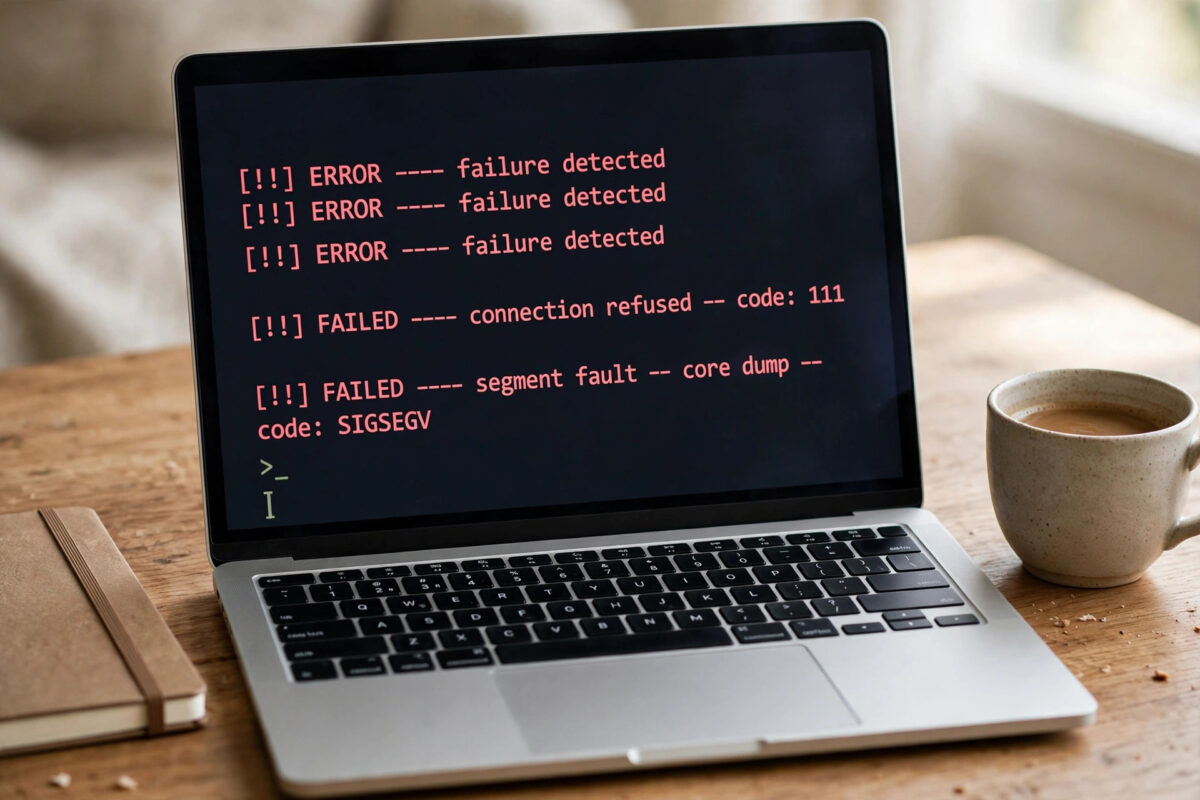
You run a routine update on Ubuntu and instead of a clean list of new packages, the terminal fills with red errors mentioning a PPA you added months ago. The good news is that a broken third-party PPA is one of the easiest update problems to fix once you know where Ubuntu stores those extra sources.
A PPA, short for Personal Package Archive, is an extra software source hosted outside the official Ubuntu archives. It is useful for getting a newer version of a single program, but it is also maintained by a volunteer or a small team. If that team stops updating it, changes its signing key, or never publishes packages for your Ubuntu release, apt update will complain every single time you run it.
Quick Answer
To fix apt update errors from a broken PPA, open Software & Updates, go to the Other Software tab, and untick or remove the failing PPA entry. If you prefer the terminal, delete its list file from /etc/apt/sources.list.d/ and its key if needed, then run sudo apt update again. Once the bad source is gone, the errors disappear and normal updates resume.
What the Error Messages Actually Mean
Before you delete anything, read the error. It tells you whether the PPA is missing, unsigned, or duplicated.
Common Error Types You Will See
- 404 Not Found: The PPA does not publish packages for your Ubuntu codename, such as noble or jammy. This often happens right after an Ubuntu upgrade when the PPA has not caught up.
- NO_PUBKEY or GPG error: The signing key for the PPA is missing or has changed, so Ubuntu cannot trust the packages.
- Repository does not have a Release file: The address in the source file is wrong, the PPA was renamed, or it was deleted by its owner.
- Duplicate sources.list entry: The same PPA was added twice, perhaps once by a script and once by hand.
- Failed to fetch: A temporary network problem or the Launchpad server is offline. This one sometimes fixes itself after a few hours.
Method 1: Remove the PPA Using Software & Updates
This graphical method is safest for most home users.
- Open the Activities overview and search for Software & Updates.
- Click the Other Software tab at the top. You will see a list of third-party sources with checkboxes.
- Find the entry that matches the failing PPA from your error message. The description often includes the PPA owner name.
- To test first, simply untick the checkbox next to it. This disables the PPA without deleting it.
- Click Close. Ubuntu will offer to reload package information. Accept and let it refresh.
- Open a terminal and run
sudo apt updateagain to confirm the error is gone.
If the update runs cleanly after unticking, you have found the culprit. You can leave it disabled for a week or two in case the maintainer fixes it, or you can return to the same tab, select the entry, and click Remove to delete it permanently. Disabling first is a sensible habit because it makes the change easy to undo.
Method 2: Remove the PPA From the Terminal
If you are comfortable in the terminal, or if the graphical tool will not open, you can remove the source file directly. Ubuntu stores each PPA as a small text file in a dedicated folder.
Step 1: List Your Extra Sources
Run ls /etc/apt/sources.list.d/ to see all extra source files. PPA files usually contain the owner and PPA name, for example graphics-drivers-ubuntu-ppa-noble.sources or a similar .list file on older releases.
Step 2: Inspect the File Before Deleting
Use cat /etc/apt/sources.list.d/filename.list, replacing the filename with the one you suspect. Check that the web address inside matches the address in your error message. This small check prevents you from removing a source you still need for a program you use daily.
Step 3: Delete or Move the File
To remove it, run sudo rm /etc/apt/sources.list.d/filename.list. If you would rather keep a backup, move it instead with sudo mv /etc/apt/sources.list.d/filename.list ~/ppa-backup.list. Moving is often the smarter first move because you can restore the file in seconds if you picked the wrong one.
Step 4: Refresh the Package Lists
Run sudo apt update again. Watch the output carefully. The lines for the removed PPA should no longer appear, and the command should finish without the previous error. After that, run sudo apt upgrade to install any updates that were blocked.
How to Remove a PPA With add-apt-repository
Ubuntu also ships a dedicated helper for adding and removing PPAs. If you know the short PPA name, this is the cleanest terminal method because the tool also handles the signing key in many cases.
- Open a terminal.
- Run
sudo add-apt-repository --remove ppa:owner/ppa-name, replacing the last part with the real PPA name from your error. - Press Enter when prompted and let the tool update the package lists.
- Run
sudo apt updateonce more to verify that everything is clean.
If you are not sure of the exact short name, stick with the file method above.
What Happens to Programs Installed From the PPA?
Removing a PPA does not uninstall any program you already installed from it. The program stays on your system and will keep working. What changes is that it will no longer receive updates from that PPA.
In many cases Ubuntu will offer the official version of the same program, which may be slightly older but is tested for your release. Otherwise the program simply stays at its current version.
If the broken PPA replaced important system libraries with its own versions, normal upgrades can still be messy even after removal. In that situation, the dedicated downgrade tool covered in our companion guide is the safer path. You can read more about that process in detail, and our guide on removing a PPA safely with ppa-purge without breaking upgrades explains it step by step.
Fixing GPG and Signing Key Errors
Sometimes the PPA itself is fine and only its signing key is the problem. The error will mention NO_PUBKEY followed by a long string of letters and numbers. Do not disable security checks to silence this warning.
The clean fix is to remove the PPA using one of the methods above and then add it again fresh, which fetches the current key automatically. You can find background on how Ubuntu package signing works in the official Ubuntu repositories documentation on the Ubuntu help site. If re-adding the PPA brings the same key error back, the PPA itself is likely abandoned and you are better off without it.
How to Prevent Broken PPA Problems in Future
A few simple habits will save you from repeating this fix every few months.
- Add only PPAs you genuinely need, and note down why you added each one.
- Prefer the official Ubuntu version of a program when it is recent enough for your needs.
- Before upgrading Ubuntu to a new release, disable third-party PPAs. The release upgrade tool does this automatically in many cases, but checking yourself avoids surprises.
- Review the Other Software tab twice a year and remove sources for programs you no longer use.
- Avoid scripts from random websites that add several PPAs at once without explaining what they do.
For a deeper background on how PPAs work and how they are hosted, the Launchpad PPA directory for Ubuntu shows which archives are active and which Ubuntu releases each one supports.
Common Mistakes
The most common mistake is editing the main /etc/apt/sources.list file while hunting for a PPA. PPAs almost never live there on modern Ubuntu; they live in the sources.list.d folder. Editing the main file carelessly can disable the official repositories, which is a much bigger problem than the original error.
Another frequent mistake is deleting every third-party source at once. That does clear the error, but it also cuts off updates for other working programs. Remove one source at a time and test with sudo apt update after each change so you know exactly which entry was responsible.
Finally, do not use commands that force Ubuntu to accept unsigned repositories just to make the warning disappear. If a source cannot be verified, the correct answer is to fix its key or remove the source, not to lower your guard.
Conclusion
A broken third-party PPA is annoying because it interrupts every update, but it is rarely serious. Identify the failing source from the error message, disable it first to confirm your suspicion, and then remove it through Software & Updates, by deleting its file in /etc/apt/sources.list.d/, or with add-apt-repository --remove. Run sudo apt update one last time, and Ubuntu should refresh cleanly with no red lines at all.
Frequently Asked Questions
Will removing a PPA delete the program I installed from it?
No. Removing the PPA only removes the source of future updates. The program itself stays installed and keeps working at its current version. It simply will not receive new versions from that PPA anymore.
Why did my PPA break after upgrading Ubuntu?
PPAs publish packages separately for each Ubuntu release. After an upgrade, your system looks for packages built for the new release codename. If the PPA maintainer has not published those yet, Ubuntu returns a 404 error until they do, or forever if the PPA is abandoned.
Can I just ignore apt update errors from one PPA?
You can for a short time, because other repositories still update. However, the error slows updates and can stop graphical update tools from completing, so cleaning it up is worthwhile.
What is the difference between disabling and removing a PPA?
Disabling unticks the source so Ubuntu skips it, but the entry remains for later. Removing deletes the entry and its source file completely. Disabling is best for testing or for a PPA you expect to work again soon; removing is best for abandoned sources.
How do I add a PPA back safely after fixing it?
Wait until the PPA page shows packages for your exact Ubuntu release, then add it again with sudo add-apt-repository ppa:owner/ppa-name and run sudo apt update. If the update finishes with no errors, the PPA is healthy again.



Leave a Reply