
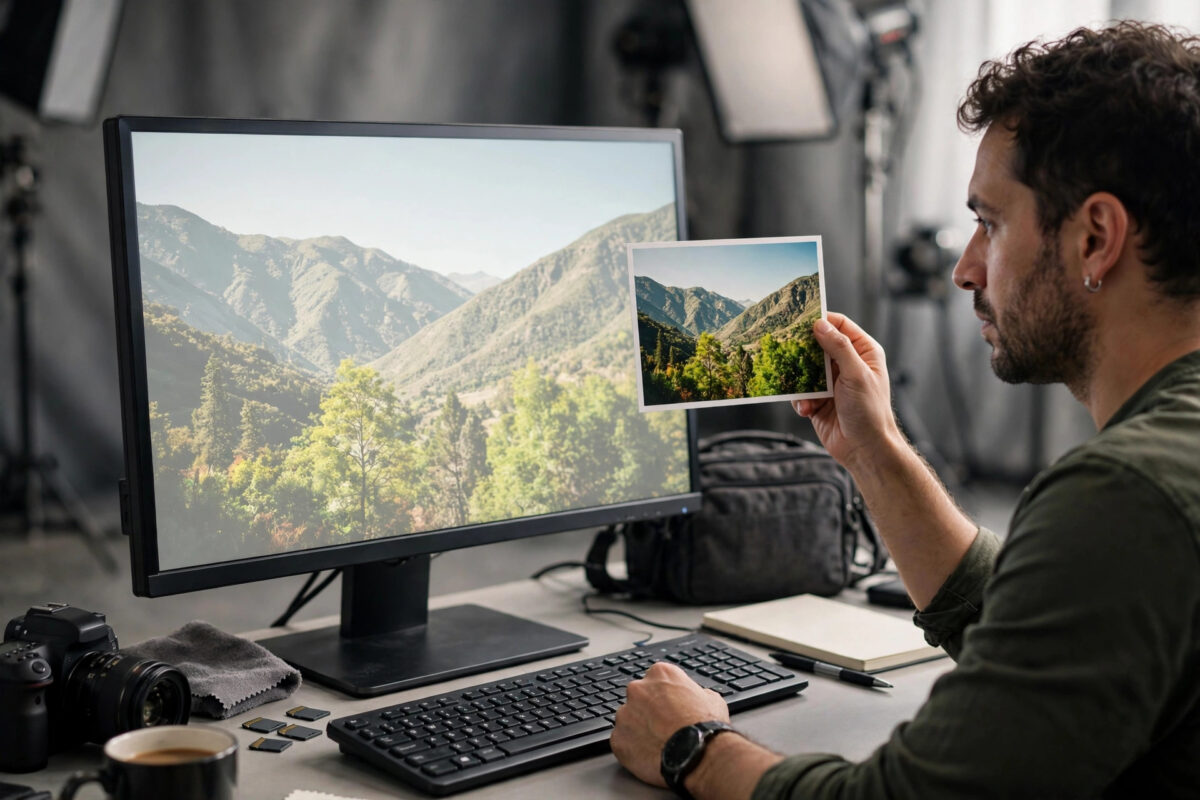
You open a favourite photograph in GIMP and your heart sinks. The rich colours you remember look pale and washed out, skin tones look grey, and the whole image feels flat, as if someone turned the saturation down. Yet the same file looks perfect in your browser, your phone, and the image viewer. Nothing is wrong with the photo itself.
What you are seeing is almost always a colour profile problem. GIMP pays close attention to colour profiles embedded in images, while many simpler programs ignore them. When a profile is missing, unusual, or mismatched with your monitor settings, GIMP’s careful handling can actually produce the washed-out result. This guide explains profiles in plain language and shows you how to fix the settings step by step.
Quick Answer
When opening the image, choose Keep the Embedded Profile if GIMP asks, or convert deliberately to sRGB rather than letting a strange profile stay in charge. Then check Edit > Preferences > Color Management and set the RGB profile to sRGB and monitor profile handling to a sane default. For photos destined for the web, convert the final image to sRGB before exporting.
Colour Profiles Explained Simply
A colour profile is a small set of instructions tucked inside an image file. It explains exactly what the stored colour numbers mean. The number for a strong red in one profile is not the same red in another profile, just as the same banknote amount means different things in different currencies. The profile is the exchange rate that lets programs display the colour correctly.
The most common profile on the web and in consumer cameras is sRGB. It is the safe, standard choice for anything viewed on a screen. Some cameras and professional tools use a wider profile called Adobe RGB, which can hold more intense greens and cyans. That is useful for printing, but if an Adobe RGB image is treated as if it were sRGB, its colours are interpreted too narrowly and it looks dull and washed out. That mismatch is the classic cause of the problem in this guide.
There is also your monitor profile, which describes your particular screen. If your system or GIMP is using an outdated, corrupt, or simply wrong monitor profile, every image can look faded even when the files are fine.
Fix 1: Answer the Profile Question Correctly on Open
When an image carries a profile different from your working space, GIMP may show a dialog asking what to do. That dialog matters more than it looks.
- Read which profile the image uses. The dialog names it, for example Adobe RGB (1998).
- Choose Convert the image to the built-in sRGB color profile for normal editing and web use. Colours are translated properly during conversion, so the image keeps its appearance.
- Avoid choosing Keep the Embedded Profile unless you deliberately work in that profile for print and understand the workflow.
- If you chose Discard or kept a profile by accident, close the image without saving and open it again to choose differently.
The key distinction is between converting and assigning. Converting translates colours so they look the same in the new profile. Assigning simply relabels the file without translating, and that is what produces washed-out or oversaturated results.
The official GIMP documentation on colour management explains these dialogs and options in depth once you are comfortable with the basics.
Fix 2: Check GIMP’s Colour Management Settings
If every image looks washed out, even simple screenshots, the problem probably lives in GIMP’s own preferences rather than in any single file.
- Open Edit > Preferences and select Color Management in the left list.
- Set Mode of Operation to Color-Managed Display.
- Under RGB Profile, make sure the built-in sRGB profile is selected for normal work.
- Under Monitor Profile, leave it set to use the system profile if you have calibrated your screen, or choose the built-in sRGB profile as a safe test.
- Click OK and reopen the image to compare.
A powerful test is to temporarily switch Mode of Operation to No Color Management. If colours suddenly look vivid again, your monitor profile is the culprit, because this mode ignores it. Do not leave colour management off permanently for serious work, but use it as a diagnostic step. If the test confirms a bad monitor profile, remove or replace that profile at system level.
Fix 3: Fix a Bad Monitor Profile on Linux
On Ubuntu and other GNOME-based systems, monitor profiles are managed in the system settings, often after calibration or after switching monitors. An old profile from a previous screen can linger and affect GIMP while other programs ignore it.
- Open Settings and find Color, or search for Color Management in the activities overview.
- Select your display and look at the profile assigned to it.
- If a profile is listed that you do not recognise, or it belongs to an old monitor, remove it or set the profile to None as a test.
- Restart GIMP and open the same image again.
- Consider creating a fresh profile with a calibration tool later if you do colour-critical work.
KDE Plasma users will find similar options under System Settings in the colour management area. Either way, the aim is the same. Make sure one correct profile, or no profile, is in charge, rather than a leftover one. Our general guide to fixing washed-out colours across Linux applications covers display-level checks that complement the GIMP-specific steps here.
Fix 4: Convert the Image Profile Inside GIMP
For a single image that is already open and looking wrong, you can convert its profile directly from the Image menu.
- Open Image > Color Management.
- Choose Convert to Color Profile.
- Select the built-in sRGB IEC61966-2.1 profile as the destination.
- Leave the rendering intent on Perceptual and keep black point compensation on for photographs.
- Apply the conversion, then compare the result with the image in a browser.
Be careful with the neighbouring Assign Color Profile option. Assigning does not translate colours, it only changes the label, so it usually makes appearance worse unless you know for certain that a file was mislabelled. Converting is the safe everyday choice.
Check what profile an image has
Open Image > Image Properties, or check the title bar and the profile information in the image window. Knowing whether you are dealing with sRGB, Adobe RGB, or an exotic camera profile tells you which fix applies. Screenshots and web images should normally be sRGB already.
Fix 5: Export Correctly for the Web
Even a perfectly edited image can look washed out after export if the exported file carries the wrong profile for where it will be viewed.
- Before exporting, convert the working image to sRGB if it is in a wider profile.
- When exporting as JPEG or PNG, keep the option to save the colour profile enabled, so other programs know it is sRGB.
- Test the exported file by opening it in a browser. Browsers handle sRGB correctly, so any dullness at this stage points back to the file, not the viewer.
- Remember that some social platforms strip profiles and assume sRGB, which is another reason to convert before uploading.
The GIMP documentation on exporting images explains the export options and quality settings worth checking alongside the profile.
Common Mistakes
- Assigning a profile instead of converting. Assigning relabels without translating colours, which is the fastest way to make colours shift or fade.
- Turning saturation up to compensate. This bakes a wrong fix into the file. On a correctly set-up screen the image will then look garish, and the original colours are damaged.
- Blaming the image file. If the photo looks right everywhere else, the file is fine. Look at GIMP’s settings and your monitor profile first.
- Editing in a wide profile, then uploading without converting. Always convert to sRGB for web use, or platforms that assume sRGB will show the dull version.
- Stacking multiple calibration tools. Running two tools that each install a monitor profile can create conflicts. Use one system method and keep it simple.
Conclusion
Washed-out images in GIMP almost always trace back to a profile mismatch: an Adobe RGB image treated as sRGB, a wrong monitor profile on the system, or an assignment made instead of a conversion. Answer the open dialog by converting to sRGB, check the colour management preferences, and clear out any stale monitor profile. Convert before exporting for the web, and your photos will look in GIMP the way they look everywhere else, rich and true to life.
Frequently Asked Questions
Why does the image look fine in my browser but washed out in GIMP?
Browsers often ignore unusual profiles or assume sRGB, while GIMP honours the embedded profile and your monitor profile strictly. If either profile is wrong or mismatched, GIMP shows the problem that other programs hide. That is why the fix is in profiles, not in the photo.
Should I always convert images to sRGB?
For web, social media, and general sharing, yes. sRGB is the standard every screen and platform understands. Keep a copy in a wider profile only if you follow a print workflow that specifically calls for Adobe RGB from start to finish.
What is the difference between Assign and Convert in GIMP?
Convert translates the colour numbers so the picture keeps its appearance under the new profile. Assign only changes the profile label, so the same numbers are interpreted differently and the picture changes appearance. Convert is the correct choice for almost all home use.
Can a faulty monitor profile affect only GIMP?
Yes, because many everyday programs ignore monitor profiles entirely. GIMP, as a colour-managed editor, uses the profile, so a corrupt or outdated profile can make GIMP the only program where colours look faded or tinted.
How do I stop GIMP asking about profiles every time?
In Edit > Preferences > Color Management, set the policy for opening files with a different profile to Convert to the preferred profile automatically, if that matches how you work. Most home users who mainly edit web photos find the automatic sRGB conversion convenient and safe.



Leave a Reply