
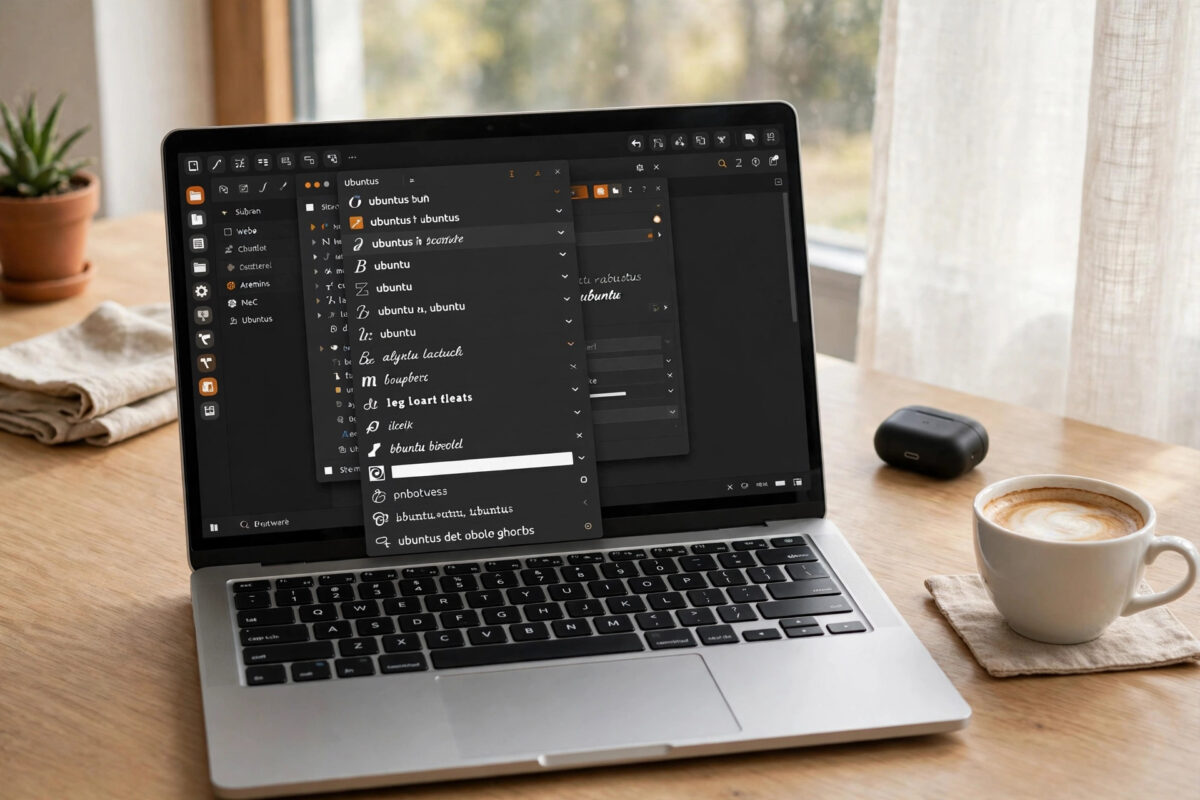
If you have just moved to Ubuntu, one of the first small shocks comes when you open a document. The text looks unfamiliar, spacing feels off, and documents sent by friends or colleagues do not match what they see in Microsoft Word. The reason is simple: Ubuntu does not include Microsoft fonts such as Times New Roman and Arial by default, so LibreOffice swaps in look-alike fonts instead.
The fix takes only a few minutes. Ubuntu offers an official installer package that legally downloads the classic Microsoft core fonts, and once they are installed, LibreOffice picks them up automatically. This guide shows you both the terminal method and the software app method, explains the licence screen that confuses many people, and helps you confirm the fonts are really working.
Quick Answer
Open a terminal and run sudo apt update followed by sudo apt install ttf-mscorefonts-installer. Accept the Microsoft licence agreement using the Tab and Enter keys when the purple screen appears. After installation, restart LibreOffice, and Times New Roman, Arial, and the other core fonts will be available in the font list.
What the Microsoft Core Fonts Package Includes
The core fonts were released by Microsoft for free use in the early days of the web, which is why Linux distributions are allowed to distribute an installer for them. The package includes a set of fonts that still turn up in countless documents, forms, and websites.
- Times New Roman, the classic serif font used in letters, essays, and official documents.
- Arial, the clean sans-serif font used in forms, spreadsheets, and workplace documents.
- Verdana and Georgia, designed for comfortable reading on screen.
- Trebuchet MS, Comic Sans MS, Impact, Courier New, and Arial Black.
- Andale Mono and Webdings round out the collection.
These fonts will not cover every modern document. In particular, Calibri, the default in recent versions of Microsoft Office, is not part of this free package. Even so, installing the core set fixes the majority of older documents, school and university work, and workplace files that rely on Times New Roman or Arial.
It also helps outside LibreOffice. Web pages that ask for Arial or Verdana will render closer to their intended design, and PDF forms created on Windows will display with the right fonts instead of a substitute.
Before You Start
You will need an internet connection, because the installer downloads the font files from Microsoft’s servers during setup. You will also need your Ubuntu password, since installing system-wide fonts requires administrator permission. Close LibreOffice before you begin, because applications build their font list when they start. If LibreOffice is open during installation, it will not see the new fonts until you restart it, which leads many people to think the install failed.
These steps apply to Ubuntu and to most Ubuntu-based systems such as Linux Mint, Zorin OS, and Pop!_OS, though menu names may differ slightly.
Method 1: Install Using the Terminal
The terminal method is the fastest and the most reliable, because you can see exactly what the installer is doing.
- Press
Ctrl+Alt+Tto open a terminal window. - Update your package lists by running
sudo apt updateand typing your password when asked. The password will not show on screen as you type, which is normal. - Install the package with
sudo apt install ttf-mscorefonts-installer. - Press Y and Enter when asked to confirm the download.
- Wait while the installer fetches and unpacks each font file.
Accepting the licence agreement
Halfway through, a purple or blue screen appears with Microsoft’s licence text. This is where many first-time users get stuck, because clicking with the mouse does nothing here.
- Press the
Tabkey to highlight the OK button at the bottom, then press Enter. - On the next screen, press Tab to highlight Yes to accept the licence, then press Enter.
- Let the installer finish until you see your normal terminal prompt again.
If you accidentally decline the licence, the package installs without the fonts. Simply run the install command again, or repair it with sudo apt install --reinstall ttf-mscorefonts-installer, and accept the licence this time.
Method 2: Install Using the Software App
If you prefer not to use the terminal, Ubuntu’s software app can start the same process.
- Open the Ubuntu Software or App Center from the applications grid.
- Search for
ttf-mscorefonts-installeror for “Microsoft core fonts”. - Click Install and enter your password when prompted.
- Watch for the licence dialog and accept it, as installation pauses until you do.
This method relies on the software app showing the licence correctly, which can be inconsistent between Ubuntu versions. If the install seems to hang without explanation, cancel it and use the terminal method instead, where the licence screen is always visible. The Ubuntu community help page on restricted formats explains why fonts like these are offered through a separate installer rather than being included by default.
Confirm the Fonts Are Installed
Do not guess. Check in two quick ways before you go back to your documents.
- Open the Fonts application from the activities overview and search for Times. Times New Roman should appear in the list.
- In a terminal, run
fc-list | grep -i "times". Installed fonts matching that name will be listed. - Open LibreOffice Writer, click the font name box, and type Times New Roman. If it appears without italics in the name box, Writer is using the real font.
If the fonts do not show up, refresh the font cache with fc-cache -f, then close and reopen LibreOffice. A full sign-out is rarely needed. Our guide on fixing LibreOffice fonts that look different from Word documents covers what to do when fonts are installed but a document still substitutes in specific places.
Adding Other Fonts Manually
Once the core fonts work, you may want one extra font for a particular document, such as a school or company font someone emailed you as a file.
- Double-click the
.ttfor.otffont file. - Click Install in the preview window that opens. This installs it for your user account only.
- Alternatively, copy font files into
~/.local/share/fontsand runfc-cache -f. - Restart LibreOffice so it rebuilds its font list.
Only install fonts from sources you trust, and respect font licences. A font being downloadable does not always mean it is free to use for every purpose, particularly for commercial work.
Common Mistakes
- Skipping the licence screen. If you close the terminal or decline the agreement, no fonts are installed even though the package name appears in your software list.
- Leaving LibreOffice open. The new fonts only appear after a full restart of the program, not just a new document.
- Expecting Calibri in the package. Calibri is not a core font. For documents that use it, the metric-compatible Carlito font, installed by default on many systems, is the usual fallback.
- Installing random font packs from unknown sites. Stick to the official installer and trusted sources to avoid broken or mislabelled font files.
- Forgetting restricted extras on a fresh install. The official Ubuntu help pages describe regional and format settings that work alongside fonts on a new system.
Conclusion
Installing the Microsoft core fonts is one of the most worthwhile five-minute jobs on a new Ubuntu system. Run the installer, accept the licence with Tab and Enter, restart LibreOffice, and documents written in Times New Roman and Arial will finally look the way their authors intended. Pages will keep their length, tables will stop overflowing, and swapping files with Word users becomes far less stressful. Once this foundation is in place, any remaining font differences are small and easy to track down.
Frequently Asked Questions
Is it legal to install Microsoft fonts on Ubuntu?
Yes. The core fonts were released by Microsoft under terms that allow redistribution, and Ubuntu’s installer asks you to accept that licence during setup. The fonts are downloaded from official sources by the installer itself, which keeps everything above board.
Why did the installer finish but I have no new fonts?
The licence was almost certainly not accepted, which is the most common cause. Reinstall the package in a terminal and watch carefully for the licence screens, using Tab to move to the Yes option before pressing Enter.
Do I need these fonts if I only use Google Docs in a browser?
Google Docs uses web fonts supplied by Google, so the core fonts matter less there. They still improve other websites and any document you open in LibreOffice, a PDF viewer, or an email attachment, so most users benefit anyway.
How do I remove the Microsoft fonts later?
Run sudo apt remove ttf-mscorefonts-installer in a terminal. The downloaded font files are removed with the package, and LibreOffice will return to using substitute fonts for those names after a restart.
Why does Calibri still look different after installing?
Calibri is not included in the free core fonts package. LibreOffice substitutes Carlito, which matches Calibri’s spacing closely. For perfect fidelity you would need a legally obtained copy of Calibri itself, for example from an Office installation you own.



Leave a Reply