
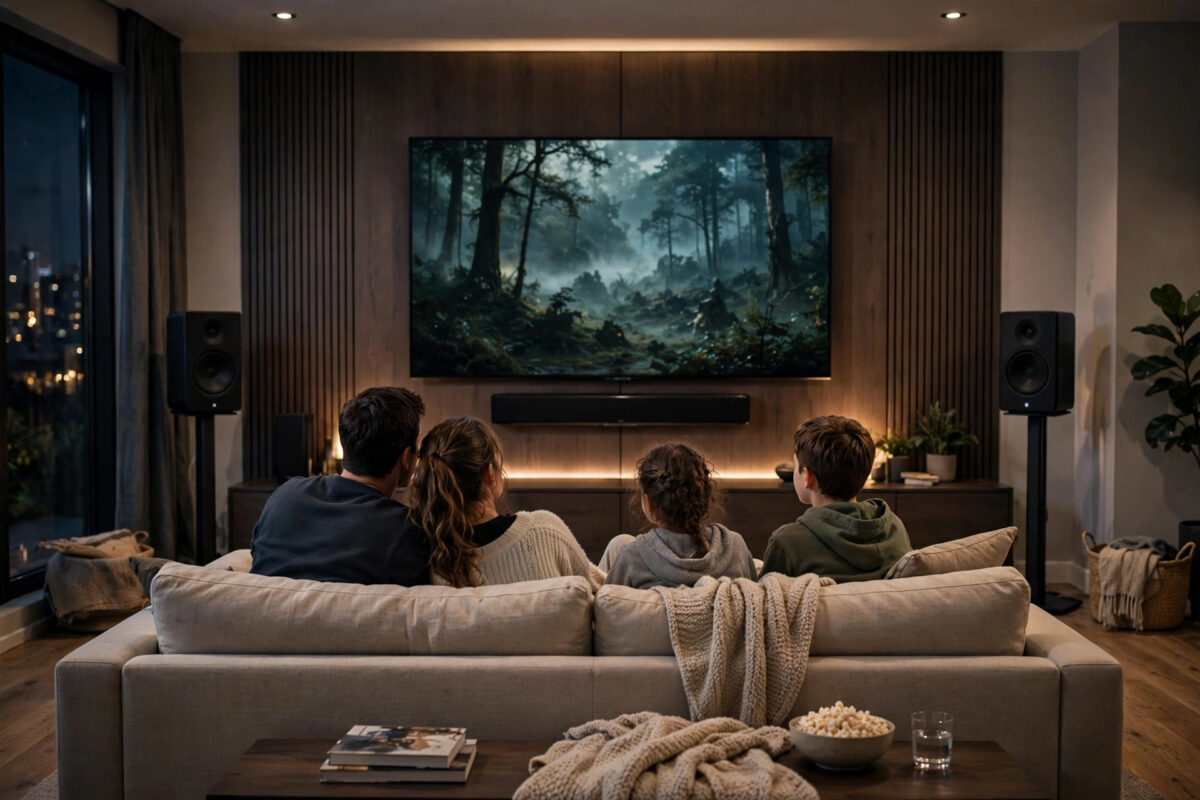
The film is at its best moment, the music swells, and then the sound vanishes for two seconds. Then it comes back. Then a rear speaker drops out again. Grouped Sonos speakers cutting out during TV audio can ruin a movie night faster than almost any other smart home fault.
The important thing to understand is that TV audio is much harder for Sonos than music. Music can buffer ahead, so small network hiccups go unnoticed. TV sound must stay in sync with the picture, so there is almost no spare time to recover when data arrives late. That is why your grouped speakers may play Spotify perfectly all day and still stutter the moment you watch TV.
This guide explains why it happens and walks through the fixes that actually solve it, from simple settings to wiring one speaker.
Quick Answer
Start by lowering the Group Audio Delay in the Sonos app under Settings, System, and your TV room, and set TV Dialog Sync as low as it stays stable. Then improve the network path for the grouped speakers: move them closer to the router or a mesh node, remove sources of Wi-Fi interference, and reboot the router and speakers. If dropouts continue, wire the main TV speaker (soundbar or Amp) to the router with Ethernet, ungroup any speakers that are far away, and make sure surround speakers and Subs are bonded to the soundbar as a home theatre setup rather than grouped as separate rooms.
Why Grouped TV Audio Cuts Out
When you group rooms together, Sonos sends the TV sound from the main speaker — usually your soundbar — out to the other speakers. That stream is time-sensitive. If a grouped speaker misses its moment because Wi-Fi was busy or weak, you hear a gap instead of slightly late sound, because late sound would echo against the TV room.
A few causes show up again and again.
Weak Wi-Fi at One Grouped Speaker
It only takes one struggling speaker to make the problem obvious. A speaker in a bedroom or kitchen, far from the router and behind thick walls, may hold a music stream fine but fail with low-delay TV audio.
The Delay Setting Is Working Against You
Sonos lets you trade delay for stability. A very low group delay gives tight sync but no safety net. A higher delay gives the network more breathing room, at the cost of the sound lagging a little behind other rooms.
Interference Near the TV Setup
Routers behind the TV, USB 3 drives, baby monitors, and crowded apartment Wi-Fi can all disturb the signal where your soundbar sits.
Mixing Bonded and Grouped Speakers
Surround speakers and a Sub bonded to a soundbar use a direct, dedicated connection. Separate rooms grouped in for TV ride your normal network and are far more likely to drop out.
Step 1: Adjust Group Audio Delay and Dialog Sync
- Open the Sonos app and go to Settings, then System.
- Select the room with your TV speaker, such as your soundbar room.
- Find Group Audio Delay and note the current setting.
- If grouped rooms cut out, increase the delay one step and test a full scene of TV, not just a few seconds.
- Also check TV Dialog Sync in the same room settings. Lower values keep lips in sync, but if sound stutters, raise it slightly and test again.
- Find the balance where speech matches the picture and no room drops out.
These two settings are explained in Sonos’s official guide to TV dialog sync settings, and they should always be your first stop because they cost nothing and take two minutes.
Step 2: Test With Fewer Grouped Rooms
Before changing your whole network, find out which speaker is struggling.
- Start TV audio playing only in the TV room, with no grouping.
- Listen for ten minutes. If it is solid, the TV speaker and its connection are fine.
- Add one grouped room at a time and listen again after each addition.
- When dropouts start, the room you just added — or the extra load it created — is the weak link.
- Check that speaker’s position and signal, or leave it out of TV groups if it is simply too far away.
Many households discover that one distant speaker was behind every complaint.
Step 3: Improve the Wi-Fi Path
TV grouping rewards a strong, calm network. Work through these improvements in order.
- Move the router out into the open. A router hidden behind a TV or inside a cabinet loses range and adds interference. A central, raised, open spot is best.
- Bring a mesh node closer to the grouped rooms. If you use mesh Wi-Fi, a node in or near the room with the struggling speaker often ends dropouts completely.
- Reduce interference. Move USB 3 hard drives, wireless transmitters, and other hubs away from the soundbar and router.
- Reboot the network cleanly. Power down the router, mesh nodes, and speakers, then start the router first, mesh second, and speakers last.
If your speakers also vanish from apps or services after network changes, the checks in our guide to fixing a Sonos speaker missing from Spotify Connect will help you rule out router isolation and account issues as well.
Step 4: Wire the Main TV Speaker
Wiring the soundbar or Amp to your router or a mesh node with an Ethernet cable is the single most reliable fix for grouped TV dropouts. The TV stream starts from that speaker, so giving it a rock-solid connection steadies the whole group.
- Run an Ethernet cable from your router, switch, or a wired mesh node to the TV speaker.
- Plug it in and wait a few minutes for the system to settle.
- In the Sonos app, check the speaker’s settings to confirm it is using the wired connection.
- Test grouped TV audio again, including the room that struggled most.
If running a cable is impossible, wiring into a mesh node that itself has a strong link is a good second best.
Step 5: Set Up Home Theatre Speakers the Right Way
If the speakers cutting out are your surrounds or Sub, do not group them. Bond them instead.
- In the Sonos app, go to Settings, System, and select your soundbar’s room.
- Use the options to add surrounds and add a Sub, following the in-app steps.
- Place surround speakers at ear level behind or beside your seating, within reasonable range of the soundbar.
- Run Trueplay tuning if your phone supports it, once everything is in its final position.
- If a bonded speaker still drops, move it closer to the soundbar and remove obstacles or electronics between them.
Bonded home theatre speakers communicate directly with the soundbar for low-delay audio, which is exactly what TV needs. Sonos’s surround sound guidelines explain placement and product requirements in detail if you are rebuilding your setup.
Step 6: Check the TV and Cable Side
Sometimes the group is blamed for a problem that starts at the TV.
- Try a different HDMI cable on the ARC or eARC port, and make sure it is seated firmly at both ends.
- Set the TV’s digital audio output to a fixed format such as PCM for testing. If dropouts stop on PCM, the issue may be with how a particular Dolby format is being passed.
- Update the TV firmware and the Sonos system from Settings, System, System Updates in the Sonos app.
Common Mistakes to Avoid
- Grouping distant rooms for films. Grouping is great for music and radio commentary, but a faraway speaker will often spoil TV. Ungroup it for movies.
- Setting every delay to minimum. The lowest delay looks best on paper and fails first in real homes. Stability beats a few milliseconds.
- Putting the router behind the TV. It is tidy and terrible. Metal, electronics, and the panel itself block and disturb the signal.
- Treating surrounds as grouped rooms. Bond them to the soundbar so they use the direct home theatre connection.
- Changing five things at once. Adjust one setting, then watch a full programme. Otherwise you will never know what fixed it.
Conclusion
Grouped Sonos speakers cut out on TV audio because TV sound cannot wait — it needs low delay and a strong network at the same time. Balance the Group Audio Delay and Dialog Sync settings, find and fix the weakest speaker, improve the router’s position, and wire the main TV speaker if dropouts persist. Bond surrounds and Subs properly instead of grouping them. With those pieces in place, grouped TV audio should stay solid from the opening scene to the credits.
Frequently Asked Questions
Why does music play fine in a group but TV audio cuts out?
Music streams buffer several seconds ahead, so brief network slowdowns are hidden. TV audio must stay in sync with the picture, so Sonos uses very little buffer. The same weak connection that music hides will cause gaps, stutters, or dropouts with TV sound.
What Group Audio Delay setting should I use?
Start in the middle of the range and test. If grouped rooms drop out, raise the delay one step at a time until playback is stable. The right value depends on your network — the goal is the lowest delay that never cuts out, accepting a slight lag in other rooms.
Will wiring one speaker really help the wireless ones?
Yes, often it does. The TV speaker is the source of the grouped stream, so a stable wired connection for it removes a major weak point. It can also strengthen the system’s overall network behaviour for nearby speakers.
Should surround speakers be grouped or bonded?
Bonded. Surrounds and a Sub should be added to the soundbar’s room as part of a home theatre setup, which gives them a direct low-delay link. Grouping them as separate rooms sends TV audio over your general network and invites dropouts.
Does eARC cause Sonos dropouts?
eARC itself is not usually the cause, but a poor HDMI cable, loose connection, or a TV audio format setting can create gaps that look like network problems. Test a different cable and try PCM output to separate TV-side issues from network issues.



Leave a Reply