
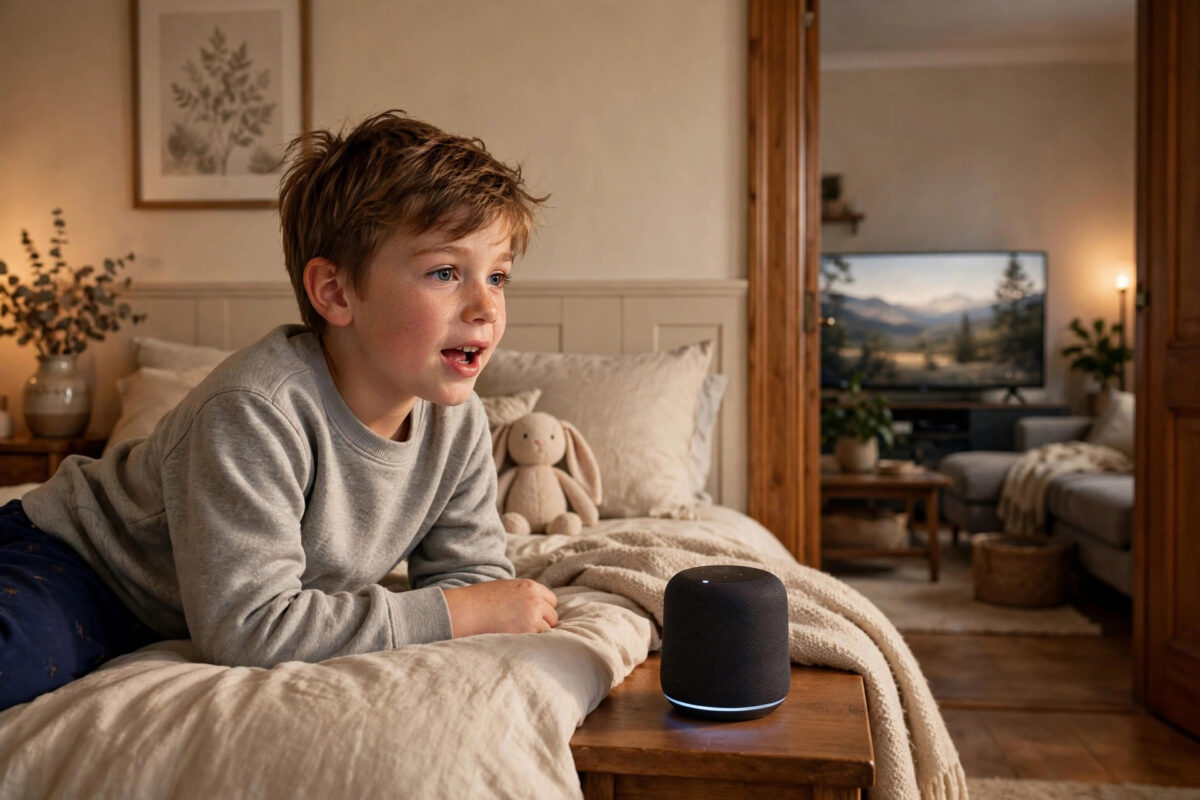
It starts as a joke. Your child asks their Echo to play a cartoon, turn the volume up, or pause the film — and your living room TV obeys, right in the middle of your programme. After the fifth interruption, it stops being funny.
Smart TVs appear in voice assistants as controllable devices, often automatically. An Echo in a child’s bedroom can happily target the main TV if the devices share an account, a room group, or a linked TV skill. The good news is that you can usually cut that link without breaking voice control for the rest of the home.
This guide explains why the TV became a target, and the practical fixes in order, from the quickest setting change to a fuller household separation.
Quick Answer
Open the Alexa app, find the TV under Devices, and remove it from the same room group as your kids’ Echo, then disable the TV’s Alexa skill or turn off its voice-control setting if you do not use it yourself. If the TV was discovered automatically, delete the TV device from Alexa and switch off automatic discovery or the TV’s network control option. Putting the children’s Echo in its own room group, with no TV in it, stops most accidental and deliberate TV commands.
Why Your Kids’ Echo Can Control the TV at All
Echo devices do not control only the gadgets in the same physical room. Alexa works from an account-wide device list, organised into groups. If a TV and an Echo end up in the same group, or if a child simply names the TV, Alexa will happily send the command across the house.
Common causes include:
- Automatic discovery: Many smart TVs advertise themselves on your home network, and Alexa adds them when a skill or discovery scan finds them.
- A linked brand skill: A TV maker’s Alexa skill, enabled once for the living room, makes the TV available to every Echo on the account.
- Shared room groups: A group like “Downstairs” or “Family Room” may contain both the TV and an Echo your child uses.
- HDMI and streaming links: A Fire TV, a games console, or a set-top box linked to Alexa can act as another route to the same screen.
- One shared account: Children using the main household Amazon account inherit the full device list, with no natural boundary.
Amazon’s Alexa smart home help pages on the Amazon website explain how devices and groups are organised, which is useful background before you start moving things around.
Fix 1: Take the TV Out of the Kids’ Room Group
This is the first fix to try, because group membership is behind most everyday cases. When an Echo hears “turn on the TV,” it looks for a TV it can reach easily, and its own group is the first place it checks.
- Open the Alexa app and tap Devices.
- Look at the groups at the top, and open the group that contains your child’s Echo, such as “Bedroom” or “Kids’ Room.”
- Check the device list for the TV, a Fire TV, or a streaming stick connected to the TV.
- Edit the group and remove the TV and any device that controls it.
- Make sure the living room TV sits only in the living room group, alongside the Echo you actually use there, if any.
- Test from your child’s room by asking their Echo to turn on the TV. It should no longer find a TV in its group.
Be thorough here. Removing the TV itself but leaving a Fire TV Stick or a smart plug that powers the TV in the group leaves a back door open, and children are excellent at finding back doors.
Fix 2: Rename the TV So It Is Harder to Guess
If the TV is called simply “TV,” any child can target it by name from any Echo. Giving it a less obvious name adds a useful layer of friction.
- In the Alexa app, open Devices and select the TV.
- Tap the settings icon and choose Edit Name.
- Pick a clear adult-friendly name such as “Lounge Screen” rather than “TV” or “Television.”
- Tell the adults in the house the new name, and test a command using it from the living room Echo.
Renaming is not real security — a determined older child may still find the name in the app — but for younger children it ends most casual commands at once.
Fix 3: Disable the TV Skill or Delete the TV From Alexa
If you never control the TV by voice yourself, the cleanest fix is to remove the connection entirely.
Disable the Brand Skill
- Open the Alexa app and go to More, then Skills & Games.
- Open Your Skills and find the TV brand’s skill.
- Select Disable Skill, and unlink the TV account if asked.
Delete the Device
- Go to Devices, select the TV, and open its settings.
- Choose the delete or trash option and confirm.
- Check that any duplicate entries, such as the same TV appearing through a second skill, are also removed.
Note that Alexa may rediscover the TV later if the TV still advertises itself on the network or a linked skill remains active. If it keeps coming back, turn off the TV’s own network remote control or voice assistant setting in the TV’s settings menu. Our guide to removing unwanted devices from Alexa covers stubborn rediscovered devices in more depth.
Fix 4: Use Child Settings and Household Boundaries
For a longer-term fix, look at how your children’s Echo is set up. An Echo in Amazon Kids mode is designed for a child profile, with stronger controls for parents, and it reduces access to some household features. Check the device settings for your child’s Echo and consider enabling the kids’ settings if they are not already on.
You can also review voice purchasing and drop-in or calling features at the same time. A tidy-up of a child’s Echo should cover:
- Kids’ settings switched on for the device
- Voice purchasing off, or protected by a voice code
- Explicit content filtering on for music
- The device placed in its own room group, containing only child-safe devices such as their lamp and their Echo
These steps do not just protect your TV. They draw a sensible line around what a child’s speaker can reach across the whole home.
Helpful Tips for Peace in the Living Room
Give the kids their own screen path. If children have a tablet or their own small TV with its own controls, the main TV becomes far less tempting as a target.
Check smart plugs and HDMI switches too. A plug named “TV power” or a linked streaming box can restart the problem even after the TV itself is removed from the group.
Test after every app update or new device. Adding a new Fire TV or re-enabling a skill can quietly restore the old behaviour. A ten-second test after setup saves arguments later.
Keep one adult route working. If you do enjoy voice control in the living room, keep the TV in the living room group only, and confirm the adults’ Echo still controls it before you finish.
Talk about the house rule. Settings help, but a clear rule — the main TV is controlled by the people watching it — backed by the settings above, works best of all.
Conclusion
A child’s Echo controls your TV because Alexa sees one shared list of devices, not separate rooms with locked doors. Taking the TV out of the kids’ group, renaming it, and, if needed, disabling its skill or deleting it from Alexa will restore peace in the living room. Finish by reviewing the child Echo’s own settings, test a command from their room, and enjoy your programme uninterrupted.
Frequently Asked Questions
Why does the Echo say it cannot find a TV after I fix this?
That is the result you want from your child’s Echo. It means the TV is no longer in their group or device list. The living room Echo should still find the TV if you kept it in the living room group.
Will deleting the TV from Alexa affect the normal remote?
No. Deleting the TV from Alexa only removes voice and app control through Alexa. The TV’s own remote control, apps, and channels continue to work exactly as before.
My TV keeps reappearing in Alexa. How do I stop it for good?
Disable the TV brand’s Alexa skill and turn off network remote control or external device control in the TV’s own settings menu. Automatic discovery usually stops once both the skill and the TV’s advertising feature are off.
Can I let the kids control a different TV but not the main one?
Yes. Put the children’s TV in their room group with their Echo, and keep the main TV only in the living room group. Clear, different names for each TV prevent mix-ups.
Does Amazon Kids mode block smart home control completely?
Not completely, but it gives parents stronger control over what a child profile can do. Combined with careful room groups, it greatly reduces a child’s ability to reach household devices like the main TV.



Leave a Reply