
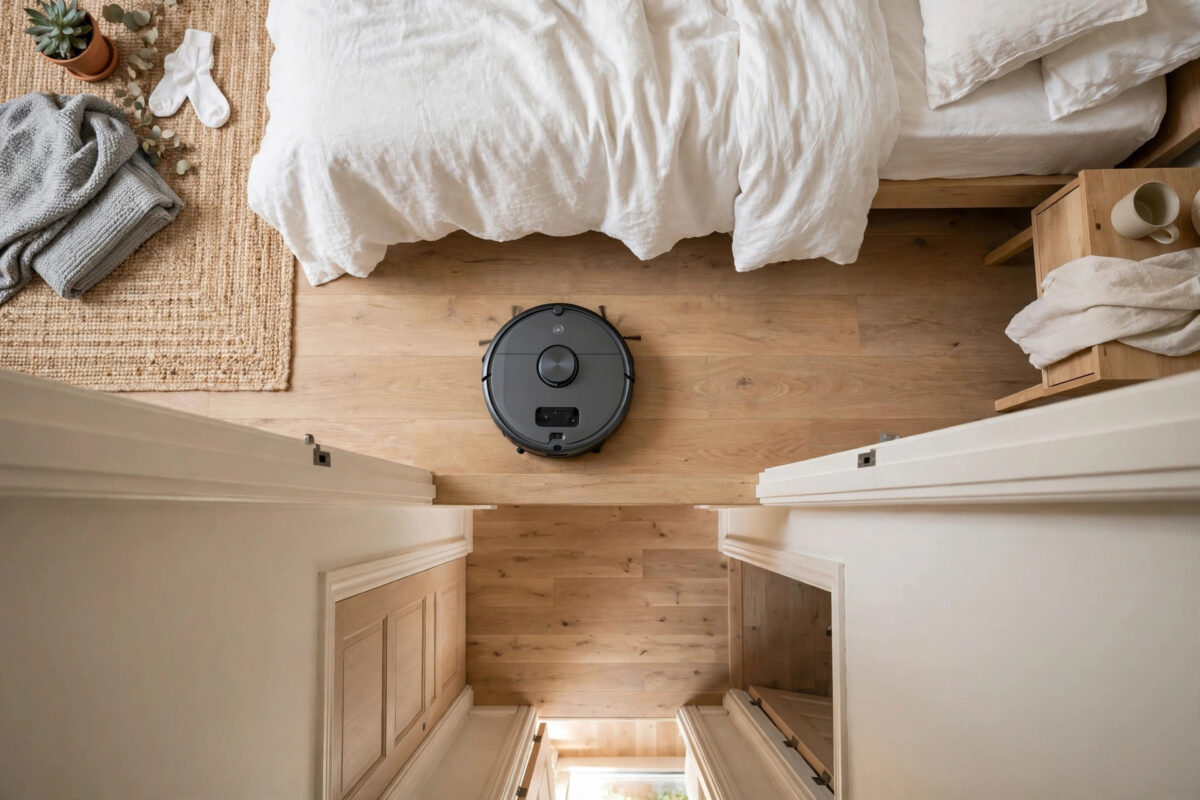
Your robot vacuum cleans the living room beautifully, twice. Then it goes home, leaving the bedroom dusty and the hallway untouched. The robot is not being lazy or random. It is following a map, a set of zones, and a schedule, and one of those three is telling it the wrong thing.
This fault appears on many brands, including Roborock, Roomba, and Ecovacs models. The fix follows the same order every time: check the map first, then the blocked zones, then the schedule and room settings. Work through them in that order and you will find the cause.
Quick Answer
Open the app map and check that every room exists as its own room with the right name. Delete any no-go zones or virtual walls covering the skipped room, then check the schedule and room cleaning list to make sure the skipped room is selected and the repeated room is not listed twice. Finally, start one full clean from the dock and watch the robot position itself correctly on the map before it starts.
The Three Usual Causes
Almost every case of double-cleaning one room and skipping another comes from one of three places.
The map is wrong. Two real rooms may be merged into one, so the robot thinks finishing the merged area means both are done. Or one room is split into two, so the robot cleans the same space under two names. Or the skipped room never made it onto the map at all because its door was closed during mapping.
A zone is blocking the room. A no-go zone, virtual wall, or carpet setting may cover the doorway or the whole skipped room. Owners often draw these for a pet bowl or a cable corner and later forget how large the box was drawn.
The schedule or room list is wrong. Many apps let you pick rooms and a cleaning order, and even clean a favourite room twice on purpose. A saved custom clean or an old schedule can quietly repeat one room and drop another every single day.
Step 1: Audit the Map Room by Room
Stand in your home with the app map open and compare them like a floor plan.
- Check that every real room appears on the map, including small hallways and bathrooms.
- Check that no real room appears twice under two names or two colours.
- Check that merged rooms are split along the true doorway line using the room edit tool.
- Check that split rooms are merged back into one room.
- Open every door to rooms that are missing from the map.
- Run a full mapping or cleaning run from the dock so the robot can add the missing rooms.
- Save the corrected map before you set any schedule.
If the robot icon shows in the wrong room at the start of a clean, positioning has failed. Send it back to the dock, clean its sensors and LiDAR window or camera area with a dry cloth, and start again. A robot that starts lost will clean the wrong places in the wrong order, no matter how good the map is. Regular sensor care from our robot vacuum maintenance checklist prevents many of these lost starts.
Step 2: Hunt for No-Go Zones and Virtual Walls
Zones are the sneakiest cause because the map can look perfect while a nearly invisible box blocks a doorway.
- Open the map editor and turn on the view that shows no-go zones and virtual walls.
- Look closely at the doorway of the skipped room. Even a small overlap can block entry.
- Check for a large zone drawn for another reason that stretches into the skipped room.
- Delete or shrink any zone that touches the skipped room or its doorway.
- Check for floor-type rules, such as a mop-avoid or carpet-only setting, that exclude the room in the mode you use.
- Save the map and run a room clean for the skipped room alone to prove it can now enter.
Test with a single-room clean before you trust a full schedule again. If the robot enters and cleans the room alone, the zone was the fault. If it still refuses, the room may not be selected as a room at all, which takes you back to the map audit.
Step 3: Fix the Schedule and Cleaning Order
Schedules remember old rooms even after maps change. That mismatch causes many repeat-and-skip patterns.
- Open every saved schedule, including weekday and weekend ones, and list which rooms each one cleans.
- Delete schedules built on an old map. Room names from a deleted map can point at the wrong spaces.
- Check custom or favourite cleans. Some apps have a passes or times setting that cleans a room twice on purpose. Set it to one pass.
- Check the room order list. Make sure each room appears once, in the order you want.
- Confirm the skipped room is ticked in the schedule, not just visible on the map.
- Save one simple daily schedule first. Add extra schedules only after a week of correct cleans.
Voice assistants can add one more trap. A voice routine may call an old room name that now matches a different space. Rename rooms with clear, unique names and update your routines to match.
Step 4: Watch One Full Clean Like a Test
After fixing the map, zones, and schedule, prove the fix with one watched clean.
- Start a full clean from the dock in the app, not with voice or the robot button.
- Confirm the robot icon starts on the dock and enters the first room correctly.
- Watch the app as it ticks off each room. Note the order and any room it marks done too fast.
- If it heads back to a finished room, pause and check whether a second pass setting or suction boost routine is active for that room.
- Let the clean finish and compare covered area in the cleaning history with your floor size.
- Save the map again if the robot refined any edges during the clean.
Cleaning history is your best evidence. It shows the exact path drawn by the robot. A doubled room shows dense lines in one space and a blank space in the skipped room. Keep a screenshot before and after your fix if you later talk to support. Brand-specific map tools differ, so confirm menu names on Roborock’s official support pages if you use a Roborock, or your own maker’s support site for other brands.
Mistakes to Avoid
- Remapping the whole home for a schedule fault. Check zones and schedules first. They take two minutes.
- Drawing huge no-go zones. Draw zones tightly around the object, never across doorways.
- Naming two rooms the same. Duplicate names confuse schedules and voice control.
- Starting cleans by carrying the robot. It starts lost and cleans in the wrong order.
- Keeping old schedules after editing the map. Rebuild schedules whenever rooms are merged, split, or renamed.
- Testing with a spot clean. Only a full clean shows the true room order and coverage.
Conclusion
When a robot vacuum cleans one room twice and skips another, it is obeying bad instructions, not failing at cleaning. Audit the map so every room exists once, remove zones that block the skipped room, and rebuild the schedule so each room is listed once. One watched full clean then proves the fix, and the robot goes back to covering the whole home evenly.
Frequently Asked Questions
Why does my robot clean the living room twice every day?
A schedule, custom clean, or passes setting is probably asking for two passes, or the room is split into two on the map. Check the room edit view and set the cleaning passes for that room to one.
Why does my robot never enter the spare bedroom?
The door was likely closed during mapping, or a no-go zone covers the doorway. Open the door, run a full clean from the dock, and check the zone view on the map.
Do I need to remap my whole home to fix this?
Usually not. Most cases are fixed by merging or splitting rooms in the editor, deleting a blocking zone, or rebuilding the schedule. Remap only if rooms are missing or the map shape is badly wrong.
Why does the robot clean rooms in a strange order?
Many robots choose their own efficient order unless you set a custom room order in the app. If the order matters to you, set it in the schedule or room cleaning settings.
The map is correct but it still skips a room. What else can it be?
The robot may be positioning itself wrongly at the start, or its battery may run low before the last room. Clean the sensors, start from the dock with a full charge, and check the cleaning history path for clues.



Leave a Reply