
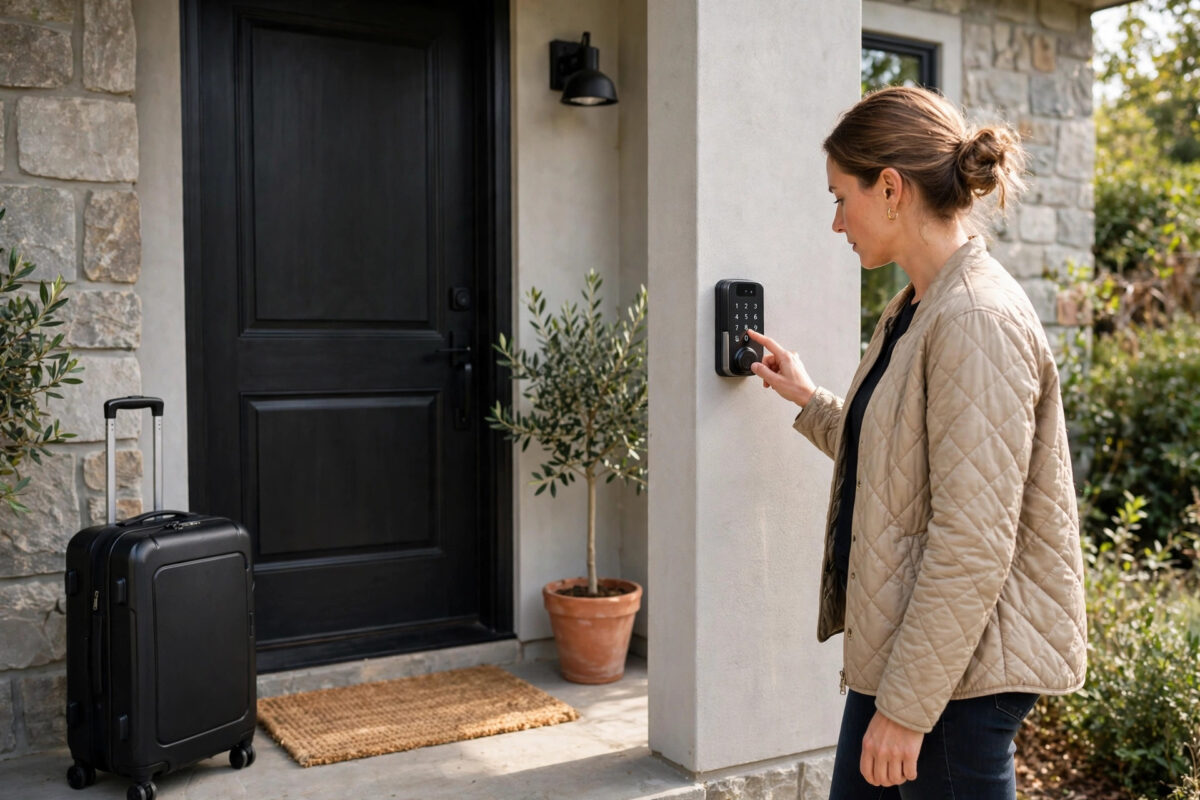
You need to let a cleaner, dog walker, or guest into your home once. You will not be there. Giving them your main code is risky, because that code keeps working after they leave.
A one-time entry code solves this problem. It opens the door for a single use or a short window, and then it stops working. You stay in control, and you do not need to change your family codes later.
Schlage locks support guest and temporary codes in a few ways, depending on the model. This guide shows the safest method for Encode and other keypad models, plus how to schedule, test, and remove the code properly.
Quick Answer
In the Schlage Home or Key by Amazon app, add a new access code, give it a clear name like “Cleaner — Tuesday,” and set it as a one-time or scheduled code for the exact date and time window you need. Test it once yourself, send it to your guest only shortly before the visit, and confirm in the app history that it was used and has expired. If your model has no true one-time option, create a temporary code and delete it yourself right after the visit.
One-Time, Scheduled, and Permanent Codes: Know the Difference
Not all guest codes work the same way. Pick the right type.
- One-time code: Works for a single successful entry, then it dies automatically. Best for a delivery, a one-off cleaner, or a tradesperson.
- Scheduled code: Works only during set days and hours, such as every Tuesday from 10 a.m. to 12 p.m. Best for a regular cleaner.
- Temporary code with manual delete: Works until you delete it. Use this if your model lacks a true one-time option, but set a phone reminder to remove it.
- Permanent code: Always works. Reserve this for family and people who live in the home.
Check which options your exact model shows in the app. The names vary slightly between Encode, Encode Plus, and older keypad locks. For model details, see Schlage’s official support pages.
Before You Create the Code
- Decide the window. Give the smallest window that works. Two hours is better than a whole day.
- Pick a unique code. Do not reuse your main code, a birthday, or 1234-style patterns. The lock can store many codes, so make this one different.
- Name it clearly. Use the person and date in the name. Clear names prevent you from deleting the wrong code later.
- Check the lock is online. If the lock is offline, a new code may not sync. Confirm the app shows the lock connected before your guest arrives.
- Charge or check batteries. A guest code is useless if the lock dies. If the battery warning is on, change the batteries first.
These checks take three minutes. They prevent the classic problem of a cleaner standing outside a door that will not open.
How to Create a One-Time Code in the App
These steps cover the Schlage Home app flow used by Encode models. Your screens may differ slightly.
- Open the Schlage Home app and select your front door lock.
- Open the access codes or people section, usually shown with a key or person icon.
- Tap the option to add a new code.
- Enter the new code. Use the length your lock requires, commonly four to eight digits.
- Type a clear name, such as “Guest — Emma — Friday.”
- Choose the access type. Select one-time if it is offered. If you see schedule options instead, set the exact date, start time, and end time for the visit.
- Save the code and wait for the app to confirm it has synced to the lock. Do not close the app until you see success.
- Test the code yourself at the keypad. A true one-time code that you test will be used up, so if you test a one-time code, delete it and create a fresh one for the guest. For scheduled codes, test inside the window, then confirm the history shows your test.
If you use the keypad only, with no app
Some Schlage keypad locks let you add a user code at the door with your programming code. Enter programming mode, add the new user code, and note its slot number. These codes are usually permanent until deleted, so treat them as temporary codes: write down the slot, and delete that slot right after the visit using the programming steps in your manual. Never leave a keypad-added guest code in place “just in case.”
How to Share the Code Safely
- Send the code shortly before the visit, not days in advance.
- Send it in a private message, not in a group chat or on paper left outside.
- Tell the guest the exact window: “This code works Friday between 11 and 1, once.”
- Ask them to lock the door with the keypad when they leave and to message you when they are done.
- Never share your programming code or your main family code — ever. Guest codes exist so you never need to.
Good sharing habits matter as much as the code itself. Our broader advice in our smart home security tips for beginners explains why unique codes beat shared codes for every visitor.
After the Visit: Confirm and Clean Up
- Open the lock history in the app. Confirm the code was used at the expected time.
- Check that a one-time code now shows as expired or inactive. If it still shows active, disable it manually.
- For scheduled codes, confirm the end time has passed and the code no longer opens the door. Test it once to be sure.
- For manual temporary codes, delete the code now. Do not wait until tomorrow.
- If the guest never came, still delete or expire the code. An unused live code is still a risk.
This two-minute cleanup is what makes one-time access truly safe. Most security failures happen because a temporary code was never removed.
Troubleshooting Guest Code Problems
The guest says the code does not work
Check the time window first — most failures are a code used too early or too late. Then confirm the code synced while the lock was online. Ask the guest to press the Schlage button to wake the keypad, wait for the lights, and enter the code slowly.
The code worked twice when it should work once
You may have created a scheduled or permanent code instead of a one-time code. Disable it now, check its type in the app, and recreate it with the correct setting before the next visit.
The app will not save a new code
Your lock may have reached its code limit. Delete old, unused guest codes first. Also check that the lock firmware and app are up to date, then try again near the door.
Mistakes to Avoid
- Giving out your main code: Once shared, you cannot unshare it. You would need to change the code for the whole family.
- Setting a whole-week window for a one-hour visit: Long windows raise risk with no benefit.
- Testing a one-time code yourself and sending the same code: Your test uses it up, so the guest gets a dead code — or worse, you assume it failed and create confusion. Recreate it after testing.
- Forgetting to delete manual codes: A “temporary” code you never delete is a permanent back door.
- Using an obvious code: Avoid 0000, 1234, your house number, or a year everyone knows.
Conclusion
A one-time entry code lets a cleaner or guest in once, on your terms, and then locks them out automatically. Create it in the app with a clear name and the shortest window that works, share it privately at the last moment, and confirm in the history that it expired. If your model has no true one-time option, delete the temporary code yourself right after the visit. That simple routine gives you convenience without giving away control of your front door.
Frequently Asked Questions
Does every Schlage lock support true one-time codes?
No. Encode models with the app usually offer one-time or scheduled access, while basic keypad-only models may only offer codes you must delete by hand. Check your app options for your model.
How many guest codes can I store?
It depends on the model, often up to 30 codes on Encode locks. Delete old guest codes regularly so you never hit the limit when you need a new one.
Will I get a notification when the code is used?
Yes, if notifications are on and the lock is online. The history also shows which named code opened the door and at what time.
What should I do if I sent a code to the wrong person?
Disable or delete it in the app immediately, then create a new code for the right person. Do not wait for the window to pass.
Can a guest use the code to lock the door when leaving?
Yes. Most Schlage keypads lock with the Schlage button or a dedicated lock key, with no code needed for locking. Tell your guest this so they can secure the door properly.



Leave a Reply