
When SmartThings shows a Zigbee bulb, sensor, or plug as permanently offline, it does not always mean the device has failed. Zigbee is a mesh network, and a single moved plug, a busy Wi-Fi channel, or a hub that has lost track of a route can make several healthy devices look dead.
The good news is that most offline Zigbee problems can be fixed without removing and re-adding every device. Work through the checks in order, from power and range to hub restarts and channel clashes, and only rejoin a device as a last step.
Quick Answer
First, confirm the device has power and is within range of the hub or a Zigbee repeater, then restart the SmartThings hub and wait 30 minutes for the mesh to rebuild. Check for Wi-Fi interference on 2.4 GHz, make sure no mains-powered Zigbee device you relied on as a repeater was unplugged or moved, and avoid deleting the device from SmartThings, because rejoining it in place usually restores it with its routines intact.
How Zigbee in SmartThings Is Supposed to Work
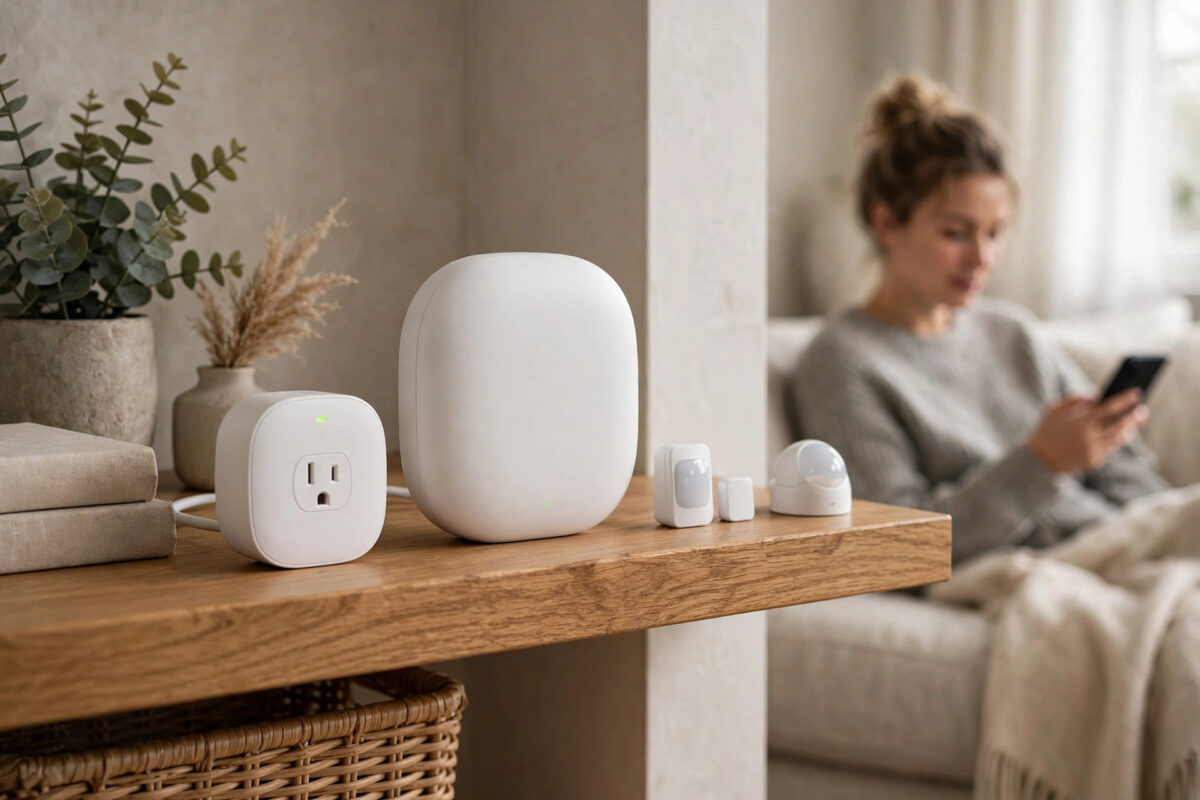
Zigbee devices do not all talk directly to the hub. Battery sensors and switches often talk to a nearby mains-powered device, such as a smart plug or bulb, which passes their messages on. Those mains-powered devices are called repeaters or routers.
This mesh design is efficient, but it also means one change can affect many devices. If you unplug the smart plug in the hallway, the bedroom door sensor that used it as its only path may go offline, even though both the sensor and the hub are fine.
SmartThings also does not update device status instantly. A battery device may only check in every so often to save power. A device marked offline may simply have missed a few check-ins, which is why rushing to delete it often makes the job bigger.
Step 1: Check Power, Batteries, and the Obvious Things
- For a plug or bulb, confirm the wall switch is on and the device works manually if it has a button.
- For a battery sensor, replace the battery with a fresh, known-good one, even if the app reported battery remaining. Low batteries often report badly near the end of their life.
- Clean battery contacts gently and make sure the battery sits firmly.
- Check whether the device itself shows any light or response when you open a door, press its button, or trigger motion.
- Confirm your SmartThings hub itself is online in the app and its light shows a normal connected state.
If only one device is offline and it has no signs of life at all, the fault is likely with that device or its power. If many devices went offline together, think network, hub, or interference first.
Step 2: Check Range and Whether a Repeater Disappeared
Think about what changed before the problem started. Did you move furniture, unplug a plug for a vacuum cleaner, replace a bulb, or move the hub?
- List the mains-powered Zigbee devices between the hub and the offline device. At least one should be on and nearby.
- Plug any removed repeater back in and give the mesh time to settle.
- Temporarily move the offline device closer to the hub. If it comes back online straight away, you have a range or repeater problem in its normal location.
- Add a dedicated Zigbee smart plug as a repeater in a hallway or middle room if a distant sensor keeps dropping.
- Keep the hub away from thick walls, metal cabinets, and the back of a television if possible. A central, open position works best.
Do not judge the result in two minutes. After you restore a repeater, some battery devices take a while to find the new route on their next check-in.
Step 3: Restart the Hub the Right Way
A proper hub restart forces SmartThings to rebuild connections and often brings back devices that were stuck.
- Open the SmartThings app and note which devices are offline, so you can compare later.
- Unplug the power cable from your SmartThings hub or SmartThings Station. If your hub has backup batteries, remove them too.
- Wait a full 30 seconds.
- Reconnect power, and batteries if you removed them, and let the hub boot completely.
- Wait at least 20 to 30 minutes before you judge the result. Zigbee meshes heal slowly.
- Trigger battery devices manually, by opening a contact sensor or walking past a motion sensor, to encourage them to check in.
Samsung describes hub restart and device health checks in its official Samsung SmartThings support centre for hub and device troubleshooting. Follow the guidance there for your exact hub model if its lights show an error state after the restart.
Step 4: Rule Out Wi-Fi Interference
Zigbee and 2.4 GHz Wi-Fi share the same part of the radio spectrum. If your router sits on top of your hub, or your Wi-Fi channel changed after a router restart, Zigbee can suffer badly.
- Keep at least one metre, ideally more, between your Wi-Fi router and your SmartThings hub.
- Move USB 3.0 drives and hubs away from the SmartThings hub, because they can create local interference.
- In your router settings, set the 2.4 GHz Wi-Fi channel to 1, 6, or 11 and keep the channel width at 20 MHz for stability in busy areas.
- If your router recently switched channels automatically, that change can line up exactly with when Zigbee devices went offline.
- Consider the Zigbee channel in SmartThings advanced settings only as a later step, because changing it forces many devices to rejoin.
Our guide to choosing Wi-Fi and Zigbee channels that do not clash explains how the channel numbers overlap in simple terms.
Step 5: Rejoin the Device Without Deleting It
If one device is still stubbornly offline after power, range, restart, and interference checks, try rejoining it in place. In many cases SmartThings recognises the same device and restores it.
- Put the device into pairing mode using its manual, for example holding its button for five to ten seconds or cycling power in a pattern.
- In the SmartThings app, tap Add Device and search by brand or scan nearby.
- Stand close to the device with your phone and keep the nearest repeater powered on.
- Wait for SmartThings to find it. If it says a device was re-added or already exists, check your device list before creating a duplicate.
- Test the device, then check that its routines and automations still point to the correct device.
Deleting and excluding should be your final option, not your first. Deleting can break routines, scenes, and history, and you will have to rebuild them afterwards.
When the Problem Is the Device Itself
Sometimes a device really has failed. Signs include no light or response after a fresh battery or confirmed power, visible damage, a device that drops offline again within hours even when placed next to the hub, and pairing mode that will not start at all.
Test the suspect device next to the hub for a full day. If it stays online there but fails in its room, the problem is range or interference. If it fails next to the hub too, replacement is the sensible next step.
Common Mistakes to Avoid
- Deleting offline devices immediately: You lose routines and settings, and the underlying mesh problem stays unfixed for the next device.
- Unplugging Zigbee plugs to save power: Those plugs may be the only repeaters for several battery sensors.
- Judging a restart after two minutes: Give the mesh 20 to 30 minutes, and wake battery devices manually.
- Putting the hub and router together: Close placement invites 2.4 GHz interference.
- Changing the Zigbee channel first: It is a disruptive step that can force a full network rebuild. Try everything else first.
- Trusting a low battery warning too late: A sensor can show 20 percent for weeks and then fail suddenly. Swap the battery early in your checks.
Conclusion
Permanently offline Zigbee devices in SmartThings are usually a power, repeater, range, or interference problem, not a reason to delete everything. Check power and batteries, restore any missing repeaters, restart the hub properly, separate the hub from your router, and give the mesh time to heal. Rejoin a single device in place only if it is still offline after those steps, and you will fix most cases while keeping your automations intact.
Frequently Asked Questions
Why did several Zigbee devices go offline at the same time?
They probably shared a path to the hub. A repeater plug or bulb was unplugged or moved, the hub restarted badly, or Wi-Fi interference increased. Restore the repeater, restart the hub, and wait for the mesh to rebuild.
How long should I wait after restarting my SmartThings hub?
Wait at least 20 to 30 minutes. Battery Zigbee devices check in on their own schedule, so some will return quickly and others only after you trigger them or their next scheduled check-in arrives.
Will rejoining a device delete my routines?
Rejoining in place without deleting the device usually preserves it in SmartThings, including its place in routines. Deleting the device first is what breaks routines, so avoid deletion unless support advises it or the device will not rejoin.
Does a Zigbee smart plug really improve my network?
Yes, if it is a mains-powered Zigbee device that acts as a repeater. Placed between the hub and a distant sensor, it gives that sensor a reliable path and often fixes repeat dropouts.
Should I change my Zigbee channel to fix offline devices?
Only as a late step after checking placement, repeaters, and Wi-Fi channels. Changing the Zigbee channel is disruptive, and many devices will need time or help to move to the new channel.



Leave a Reply