
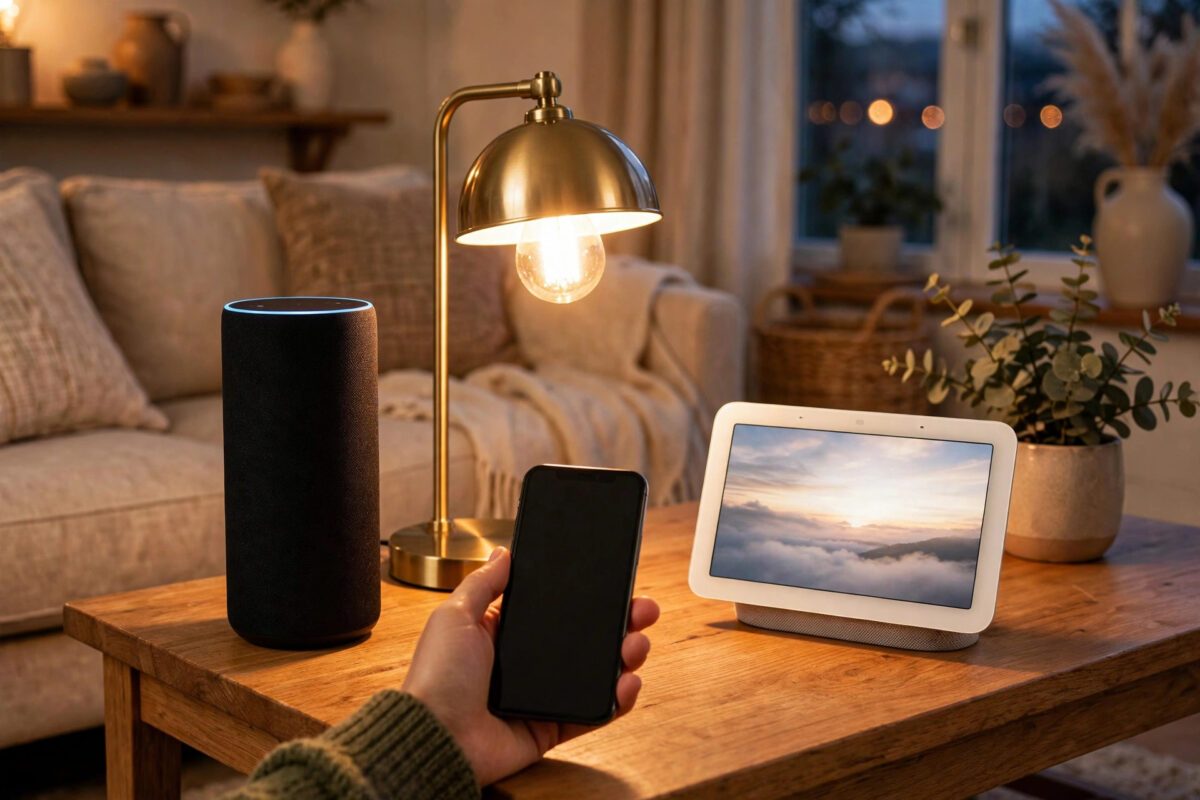
It is frustrating when a new smart bulb, plug, or sensor works perfectly with Alexa and then refuses to join Google Home. The box says Matter, so you expect both apps to work at the same time. In most homes, the device is not faulty. The problem is how Matter sharing, Thread, and your home network are set up.
Matter was designed for this exact situation. One device should be able to belong to Alexa, Google Home, and other platforms together. That feature is called multi-admin, and it only works when you share the device correctly instead of trying to pair it again from scratch with its original setup code.
Quick Answer
Do not use the QR code on the device again. Open the Alexa app, open the device, and generate a new 11-digit Matter sharing code, then add that code in Google Home within 15 minutes. Make sure Google Home has a compatible Matter hub on the same Wi-Fi network, with IPv6 enabled, and that your phone is on the same network when you pair.
Why a Matter Device Works in Alexa but Not Google Home
When you first set up a Matter device, its printed QR code can only be used once for the first platform. After Alexa claims the device, that original code will no longer work for a second platform. Google Home will scan it, think for a while, and then fail.
Each platform also needs its own hub, called a Matter controller. For Alexa, that might be an Echo speaker. For Google Home, that might be a Nest Hub, Nest speaker, or Google TV device. If the Google controller is missing, offline, or on a different network, pairing will fail even though Alexa still works.
Thread adds another layer. Many Matter devices do not use Wi-Fi at all. They use Thread, a low-power mesh network. A Thread device needs a border router in each ecosystem, or a shared Thread network, to reach the internet and the app.
What to Check Before You Try Again
Five minutes of checks will save you several failed attempts. Work through this list first.
- Confirm the device is online in the Alexa app and responds to voice commands.
- Confirm you have a Google Matter controller at home, such as a Nest Hub (2nd gen), Nest Hub Max, Nest Wifi Pro, or a recent Google TV streamer.
- Connect your phone to your main home Wi-Fi, not a guest network, hotspot, or VPN.
- Turn on Bluetooth and location permission on your phone, because Matter pairing uses Bluetooth for the first connection.
- Check that your router has IPv6 turned on. Matter relies on IPv6 on the local network to find devices.
- Update the Google Home app and the Alexa app to their latest versions.
If your Google controller is a Nest device, make sure it is assigned to the same Google Home household where you want to add the Matter device. A controller in a different home cannot help with pairing.
How to Share a Matter Device From Alexa to Google Home
This is the correct method. You are not removing the device from Alexa. You are adding Google Home as a second controller.
- Open the Alexa app and go to Devices.
- Tap the Matter device that you want to share.
- Tap the settings gear icon in the top corner.
- Look for an option called Other Assistants and Apps, or Share With Another Service, depending on your app version.
- Tap Turn On Pairing Mode. Alexa will show an 11-digit setup code.
- Write the code down or keep that screen open. The code expires, usually after about 15 minutes.
- Open the Google Home app straight away.
- Tap Devices, then Add, then New Device or Matter Device.
- Choose to set up a device from a different app, or enter the setup code manually instead of scanning a QR code.
- Type the 11-digit code from Alexa and follow the prompts to name the device and assign it to a room.
The exact wording in both apps changes over time. Google explains the current flow in its official Google Nest guide to connecting Matter devices to Google Home, which is worth checking if your menus look different.
If the Sharing Code Fails or Expires
An expired code is the most common reason for a second failure. If you generated the code, got distracted, and came back later, generate a fresh one. Never reuse an old code from a screenshot.
Try these fixes in order
- Cancel the failed setup in Google Home completely and close the app.
- Generate a brand new sharing code in Alexa.
- Stand in the same room as your Google Matter controller and the device.
- Enter the new code within five minutes.
- If it still fails, restart the Google controller by unplugging it for 30 seconds.
- Restart your phone to clear stuck Bluetooth connections, then try once more with a fresh code.
If you see a message saying the device cannot be found, the problem is usually network discovery, not the code. Move on to the Thread and Wi-Fi checks below before you try resetting anything.
Fixing Thread and Wi-Fi Problems
Look at the device type. If it is Matter over Wi-Fi, it connects directly to your router. If it is Matter over Thread, it needs a Thread border router.
For Matter over Thread devices
- Make sure at least one Thread border router is powered on and online, such as an Echo (4th gen or later), Nest Hub, or Nest Wifi Pro.
- Keep the device within reasonable range of that border router for pairing. You can move it later once it has joined the mesh.
- Avoid having border routers on completely separate Thread networks if you can. When Alexa and Google create separate Thread networks, devices can end up reachable by one app and not the other.
- Do not unplug the border router during pairing. The whole process depends on it.
For Matter over Wi-Fi devices
- Connect the device and your phone to the same Wi-Fi band and network name during setup. Many smart devices only support 2.4 GHz.
- Turn off router features that block devices from seeing each other, such as client isolation on a guest network.
- Check that IPv6 is enabled in your router settings. If you are not sure where that setting is, our step-by-step guide to enabling IPv6 on a home router for smart devices walks through the common router menus.
- If your router creates separate networks for each band, temporarily use the main combined network for setup.
Alternative Method: Pair With Google Home First
If sharing from Alexa keeps failing, there is a clean alternative. It takes longer, but it often works when the Thread networks have become tangled.
- Remove the device from Alexa.
- Factory reset the device using the method in its manual, such as holding its button or switching it off and on in a set pattern.
- Add it to Google Home first using its original QR code.
- Once it works in Google Home, generate a sharing code inside Google Home.
- Add that code in the Alexa app to connect Alexa as the second controller.
Only use this method as a last resort before contacting support. You will lose Alexa routines, groups, and names for that device and will need to set them up again.
Common Mistakes to Avoid
- Scanning the printed QR code twice: That code works only for the first platform. Always use a sharing code for the second platform.
- Letting the code expire: Generate the code only when you are ready to type it into the other app immediately.
- Pairing on a guest network or VPN: Your phone, controller, and device must be able to see each other on the same local network.
- Assuming every Echo or Nest is a Matter hub: Older models may support Alexa or Google voice control but not act as Matter controllers or Thread border routers.
- Resetting too quickly: A reset removes the device from Alexa as well. Try a fresh sharing code and a controller restart first.
- Ignoring app updates: Matter support improved a lot through app and speaker firmware updates. An old app version can fail for no other reason.
Conclusion
A Matter device that works in Alexa but fails in Google Home is almost never broken. The usual causes are reusing the original QR code, an expired sharing code, a missing Google Matter controller, IPv6 being off, or a Thread border router problem. Generate a fresh sharing code from Alexa, add it quickly in Google Home on the same network, and check those basics first. That sequence fixes the problem in most homes without a reset.
Frequently Asked Questions
Can one Matter device work in Alexa and Google Home at the same time?
Yes. That is the purpose of Matter multi-admin. Once you share the device with a code from the first app, both platforms can control it at the same time, and removing it from one does not automatically remove it from the other.
Why does Google Home say it cannot find my Matter device?
Usually because your phone and Google controller are not on the same network, IPv6 is disabled, Bluetooth is off, or the sharing code has expired. Check those four things, generate a new code, and try again near the controller.
Do I need a Thread border router for every Matter device?
Only Matter over Thread devices need one. Matter over Wi-Fi devices connect to your router directly. Check the box or the device page in Alexa to see which connection type your device uses.
What happens if I factory reset the device?
A reset removes it from all platforms and deletes its settings. You will need the original QR code to set it up again from the beginning, and you will need to rebuild any routines or automations that used it.
How long is a Matter sharing code valid?
Typically about 15 minutes, though the exact window can vary by app. For best results, enter it within the first five minutes, in the same room as the controller, with no other pairing attempts running.



Leave a Reply