
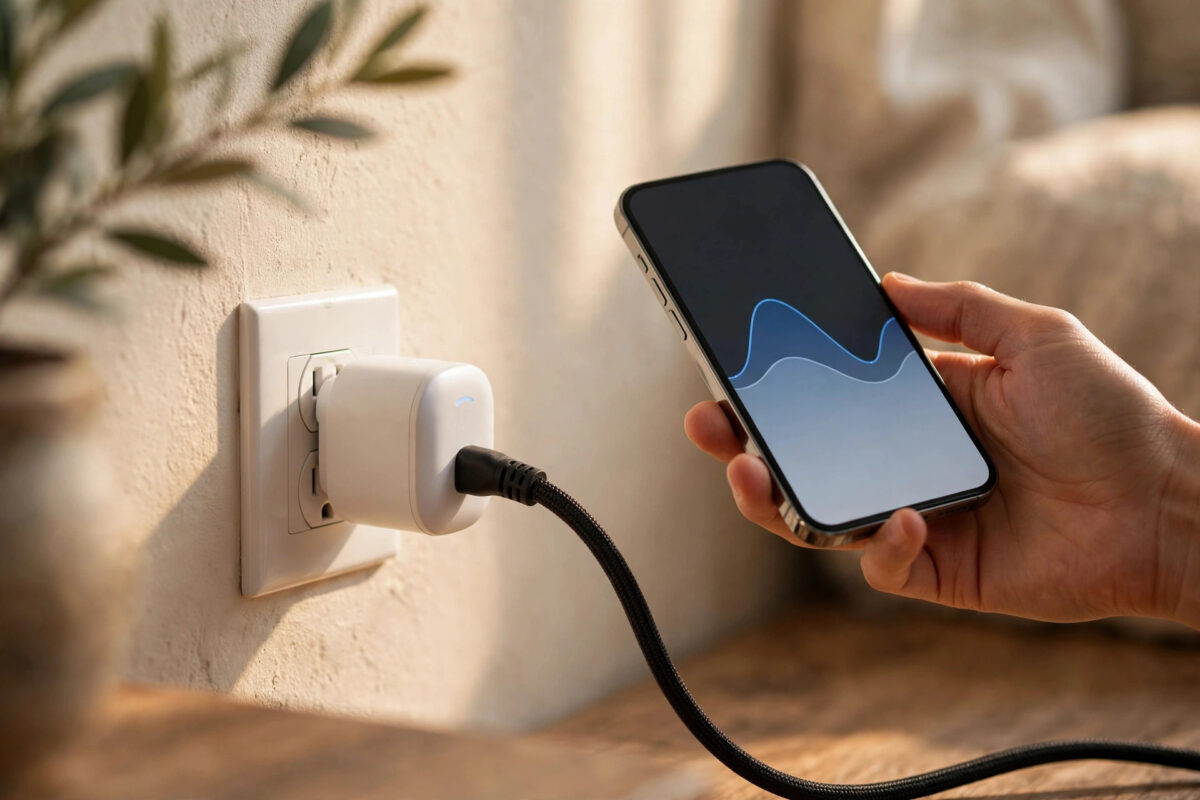
If your Kasa smart plug shows energy numbers that make no sense, you are not alone. A heater that normally uses 1,500 watts might show 30 watts, or a phone charger might appear to use more than a fridge. The good news is that this rarely means the plug is broken. In most cases the cause is calibration drift, old firmware, corrupted stored data, or testing with the wrong type of load. This guide explains why the readings go wrong and how to fix them in a clear order.
Quick Answer
Unplug everything from the Kasa plug, leave it empty for two minutes, then test it with one known load such as a 60-watt lamp. Update the firmware, clear the stored energy data, and if readings are still far off, factory reset the plug and set it up again on a strong 2.4 GHz Wi-Fi signal. Most wild readings are fixed by clearing old data, updating firmware, and testing with a steady load.
Why Kasa Readings Become Inaccurate
Kasa plugs with energy monitoring, such as the KP115 and EP25, sample voltage and current many times per second to calculate watts and total kilowatt-hours. That calculation needs stable power, current firmware, and a clean starting total. A power cut, an interrupted update, or rapidly plugging high-power devices in and out can corrupt the stored total, so live watts and daily totals stop agreeing.
Common Causes to Check First
- Corrupted energy data: The app keeps adding to a faulty old total.
- Outdated firmware: Older firmware had known metering errors fixed in later updates.
- Very low loads: Loads under about 5 watts jump around and cannot be measured precisely.
- Reactive loads: Motors and old fridges create electrical noise that confuses the sensor.
- Weak Wi-Fi: Repeated disconnections cause gaps and duplicated totals in the app.
If only the total is wrong but live watts look right, suspect stored data. If live watts are wrong for every device, suspect firmware, calibration, or hardware.
Step-by-Step Fix
Step 1: Test With Nothing Plugged In
Unplug everything from the Kasa plug but leave the plug in the wall and switched on. The live reading should show 0 watts or very close to it. If it shows 10 or 20 watts with nothing connected, the sensor has an offset. Leave it empty for two minutes and check again. If it stays well above zero, continue with the steps below, because every later reading will include that offset.
Step 2: Update Firmware and Restart
- Open the Kasa app, go to Me, then Firmware Update, and install any update for the plug.
- Wait until the plug fully reboots. Do not unplug it during the update.
- Unplug the plug from the wall for 30 seconds, plug it back in, and wait for a solid Wi-Fi light.
- Repeat the empty-load test.
Updates from TP-Link Kasa official support and firmware resources often include metering fixes, so do not skip this step.
Step 3: Clear Stored Energy Data
If live watts are correct but daily or monthly totals are wildly wrong, clear the history. Open the plug, go to Energy Monitoring and its Settings, and use the reset or clear energy data option if your model provides one. Confirm the reset and check that totals return to zero. On models without this option, the factory reset in Step 5 is the way to clear the data.
Step 4: Test With a Known Steady Load
Before testing, note the plug model, update the Kasa app, and find a lamp with a 60-watt or 100-watt incandescent bulb. Avoid phone chargers, laptop supplies, and variable fans, because their power draw changes every few seconds.
Plug in the lamp, wait 30 seconds, and read live watts. A 60-watt bulb should read about 54 to 66 watts. Small differences are normal because home voltage varies. A reading of 15 or 180 watts confirms a real metering fault. Leave the lamp on for an hour and the total should rise by about 0.06 kWh. If you have a second plug or a power meter, run the same lamp through it and compare results.
Step 5: Factory Reset and Set Up Again
- Hold the control button for about 10 seconds until the light shows the reset pattern for your model.
- Remove the plug from the Kasa app if it still appears there.
- Add it again as a new device on a strong 2.4 GHz network and give it a clear room-based name.
- Repeat the empty-load and lamp tests before trusting it again.
Let the plug run for a full day after a reset before judging its averages, because the app needs a complete day of clean data.
Step 6: Check Wi-Fi and Placement
A plug behind a metal fridge, inside a cabinet, or far from the router can disconnect many times a day, damaging the energy log. Move it closer to the router for a 24-hour test or check signal strength in Device Settings. If coverage is the issue, follow our smart plug keeps disconnecting from Wi-Fi troubleshooting guide to improve the network for smart home devices. Also avoid power strips that get switched off at night and sockets controlled by dimmers, as interrupted power confuses totals.
How to Keep Readings Accurate
- Let firmware updates finish without unplugging the plug.
- Use each monitoring plug for a similar type of load instead of swapping daily between a tiny charger and a large heater.
- Check the empty-load reading once a month to catch drift early.
- Reset energy data when you move a plug to a different room or appliance.
- Compare the plug total roughly with your bill. One appliance should be only a small part of the whole-home total.
A Kasa plug is a home monitor, not a certified billing meter. Being within 5 to 10 percent of a professional meter on steady loads is normal and acceptable. Being out by 200 percent is not, and means a step above still needs attention.
Common Mistakes and Useful Tips
Testing with the wrong load: A phone charger jumping between 3 and 18 watts makes a healthy plug look faulty. Test with a steady lamp first.
Expecting perfect low-load accuracy: Below 5 watts, small errors look huge as percentages. A 7-watt reading for a 4-watt standby load is not a failure.
Resetting only the app: Reinstalling the app does not clear data stored on the plug. If the offset lives on the device, reset the device.
Overloading the plug: Exceeding the printed rating can damage the sensor. Stay well within it, especially with heaters and kettles.
Useful tip: Keep one plug as a reference. Swapping the same lamp between a suspect plug and the reference plug gives a faster, fairer comparison than guessing.
Conclusion
Wildly inaccurate Kasa readings usually come from a sensor offset, corrupted totals, old firmware, or a poor test, not from total hardware failure. Check the empty-load reading, update firmware, clear old data, test with a known lamp, and factory reset only if needed. Work in order and change one thing at a time. Once the plug passes both basic tests, its daily and monthly totals will make sense again.
Frequently Asked Questions
Why does my Kasa plug show power use when nothing is plugged in?
This is usually a sensor offset or leftover data after a power cut. Leave the plug empty and powered for two minutes, update the firmware, and if it still shows well above zero, factory reset it and retest.
How accurate should a Kasa energy monitoring plug be?
For steady loads above 20 watts, expect results within about 5 to 10 percent of a separate meter. Accuracy is weaker at very low loads and with motors or dimmed lights, so judge it on a lamp test first.
Will a factory reset delete my schedules and automations?
Yes. The plug is removed from your account, so schedules and automations using it must be created again. Note your settings first, then rebuild only what you still need after setup.
Why are live watts correct but my monthly total is wrong?
That pattern points to corrupted history rather than a live sensor fault. Clear the energy data or factory reset for a clean start, then monitor a full day before judging the monthly view.
Can weak Wi-Fi cause inaccurate energy readings?
Wi-Fi does not change the electrical measurement, but repeated disconnections cause gaps and duplicated totals in the app display. Testing nearer the router for a day confirms whether dropouts are involved.



Leave a Reply