
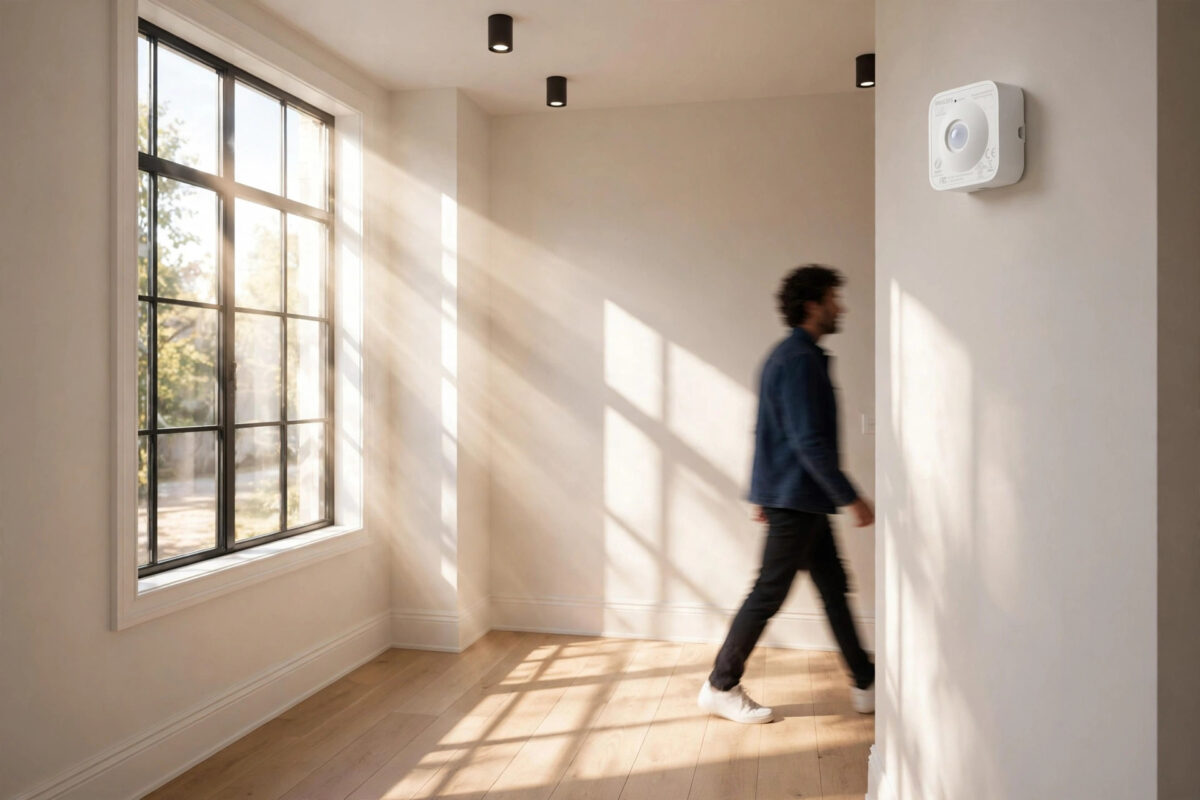
A Hue motion sensor is supposed to save you effort. It turns the hallway light on when you walk past at night and turns it off again when the room is empty. So it feels wrong when the same sensor keeps switching lights on in bright daylight, wasting energy and making your careful daylight settings look useless.
This problem is very common, and it is rarely a broken sensor. In most homes the cause is a mix of light sensitivity settings, sensor placement, and an automation that is quietly overriding the daylight rule. This guide helps you find which one is affecting you and fix it step by step.
Quick Answer
Open the Hue app, go to Settings, then Accessory settings, and select your motion sensor. Raise the daylight sensitivity so the sensor only reacts when it is truly dark, and check that the daytime behaviour is set to Do nothing or to a dim scene. Then test the sensor in real daylight, because a sensor placed in a dark corner will think the whole room is dark even at midday.
How the Hue Motion Sensor Decides It Is Dark
The sensor does two jobs at once. It watches for movement, and it also measures the light level around it. The second job is the one that matters here.
When light falls below the level you set, the sensor treats the room as dark enough to need light. When the room is brighter than that level, it should ignore movement during the day. The trouble is that the sensor only knows the light where it sits. A sensor tucked behind a door, under a shelf, or facing a dark wall will report darkness while the rest of the room is bright.
Understanding this one point explains most daytime triggers. You are not just fixing a setting. You are making sure the setting and the sensor position agree with each other.
Step-by-Step: Fix the Daylight Sensitivity Setting
- Open the Philips Hue app and go to Settings.
- Tap Accessory settings and choose the motion sensor that is triggering the lights.
- Look for the daylight sensitivity slider, sometimes shown under Advanced settings or Sensor behaviour, depending on your app version.
- Move the slider towards the sun icon, which means the sensor needs more darkness before it reacts. Small moves are best.
- Check the time blocks for the sensor. Make sure the daytime block is set to Do nothing, or to a very low scene if you still want a gentle light on dull days.
- Save the changes and wait for the sensor to confirm. The app may take a few seconds to push the new setting.
- Walk past the sensor in normal daylight and watch what happens. The lights should stay off.
- If they still turn on, raise the sensitivity one more step and test again. Repeat until daylight movement is ignored but evening movement still works.
Test at different times if you can. Morning light through one window can be very different from afternoon light, and a setting that works at noon may still trigger on a dark, rainy morning. That may actually be what you want, so decide based on your real home, not just one test.
The Philips Hue support pages for motion sensor setup and settings show the current menu names if your app layout looks slightly different.
Check the Sensor Placement
Even a perfect setting cannot fix a bad position. Walk to where the sensor is mounted and look at what it sees.
Common Placement Problems
- Inside a dark hallway with a bright living room nearby: The sensor is honest about the hallway, but you judge it by the brighter room.
- Behind a door or coat: Anything covering the small light window on the front will make the sensor think it is night.
- Facing a dark wall or floor: Dark surfaces reflect little light, so readings stay low all day.
- Too high or in a ceiling corner: Corners collect shadows, and the reading can stay low even in a bright home.
- Near a lamp it controls: At night the lamp can confuse the next reading, while in the day a shaded lamp area can look darker than it is.
How to Improve Placement
- Move the sensor so its front has a clear view of the room and of natural light from a window, without pointing straight at the sun.
- Keep it at about head height or slightly above, following the range the manual suggests for good motion detection.
- Clean the front of the sensor with a dry cloth. Dust over the light sensor can lower readings over time.
- After moving it, repeat the daylight test before you change any more settings.
If your sensor also struggles to detect people at night, read our guide on fixing a Hue motion sensor that is not detecting motion for range and angle checks.
Look for Automations That Override the Daylight Rule
Sometimes the sensor is set correctly, but something else turns the light on. This is easy to miss because the light still seems to react to movement.
Check Inside the Hue App
- Open Automations and look for routines that turn the same lights on during the day, such as a Coming home routine.
- Check any third-party Hue labs formulas or custom sensor rules you installed in the past and forgot about.
- Confirm the sensor is linked to the right room. A sensor copied from another room may carry different time blocks.
Check Other Smart Home Apps
Alexa routines, Google Home routines, Apple Home automations, and SmartThings rules can all react to the same sensor. If one of those apps has a simple rule that says motion means light on, it will ignore your Hue daylight setting completely. Turn off or edit any duplicate rule so only one system controls the sensor.
A simple test helps here. Disable outside automations for one day. If the daytime problem stops, you have found the real cause and you can rebuild the rule with a light-level condition included.
Update, Restart, and Reset the Sensor if Needed
- In the Hue app, check for accessory updates and install any update waiting for the sensor.
- Check the batteries. Low batteries can cause odd behaviour, missed readings, and delayed responses. Replace them if the app shows a low warning.
- Remove and re-add the sensor only as a last step. Note your time blocks and scenes first, because re-adding clears the sensor setup.
- After re-adding, set the daylight sensitivity from scratch and test in real daylight before adding extra automations.
Also check the bridge. A bridge that has not been updated for a long time can hold old accessory behaviour. Keeping both the app and the bridge current avoids many small glitches like this one.
Mistakes and Tips That Make a Real Difference
- Moving the slider too far in one go: If you push daylight sensitivity to the maximum, the sensor may stop helping on dull evenings. Small steps and real tests work better.
- Testing with the lights already on: The sensor reads the room with your lights adding brightness. Test from a natural state, with lights off and curtains in their normal position.
- Forgetting seasonal change: A setting tuned in summer may trigger more in winter when days are darker. A quick check at the start of winter is worth it.
- Using one sensor for two very different areas: A sensor covering both a dark hall and a bright kitchen will always be a compromise. A second sensor often solves the problem cleanly.
- Ignoring the Do nothing option: For many homes, the cleanest daytime answer is no action at all. Save the sensor for evening and night, when it helps most.
Conclusion
When a Hue motion sensor triggers lights during the day, start with the daylight sensitivity slider, set the daytime block to Do nothing, and then look honestly at where the sensor sits. After that, check for other automations that may be bypassing the Hue settings altogether. Work through those three areas in order and you will almost always find the cause. The result is a sensor that stays quiet in daylight and still gives you a warm, automatic light when you actually need it.
Frequently Asked Questions
Why does my Hue sensor ignore the daylight setting?
Usually because the light level at the sensor itself is below your threshold. The sensor may be in shadow, covered, or facing a dark surface. It can also be bypassed by a routine in another app. Check placement first, then look for duplicate automations.
What daylight sensitivity level should I choose?
There is no single best number because every room is different. Start in the middle, raise it one step at a time, and test by walking past in daylight after each change. Stop when daytime movement is ignored but early evening movement still turns the light on.
Can I make the sensor do nothing during the day but work at night?
Yes. In the sensor settings you can set different behaviour for different time blocks. Set the daytime block to Do nothing and keep your evening and night blocks on your preferred scenes. This is the most reliable setup for hallways and bathrooms.
Does low battery affect light readings?
Low batteries can cause unreliable behaviour, including missed motion and odd triggers. If the app shows a low battery warning, replace the batteries and test again before you change more settings or reset the sensor.
Will moving the sensor break my existing setup?
No. Moving the physical sensor does not delete its rooms, scenes, or time blocks. You may only need to adjust the angle so it covers the doorway or path you care about. After moving it, repeat the daylight test once to confirm the new position reads light correctly.



Leave a Reply