
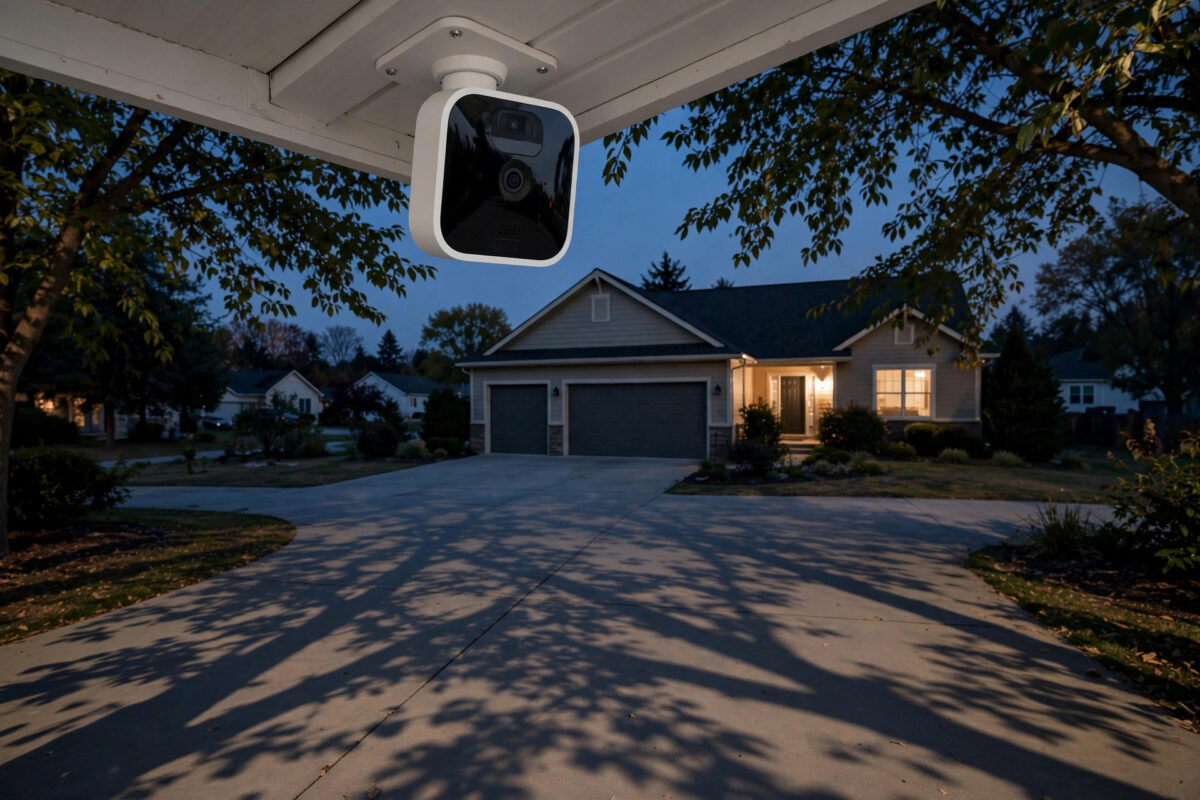
You get a notification, open your Blink camera clip, and watch… nothing. The driveway is empty, the hallway is still, and there is no person, animal, or car anywhere in the video. Yet the camera insisted motion happened.
False clips with no visible motion are one of the most annoying Blink problems. They waste your storage, drain batteries faster on wireless models, and make you start ignoring alerts, which defeats the whole point of having a camera.
The good news is that the camera is rarely broken. Something in its view is triggering it that you are not noticing, or its settings are too sensitive for that location. This guide helps you find the real trigger and tune it out.
Quick Answer
Blink clips with no visible motion are usually triggered by things the camera senses better than you, such as moving shadows, headlights, insects, rain, heat changes, or a sensitivity setting that is too high. Lower the motion sensitivity, set up activity zones to ignore busy areas, reposition the camera away from reflective and moving objects, and make sure infrared and night triggers are not causing false alerts.
How Blink Motion Detection Actually Works
To fix false clips, it helps to know what the camera is really looking at. Most Blink cameras use a passive infrared sensor that detects changes in heat, combined with image comparison on some models. It does not think like a person watching a video.
What This Means in Real Life
The camera can be triggered by a warm car engine passing behind a hedge, sunlight suddenly warming a wall, or a spider walking across the lens at night. When you review the clip in normal light seconds later, the cause may already be gone, too small to see on a phone screen, or outside the part of the frame you were watching.
Clip timing matters too. There can be a short delay between the trigger and recording starting, so a fast trigger like a bird or a passing headlight sweep may be over before the visible recording really begins.
Common Hidden Triggers You Might Be Missing
- Shadows and light changes: Tree shadows moving in wind, clouds clearing suddenly, or headlights sweeping a wall at night.
- Insects and spiders: Bugs are drawn to the infrared lights at night and look huge when close to the lens.
- Rain, snow, and fog: Water moving close to the camera reflects infrared light and triggers repeated clips in bad weather.
- Reflective surfaces: Windows, glossy doors, parked cars, and wet driveways bounce light and heat.
- Moving objects at the edges: Flags, hanging baskets, washing lines, bushes, and curtains near an indoor camera.
- Heat sources: Radiator vents, extractor outlets, and air conditioning units changing the heat pattern in view.
Step 1: Lower the Motion Sensitivity
Sensitivity is the first setting to change, because a camera set too high will trigger on almost anything.
- Open the Blink app and go to the camera settings for the problem camera.
- Find Motion Settings and open Motion Sensitivity.
- If it is set high, lower it by two steps to start. For example, from 8 down to 6.
- Save the setting and use the camera normally for a full day and night cycle.
- If false clips stop but real people are missed, raise it by one step. If false clips continue, lower it by one more.
Change sensitivity in small steps and test for at least 24 hours each time. Changing five settings at once tells you nothing about which one actually helped.
Step 2: Set Up Activity and Privacy Zones
Activity zones let you tell the camera which parts of the view to ignore. This is the best fix when one area, such as a road or a busy tree, causes most false clips.
- In the camera’s Motion Settings, open Activity Zones.
- Look at the grid over your camera view and block out the areas that do not matter, such as the road, a neighbour’s path, or the top of a moving tree.
- Keep zones clear over doors, gates, driveways, and paths where you actually want alerts.
- Save and test. Walk through the active area yourself to confirm you still trigger a clip.
Be careful not to block too much. A common mistake is shading out half the view and then missing a real visitor at the door. Test with a real walk-through at normal speed, and again at night, after any zone change. If your camera keeps going offline while you test, sort the connection first and verify your network is stable with a quick guide on checking your home internet speed and connection quality, because a weak connection can also delay clips and make triggers look mismatched.
Step 3: Reposition or Angle the Camera Better
No setting fully fixes a bad angle. A small change in position often removes false triggers permanently.
Position Rules That Reduce False Clips
- Angle across the path, not straight at it: Motion across the view triggers more reliably than motion walking directly toward the camera, and avoids head-on headlight glare.
- Avoid pointing at roads and reflective windows: Even with zones, constant passing traffic keeps the sensor busy.
- Raise or lower slightly: Moving the camera a foot higher can remove a bush or vent from the trigger area.
- Keep it stable: A loose mount that shakes in the wind moves the whole image and can create clips. Tighten the mount and check it after storms.
- Clear the lens area: Trim plants touching the camera and remove spider webs regularly, especially around the infrared lights.
Step 4: Adjust Clip Length, Retrigger Time, and Night Settings
Once sensitivity and zones are set, fine-tune how the camera behaves after a trigger.
- Retrigger time: Increase the retrigger time to 30 or 60 seconds if you get back-to-back empty clips. This stops the camera firing again instantly on the same shadow or rain.
- Clip length: Use a slightly longer clip while diagnosing, such as 20 to 30 seconds, so a delayed trigger cause becomes visible later in the video.
- Night vision and IR intensity: If false clips happen mainly at night, lower the infrared intensity if your model allows it, so insects and rain near the lens reflect less light.
- Early notification and motion types: On supported models and plans, check whether person detection or motion type filters are available and turned on.
After tuning, return clip length to your normal preference to save storage and battery. The longer clips are a diagnostic tool, not a permanent need.
For model-specific options and plan features, check the official Blink support centre for motion detection settings, as menu names vary slightly between the Blink Mini, indoor, and outdoor models.
Step 5: Test Properly Before Changing More Settings
Random changing leads to a camera that misses real events. Test in a simple, repeatable way.
- Note the times of false clips for two days and look for a pattern, such as only at sunset, only in rain, or only when a heater runs.
- Change one setting at a time and write down what you changed.
- Walk the real route a visitor or intruder would take, at day and at night, and confirm those clips show you clearly.
- Check the first and last seconds of every test clip on a larger screen if you can.
If false clips happen at the exact same times each day, look for a scheduled cause, such as a sprinkler, a boiler vent, a neighbour leaving with headlights on, or sunlight hitting the lens as the sun moves.
Tips to Stop Empty Clips for Good
- Clean the lens monthly: Dust and webs make insects and glare worse at night.
- Review weekly at first: A quick weekly review catches new triggers, such as a growing plant or a new parked car reflecting light.
- Use zones and sensitivity together: Neither setting alone is as effective as both tuned for your exact view.
- Accept some weather clips: In heavy rain or snow, a few extra clips are normal for any camera in this price range.
Conclusion
Blink clips with no visible motion are almost never random. Something real triggered the sensor, even if it was only a shadow, an insect, a headlight sweep, or a heat change that vanished before you watched the video.
Lower the sensitivity in small steps, block busy areas with activity zones, improve the camera angle, and increase the retrigger time. Test each change with a real walk-through, and your alerts will soon mean something worth checking again.
Frequently Asked Questions
Why do I get Blink clips at night with nothing in them?
At night the most common causes are insects near the infrared lights, rain or fog reflecting that light, and headlights sweeping the scene. Lower the IR intensity if possible, clean the lens, and reduce sensitivity by one or two steps for night triggers.
What is the best sensitivity setting for a Blink camera?
There is no single best number, because every view is different. Start in the middle, then adjust by one or two steps and test for 24 hours. A quiet indoor room can use a higher setting than a front door facing a road and trees.
Do activity zones completely stop false alerts?
They greatly reduce alerts from the blocked areas, but they cannot stop triggers that begin in the active area, such as shadows falling across your door. Zones work best combined with the right sensitivity and a good camera angle.
Why does the motion appear in the clip on some days but the person is missing?
This is usually a timing issue. A fast trigger starts the clip, but by the time recording is fully running, the person or car has left the frame. Longer clips and a camera angled across the path, rather than facing it, reduce this problem.
Can a weak Wi-Fi connection cause empty or late clips?
Yes, a weak connection can delay uploads and make clip timing look wrong, and it can cause missing thumbnails that look like empty events. Keep the camera within good Wi-Fi range and test live view. If live view stutters, fix the coverage first.



Leave a Reply