
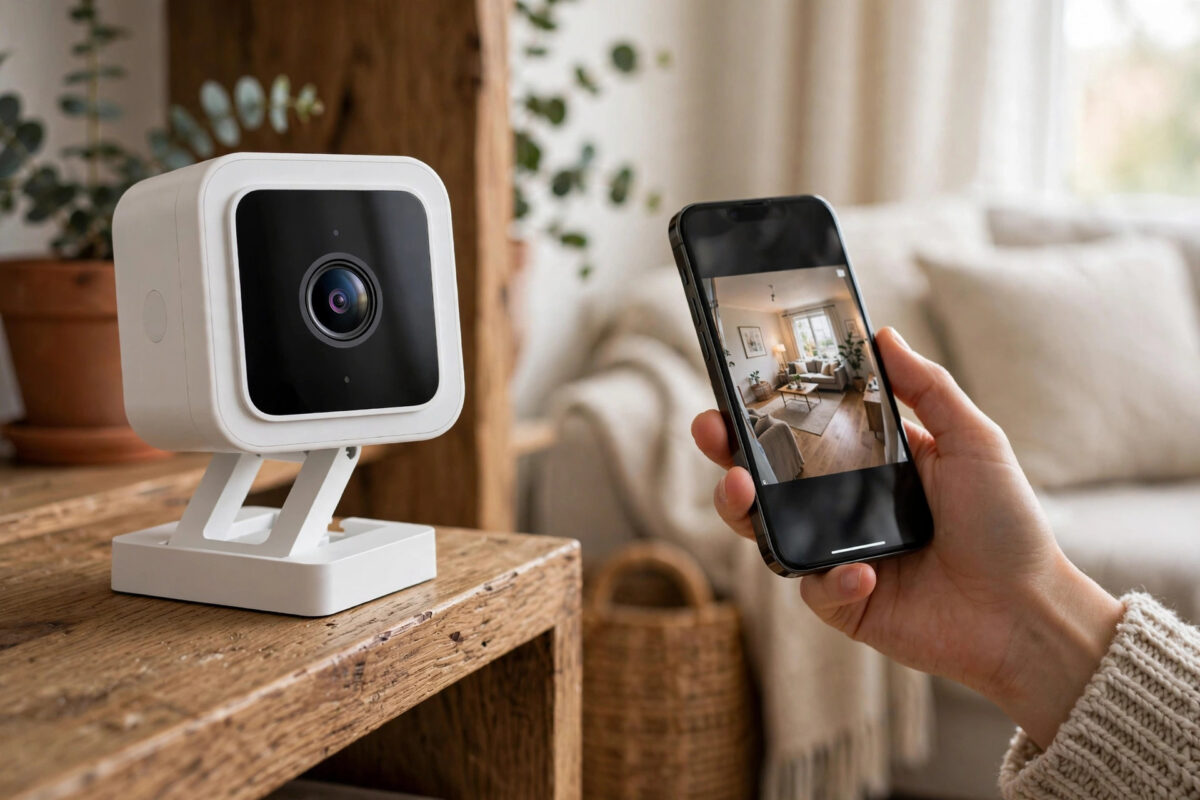
Seeing error code 90 on your Wyze Cam v3 is frustrating, especially when you open the app to check on your home and get a “device offline” message instead of a live view. The camera may have been working fine yesterday, and now it will not connect at all.
The good news is that error code 90 is one of the most common Wyze problems, and it is usually caused by a simple connection issue rather than a broken camera. In most cases you can fix it yourself in under fifteen minutes without buying anything new.
This guide walks you through every proven fix, starting with the fastest checks and moving to the deeper resets only if you need them.
Quick Answer
Error code 90 means your Wyze Cam v3 has lost its connection to the Wyze servers, usually because of a Wi-Fi drop, a power problem, or a glitch after an update. Power cycle the camera by unplugging it for 30 seconds, restart your router, and make sure the camera is connected to a 2.4 GHz network. If it is still offline, clear the app cache or set the camera up again in the Wyze app.
What Does Error Code 90 Actually Mean?
Wyze uses error codes to tell you where the connection broke down. Error code 90 specifically means the camera and the app cannot talk to each other through the Wyze cloud. Your camera might still be powered on and recording to a microSD card, but the app cannot reach it.
Common Causes of Error Code 90
- Weak Wi-Fi signal: The camera is too far from the router or blocked by thick walls, metal, or appliances.
- Wrong Wi-Fi band: The camera was connected to a 5 GHz network, which the Cam v3 does not support.
- Router or internet outage: A brief outage knocked the camera offline and it did not reconnect on its own.
- Power supply problems: A loose cable, a failing adapter, or a long third-party cable that drops voltage.
- Outdated firmware or app: Old software can cause connection bugs, especially after a Wyze server update.
- Changed Wi-Fi password: If you changed your network name or password, the camera is still trying to use the old details.
Step 1: Check the Power and Status Light First
Before you touch any settings, confirm the camera is actually getting stable power. Many offline errors start here.
- Look at the status light on the back of the camera. A solid blue light means it was connected before. A flashing light means it is trying to connect.
- Unplug the power cable from the back of the camera and from the wall adapter.
- Inspect the cable for bends, cuts, or a loose connector. Try the original Wyze cable and adapter if you are using a different one.
- Plug everything back in firmly and wait a full two minutes for the camera to boot.
- Open the Wyze app and check if the live view returns.
If the light never comes on, try a different outlet and adapter.
Step 2: Power Cycle the Camera and Router Properly
A proper power cycle clears temporary glitches in both the camera and your router.
- Unplug the Wyze Cam v3 from power and leave it unplugged for at least 30 seconds.
- Unplug your router and modem from power as well.
- Wait 60 seconds, then plug the modem back in first and let it fully restart.
- Plug the router back in and wait until your Wi-Fi network is visible again on your phone.
- Plug the camera back in last and give it two to three minutes to reconnect.
This order matters. If the camera boots before your Wi-Fi is ready, it may fail to connect and stay offline until you restart it again.
Step 3: Check Your Wi-Fi Connection
The Cam v3 only works on 2.4 GHz Wi-Fi. This is the single most overlooked cause of error code 90, especially with modern routers that combine both bands under one network name.
Make Sure You Are on 2.4 GHz
If your router has separate network names, connect the camera to the 2.4 GHz one. If your router uses band steering with a single name, you may need to temporarily split the bands in your router settings while you set the camera up, or create a dedicated 2.4 GHz guest network for your smart home devices.
Also check that your phone is on the same home network when you test, not on a VPN.
Test the Signal Strength at the Camera Location
Stand where the camera is mounted with your phone and check the Wi-Fi bars. If your phone struggles there, the camera will too. Walls, brick, concrete, fish tanks, and large metal appliances all weaken the signal. If the signal is weak, move the camera closer for a test, or consider practical ways of improving Wi-Fi signal strength throughout your home such as repositioning the router or adding a mesh node near the camera.
Step 4: Restart and Refresh the Wyze App
Sometimes the camera is fine and the app is the problem. Stale data in the app can keep showing offline even after the camera reconnects.
- Force close the Wyze app completely and reopen it.
- Pull down on the device list to refresh it.
- On Android, go to your phone settings, open the Wyze app info, and clear the cache. Do not clear storage unless you want to sign in again.
- On iPhone, delete and reinstall the app if refreshing does not help. Your cameras and settings are stored in your account, so they will return when you sign back in.
- Check the app store for a Wyze app update and install it if one is available.
Step 5: Update Firmware and Check Wyze Server Status
Outdated firmware can leave a camera stuck offline after Wyze updates its servers. If the camera appears online briefly or another Wyze camera works fine, update the firmware from the camera settings under Device Info.
If all your Wyze cameras go offline at the same time, the issue may not be in your home at all. Check the official Wyze support and service status resources for any reported outage. During an outage, the only fix is to wait, and repeatedly resetting your cameras will not help.
Never unplug a camera in the middle of a firmware update.
Step 6: Set Up the Camera Again as a Last Resort
If the camera still shows error code 90 after all the steps above, remove it and add it again. This rebuilds the connection from scratch.
- In the Wyze app, open the camera settings and delete the device.
- Press and hold the setup button on the bottom of the Cam v3 until you hear it say it is ready to connect.
- In the app, tap the plus icon, add a camera, and choose Wyze Cam v3.
- Connect to your 2.4 GHz network, enter the password carefully, and scan the QR code the app shows.
- Wait for the camera to confirm the connection and finish setup, then test the live view on both Wi-Fi and mobile data.
If setup fails at the QR stage, increase phone brightness and hold it about five inches from the lens.
Common Mistakes to Avoid
- Only restarting the camera: If the router is the problem, camera restarts will never fix it. Restart both in the right order.
- Using a 5 GHz network: The Cam v3 cannot use 5 GHz at all. This mistake causes endless offline loops.
- Using a very long cheap cable: Long USB cables can drop voltage and cause random restarts that look like Wi-Fi faults.
- Resetting during an outage: Check the service status first before deleting your device.
- Ignoring signal strength: A camera that works on your desk may fail once mounted outside behind brick or metal.
Conclusion
Error code 90 on a Wyze Cam v3 almost always comes down to power, Wi-Fi, or a temporary glitch between the camera and the Wyze servers. Start with a proper power cycle of the camera and router, confirm you are using a strong 2.4 GHz connection, refresh the app, and update the firmware.
Only delete and set up the camera again if those steps fail. Work through them in order and, in most homes, your camera will be back online with a live view in minutes.
Frequently Asked Questions
Does error code 90 mean my Wyze Cam v3 is broken?
No, in most cases it does not. Error code 90 is a connection error, not a hardware failure message. If the status light still turns on and the camera responds to a power cycle, the camera is usually fine and the problem is the network or app.
Why does my Wyze Cam v3 keep going offline every few days?
Repeated drops usually point to a weak signal, router band steering switching the connection, or interference near the camera. Moving the router, using a dedicated 2.4 GHz network, and keeping the firmware updated solves this for most people.
Will error code 90 stop my camera recording to the microSD card?
Not always. If the camera still has power, it often keeps recording locally to the microSD card even while the app shows it as offline. You may find the footage on the card once the connection returns, as long as continuous or event recording was enabled.
Do I need to delete the camera from the app to fix error 90?
Only as a last step. Most cases are fixed by power cycling, Wi-Fi checks, and app refreshes. Deleting and setting up again is useful when the saved network details are wrong, such as after changing your Wi-Fi password.
What should I do if all my Wyze cameras show error 90 at once?
Check your internet connection first and then check whether Wyze is having a service issue. When every camera drops together, the cause is usually your router, your internet provider, or a Wyze outage, not five cameras failing at the same time.



Leave a Reply