
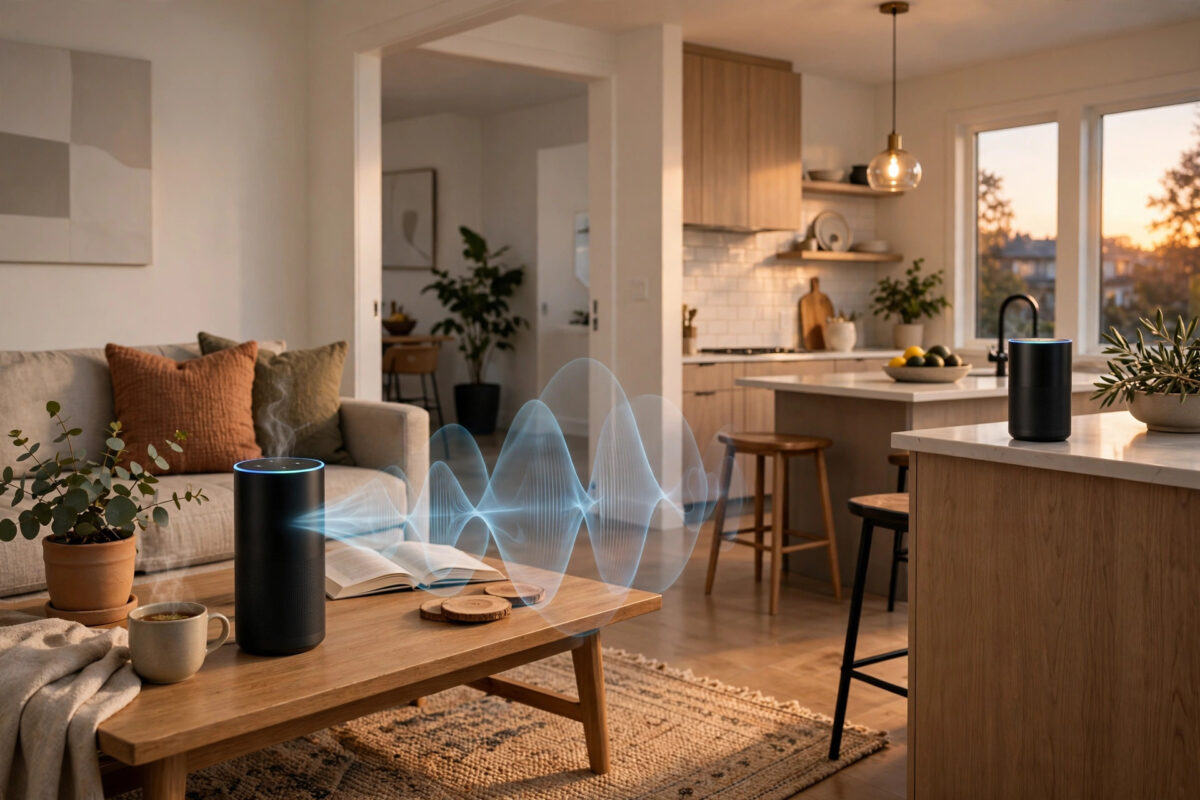
You are in the kitchen, you ask Alexa to play some music while you cook, and the sound starts blasting from the bedroom instead. Or worse, your child asks for a song in their room and it plays in your office during a call. When Alexa plays music on the wrong Echo in another room, it feels random, but there is almost always a clear reason behind it.
This problem is very common in homes with two or more Echo devices. Alexa has to decide which speaker should respond and which speaker should play. If your devices are grouped together, if Bluetooth is connected to the wrong speaker, or if your voice was simply heard more clearly by a device in the next room, the music can end up in the wrong place. The good news is that you can fix this in a few minutes and stop it from happening again.
Quick Answer
To stop Alexa from playing music on the wrong Echo, open the Alexa app, check your speaker groups and preferred speaker settings, and remove the wrong device from the group or set the correct Echo as the default for that room. Also check for active Bluetooth connections, turn off duplicate routines, and say the room name in your request, such as “Alexa, play music in the kitchen.” Moving devices further apart or lowering the sensitivity of a nearby Echo also helps a lot.
Why Alexa Plays Music on the Wrong Speaker
Alexa does not guess. It follows a set of rules, and when two rules point in different directions, the wrong speaker can win. Understanding these causes makes the fix much easier.
Your Echo Devices Are in the Same Group
Groups are the most common cause. In the Alexa app you can create groups for rooms, such as Kitchen, Living Room, or Upstairs. Inside each group you can choose a preferred speaker for music. If your bedroom Echo is set as the preferred speaker for a large group that also includes the kitchen, every music request made to that group may be sent to the bedroom.
Multi-room music groups cause a similar issue. If you created an Everywhere group or a downstairs group in the past and forgot about it, Alexa may still treat those speakers as linked. A simple request can then trigger playback in more than one room, or in the room you used last.
Another Echo Heard You Better
Echo devices use a feature that tries to work out which device is closest to you. It compares how clearly each device heard your voice. In open-plan homes, or homes with thin walls, a device in the hallway or next room can sometimes hear you just as well as the one in front of you. If you were facing away from the kitchen Echo, or standing closer to the doorway, the other device may have taken the request.
Bluetooth, Spotify Connect, and Other Apps
If your phone, tablet, or computer was once connected to an Echo by Bluetooth, that connection can wake up again automatically. The same is true for Spotify Connect and similar services. You press play in an app expecting sound from your phone, and it comes out of the Echo in another room because that speaker was the last selected output.
Routines and Voice History
Routines can also send music to a fixed device. A morning routine might always play on the bedroom speaker, no matter which Echo you speak to.
How to Fix It Step by Step
Step 1: Check and Fix Your Speaker Groups
- Open the Alexa app on your phone and tap Devices at the bottom.
- Scroll through your groups and tap the room group you are having trouble with, such as Kitchen.
- Look for the Preferred Speaker or Music Playback setting.
- Make sure the Echo in that same room is selected. If the wrong speaker is listed, change it.
- Repeat this check for every group, especially any Everywhere or multi-room groups.
Step 2: Set a Default Speaker for Each Room
When each room has its own clear default, Alexa has less reason to send music elsewhere.
- In the Alexa app, tap Devices and then tap a single Echo device.
- Open its settings and confirm its room name is correct.
- Go back to the group for that room and set this Echo as the preferred speaker.
- Do the same for the bedroom, living room, and any other room with an Echo.
Our guide on setting up a smart speaker with Alexa or Google Home correctly walks through naming rooms in a way that avoids these mix-ups.
Step 3: Disconnect Bluetooth and Casting Connections
- Say, “Alexa, disconnect Bluetooth” to the Echo that keeps playing music by mistake.
- On your phone, open Bluetooth settings and forget the Echo if you do not use it as a Bluetooth speaker.
- In apps like Spotify, tap the speaker icon and check which device is selected before you press play.
- Close the music app fully once, then reopen it and choose the correct speaker on purpose.
Step 4: Check Your Routines
- Open the Alexa app and tap More, then Routines.
- Look through your routines for any that include a Play Music action.
- Open each one and check which device is listed under the action or under From.
- Edit or disable any routine that points to the wrong room.
Step 5: Be Specific in Your Voice Requests
Until everything is cleaned up, add the room name to your request. Saying “Alexa, play jazz in the kitchen” leaves Alexa with almost no room for doubt. This is also a good habit in homes with many speakers, because it overrides group defaults when you want music somewhere different for once.
How to Stop the Wrong Echo From Hearing You
Sometimes the settings are perfect, but a nearby Echo still steals requests. A few physical and sensitivity changes can help.
- Move devices apart: If two Echos are on opposite sides of the same wall, move one of them to a different spot in the room, away from the shared wall.
- Turn down the volume on the far device: A loud Echo is not the issue, but a device set to listen in a quiet room can pick up voices through a doorway more easily.
- Change the wake word: Give one Echo a different wake word, such as Echo or Computer, in the app settings. Then only the device with the wake word you used will respond.
- Mute when needed: If an Echo in a guest room or office is rarely used, press its microphone mute button until you need it.
- Check voice history: In the app under Review Voice History, see which device heard a request.
For official guidance, the Amazon Alexa help and customer support pages list the current app menus.
What to Do If It Only Happens With One App or One Person
If the problem only happens with Spotify, Apple Music, or another service, the issue is likely the last used speaker inside that app, not Alexa itself. Open that app, start a song, and manually select the right Echo once. Most services remember that choice next time.
If it only happens when one person speaks, check voice profiles. Retraining the voice profile in a quiet room usually fixes requests that behave in unexpected ways.
Common Mistakes to Avoid
- Naming devices with similar names: Names like Echo 1 and Echo 2, or Kitchen Echo and Kitchen Speaker, confuse both you and Alexa. Use clear room-based names instead.
- Putting every speaker in one big group: An Everywhere group is fun for parties, but if it becomes the default, normal requests get messy.
- Forgetting old Bluetooth pairings: A tablet you paired once months ago can reconnect silently and take over playback.
- Resetting the Echo as a first step: A factory reset wipes your settings and rarely fixes a group or preference problem. Check the app settings first.
- Ignoring voice history: Guessing wastes time. The voice history tells you exactly which device heard you and what it did.
Conclusion
When Alexa plays music on the wrong Echo, the cause is usually a group setting, a preferred speaker choice, a leftover Bluetooth connection, or a nearby device that heard you better. Start with your groups and preferred speakers in the Alexa app, clean up Bluetooth and routines, and use room names in your requests. Change the wake word on one device if two Echos keep competing for your voice. With those simple fixes, each room’s music stays in that room, and your smart speakers start to feel helpful again instead of unpredictable.
Frequently Asked Questions
Why does Alexa play on another Echo even when I am standing next to mine?
The other Echo may have heard your voice more clearly, or it may be set as the preferred speaker for your group. Check the group settings in the Alexa app and look at your voice history to see which device actually took the request.
How do I make one Echo the default for music in a room?
Open the Alexa app, go to Devices, open the room group, and set that room’s Echo as the preferred speaker. After that, music requests made in that room should play on that speaker by default.
Can I use different wake words for different Echos?
Yes. In the Alexa app, open a device’s settings and change its wake word to one of the other options, such as Echo, Amazon, or Computer. This is very useful when two devices are close together.
Why does music start on my Echo when I press play on my phone?
Your phone is probably still connected to that Echo by Bluetooth or through an app feature like Spotify Connect. Disconnect Bluetooth on the Echo and check the output device selected inside the music app.
Will resetting my Echo fix the wrong speaker problem?
Usually not, because the problem normally lives in your account settings, groups, or app connections, not in the device itself. Try the settings fixes in this guide first, and only reset the Echo if it has other faults as well.



Leave a Reply