
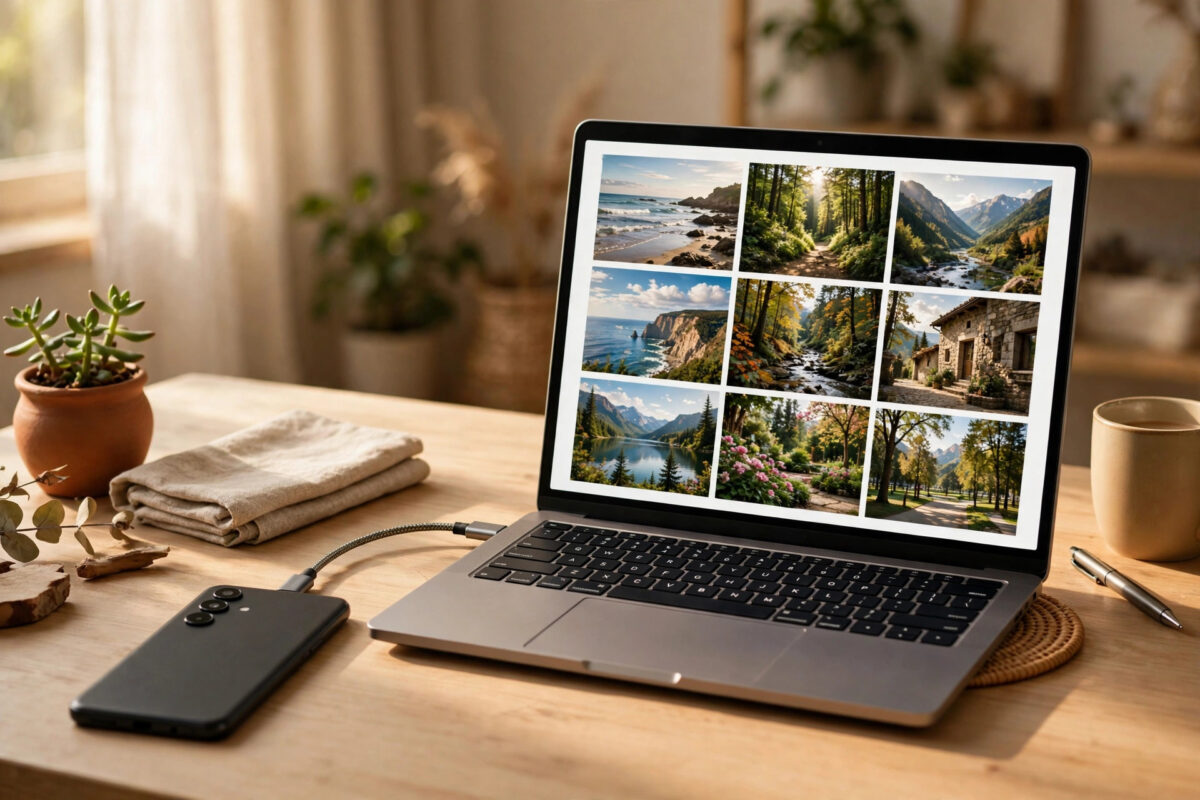
Many people do not want to store personal photos, videos, and documents in the cloud. You may worry about privacy, monthly fees, or a slow internet connection. The good news is that you can back up your Android phone to a computer without cloud storage at all. A direct cable backup is fast, private, and completely under your control.
This guide explains the safest ways to copy everything that matters from your phone to a Windows PC or a Mac. You will learn what to back up, how to do it step by step, and how to check that your backup actually works.
Quick Answer
Connect your Android phone to your computer with a USB cable, unlock the phone, and choose File Transfer mode. Then copy your DCIM, Pictures, Download, Documents, Music, and WhatsApp folders to a clearly named folder on your computer. For app data, messages, and settings that a cable cannot copy, use your phone maker’s desktop tool, such as Samsung Smart Switch, on the same computer.
What a Computer Backup Can and Cannot Copy
Before you start, it helps to know what a manual backup covers. A USB connection gives you direct access to the files stored on your phone. This includes photos, videos, screenshots, downloads, documents, audio recordings, and music files.
Some data is not stored as simple files. Text messages, call history, app settings, saved Wi-Fi passwords, and home screen layouts live inside protected system areas. A normal cable copy cannot reach them. That is why a complete offline backup usually needs two parts: a manual file copy for your media and documents, and a manufacturer tool for system data.
What You Need Before You Start
You do not need special skills or expensive software. Gather these items first so the process runs smoothly.
- A Windows PC or Mac with enough free space, ideally at least as much as your phone storage
- A good quality USB cable, preferably the one that came with your phone
- Your phone charged to at least 50 percent
- About 20 to 40 minutes, depending on how many photos and videos you have
- An external hard drive if you want a second copy for extra safety
Check your free space first. If space is low, use an external drive for the backup instead.
Method 1: Back Up With a USB Cable on Windows
This is the most reliable method for most Android phones. It works with Samsung, Google Pixel, Xiaomi, OnePlus, Motorola, and almost every other brand.
Step-by-Step Instructions
- Unlock your phone and connect it to your PC with the USB cable.
- A notification will appear on your phone. Tap it and select File Transfer or Transferring files. On some phones this option is called MTP.
- On your PC, open File Explorer and click your phone name in the left sidebar under This PC.
- Open Internal Storage. You will see folders such as DCIM, Pictures, Movies, Music, Download, Documents, and WhatsApp or com.whatsapp.
- On your PC, create a new folder on your Desktop or Documents drive. Name it clearly, for example Android Backup 2026-10-21, and add your phone model if you back up more than one device.
- Select the folders you want, right-click and choose Copy, then paste them into your new backup folder.
- Wait for the copy to finish completely. Large video collections can take a long time, so do not disconnect the cable early.
- Open a few copied photos and videos on the PC to confirm they open correctly.
- Safely eject the phone from the system tray before you unplug the cable.
The official Google guide to transferring files between a computer and an Android phone explains the connection modes in more detail if your phone does not appear on your PC.
Which Folders Matter Most
If you are short on time or space, prioritize these folders. DCIM holds your camera photos and videos and is usually the largest and most important folder. Pictures holds screenshots and images saved by apps. Download holds files you saved from browsers and email. Documents and Music are self-explanatory. If you use WhatsApp, copy the WhatsApp folder because it contains your chat media and local chat backups.
Method 2: Back Up to a Mac
Mac computers do not show Android phones in Finder by default. You need a small transfer app, but the process is still simple and works fully offline once the app is installed.
Step-by-Step Instructions
- Install a trusted Android file transfer app on your Mac, or use your phone maker’s Mac tool if one is available.
- Connect your phone with a USB cable and unlock it.
- Choose File Transfer mode from the USB notification on your phone.
- Open the transfer app. It will show the same Internal Storage folders you see on Windows.
- Create a dated backup folder in your Mac Documents folder or on an external drive.
- Drag the DCIM, Pictures, Download, Documents, Music, and messaging app folders into the backup folder.
- Wait for the transfer to complete, then verify a sample of files before disconnecting.
If you own a Samsung phone, Smart Switch for Mac can also back up settings, messages, and app lists in one click, which makes it a better choice than a plain file copy for Samsung owners.
Method 3: Use Your Phone Maker’s Desktop Tool
For a fuller backup without cloud storage, use the official desktop software from your phone brand. Samsung Smart Switch is the best-known example. Google Pixel owners can also combine a cable copy with a local backup created through Settings.
Install the tool only from the maker’s official website. Connect your phone, choose Backup, select the data types you want, and let the program save everything to your computer. These tools usually cover contacts, messages, call logs, settings, alarms, and app lists, plus your media files. Keep the backup folder the tool creates in a safe place and do not rename its internal files, because the restore feature needs the original structure.
Our detailed guide on how to transfer files from Android to PC without losing data compares these manufacturer tools and explains which one suits each major phone brand.
Method 4: Wireless Backup Over Your Home Wi-Fi
If you do not have a cable, you can still avoid the cloud by transferring files over your own home network. This is not cloud storage, because the files move directly between your phone and computer inside your home.
Many phones have a built-in sharing feature that works with Windows PCs. Wireless transfers suit a few new photos, but for a full first backup a cable is faster and more stable.
How to Organize and Protect Your Backup
A backup is only useful if you can find and restore it later. Use a simple system every time. Create one main folder called Android Backups. Inside it, create a subfolder for each backup date. Never mix two backup dates in one folder.
After copying, compare the folder size on your phone and on your computer. They should be very close. Then open photos from the start, middle, and end of your collection as a quick test. Finally, copy the whole backup folder to an external hard drive as a second copy. This follows the simple rule that important files should exist in at least two places, so one broken drive or lost phone does not destroy everything.
If your backup contains private documents, store it in an encrypted folder or password-protected archive.
Common Mistakes to Avoid
- Copying only the DCIM folder: You will save camera photos but lose downloads, documents, screenshots, and chat media stored elsewhere.
- Disconnecting during transfer: Unplugging early can corrupt large videos. Always wait for the progress bar to finish and eject safely.
- Using a cheap charging-only cable: Some cables charge but cannot transfer data. If your PC does not detect the phone, try the original cable.
- Never testing the backup: A folder that looks full can still contain broken files. Open several files after every backup.
- Keeping only one copy: If the computer drive fails, your only backup is gone. Keep a second copy on an external drive.
- Forgetting messages and contacts: A file copy does not save them. Use a manufacturer tool or a dedicated local backup for that data.
Conclusion
Backing up your Android phone to a computer without cloud storage is simple, private, and free. Use a USB cable to copy your important folders, add your phone maker’s desktop tool for messages, contacts, and settings, and store the result in a dated folder with a second copy on an external drive. Repeat the process once a month, or after any trip or event with many new photos, and you will never lose your memories to a broken, lost, or reset phone.
Frequently Asked Questions
How often should I back up my Android phone to my computer?
Once a month works well for most people. Back up sooner after a holiday, family event, or before a software update, a repair, or a factory reset.
Can I back up my apps so I do not need to download them again?
You cannot copy most installed apps as usable files with a cable. Manufacturer tools save your app list and some settings, so your new phone can reinstall the same apps. You will still need the internet for the actual downloads.
Why does my computer not show my phone?
Unlock your phone first and change the USB mode from Charging to File Transfer. Also try a different cable and a different USB port. Restarting both devices fixes most remaining connection problems.
Is a computer backup safer than cloud backup?
It gives you more privacy and control because your files stay in your home. However, you are responsible for keeping a second copy in case your computer or drive fails.
Can I restore this backup to a new Android phone?
Yes. Copy the folders back to the same locations on the new phone, or use the restore option in the manufacturer tool you used for the backup. Media and documents transfer easily. Messages restore best when the new phone is the same brand.



Leave a Reply