
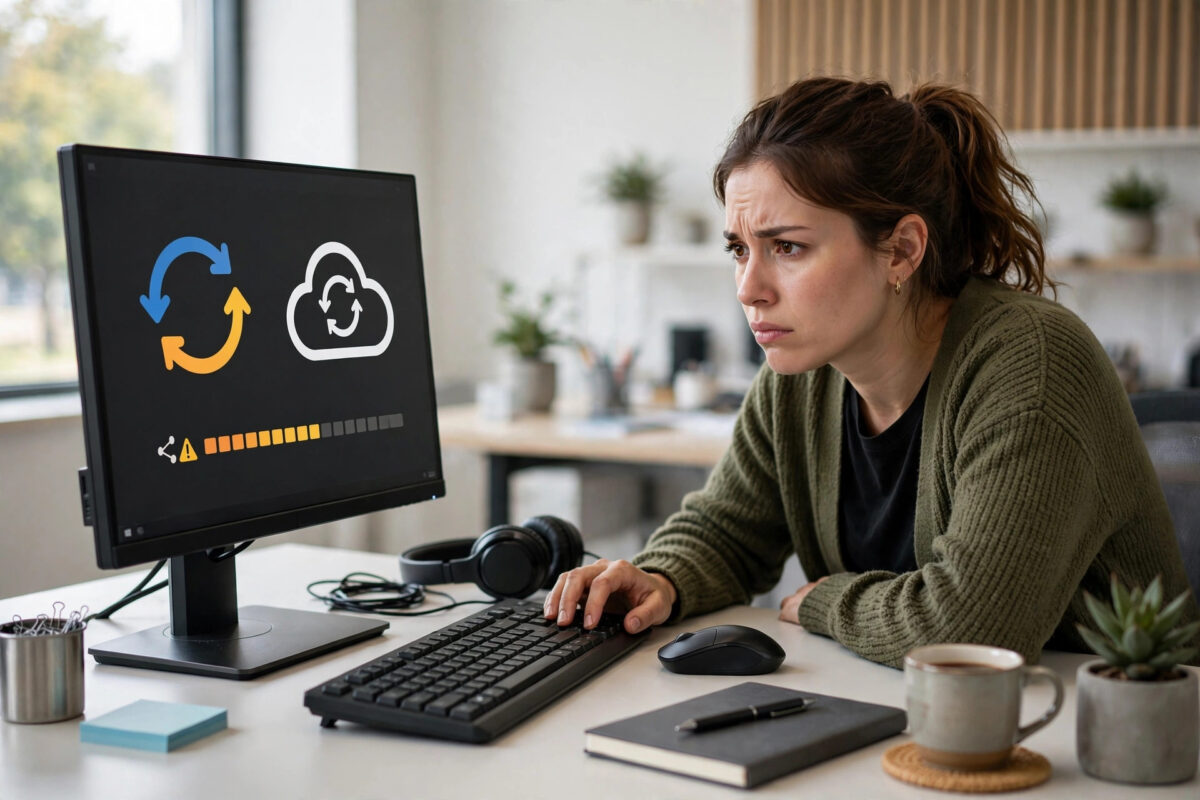
Dropbox is supposed to work quietly in the background. You drop a file into the folder, it appears everywhere, and you forget about it. So when syncing stops, files stay stuck, or the little icon spins forever, it quickly becomes stressful — especially if a colleague or client is waiting for that file.
The good news is that most sync problems have simple causes: a paused app, a full account, a bad file name, or a weak connection. This guide walks through the fixes in a sensible order, from the quickest checks to the deeper resets, for both Windows and Mac.
Quick Answer
First, check that Dropbox is running, you are signed in to the right account, and sync is not paused. Then confirm you have internet, free Dropbox storage, and free disk space, and restart the Dropbox app. Most sync failures are fixed by one of these steps, or by renaming a file that uses unsupported characters.
Start With the Basic Checks
Do not uninstall anything yet. Work through these quick checks first, because they solve the majority of cases and take only a few minutes.
- Look for the Dropbox icon in the Windows system tray or the Mac menu bar. If it is missing, Dropbox is not running, so launch it from your apps list.
- Click the icon and read its status message. It may say Up to date, Syncing, Paused, or show an error.
- If sync is paused, choose Resume syncing from the settings or profile menu.
- Confirm you are signed in with the same email address on every device. A different account is a very common hidden cause.
- Open dropbox.com in your browser to see whether the file is already in the cloud. That tells you whether the problem is uploading, downloading, or both.
Check Your Internet Connection
Dropbox cannot sync without a working connection, and it struggles on weak or restricted networks. Try loading a few websites, then switch off any VPN or proxy briefly to test whether it blocks Dropbox. On office, school, or hotel Wi-Fi, a firewall may block sync even though normal browsing works. If possible, test on your home network or a phone hotspot to confirm.
Also give a large upload time. A folder with hundreds of photos or a big video can look stuck while it is actually working slowly. Click the Dropbox icon to see how many files remain and whether the number is falling, even slowly.
Check Storage in Dropbox and on Your Computer
Sync stops when there is nowhere for files to go. You need space in two places.
- Dropbox storage: If your account is full, nothing new can upload. Delete large files you no longer need, empty deleted files permanently only when you are sure, or upgrade if you truly need more room.
- Computer disk space: Dropbox needs local space to download and process files. If your drive is nearly full, free several gigabytes and try again.
- Selective sync settings: A folder set not to sync to this computer will not appear locally, which can look like a sync failure when it is actually a setting.
Open Dropbox preferences and review Selective Sync to confirm the folders you expect are ticked for this device. Our related guide to freeing up cloud storage space without deleting important files explains safe ways to clear room when your account is tight.
Restart Dropbox and Your Computer
A clean restart clears temporary glitches that build up over days of sleep, updates, and network changes.
- Click the Dropbox icon, open your profile or settings, and choose Quit.
- Wait ten seconds, then launch Dropbox again from the Start menu or Applications folder.
- Give it two or three minutes and watch the status change.
- If it still does not sync, restart the whole computer, then open Dropbox before opening other heavy apps.
Fix File Names and Problem Files
One bad file can hold up an entire queue. Windows and Mac allow slightly different characters, and Dropbox must handle both, so names that work on one system may fail on another.
Characters and names to avoid
- Do not end a file or folder name with a full stop or a space.
- Avoid characters such as < > : " / \ | ? and * in names that must sync to Windows.
- Keep full file paths reasonably short. Very deep folders with long names can exceed Windows limits.
- Do not name two items in a folder with names that differ only in capital letters, because some systems treat them as the same name.
- Close files that are open in another program. A locked document, database, or Outlook data file may refuse to sync until the app closes.
Rename a suspect file to something short and simple, such as report.docx, and see if sync moves again. The Dropbox Help page on fixing syncing problems lists the current naming and file limits in detail, and the Dropbox desktop app installation guide is useful if you later decide to reinstall.
Check Antivirus, Firewall, and Date Settings
Security software sometimes blocks Dropbox after an update. Temporarily check whether your antivirus quarantined Dropbox files, and make sure Dropbox is allowed through your firewall. Do not leave protection disabled; add Dropbox as an allowed app instead.
Your computer clock matters too. If the date or time is badly wrong, secure connections can fail and Dropbox may refuse to sync. Turn on automatic date and time in your system settings, then restart Dropbox.
Clear the Cache and Re-Link Your Account
If simple fixes fail, unlinking and relinking often rebuilds a healthy connection without deleting your cloud files.
- Make sure you know your Dropbox password and have access to your email for any sign-in code.
- On dropbox.com, open Settings and the Security or Devices section.
- Unlink this computer, then open the desktop app and sign in again.
- Choose the same Dropbox folder location when asked, so files are not downloaded twice into a new folder.
- Let the app index your files. This can take a while on a large account, but it should then reach Up to date.
Only reinstall Dropbox as a later step. Uninstall the app, restart the computer, download the latest version from the official site, and sign in. Your files in the cloud are not removed by uninstalling the app, but files that had never finished uploading could be lost, so back up any unsynced local folder first.
Common Mistakes to Avoid
- Deleting the Dropbox folder to start again: That can delete cloud files when sync resumes. Unlink or reinstall the app instead, never just wipe the folder.
- Signing in with the wrong email: Many people have an old personal account and a work account. Check the email shown in the app on each device.
- Moving files while indexing: After relinking, let Dropbox finish before reorganising folders, or you create more confusion.
- Ignoring one stuck file: A single locked or badly named file can block the queue. Find and rename or close it.
- Assuming slow means broken: Large first uploads on a slow connection can take hours. Watch whether the remaining count is falling.
Conclusion
When Dropbox will not sync, work in order: confirm the app is running and not paused, check the account, connection, and storage, then restart and look for problem files. After that, check security software, correct your clock, and relink the account if needed. Most users fix the issue long before the reinstall stage. Once the status finally reads Up to date, open the file on another device or the website to prove the fix really worked.
Frequently Asked Questions
Why does Dropbox say syncing but nothing changes?
It may be indexing, uploading a very large file, or blocked by one locked or badly named file. Click the Dropbox icon to see the remaining file count, close open documents, and rename any file with unusual characters, then wait a few minutes.
Will uninstalling Dropbox delete my files?
Files already in your Dropbox account stay in the cloud when you uninstall the app. The risk is local files that never finished uploading. Copy any unsynced folder somewhere safe before you uninstall or unlink.
Why do files sync on my phone but not on my computer?
That pattern points to the computer: the app may be paused, signed into a different account, blocked by a firewall, or out of disk space. Compare the account email on both devices and restart the desktop app first.
Can selective sync make a folder disappear?
Yes. If a folder is unticked in Selective Sync, Dropbox removes its local copy from that computer while keeping it in the cloud. Tick the folder again in preferences and Dropbox will download it back.
How long should Dropbox take to sync?
Small documents should sync in seconds on a good connection. Large videos, photo libraries, or a first-time sync of thousands of files can take hours. Speed depends on your internet upload speed and the total size waiting.



Leave a Reply