
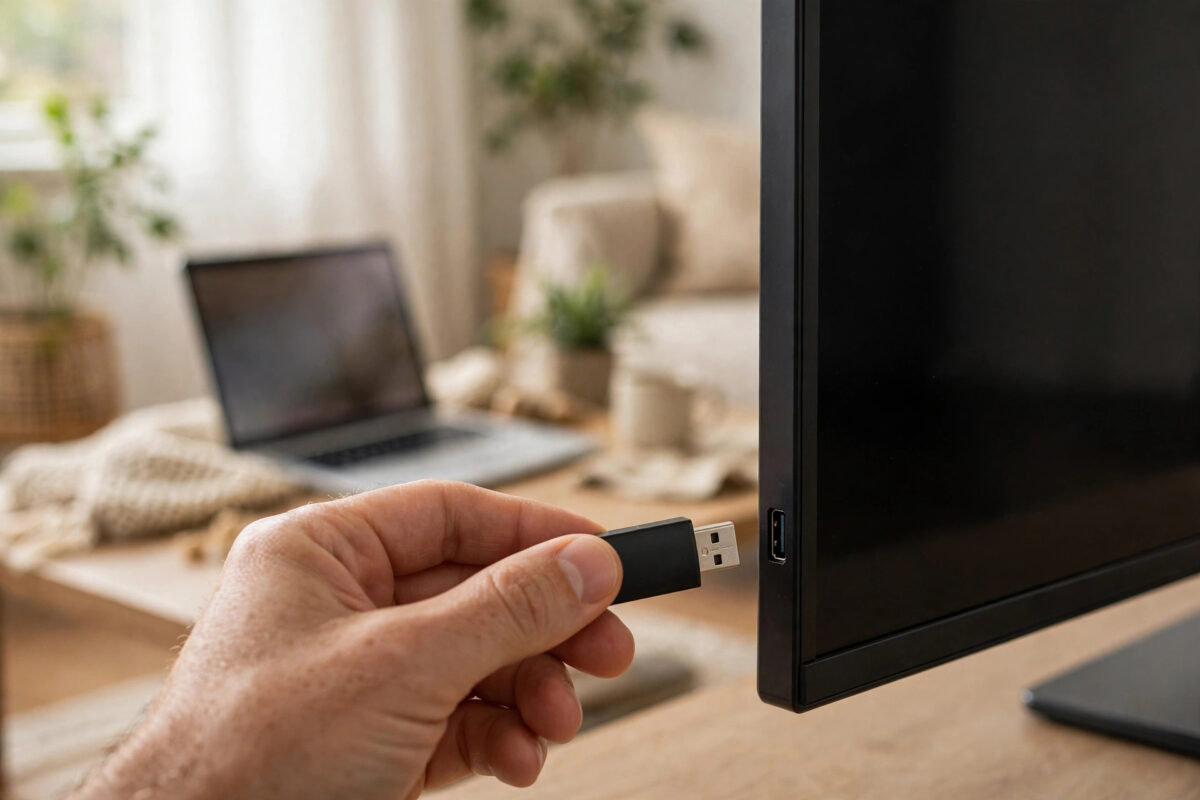
Most TVs update themselves over Wi-Fi without you noticing. But when Wi-Fi has failed, the TV is stuck offline, or an update keeps failing halfway, the automatic method stops being an option. You are left with an older system that may have bugs, missing apps, or security issues that the manufacturer has already fixed. The good news is that almost every major TV brand lets you update the firmware manually with a simple USB drive.
A USB update sounds technical, but it is really just three jobs: download the correct file on a computer, put it on a formatted USB stick in the right way, and let the TV install it from its settings menu. This guide explains each stage slowly and clearly, including how to avoid the common mistakes that make a TV refuse to recognise the update file.
Quick Answer
To update TV firmware with a USB drive when Wi-Fi fails, find your exact TV model number, download the firmware for that model from the manufacturer’s official support website onto a computer, extract the file to a FAT32-formatted USB drive exactly as instructed, plug the drive into the TV, and start the update from Settings under Support or About. Keep the TV powered on until it restarts by itself.
What You Need Before You Start
You will need a computer, a USB flash drive with at least 2 GB free, and about 30 minutes where nobody will turn the TV off. The drive will be formatted during preparation on most guides, so copy off any files you want to keep.
- A USB 2.0 or USB 3.0 flash drive, ideally 8 GB or smaller for the best compatibility with older TVs.
- Your exact TV model number and, if shown, the current software version.
- A computer that can open ZIP files, which Windows and Mac can both do without extra software.
- A wall socket for the TV. Do not run a firmware update on a loose extension or during a storm.
Find Your Exact Model Number
The model number is the most important detail in this whole process. Installing firmware for a similar but different model can fail or, in the worst case, damage the TV. Find the sticker on the back of the TV, which lists the full model code and serial number, or go to Settings, Support, About This TV on the screen. Write the code down exactly, including any letters at the end, because brands often sell several versions of the same TV size with different panels and processors.
Step 1: Download the Correct Firmware From the Official Site
- On your computer, go to the official support site for your TV brand. For Samsung TVs, start at Samsung Support for firmware downloads and model search and enter your model number in the search box.
- Open your model’s support page and look for Downloads, Firmware, or Software Update.
- Check that the firmware version offered is newer than the version shown on your TV. If it is the same version, a USB update will not change anything.
- Download the file. It will usually be a ZIP file between a few hundred megabytes and over one gigabyte, so it may take a few minutes.
- Read any update notes or PDF guide on the same page. Some brands require a specific folder name on the USB drive, and that detail matters.
Only download firmware from the manufacturer’s own website. Files from random forums or file-sharing sites can be outdated, for the wrong region, or unsafe. Region matters too: a TV bought in the UK should use firmware from the UK support site, not the US site, even if the model name looks the same.
Step 2: Prepare the USB Drive Correctly
More USB updates fail at this stage than at any other. TVs are picky about drive format and folder structure, so follow these steps carefully.
- Insert the USB drive into your computer and back up anything on it you need.
- Format the drive as FAT32. On Windows, right-click the drive in File Explorer, choose Format, select FAT32, and click Start. On a Mac, use Disk Utility and choose MS-DOS (FAT).
- Open the downloaded ZIP file and extract it. Read the instructions inside, if any.
- Copy the extracted file or folder to the root of the USB drive – that means directly on the drive, not inside another folder you created, unless the brand guide tells you to keep its folder.
- Do not rename the file or folder. The TV searches for an exact name.
- Safely eject the drive from the computer instead of just pulling it out, so the file is not corrupted.
If your TV brand provides an .exe file for Windows, run it on the computer and let it prepare the USB drive for you. That tool creates the correct folder structure automatically and reduces the chance of error. Our broader explainer on how to update smart TV software safely covers the normal online method as well, which is worth using again once your Wi-Fi is working.
Step 3: Install the Update on the TV
- Turn the TV on and wait until the home screen is fully loaded.
- Plug the USB drive into a USB port on the TV. On many models any port works, but if one is labelled Service or HDD, prefer a standard port first unless the manual says otherwise.
- Wait 30 seconds. Some TVs detect the update automatically and show a prompt. If yours does, select Update Now.
- If no prompt appears, go to Settings, then Support, Software Update, and choose Update via USB or Update Now. The TV will scan the drive.
- Confirm the new version number on screen and select Yes or Start.
- Leave the TV alone while the progress bar runs. Do not unplug the TV, remove the USB drive, or press buttons on the remote. The TV may go black and restart once or twice – this is normal.
- When the TV returns to the home screen, go back to About This TV and confirm the new version number is shown.
- Remove the USB drive. Reconnect Wi-Fi or Ethernet and open your apps to check they still work and you are still signed in.
The full install usually takes 5 to 15 minutes. If the TV says no update file was found, check the format and folder structure. Brand guidance such as LG Support for USB software update instructions includes model-specific diagrams that solve most errors.
Troubleshooting When the TV Will Not Update
The USB Drive Is Not Recognised
Try a different, smaller drive formatted again as FAT32. Some TVs struggle with very large 128 GB drives or drives formatted as exFAT or NTFS. Also try a different USB port on the TV and make sure the drive is pushed in fully.
The Update Starts Then Fails
A failed update is often a corrupted download. Delete the file, download it again on a stable connection, extract it fresh, and copy it to a newly formatted drive. Plug the TV directly into a wall socket during the retry so a loose connection cannot cut power.
The TV Says the Software Is Already Up to Date
This means the file on the support site is the same or older than what you run, or the TV is reading the wrong folder. Compare version numbers digit by digit. If you truly need to reinstall the same version to fix a fault, check whether your brand allows it – some do, some block reinstalling the same version entirely.
Mistakes to Avoid and Safety Tips
- Never turn off the TV during an update: Cutting power mid-install is the one action that can seriously damage TV software. Warn everyone in the house before you start.
- Do not use another model’s firmware: A file for a 55-inch model will not suit the 50-inch version, even from the same range. Match the full model code.
- Do not skip the extraction step: Most TVs cannot open a ZIP file. The extracted file or folder must be on the drive, not the ZIP itself.
- Avoid cheap unbranded drives for critical updates: A failing drive can corrupt the file halfway. Use a drive you trust and format it fresh.
- Do not factory reset first unless advised: A reset erases your apps and logins and rarely fixes an update problem. Try the USB method before resetting anything.
Conclusion
Updating TV firmware with a USB drive is the reliable backup plan when Wi-Fi fails, and it is well within the ability of any careful owner. The secret is accuracy: the exact model number, the official file for your region, a FAT32 drive with the correct folder structure, and patience while the TV installs and restarts on its own. Follow those four points and your TV will be back on the latest software with the newest fixes and features, ready to reconnect and stream normally again.
Frequently Asked Questions
What format should the USB drive be for a TV update?
Use FAT32 for almost all brands and models. It is the format TVs expect for firmware. NTFS and exFAT drives often work for playing media but are frequently rejected for software updates.
How long does a USB firmware update take?
Downloading and preparing the drive takes 10 to 20 minutes depending on your internet speed. The install on the TV itself usually takes 5 to 15 minutes, during which the TV will restart.
Will a firmware update delete my apps and settings?
A normal update keeps your apps, accounts, and picture settings. Only a factory reset deletes them.
Can I update my TV with my phone instead of a computer?
It is difficult because you need to download, extract, and place the file correctly, which phones handle poorly. A computer and a proper USB drive remain the safe and supported method for all major brands.
What should I do if the update fixes nothing?
Confirm the new version installed, then reconnect the network and test again. If the original fault was Wi-Fi hardware failure, the update will not repair it, and you may need Ethernet, an external streaming device, or a repair quote from the manufacturer.



Leave a Reply