
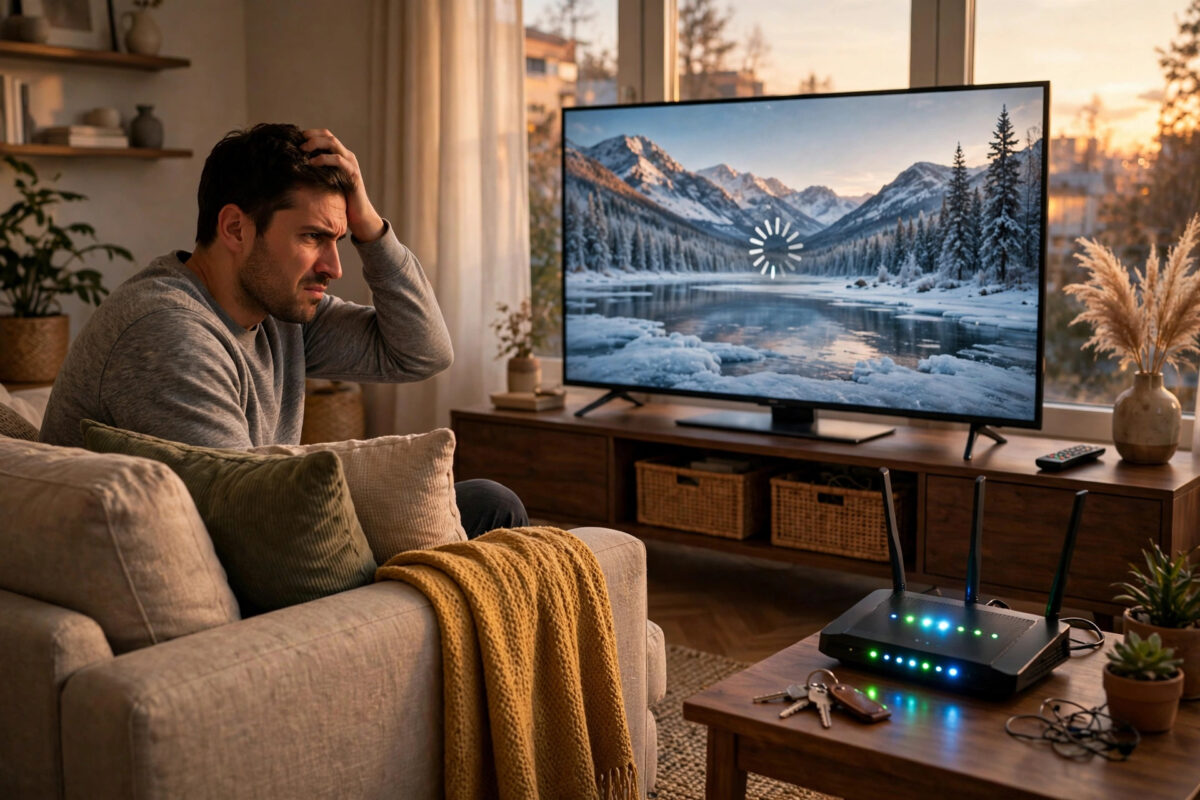
It is frustrating when your phone, laptop, and tablet stay connected perfectly, but your TV keeps dropping off Wi-Fi in the middle of a show. The stream freezes, the app says you are offline, and a few minutes later everything works again. Because only one device has the problem, most people assume the router is fine and the TV is broken. In reality, this issue is very common and it is usually caused by signal strength, TV settings, or a crowded Wi-Fi channel rather than a faulty television.
Smart TVs have weaker Wi-Fi antennas than phones and laptops, and they are often placed inside cabinets, behind walls, or far from the router. The good news is that you can fix most of these problems yourself in under an hour, without buying new equipment.
Quick Answer
To fix Wi-Fi that drops only on your TV, move the TV closer to the router or remove obstacles, switch the TV to the 2.4 GHz network for better range or the 5 GHz network for less interference, restart both the TV and router fully, and update the TV software. If drops continue, forget the network on the TV and reconnect, change your router Wi-Fi channel, and turn off power-saving modes that put Wi-Fi to sleep.
Why Your TV Loses Wi-Fi When Other Devices Do Not
Understanding the reason makes the fix much easier. Your other devices move around the house and automatically find the strongest signal. Your TV stays in one fixed spot, which might be a weak spot for Wi-Fi coverage. A thick wall, a metal TV stand, a fish tank, or even a large mirror between the router and the TV can weaken the signal enough to cause random drops.
TVs also handle Wi-Fi differently. Many models use older Wi-Fi chips that struggle with newer router settings, such as band steering, where the router tries to move devices between 2.4 GHz and 5 GHz automatically. Some TVs disconnect during that switch and never reconnect cleanly. Sleep timers and eco modes can also turn off the Wi-Fi adapter to save power, especially after the TV has been on standby for a long time.
Check the Signal Strength on Your TV
Before you change anything, check what your TV thinks about the connection. Go to Settings, then Network, then Network Status or Wi-Fi details. Most brands show signal strength as bars or as a percentage. If you see only one or two bars, or a strength below 50 percent, distance and obstacles are likely your main problem. If your phone also shows a weak signal in that exact spot, you have found a dead zone.
Step-by-Step Fixes That Work for Most TVs
Work through these steps in order. Test the TV for at least 20 to 30 minutes after each major change, ideally by playing a long video, so you know whether the fix actually helped.
- Restart everything properly. Turn off the TV and unplug it from the wall for 60 seconds. Unplug your router and modem as well. Plug the modem back in first, wait until it is fully online, then plug in the router, and finally plug in and turn on the TV. This clears temporary memory faults that a quick restart from the remote does not fix.
- Forget and reconnect to the network. On the TV, open Network Settings, select your Wi-Fi network, and choose Forget Network. Then connect again and type the password carefully. This removes a corrupted saved profile, which is a very common cause of repeated drops.
- Try the other Wi-Fi band. If your router shows two networks, one ending in 2.4G and one in 5G, test both. The 2.4 GHz band travels farther and passes through walls better, so it is best for a TV in another room. The 5 GHz band is faster and less crowded, so it is best when the TV is in the same room as the router.
- Move the router or the TV slightly. Even moving the router one metre higher or out of a cupboard can make a big difference. Keep the router away from microwaves, cordless phones, and thick concrete walls. If you cannot move the router, try angling the TV slightly or moving objects away from the space between them.
- Update your TV software. Outdated software often contains Wi-Fi bugs that the manufacturer has already fixed. Check for updates in Settings under Support or About. You can follow the official steps on Samsung Support for TV software and connection help if you own a Samsung model, and install any update while the connection is stable.
- Turn off power-saving and quick-start modes. Look in Settings for Eco Mode, Power Saving, Instant On, or Quick Start. These features can put the network adapter to sleep. Turning them off keeps the Wi-Fi connection active and often stops overnight disconnects.
Router Settings to Change When Drops Continue
If the basic steps did not solve the problem, a few router settings are worth checking. You will need to log in to your router admin page, usually by typing its address, such as 192.168.0.1 or 192.168.1.1, into a browser on your phone or computer.
Change the Wi-Fi Channel
Your neighbours’ routers can crowd the same channel as yours, especially in flats and apartment buildings. In your router settings, set the 2.4 GHz channel to 1, 6, or 11, whichever is least used in your area. For 5 GHz, choose a higher channel such as 149 or 157 if it is available. Save the settings, let the router restart, and reconnect the TV. A cleaner channel means fewer interruptions during busy evening hours.
Give Your TV a Fixed IP Address
Sometimes two devices fight over the same network address and the TV loses. In your router settings, look for DHCP Reservation or Static Lease and reserve a fixed address for your TV using its MAC address, which is shown in the TV network details screen. This gives the TV a stable identity on your network and prevents address conflicts.
Separate the Bands If Band Steering Causes Problems
Some routers combine both bands under one network name and move devices automatically. If your TV keeps dropping after the router tries to move it, turn off Smart Connect or Band Steering in the router settings and give the two bands different names. Then connect the TV manually to the band that works best in its location and leave it there.
Wi-Fi drops often feel worse when apps are also struggling to load. If your streams pause even when the connection looks stable, our guide on why streaming apps stutter and freeze on smart TVs explains the app and cache problems that can look like a Wi-Fi fault.
When to Use a Wired or Alternative Connection
If your TV sits far from the router and the signal will never be strong in that room, Wi-Fi may not be the best option. An Ethernet cable is the most reliable fix and removes drops completely. If running a cable is not practical, consider a Wi-Fi extender placed halfway between the router and the TV, a mesh Wi-Fi system for larger homes, or powerline adapters that send the network through your electrical wiring. Any of these is better than struggling with a weak direct signal.
Common Mistakes to Avoid
- Only restarting with the remote: Pressing power on the remote puts most TVs into standby and does not clear network faults. Always unplug for a full reset.
- Testing for only two minutes: Drops can happen every 15 or 20 minutes. Test with a long film or a live stream before deciding a fix failed.
- Placing an extender in the dead zone: An extender needs a good signal to repeat. Place it halfway between the router and the TV, not right next to the TV.
- Ignoring router firmware: Routers need updates too. Check your router app or admin page for firmware updates at least twice a year.
Conclusion
When Wi-Fi drops only on your TV, the cause is almost always local to that TV: a weak signal in its fixed position, a saved network profile that has gone wrong, power-saving settings, or a crowded router channel. Start with a full power restart, reconnect the TV fresh, test both Wi-Fi bands, and update the software. Then improve the router position or channel if needed. In most homes these steps stop the drops completely, and for rooms with truly poor coverage, Ethernet, mesh Wi-Fi, or powerline adapters give you a permanent and stable solution.
Frequently Asked Questions
Why does my TV disconnect from Wi-Fi at night?
Night-time drops are often caused by power-saving or standby settings that turn off the Wi-Fi adapter, or by automatic router restarts and updates. Turn off Eco Mode and Quick Start on the TV, and check your router schedule to make sure it is not rebooting overnight.
Is 2.4 GHz or 5 GHz better for a smart TV?
Use 2.4 GHz if the TV is far from the router or separated by walls, because it has better range. Use 5 GHz if the TV is close to the router and you want faster speeds with less interference from neighbours.
Can a faulty HDMI device affect TV Wi-Fi?
Yes, rarely. A damaged HDMI cable or a cheap streaming stick drawing too much power can create interference or cause the TV system to glitch. Disconnect all HDMI devices for a test evening to rule this out.
How do I know if my TV Wi-Fi hardware is broken?
If the TV cannot see any networks at all, drops even next to the router, and also fails on a phone hotspot after a factory reset, the internal Wi-Fi module may be faulty. In that case, use Ethernet or an external streaming device as a workaround and contact the manufacturer.
Will a Wi-Fi extender stop my TV from dropping?
It will help if the problem is weak signal and the extender is placed where it still receives a strong signal itself. It will not help if the real cause is a TV software bug or power-saving setting, so try the free fixes first.



Leave a Reply