
Many smart TVs now come with a built-in camera, a microphone in the remote control, or both. These features can be useful for video calls, voice search, and gesture controls, but they also raise fair questions. Who can access the camera? When is the microphone listening? Can an app turn them on without you noticing?
The reassuring answer is that you stay in control. Every major TV brand lets you disable camera and microphone access completely, or limit it app by app. You can also use simple physical steps, like covering a camera lens or removing remote batteries, for extra peace of mind. This guide explains how permissions work on a smart TV and shows you exactly how to switch them off on the most popular brands.
Quick Answer
To disable camera and microphone permissions on a smart TV, open Settings, go to Privacy or Applications, open the permission manager, and deny camera and microphone access for all apps. On Samsung TVs also switch off Voice Recognition Services, on LG TVs turn off Voice Recognition in user agreements, and on Google TV set microphone access to Never — then cover the camera lens or use its built-in shutter if your TV has one.
How Camera and Microphone Access Works on a Smart TV
Where the Camera and Microphone Actually Are
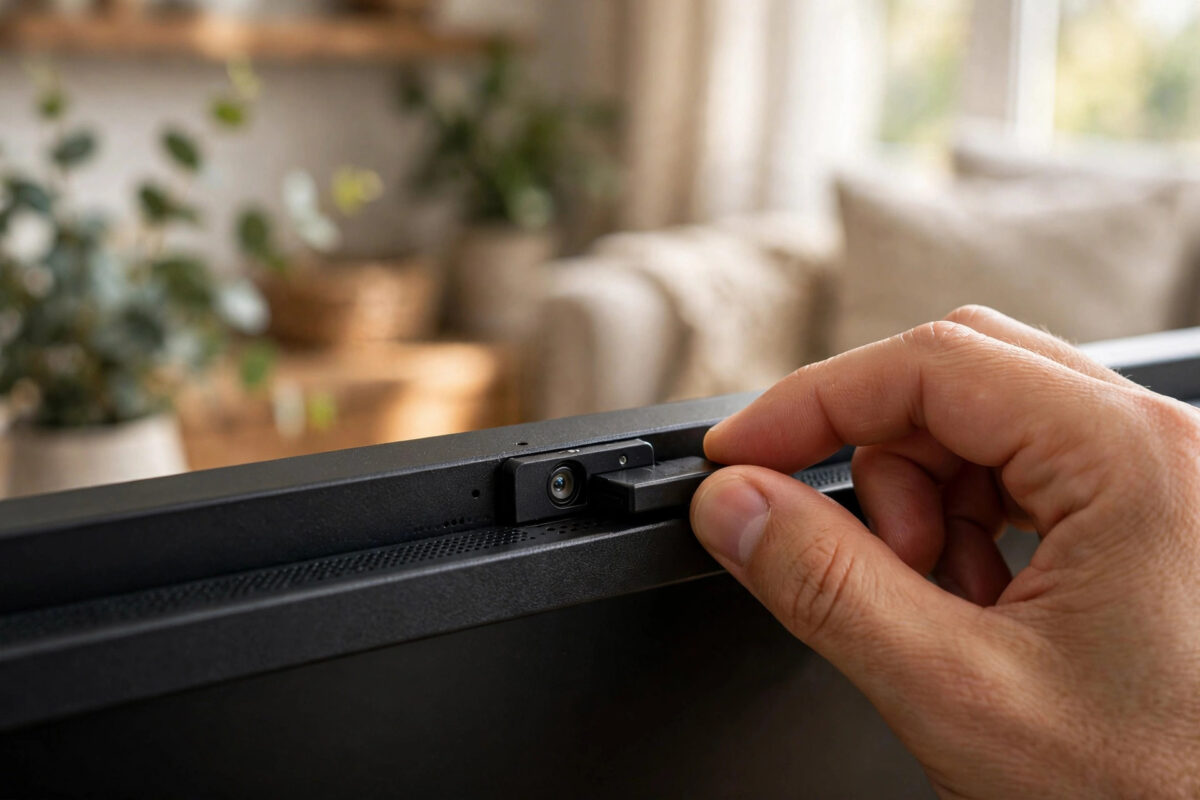
Not every TV has a camera. When one is included, it usually sits in the top bezel in the centre of the screen, and some models let you pop it down or slide a plastic shutter across it. Microphones are more common, but they are often not in the TV itself. Most voice microphones live in the remote control and only listen when you hold the voice button. Some TVs, especially those with hands-free voice assistants, have a far-field microphone in the TV that can listen for a wake word from across the room.
What Permissions Mean
Just like on a phone, an app on your TV normally needs permission before it can use the camera or microphone. When you first open a video-calling app, for example, it will ask for camera access. Granting permission once often leaves it switched on for that app until you change it. Reviewing the permission list regularly is therefore important, especially after children or guests have used the TV and may have accepted prompts without thinking.
How to Disable Permissions on Samsung TVs
- Press Home on the remote and open Settings.
- Go to General or General and Privacy, then select Privacy.
- Open Terms and Privacy and switch off Voice Recognition Services if you do not use voice control.
- Return to Settings and open Applications or Apps, then find the permission or app privacy section on your model.
- Select each app that has camera or microphone access and change its permission to Deny or switch it off.
- If your TV has a built-in camera, slide its privacy shutter closed or push the camera down into the bezel where the design allows it.
- For hands-free voice models, look for a physical microphone switch near the bottom of the TV and slide it to Off — the TV will usually confirm on screen.
The exact menu names vary between years, and the Samsung Support library for voice and camera settings lists the steps for each model range if your menu looks slightly different.
How to Disable Permissions on LG TVs
- Press the Settings gear button and choose All Settings.
- Go to General, then System or Additional Settings, and open Safety or Privacy on your model.
- Open the User Agreements section under About This TV.
- Untick Voice Recognition agreement if you do not want voice features, and review any camera-related agreement on camera models.
- Open Application Manager or the apps list, select an app, and remove its camera or microphone permission where shown.
- On the Magic Remote, simply avoid pressing the microphone button — the remote microphone is not active until that button is used on most LG models.
If you use the voice features on some days but not others, you can leave the agreement in place and rely on the remote button behaviour. For a permanent off, removing the agreement is the stronger choice.
How to Disable Permissions on Google TV and Android TV
Google TV has a phone-style permission manager, which makes this job very clear.
- Open Settings, then go to Privacy.
- Select Microphone and choose Never or switch off Microphone access for the whole device if your version offers a master toggle.
- Go back and select Camera, then set camera access to off or deny it for every app listed.
- For app-by-app control, open Apps, then See all apps, choose an app, open Permissions, and set Camera and Microphone to Don’t allow.
- Open Security and restrictions if present and review any unknown sources or special access settings.
- If your TV has a physical microphone mute switch, usually near the power button or on the back, slide it off — an orange or red light often confirms the microphone is muted.
The Google TV Help centre for managing app permissions covers the permission screens for different Android versions if you get stuck.
How to Disable Permissions on Roku and Fire TV
Roku TVs
Roku TVs rarely have cameras, but many have microphone access through the remote and mobile app. Go to Settings, then Privacy, then Microphone. From there you can set how channels access the microphone: choose to never allow access, or set it to prompt every time. Also open the Roku mobile app settings on your phone and turn off its microphone feature if you do not use voice search there.
Amazon Fire TV
On Fire TV, go to Settings, then Applications, then Manage Installed Applications. Choose an app, open Permissions, and deny camera and microphone access. Fire TV voice remotes only listen while you hold the voice button, so there is no always-listening microphone in the remote itself. If your Fire TV is connected to an Echo device for hands-free control, manage that link inside the Alexa app instead.
Physical Steps for Extra Peace of Mind
Software settings are effective, but physical steps cannot be overridden by a buggy app or a reset menu. If your TV camera has a shutter, keep it closed by default and open it only for calls. If there is no shutter, a small removable lens cover or a piece of opaque tape over the lens works — just place it carefully so no sticky residue touches the lens itself. For voice remotes you rarely use, removing the batteries when guests or children use the TV is a simple extra safeguard, though most people find the settings are enough.
While you are reviewing privacy, it is also worth setting up household protections. Following a guide on how to set up parental controls on a smart TV helps you add PINs and app restrictions, so children cannot re-enable permissions or install calling apps without your knowledge.
Common Mistakes and Helpful Tips
- Denying permission in one place only: Check both the device-wide privacy menu and each app’s own permission screen.
- Forgetting the phone apps: TV companion apps on your phone can have their own microphone access. Review them too.
- Assuming the remote is always listening: Most remotes only listen while the voice button is held. Hands-free TV microphones are the ones with a physical mute switch.
- Covering the wrong part of the bezel: Check where the camera actually is before adding a cover, and never cover ventilation slots or the remote sensor.
- Not rechecking after adding a new app: New apps ask for permissions on first launch. Review the permission list after any new installation.
- Ignoring software updates: Updates can add new permission categories, so glance at the privacy menu after major updates.
Conclusion
Disabling camera and microphone permissions on a smart TV takes only a few minutes and does not stop you enjoying any normal viewing. Deny access in the permission manager, turn off voice recognition services you do not use, use the physical mute switch or camera shutter if your TV has one, and review the list again whenever a new app is installed. With those simple steps, you decide when — if ever — your TV can see or hear your living room.
Frequently Asked Questions
Does my smart TV have a camera?
Many do not. Cameras were mainly included on some premium Samsung, LG, and Sony models, and they are less common on newer TVs. Look for a small lens in the top centre bezel, check your manual, or search the settings menu for camera options — if none exist, your TV almost certainly has no camera.
Can I still use voice search after turning off the microphone?
No, voice search needs microphone access to work. If you turn the microphone off completely, you will need to type searches with the on-screen keyboard. You can re-enable microphone permission for a single trusted app at any time if you change your mind.
Is my TV listening to me all the time?
For most TVs, no. Remote microphones activate only while you press the voice button. TVs with hands-free voice assistants do listen for a wake word locally, but you can mute that microphone with the physical switch or in settings, and an indicator light normally shows when it is muted.
Will denying permissions break my apps?
Only the feature that needs that permission will stop working. A streaming app denied microphone access will still play films perfectly — it simply cannot use voice search. Video-calling apps are the main ones that genuinely need both camera and microphone access to function.
What should I do if an app keeps asking for permission?
Choose the deny option and look for a “don’t ask again” setting where offered. If the prompts continue, check whether the app has a newer version, or uninstall it if you do not really need it. An app that cannot work without unnecessary access is usually easy to replace.



Leave a Reply