
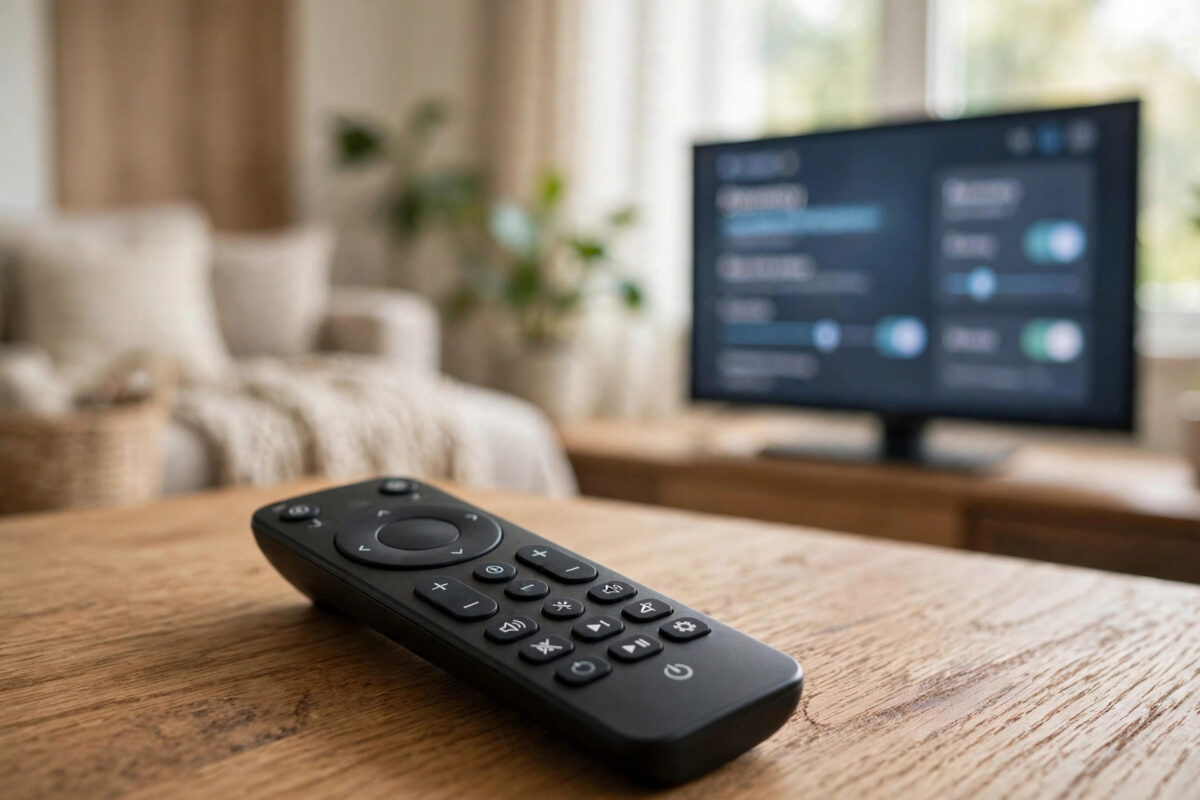
Smart TV remotes with voice control are convenient, but they also contain a microphone, and that makes many people uneasy. Is the remote listening all the time? Can you switch the microphone off and still use your TV normally? The short answer is yes, you have more control than you might think. This guide explains how the remote microphone works, how to turn voice features off on each major TV platform, and how to check what your TV is really doing.
Quick Answer
On most TV remotes, the microphone only records while you hold down the voice button, so it is not listening the rest of the time. To disable it completely, open your TV’s settings and turn off voice recognition in the voice, privacy, or assistant menu. You can also remove the assistant’s permissions, delete stored voice recordings in your account, and unpair the remote’s Bluetooth if you want to be extra sure. The TV will still work normally with the buttons.
How the Microphone in Your TV Remote Actually Works
It helps to separate two different features that are often confused.
Push-to-talk voice buttons
Most remotes work this way. The microphone does nothing until you press and hold the microphone or voice button. While you hold it, the remote records your command, sends it to the TV, and the TV sends it to an online service to understand what you said. When you release the button, recording stops. There is no constant listening with this design.
Hands-free listening
Some TVs and remotes offer hands-free control, where the device listens for a wake phrase such as the assistant’s name. This feature, when it exists, is usually a setting you must switch on yourself, and many models have a physical switch or an on-screen control for it. Some TVs even have a hardware switch for the built-in microphone on the TV itself. If privacy matters to you, this hands-free feature is the one to find and switch off.
Knowing which system your TV uses tells you how far you need to go. For a push-to-talk remote, turning off voice recognition in settings is normally enough.
How to Turn Off Voice Recognition in TV Settings
The menu names differ by brand, but the path is similar. Work through these general steps, then check the brand notes below.
- Open Settings on your TV.
- Look for Privacy, Voice, Voice recognition, or the name of the assistant, such as Google Assistant, Alexa, or Bixby.
- Turn off voice recognition or the assistant itself.
- Withdraw any permissions the assistant asks for, especially microphone access, if the menu offers that choice.
- Turn off hands-free or wake-word listening if it appears as a separate option.
- Press the voice button on the remote to test. The TV should now show that voice is off, ask you to enable it, or simply do nothing.
Samsung TVs
Look in the settings for voice recognition under general or privacy options. You can disable the voice service and also delete voice recognition data linked to your Samsung account. The Samsung support site explains where these options sit on current models.
LG TVs
LG places voice settings under general settings, including an option to manage voice recognition and related data. You can also clear voice history from the same area on many models. See the LG support pages for your model’s exact menu.
Google TV and Android TV
Open the Google Assistant settings from your profile or the privacy section. You can turn off the assistant for the TV, manage voice activity in your Google account, and set recordings to auto-delete. Microphone access for individual apps can also be blocked in the apps permissions menu.
Extra Steps for Stronger Privacy
If you want to go further than the basic switch, these steps add extra layers.
- Delete stored recordings. Voice services may keep recordings of your commands in your online account. Visit your account activity page for Google, Amazon, or Samsung and delete past voice recordings. You can often switch off saving future recordings too.
- Review app microphone permissions. On TVs that support app permissions, check which apps can use the microphone and block any that have no good reason.
- Use the physical microphone switch. Some TVs have a real switch for the built-in TV microphone, often near the bottom edge or by the power light. Switching it off cuts the microphone at hardware level.
- Unpair the remote’s Bluetooth. Voice travels over Bluetooth, so unpairing stops voice while basic infrared buttons keep working on many remotes. Note that you may also lose the pointer or other smart features.
- Choose a simple replacement remote. A basic remote without a microphone removes the question entirely and still controls channels, volume, and apps.
For a wider review of your TV’s privacy, our guide to stopping your smart TV from tracking you covers viewing data, adverts, and account settings as well as voice.
What Stops Working When You Turn Voice Off?
Turning off the microphone features only affects voice. You can still:
- Change channels, volume, and inputs with the buttons as normal.
- Open and use all streaming apps.
- Search by typing with the on-screen keyboard, or faster, with a phone app remote that has a keyboard.
- Use your TV fully offline for broadcast channels and connected devices like a games console.
You lose voice search, voice commands for smart home devices through the TV, and any hands-free control. For most people who rarely use voice anyway, that is a very small price for peace of mind. You can also turn voice back on at any time by reversing the same settings.
Common Mistakes to Avoid
- Taping over the microphone hole and assuming that is enough. Tape muffles sound but does not disable recording. Use the settings switch for a real result.
- Turning off the assistant but leaving hands-free listening on. These are often separate options. Check both.
- Forgetting recordings already stored in your account. Switching voice off today does not delete yesterday’s recordings. Clear them in your account activity settings.
- Blocking the microphone for every app. Some apps, such as video calling, genuinely need it. Adjust permissions per app instead of one blanket block if you use those features.
- Assuming the remote is always listening. On push-to-talk remotes it is not. Understanding your model stops unnecessary worry and helps you choose the right level of control.
Conclusion
Your TV remote’s microphone is under your control. On most models it only works while you hold the voice button, and you can disable voice recognition completely in the privacy or assistant settings in a couple of minutes. Delete stored recordings, review app permissions, and use a physical switch if your TV has one, and you can enjoy your TV with total confidence that nothing is listening when you do not want it to.
Frequently Asked Questions
Is my TV remote listening to me all the time?
For the common push-to-talk design, no. The microphone records only while you hold the voice button. Constant listening happens only with hands-free features, which you must switch on, and which you can switch off again in settings.
Will turning off voice recognition break my TV?
No. All normal remote buttons, apps, and channels keep working. You only lose voice search and voice commands, and you can turn the feature back on whenever you like.
Can I delete the voice recordings my TV has already made?
Yes. Sign in to the account linked to your TV’s voice service, such as Google, Amazon, or Samsung, open the activity or privacy section, and delete voice recordings. Most services also offer automatic deletion after a set period.
My TV has no voice off switch in settings. What can I do?
Check for a physical microphone switch on the TV, block microphone permission for the assistant app, or unpair the remote’s Bluetooth so voice cannot be sent. A basic replacement remote without a microphone is the simplest permanent answer.
Does covering the microphone hole with tape work?
It reduces sound quality but does not guarantee privacy, because muffled speech can still be recorded. The proper settings switch, or a hardware switch, is the reliable method.



Leave a Reply