
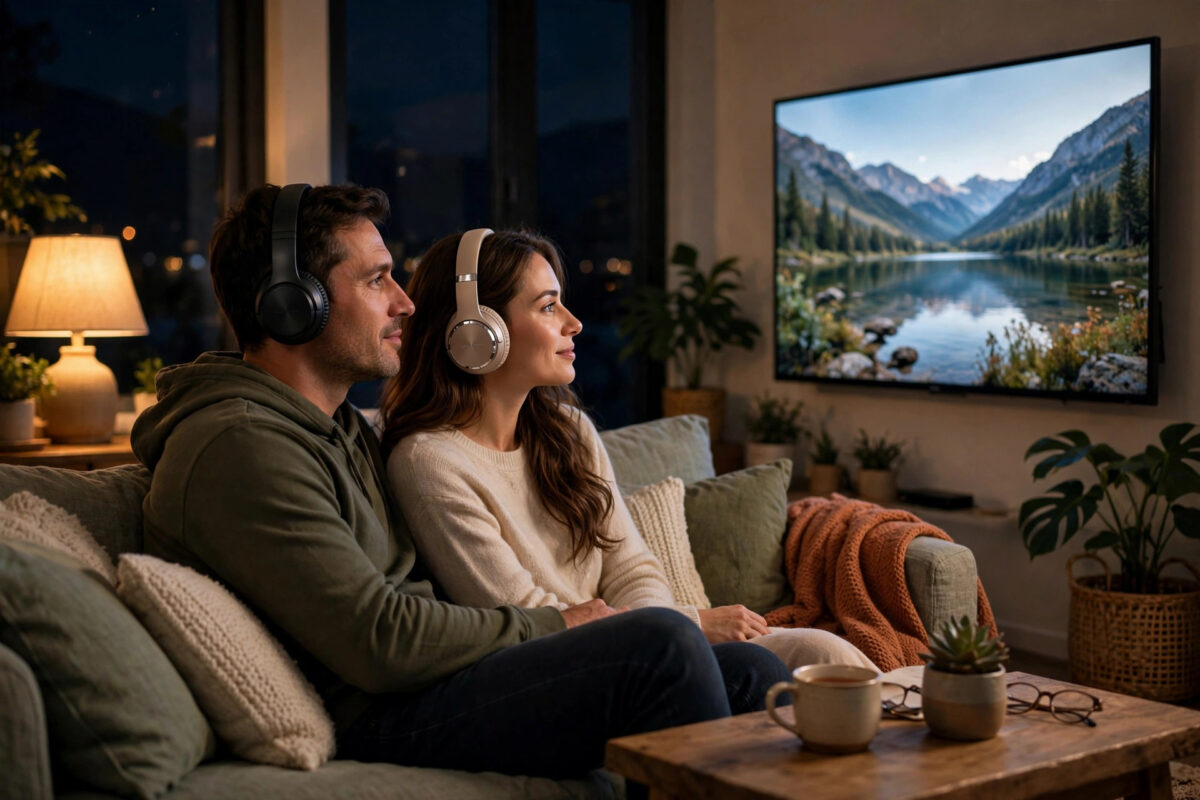
There are many reasons to share TV sound between two people. One of you may prefer the volume louder. A baby may be asleep in the next room. Or you may simply want the full, rich sound of headphones without disturbing anyone else in the house. Sending TV audio to two pairs of Bluetooth headphones at the same time sounds simple, but many TVs only support one pair. Here is how to find out what your TV can do, and the reliable workarounds when it cannot.
Quick Answer
Some newer TVs can connect two Bluetooth headphones at once, using features with names such as Dual Audio, Multi-Output Audio, or Bluetooth Surround. Check your TV’s sound output settings to see if both pairs can be paired and selected together. If your TV only supports one pair, use a Bluetooth audio transmitter plugged into the TV’s headphone or optical socket. Good transmitters support two headphones at the same time and are the most reliable solution.
Why Many TVs Only Allow One Pair of Headphones
Bluetooth was originally designed for one-to-one connections, and many TVs still follow that older pattern. The TV pairs with a single audio device, sends it the sound, and ignores other devices until you disconnect. Manufacturers also have to manage delay. Sound sent to headphones must match the picture on screen, and keeping two different headphones in perfect sync is harder than one.
Newer Bluetooth versions and smarter TV software have changed this. Recent models from several big brands now include a proper dual audio feature, so it is always worth checking your own TV before buying anything.
Step 1: Check If Your TV Has a Built-In Dual Audio Feature
- Put both pairs of headphones into pairing mode. Usually this means holding their power or Bluetooth button until a light flashes.
- On the TV, open Settings, then Sound or Bluetooth devices.
- Pair the first pair of headphones and confirm sound plays through them.
- Look for an option such as Dual Audio, Multi-Output Audio, or a Bluetooth device list that lets you add a second device without removing the first.
- Pair the second pair and select both devices if the TV asks.
- Play something and check that both pairs receive sound at the same time.
Where to look by brand
Samsung calls its feature Dual Audio or Multi-Output Audio on many models, found in the accessibility or sound settings. LG offers a Bluetooth surround option on some models that can include headphones or speakers. TVs running newer versions of Google TV may allow two audio devices on supported hardware. The Samsung support site explains its multi-output audio feature, and the LG support site describes Bluetooth audio options for its TVs.
If your menu forces you to disconnect the first pair before adding the second, your TV does not support dual Bluetooth audio. Move on to the transmitter method below.
Step 2: Use a Bluetooth Transmitter for Two Headphones
A Bluetooth transmitter is a small box that plugs into your TV and sends the sound to headphones itself, instead of relying on the TV’s own Bluetooth. Many transmitters are built for exactly this job and support two pairs at once.
- Check which audio output your TV has free: a 3.5mm headphone socket, an optical output, or RCA sockets.
- Buy a transmitter that matches that socket and clearly states it supports two headphones at the same time, often called dual link.
- Connect the transmitter to the TV and to power, usually by USB.
- Set the TV sound output to the socket you used, if it does not switch automatically.
- Put the first pair of headphones in pairing mode and pair them with the transmitter.
- Put the second pair in pairing mode and pair them too, following the transmitter’s instructions.
- Play a programme and adjust the volume on each pair of headphones separately.
This method works with almost any TV, including older models with no Bluetooth at all. It also frees you from brand limits, because the transmitter handles both connections.
Step 3: Other Ways to Share TV Sound
Use a streaming device or phone app feature
Some platforms offer private listening through a phone app, where the TV sound plays on a phone and then to headphones. A few phones can share their audio to two pairs of earbuds at once. If your phone has an audio sharing feature, one person can use the TV’s headphone connection while the routing goes through the phone for both listeners. Availability varies a lot, so treat this as a bonus, not a guarantee.
Use wired headphones with a splitter
If your TV or transmitter has a headphone socket, a simple Y-splitter cable lets two wired headphones share it. There is no delay, no charging, and no pairing. It is not wireless, but for sitting together on a sofa it works surprisingly well and costs very little.
For more ways to improve late-night listening, our step-by-step guide to connecting Bluetooth headphones to a TV covers pairing basics, delay fixes, and volume tips in detail.
How to Fix Delay and Volume Problems
Two pairs of headphones can behave differently, especially if they are different brands.
- Lip sync delay: Look for a low latency mode on the transmitter and headphones, often marked with aptX Low Latency or a gaming mode. If both pairs use the same low latency standard, voices will match the picture much better.
- One pair louder than the other: This is normal. Adjust the volume on each pair of headphones separately, because the TV volume may only control its own output level.
- One pair drops out: Keep the transmitter in the open, not hidden behind the TV, and stay within a clear range of about 10 metres. Walls and metal furniture weaken the signal.
- Echo between listeners: A tiny difference between two headphone models can sound like an echo if you can also hear the other person’s headphones. Lowering the volume slightly usually hides it.
Common Mistakes to Avoid
- Buying a receiver instead of a transmitter. Receivers pull sound into a device; you need a transmitter that sends sound out of the TV. Check the product description carefully.
- Assuming all Bluetooth headphones pair the same way. Pairing buttons and lights differ. Read the short instructions for each pair before you start.
- Pairing the second pair to the TV instead of the transmitter. When using a transmitter, both pairs must connect to the transmitter, not to the TV.
- Forgetting the TV speakers setting. Some TVs keep playing sound through their speakers while headphones are connected. Mute the TV or set output correctly so the room stays quiet.
- Testing with the headphones far apart. Pair everything while sitting near the TV, then move to your seats once it all works.
Conclusion
Watching together with two pairs of Bluetooth headphones is absolutely possible. Start by checking whether your TV has a dual audio feature, because newer models may do it for free in a few taps. If not, a dual link Bluetooth transmitter is a small, reliable fix that works with almost any TV and any headphones. Set it up once, test the delay with a scene full of dialogue, and late-night shared viewing becomes easy.
Frequently Asked Questions
Can any Bluetooth headphones be used as the second pair?
Usually yes. The two pairs do not need to be the same brand or model. Just be aware that different models may have slightly different delay and volume levels, which you can adjust separately on each pair.
Will using two headphones reduce the sound quality?
It can, a little. Some transmitters share the connection in a way that lowers quality slightly compared with a single connection. For films and TV shows most people cannot hear the difference, especially with low latency mode turned on.
Why does one pair of headphones keep disconnecting?
Low battery is the most common reason, followed by range and interference. Charge both pairs fully, keep the transmitter visible rather than behind the TV, and keep other Bluetooth devices away from it during pairing.
Can we listen through headphones and the TV speakers at the same time?
Some TVs allow this with a multi-output setting, which is helpful when one listener uses headphones and the other prefers speakers. Check your sound settings. With an external transmitter, the TV speakers usually fall silent once the output socket is active.
Do I need special headphones for a transmitter?
No. Any normal Bluetooth headphones or earbuds will work. Headphones that support a low latency codec will give the best match between sound and picture, but standard headphones are fine for most viewing.



Leave a Reply