
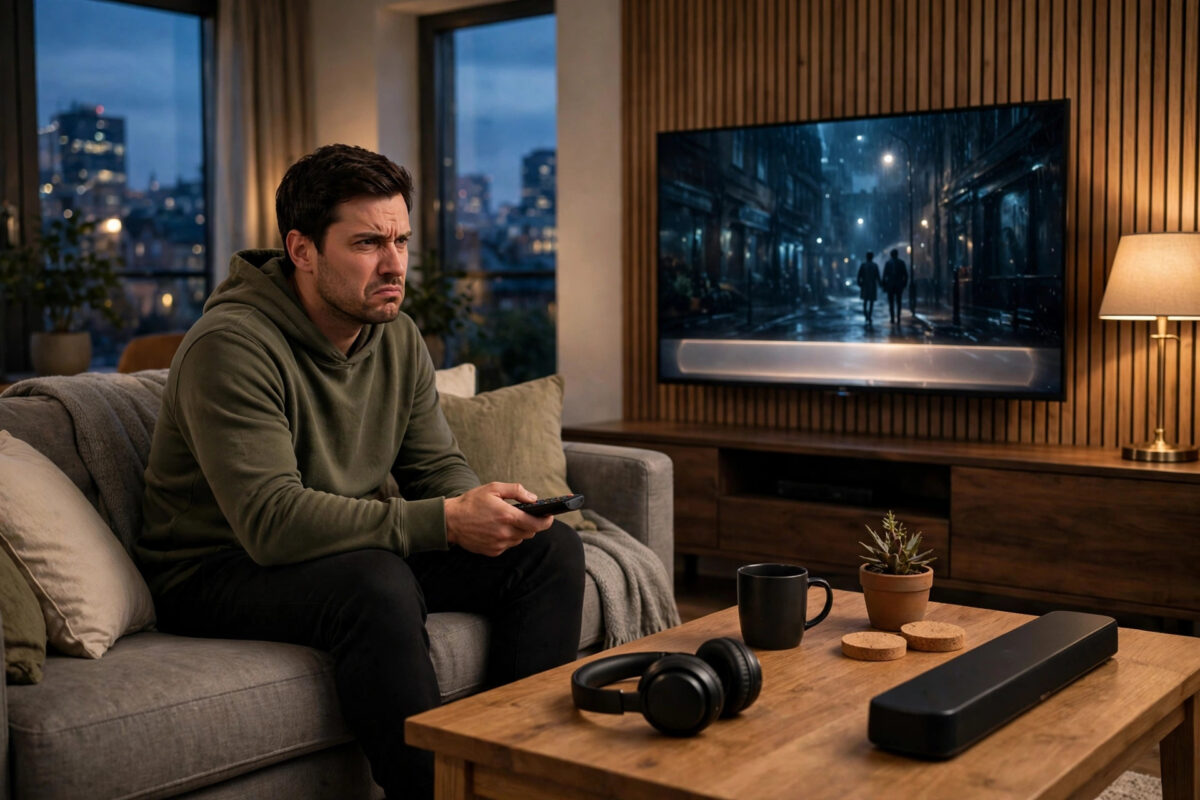
Nothing pulls you out of a good show faster than subtitles that arrive a second too early or drift in late. You read the joke before the actor says it, or you are still reading the last line while the next scene has already started. Subtitle sync problems are common across Netflix, Prime Video, Disney+, and YouTube, and they are usually caused by the app, the connection, or a sound system adding delay, not by the show itself.
The good news is that most sync issues can be fixed in a few minutes. This guide starts with the fastest checks, then moves to deeper fixes for TVs, soundbars, and Bluetooth headphones.
Quick Answer
Restart the episode and the app first, because most subtitle drift is a temporary playback glitch. If it continues, turn subtitles off and on, switch the subtitle language away and back, and check whether the delay happens on other episodes and other apps. If sound arrives later than subtitles when using a soundbar or Bluetooth headphones, the audio is delayed, so use your TV or soundbar’s audio delay or lip sync setting, or switch to a wired or ARC connection. On apps and players that offer a subtitle delay control, adjust it in small 100 millisecond steps until words and text line up.
Why Subtitles Go Out of Sync
Subtitles are a separate timed text file played alongside video and audio. Anything that slows one stream down breaks the match.
- App or buffering glitches: When the video pauses to buffer but the subtitle clock keeps running, text drifts ahead of the picture.
- Audio processing delay: Soundbars, AV receivers, and especially Bluetooth headphones take time to process sound. The picture and subtitles arrive on time, but voices arrive late, making subtitles look early.
- Bad subtitle files for one title: Sometimes a single episode or language track was timed poorly by the provider. Every other show works, but that one never lines up.
- Frame rate or version mismatches: A film mastered at a slightly different speed than its subtitle file drifts slowly, so the gap grows the longer you watch.
If subtitles drift further apart over an episode, that points to a timing mismatch. If they are off by the same amount from the first line, that points to audio delay.
Fast Fixes to Try First
- Rewind 10 seconds. Surprisingly often, jumping back forces the app to resync its streams and fixes the rest of the episode.
- Pause for 10 seconds, then play. This lets a struggling connection rebuild its buffer cleanly.
- Turn subtitles off, wait a few seconds, and turn them back on. Choose a different language in between if your app allows it, then return to your language. This reloads the subtitle file.
- Restart the episode from the beginning. Use the Restart option rather than Resume if the app offers one.
- Close and reopen the app completely. On smart TVs, that means fully exiting, not just pressing Home. If your TV has a way to clear the app cache in its Apps settings, do that too.
- Restart the TV or streaming device. Unplug it for 30 seconds. Smart TVs rarely truly restart in daily use, and stale playback bugs build up over weeks.
- Test another episode and another app. If only one title fails everywhere, it is the provider’s file, and reporting it is the real fix.
Fix Audio Delay From Soundbars, Receivers, and Bluetooth
If the words you hear lag behind both the picture and the subtitles, your ears found an audio delay problem. Text is not early; sound is late. Fixing subtitle timing in the app will never fully solve this, because every app will show the same gap.
Use the Lip Sync or Audio Delay Setting
- Open your TV sound settings and look for Audio Delay, Lip Sync, or Digital Audio Output Delay.
- If you use a soundbar or AV receiver, check its app or menu for the same setting. Adjust only one device’s delay, not both.
- Play a scene with clear close-up dialogue and adjust in small steps, around 20 to 50 milliseconds at a time.
- Remember the direction: these controls delay audio further or, on some TVs, shift sync the other way. If the gap gets worse, move the slider the opposite direction.
Reduce the Delay at Its Source
- Bluetooth headphones and speakers commonly add 150 to 300 milliseconds of delay. Some video apps compensate automatically; many TV apps do not. For dialogue-heavy shows, a wired connection or the TV speakers will sync far better.
- Use HDMI ARC or eARC for soundbars instead of Bluetooth or optical where possible. It carries sync information between TV and soundbar.
- Turn off heavy audio processing such as virtual surround effects on the soundbar while testing. Extra processing adds extra milliseconds.
- Enable passthrough audio on the TV so it does not decode and re-encode sound, a step that also adds delay.
If your wider home cinema setup needs attention alongside sync, our guide to getting surround sound from streaming apps through an AV receiver explains the ARC and passthrough settings that also keep audio in step.
Adjust Subtitle Delay Inside Apps and Players
Where to Find Subtitle Timing Controls
- YouTube: On many devices you cannot shift timing manually, but restarting the video and toggling captions reloads them. The YouTube Help pages on captions describe which caption settings each device supports.
- Browser playback: If you watch in a computer browser, widely used player extensions and some built-in player menus offer subtitle delay keys, often the G and H keys or a settings slider, shifting in small steps.
- Media players like VLC: If you play your own files, VLC has a dedicated subtitle delay control and a synchronisation panel where you can enter the exact gap you measured.
- Prime Video and Disney+: These focus on subtitle style rather than timing, so rely on the restart, reload, and audio delay fixes above for those apps.
Pick a line spoken by one person in a quiet scene. Note whether text appears before or after the voice, and by how much. Adjust in steps of 100 milliseconds and test the same scene again.
When the Problem Is the App or the Title Itself
If you have tested several shows and only one title, or one language, is out of sync on every device, the subtitle file supplied to the app is faulty. There is no home fix for a badly timed file, but you have three useful options.
- Try a different subtitle language or the SDH version of the same language. Providers often host several files, and one may be timed correctly.
- Watch that title on a different device or in a browser, where the app may use a different subtitle delivery system.
- Report it inside the app or on the service’s help site, naming the title, episode, language, and device. Providers do fix reported files, because the same file affects every viewer.
The Netflix Help Center guidance on subtitles not working properly recommends the same reload steps and provides a route to report a problem with a specific title.
Common Mistakes to Avoid
- Adjusting subtitle delay when the real problem is Bluetooth audio lag. You will chase the setting forever, because the gap changes with each device. Fix the audio path first.
- Changing delay on both the TV and the soundbar. Stacked adjustments make the gap unpredictable. Pick one device and set the other to zero.
- Making huge adjustments in one go. Steps of a full second overshoot the right point. Work in 100 millisecond steps and re-test the same scene.
- Assuming every episode is broken after one bad experience. Always test a second title before deep troubleshooting. Single bad files are more common than people think.
- Ignoring updates. Subtitle and playback sync bugs are common reasons apps and TVs release small updates. Install them before assuming your hardware is at fault.
- Testing sync with dubbed content. In dubbed shows, voices never match mouths exactly, which makes judging subtitle timing unreliable. Test with original-language dialogue.
Conclusion
Out-of-sync subtitles feel like a small problem that ruins everything, but the cause is usually simple: a glitched playback session, a slow audio path, or one faulty subtitle file. Restart and reload first, work out whether the text or the sound is actually late, and then use the delay control on just one device in small steps. Within ten minutes, most viewers have their words and voices marching together again, and the show can go back to being the thing you notice.
Frequently Asked Questions
Why do subtitles drift further out of sync the longer I watch?
Gradual drift usually means the subtitle file was timed for a slightly different frame rate or version of the video, or the app is losing sync during buffering. Restarting the episode often resets it. If the same title drifts on every device, report it, because the file itself is mismatched.
Why are subtitles early only when I use my soundbar?
Your soundbar takes time to process audio, so voices arrive after the picture and text. Use the audio delay or lip sync setting on the TV or soundbar, connect with HDMI ARC or eARC, and turn off extra sound effects while testing.
Can I fix subtitle sync on Netflix?
Netflix does not offer a manual subtitle delay slider in its TV apps. Reload the subtitles, restart the episode and app, and fix any soundbar or Bluetooth delay in your TV settings. If one title stays wrong on all devices, report it through Netflix Help so the file can be corrected.
Why do Bluetooth headphones make subtitles look wrong?
Bluetooth audio commonly lags 150 to 300 milliseconds behind the picture, so subtitles, which follow the picture, appear early. Some apps compensate automatically, but many TV apps do not. A wired connection or TV speakers will line up much better for dialogue.
What should I include when reporting a bad subtitle file?
Give the service the exact title and episode, the subtitle language, your device model, and whether the text is early or late and by roughly how much. That detail lets the provider find and replace the faulty file instead of sending you generic restart advice.



Leave a Reply