
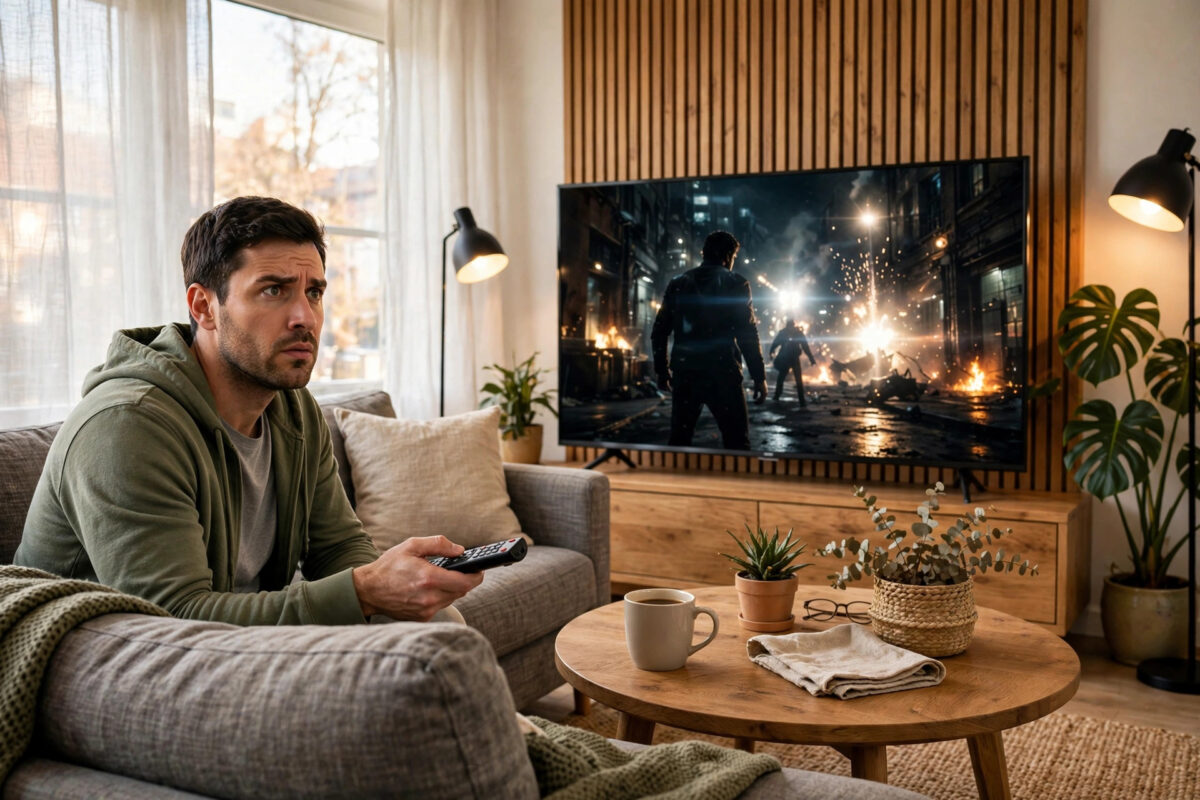
You start a new HDR film everyone is talking about, and half the scenes look like they were shot inside a cupboard. Faces hide in shadow, dark rooms lose all detail, and you find yourself squinting at your expensive 4K TV. Meanwhile, normal TV programmes look perfectly fine. This problem is incredibly common with HDR, and it does not mean your TV is broken.
HDR is designed differently from the standard picture you have watched for years. It saves its brightness for highlights like sunlight, fire, and headlights, which means average scenes can sit much darker, especially in a bright room. Add a few wrong settings on top, and the picture becomes hard to watch. The fixes below work through the causes in the order you should check them.
Quick Answer
First, watch HDR in a dim room and make sure your TV is in its Cinema, Movie, or FILMMAKER HDR mode with energy saving and light sensor settings turned off. Keep the backlight or OLED light at maximum for HDR, set local dimming to Medium or High, and turn on your TV’s tone mapping if dark scenes still crush to black. Also confirm the content is real HDR, your streaming plan and internet speed support it, and HDMI ports are set to Enhanced format for external players.
Why HDR Looks Darker Than Normal TV
Standard dynamic range TV is mastered to a modest, fairly even brightness. HDR is mastered very differently. An HDR film can reach 1,000 nits or more in tiny highlights, but much of the scene is intentionally placed at low brightness to make those highlights dramatic. Directors also grade many modern films and shows darker overall than older TV programmes.
Your TV then has to map that wide HDR range onto what its panel can actually show. This is called tone mapping. A mid-range TV that peaks at 400 nits must squeeze a 1,000-nit film into its smaller range, and if it does that job poorly, mid-tones and shadows get pushed down and look murky. Understanding this helps: you are not chasing one broken setting, you are helping the TV map a demanding format with the tools it has.
Signs It Is a Setting Problem, Not the Film
- Even daylight HDR scenes look dim and flat, not just night scenes.
- The TV’s own menus look bright, but the HDR film does not.
- Turning HDR off in a player makes the same scene look brighter and clearer.
- Subtitles and logos look bright while the film itself stays gloomy.
Step-by-Step Fixes for Dark HDR
- Darken the room a little. HDR is mastered for cinema-like conditions. Daylight hitting the screen washes out dark HDR scenes more than any other content. Closing curtains often fixes half the problem instantly.
- Confirm HDR is actually active. Most TVs flash an HDR, HDR10+, or Dolby Vision badge when playback starts, or show it in the picture info menu. If there is no badge, the app may be sending SDR, or your plan or cable may not support HDR.
- Choose the right HDR picture mode. Use Cinema, Movie, FILMMAKER, or Dolby Vision Dark for a dark room. Avoid Dolby Vision Bright in a dark room if it lifts blacks too much, but try it in a bright room where Dark feels unwatchable.
- Turn off energy saving and ambient light sensors. Eco modes cap brightness hard and hit HDR first. Disable Eco Mode, Energy Saving, and AI Brightness or light sensor controls.
- Set backlight or OLED light to maximum. Unlike SDR, HDR needs the full panel output. Lowering it directly removes the highlights HDR exists for. Control room comfort with curtains or bias lighting instead.
- Check local dimming and peak brightness settings. Set Local Dimming to Medium or High and Peak Brightness to High on LED, Mini LED, and OLED sets that offer it.
- Turn on tone mapping if shadows crush. Look for Dynamic Tone Mapping, HGIG, or Tone Mapping in picture settings. HGIG is best for games; for films, the standard or On setting usually lifts dark detail better.
App, Plan, and Connection Checks
Sometimes the TV is set perfectly and the stream arriving is the weak link.
Streaming Quality and Plans
- Netflix reserves 4K HDR for its Premium plan. On a lower plan you receive HD SDR, which can look different from what you expected.
- Slow internet makes apps quietly drop quality. HDR streams want a steady 15 to 25 Mbps or more. Test your speed and use a wired connection or move closer to the router if it struggles.
- In the app’s playback settings, choose High or Auto quality rather than a data-saving option.
The Netflix Help Center guide to HDR and Dolby Vision lists the plan, speed, and device requirements for its HDR streams, and other services follow a very similar pattern.
External Players and HDMI Settings
If you use a streaming stick, console, or Blu-ray player, the HDMI port must be set to Enhanced, Deep Colour, or HDMI UHD Colour in the TV settings. Without it, the port may limit the signal and HDR can look washed out or fail completely. Use the HDMI cable that came with the player or a certified Ultra High Speed cable, and plug directly into the TV or a receiver that truly passes HDR through.
If you also watch a lot of standard content in the evening, our guide to calibrating picture settings for movies at night will help you set up the non-HDR side properly, so both formats look right without constant adjustment.
Dolby Vision Versus HDR10: Does It Matter?
Dolby Vision carries extra scene-by-scene instructions that tell your TV exactly how to tone map each moment. On mid-range TVs it usually handles dark scenes better than basic HDR10, which uses one set of instructions for the whole film. If a show offers Dolby Vision and your TV supports it, prefer that version.
Some TVs offer Dolby Vision IQ or adaptive HDR, which lift dark scenes in bright rooms. They are less accurate, but practical if your room is bright.
Advanced Options If HDR Is Still Too Dark
Raise Gamma or Black Detail Slightly
If shadows remain crushed after everything above, nudge the gamma from 2.4 toward 2.2, or raise the Black Detail or Shadow Detail control by one or two steps. Stop as soon as you can see clothing folds and hair detail again. Going further turns blacks grey and ruins contrast, which is a worse problem than slightly dark shadows.
Use a Small Bias Light
A soft light strip behind the TV, shining on the wall, makes dark scenes easier to read and reduces eye strain, without washing out the screen like a ceiling light does. This is a cheap trick used by home cinema fans for years and it works especially well with OLED TVs in very dark rooms.
Know When It Is the Content
A small number of famous shows and films are simply graded very dark. If one episode looks murky but other HDR films look great after your fixes, your system is fine and the creative choice is the cause. In that case, a slightly brighter HDR mode for that one show is a reasonable, guilt-free answer.
Common Mistakes to Avoid
- Lowering the backlight for HDR like you do for SDR. This removes the highlight range HDR depends on and makes everything uniformly dull.
- Raising the brightness control to fix darkness. Brightness lifts black levels, so shadows turn grey while the picture still lacks real punch. Use tone mapping, gamma, or picture mode instead.
- Leaving eco mode or the light sensor on. These quietly cap your peak brightness and change it mid-film, which defeats HDR completely.
- Judging HDR in a sunlit room. No mid-range TV wins that fight. Judge your fixes in the light you will actually watch films in.
- Forcing HDR on everything. Some TVs and players can convert SDR to fake HDR. It usually looks worse, with odd colours and crushed shadows. Leave SDR content in SDR.
- Using a non-enhanced HDMI port for a player. The picture may still appear, but bandwidth limits can strip proper HDR handling.
Conclusion
Dark HDR is normally a combination of a demanding format, a bright room, and two or three settings working against you. Dim the room, pick a proper HDR movie mode, kill eco limits, keep panel brightness at full for HDR, and let tone mapping do its job. Check your plan, speed, and HDMI settings if the problem survives those steps. Most people find the picture transforms from murky to rich and detailed, with the bright, sparkling highlights HDR was always supposed to deliver.
Frequently Asked Questions
Why is HDR darker than SDR on the same TV?
HDR saves most of its brightness for small highlights and places average scenes lower than SDR does, so films need tone mapping to fit your panel. In a bright room, or with eco settings limiting peak brightness, that design makes HDR look noticeably darker overall.
Should I use Dolby Vision Dark or Bright?
Use Dolby Vision Dark in a dark room for the most accurate picture, and Dolby Vision Bright in a well-lit room where Dark feels too dim. Neither is wrong; they are made for different viewing conditions.
What is HGIG and should I turn it on?
HGIG is a standard that lets a game console tell the TV exactly how to tone map games. Use it for gaming on consoles that support it. For films, the TV’s normal tone mapping setting usually gives better shadow detail.
Can a better HDMI cable fix dark HDR?
Only if your current cable is failing or limiting the signal, which usually causes dropouts, sparkles, or HDR not activating at all. A working certified cable will not make a correct HDR picture brighter; settings and room light do that.
Is it okay to just watch the SDR version instead?
Yes. If a particular show is graded extremely dark and you prefer the SDR version’s clarity, watching it that way is a perfectly sensible choice. HDR is a tool for better pictures, not an obligation.



Leave a Reply