
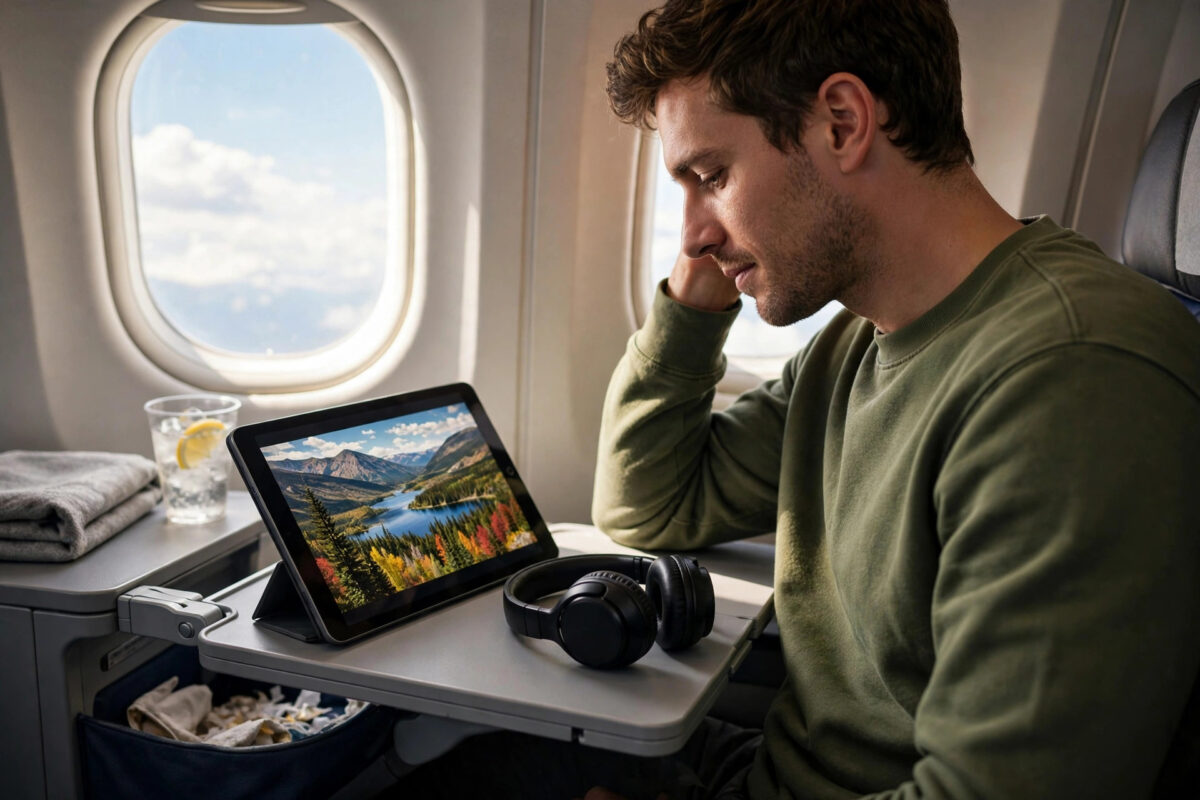
Long flights, train journeys, and road trips are much easier when you have something good to watch. Relying on hotel Wi-Fi or mobile data is risky, because connections can be slow, expensive, or missing completely. Downloading Netflix shows onto your tablet before you leave gives you smooth, offline viewing with no buffering and no surprise data charges.
The good news is that the process is simple on both Android tablets and iPads. You just need the Netflix app, a stable Wi-Fi connection, enough free storage, and a few minutes to prepare. This guide walks you through every step, explains the settings that control quality and storage, and shows you how to avoid the mistakes that leave travellers with expired or missing downloads.
Quick Answer
Open the Netflix app on your tablet, sign in, and find the show or film you want. Tap the Download icon, which looks like a downward arrow, next to the title or episode. Wait until the download finishes on Wi-Fi before you travel, and then play it from the Downloads section while you are offline.
What You Need Before You Start
Before you download anything, check a few basics. A little preparation now will save you stress at the airport or on the road.
Check Your Netflix Plan and Device
Downloading is available on most Netflix plans, but ad-supported plans have lower download limits than standard and premium plans. The exact number of titles and devices you can use depends on your plan, so check your account if you plan to download a lot. Your tablet also needs a fairly recent version of Android or iPadOS. Very old tablets may not support the latest Netflix app, which means the download option will not appear.
Check Your Free Storage
Video files are large. A single film in high quality can use well over one gigabyte, and a full season can use several gigabytes. Go to your tablet settings and check how much free space you have. If space is tight, delete old photos, unused apps, or previous downloads first. Running out of space in the middle of a download is one of the most common causes of failed downloads.
Connect to Reliable Wi-Fi
Always download on Wi-Fi before your trip. Downloading over mobile data can quickly use your allowance, and public networks on trains or in stations are often too slow to finish a large file. Home Wi-Fi the night before you travel is the safest choice. Keep the tablet plugged in as well, because downloading and processing video uses extra battery.
How to Download Netflix Shows on an Android Tablet
The steps on Android are straightforward and take less than a minute per title once you know where to tap.
- Open the Netflix app and sign in with your account and profile.
- Use the search icon or browse the home screen to find the show or film you want.
- Tap the title to open its details page.
- For a film, tap the Download button below the description. For a series, tap the Download icon next to each episode you want, or use the option to download a full season if it appears.
- Watch the progress bar or circle until the download is complete. Do not close the app until it finishes.
- Tap the Downloads section, usually found in the bottom menu or side menu, to confirm the title is saved.
- Turn on Airplane Mode briefly and try playing the title to test that it works offline.
If you do not see a Download icon, the title may not be available for download in your region, or your app may need an update. Not every title in the Netflix catalogue can be downloaded because of licensing rules.
How to Download Netflix Shows on an iPad
The iPad process is almost identical, with only small differences in where menus appear.
- Open the Netflix app from your home screen and choose your profile.
- Search for the programme or film you want to take with you.
- Tap the title, then tap Download for a film or the arrow icon beside individual episodes for a series.
- Keep the app open and stay connected to Wi-Fi until each episode shows as complete.
- Open the Downloads area from the bottom navigation to review everything you have saved.
- Test one episode in Airplane Mode before you leave home.
If your iPad is nearly full, lower the download quality in settings, explained below, before starting a big batch.
Choosing the Best Download Quality
Netflix lets you choose between standard and high download quality. This one setting has a big effect on both picture quality and storage use.
Standard Quality
Standard quality downloads faster and uses much less space. On a small tablet screen, the picture still looks clear for most shows, especially cartoons, comedies, and documentaries. If you want to take many episodes on a trip, standard quality is usually the smart choice. You can fit roughly twice as much content compared with high quality.
High Quality
High quality gives a sharper picture, which you will notice on larger tablets and on shows with dark scenes or lots of detail. The trade-off is larger files and longer download times. Use high quality only for a small number of favourite films, or if your tablet has plenty of free storage. To change the setting, open the Netflix app, go to your profile or More menu, open App Settings, and look for Download Video Quality.
Using Smart Downloads to Save Time
Smart Downloads can delete a finished episode and fetch the next one on Wi-Fi, while Downloads for You saves recommendations automatically within a storage limit you set.
These features are useful at home, but review them before a trip. Automatic downloads could fill your tablet with titles you do not want, or remove an episode you planned to rewatch offline. Before travelling, turn off automatic features or check the Downloads list carefully so only your chosen titles remain. You can learn more about how these options work on the official Netflix Help guide to downloading titles.
How Long Do Netflix Downloads Last?
Downloads do not last forever. Most titles expire after a set period, often between seven and thirty days depending on the licence, and some expire forty-eight hours after you press play. The Downloads screen shows an expiry warning when a title is close to running out.
This is why timing matters. Downloading a month before your trip is too early. The best time is one or two days before you leave, so your downloads stay valid for the whole journey. If a download expires, you can usually renew it by reconnecting to Wi-Fi and tapping the expired title, although some titles can only be downloaded a limited number of times per year.
If downloads fail or disappear, our guide on how to fix Netflix download problems on your device covers the most common causes step by step.
Managing and Deleting Downloads
Keeping your Downloads list tidy helps you find things quickly and frees space for new trips.
- To delete one title, open Downloads, tap the edit or pencil icon, select the title, and delete it.
- To delete everything, go to App Settings in Netflix and choose Delete All Downloads.
- After each trip, remove watched titles straight away so space is ready next time.
- Check the list once a month, because expired downloads still take up space until you remove them.
Common Mistakes to Avoid
Most offline viewing problems come from a handful of simple mistakes. Avoiding them will make your trip much smoother.
- Downloading too early: Titles expire, so download one or two days before travel, not weeks ahead.
- Never testing offline playback: Always test in Airplane Mode at home. Finding a problem at home is fixable; finding it mid-flight is not.
- Ignoring storage limits: Starting a season download with little free space leads to half-finished episodes.
- Downloading on slow public Wi-Fi: Airport and train Wi-Fi often times out. Use home Wi-Fi instead.
- Forgetting the device limit: If your plan allows downloads on a limited number of devices, remove old devices from your account page before the trip.
- Using the wrong profile: Kids’ shows downloaded on an adult profile will not appear under the kids’ profile.
Conclusion
Downloading Netflix shows onto a tablet is one of the easiest ways to make travel more enjoyable. Sign in to the app, find your titles, tap the Download icon on strong home Wi-Fi, and test everything in Airplane Mode before you go. Choose standard quality if storage is tight, download close to your travel date to avoid expiry, and clear old titles after each trip. With a few minutes of preparation, you will have hours of reliable entertainment that works anywhere, with no signal needed at all.
Frequently Asked Questions
Why is there no download button for some Netflix shows?
Some titles cannot be downloaded because of licensing agreements with the studios that own them. If there is no Download icon, you can only stream that title. Try adding a similar show that does support downloads for your trip.
How many Netflix shows can I download at once?
The limit depends on your plan and on the titles themselves. Standard and premium plans allow more downloads than ad-supported plans. Netflix will show a message when you reach your limit, and deleting old titles frees up space immediately.
Can I watch Netflix downloads without internet on a plane?
Yes. Once a title is fully downloaded, turn on Airplane Mode and play it from the Downloads section. No internet connection is needed until the download expires or you want to add new titles.
Do Netflix downloads use my mobile data?
Only if you download while connected to mobile data. To stay safe, download on Wi-Fi at home and check your Netflix settings so downloading is limited to Wi-Fi only. Playing a downloaded title uses no data at all.
How do I renew an expired Netflix download?
Reconnect your tablet to Wi-Fi, open the Downloads section, and tap the expired title or its alert icon to renew it. Remember that some titles have a yearly download limit set by the licence holder, so renewals are not always possible.



Leave a Reply