
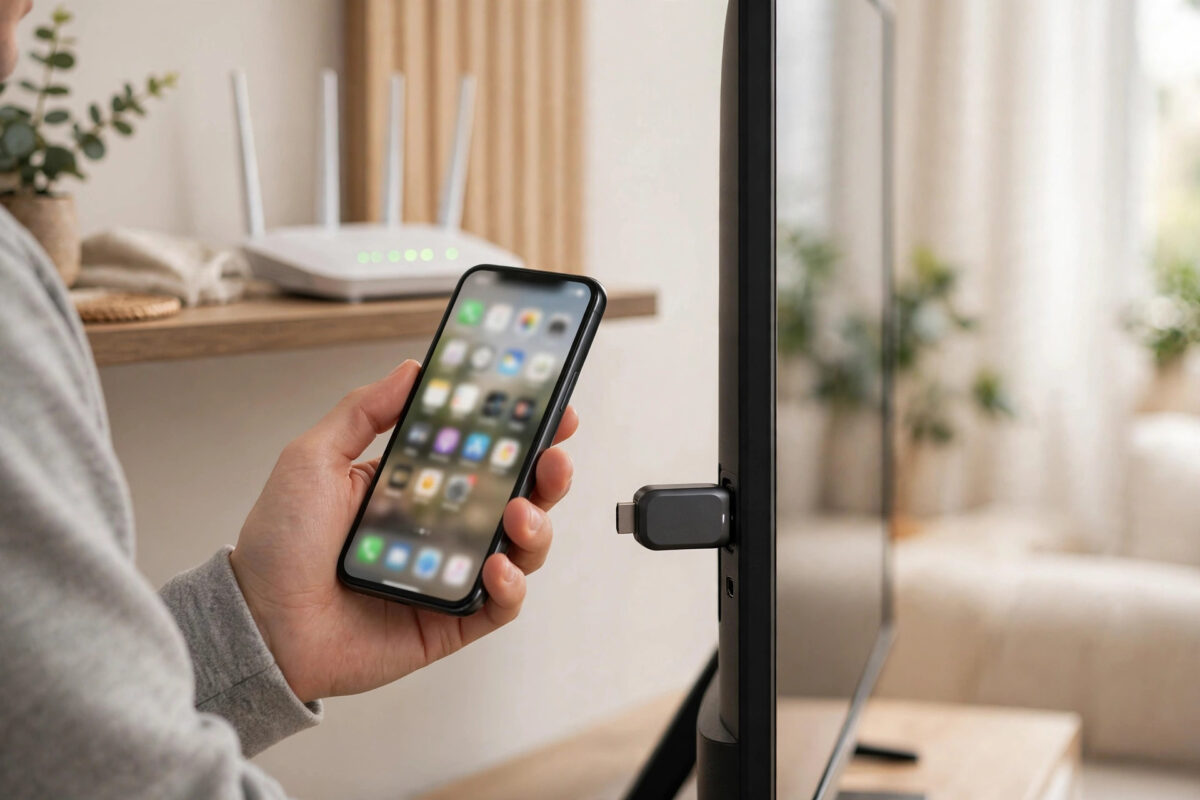
Changing your router, moving house, or switching to a new broadband provider often means your Chromecast is suddenly stuck on an old Wi-Fi network. Many people assume a factory reset is the only way to fix it, but in most cases it is not. If your Chromecast is still connected and responding, you can move it to a new network directly from the Google Home app in a few minutes.
This guide shows the normal method first, then explains the one situation where a reset really is required. It also covers what to do when the old network is still running, when it is already gone, and how to avoid losing your device name, rooms, and routines.
Quick Answer
Open the Google Home app, select your Chromecast, open Settings, and choose Wi-Fi, then Forget network. The app will then walk you through setup again on the same device and let you pick the new Wi-Fi network and enter its password. This is not a full factory reset, so your device stays in the same Google Home. A factory reset is only needed if the old network is gone and the Chromecast cannot be reached at all.
Before You Start: Check These Four Things
- Your phone must be connected to the new Wi-Fi network you want the Chromecast to use, or ready to join it during setup.
- You need the exact name and password of the new network, including capital letters.
- Bluetooth and Location should be on in your phone settings, because the app uses them to find the Chromecast during setup.
- The Chromecast should be powered on, plugged into the TV, and showing a screen or a solid status light.
Also note whether your new router uses the same network name for both 2.4 GHz and 5 GHz bands. Most Chromecast models work well with combined names, but older first-generation devices only support 2.4 GHz. If setup fails later, this detail is often the reason. Google lists the requirements in its official Chromecast setup and Wi-Fi requirements guide.
Method 1: Change Wi-Fi From the Google Home App
Use this method when the Chromecast still appears in the Google Home app and responds when you tap it. This is the true no-reset method, and it works for Chromecast with Google TV, Chromecast Ultra, and most older models that are still online.
- Connect your phone to the new Wi-Fi network, if it is already broadcasting.
- Open the Google Home app and sign in with the account that owns the home.
- Tap the Chromecast tile. If you have many devices, press and hold the tile to open its page.
- Tap the Settings gear icon.
- Tap Device information, then tap Wi-Fi.
- Tap Forget this network, and confirm when the app asks.
- The app returns to the home screen. Wait a few seconds for a setup prompt for the same device.
- Tap Set up, select your home, and confirm the code on the TV matches the code in the app.
- Choose the new Wi-Fi network from the list.
- Enter the password carefully and tap Connect.
- Wait for the Chromecast to restart and show its home screen or ambient photos on the new network.
Test it right away. Cast a short YouTube video from your phone. If the video plays and you can control the volume, the move is complete. Your device name and room should still be the same, although you may need to re-link some voice routines if the setup flow created a fresh device entry.
Method 2: Use the Google TV Remote Settings
If you have a Chromecast with Google TV or a Google TV streamer, you can change the network on the TV itself without touching a reset. This is often faster than the phone method.
- Press the Home button on the Google TV remote.
- Go to Settings in the top corner of the screen.
- Open Network and Internet.
- Select your current Wi-Fi network and choose Forget network.
- Select the new network from the list of available networks.
- Enter the password with the remote and select Connect.
- Return to the home screen and open any streaming app to test the connection.
This method keeps your apps, your sign-ins, and your home screen layout, because nothing is erased. It only changes the network connection.
What If the Old Network Is Already Gone?
This is the point where the no-reset promise has a limit. If the old router is switched off, the Chromecast cannot connect to anything, and the Google Home app may show it as offline or unavailable. In many cases the app can still find it nearby with Bluetooth and offer setup. Try these steps first.
- Stand close to the TV with your phone.
- Open Google Home and tap the plus or Devices button, then Add device.
- Choose New device and let the app scan.
- If the Chromecast appears, follow the setup steps and choose the new network.
If the device never appears after a few minutes of scanning, a factory reset is the honest remaining option. A reset in this case is not a failure. It simply clears a connection that no longer exists so the device can be set up fresh. You will need to add it to your home again, but your Google account, subscriptions, and streaming apps are not deleted from the cloud.
A Trick That Avoids Setup Completely
If you are replacing a router and have not set it up yet, give the new router the exact same network name and password as the old one. Your Chromecast, and almost every other smart device in the home, will connect automatically as if nothing changed. This is the easiest path when you control the new router settings, and it saves you from reconnecting lights, plugs, and speakers one by one. Our step-by-step guide to setting up a new router explains how to copy those settings safely.
Fixing Problems After the Change
The Chromecast Does Not Appear in the App
Restart the Chromecast by unplugging it for 30 seconds. Restart your phone, confirm Bluetooth and Location are on, and make sure your phone is not using a VPN, which can hide local devices.
The Password Is Rejected
Type the password into your phone’s Wi-Fi settings first to prove it is correct. Watch for capital letters, the number zero versus the letter O, and extra spaces copied from a router sticker.
It Connects but Casting Still Fails
Check that your phone and the Chromecast ended up on the same network and the same band group. Turn off AP isolation in the router if it is on, because that feature blocks devices from seeing each other. Restart the router once, then test again.
The Device Shows in a Different Home
During setup it is easy to tap the wrong home name, especially if you manage a family member’s house too. Move the device in Google Home settings, or remove it and set it up again under the correct home.
Common Mistakes to Avoid
- Resetting first and asking questions later: Try the Forget network option first. It solves most cases without erasing anything.
- Setting up from far away: Bluetooth discovery works best in the same room. Stand near the TV during setup.
- Using a guest network: Guest networks often block device-to-device traffic, so casting may fail even when the internet works.
- Typing the router admin password instead of the Wi-Fi password: These are two different passwords on most router stickers.
- Giving up after one failed scan: A power cycle and a fresh scan fix a surprising number of setup stalls.
Conclusion
In most homes, changing a Chromecast’s Wi-Fi network does not need a factory reset. Forget the old network in Google Home or in Google TV settings, join the new network, and test casting straight away. Keep the reset for the one case where the old network is gone and the device cannot be found, and remember the same-name, same-password trick when you replace a router.
Frequently Asked Questions
Will forgetting the Wi-Fi network delete my apps and accounts?
No. Forgetting a network only removes that connection. On a Chromecast with Google TV, your apps and sign-ins stay on the device. On a basic Chromecast, there are almost no local settings to lose.
Can I change the Wi-Fi network without the Google Home app?
On Google TV models, yes, you can use the remote and the on-screen Network settings. On basic Chromecast models without a remote, the Google Home app is required for setup.
Why does my Chromecast only see the 2.4 GHz network?
The oldest Chromecast model only has a 2.4 GHz radio. Newer models support both bands. If your router splits the bands into two names, pick the one your model supports.
Do I need to set up voice control again after changing networks?
Usually no. If the device stayed in the same Google Home, Assistant routines keep working. If you had to set it up as a new device, reassign it to its room and test your routines once.
How long should the whole change take?
The app method normally takes five to ten minutes, including the restart. Most delays come from password mistakes or from standing too far away during discovery.



Leave a Reply