
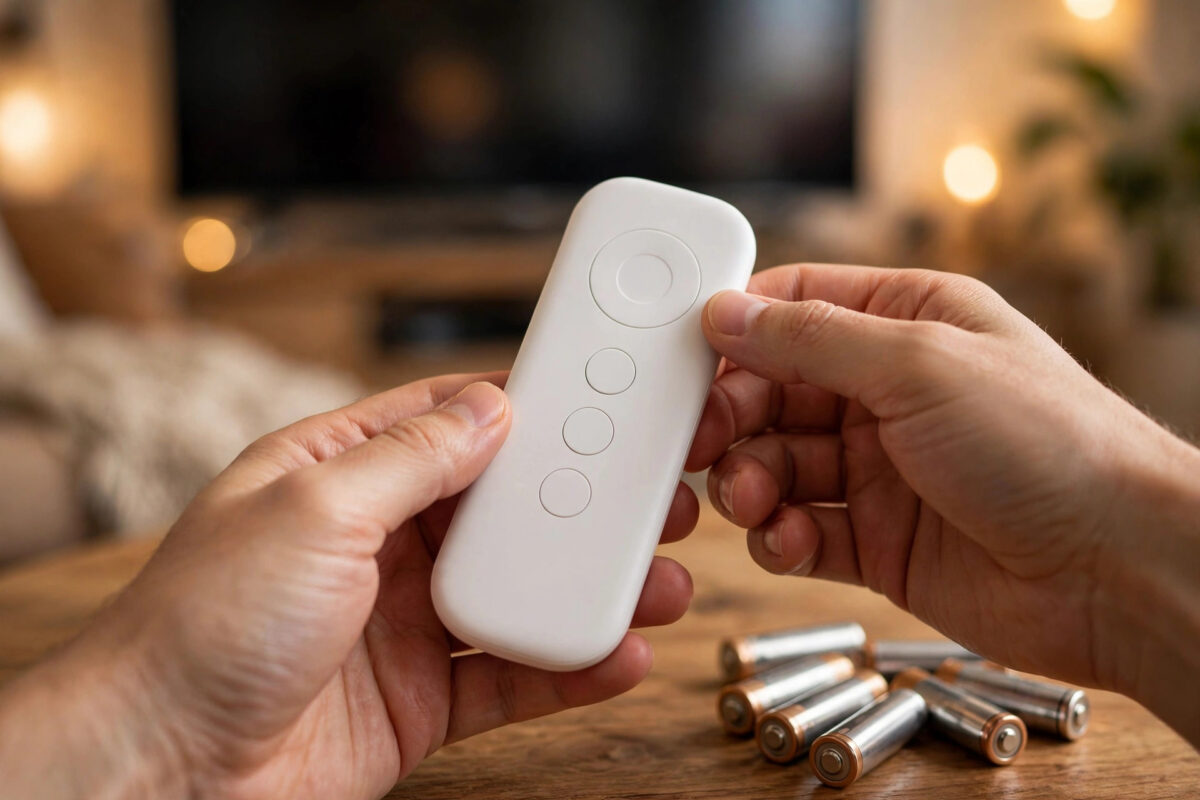
A Chromecast remote that will not pair leaves you stuck staring at a pairing screen you cannot get past. The remote looks fine, the batteries are new, but nothing happens when you press the buttons. In most homes this is a simple Bluetooth hiccup, a battery issue, or a remote that is still linked to another device, and it can be fixed in a few minutes.
Quick Answer
To fix a Chromecast remote that won’t pair, replace the batteries, stand close to the TV, and hold the Back and Home buttons together until the remote’s light pulses, then release and wait for the on-screen confirmation. If that fails, restart the Chromecast by unplugging it for a minute, reset the remote by removing the batteries and holding the Home button while reinserting them, and remove any old pairing in Settings under Remotes and Accessories. Pair again from a fresh start and the remote should connect.
How the Remote Connects
The voice remote for Chromecast with Google TV talks to the device using Bluetooth, not the infrared beam older remotes used. That is why it works without pointing it at the TV for normal navigation. The volume and power buttons can also send infrared signals to your TV once you set them up, but pairing itself is a Bluetooth job.
Because it uses Bluetooth, pairing can be blocked by distance, low battery power, interference, or a previous pairing that the Chromecast still remembers. The fixes below deal with each of those causes in a sensible order, from the easiest to a full reset.
First Checks Before You Start
- Batteries: The remote uses two AAA batteries. Fit them the right way round, with the flat negative end against the spring. Even batteries that work in another device may be too weak for pairing, so try a brand-new pair.
- Battery contacts: If batteries have leaked or the contacts look dull, clean them gently with a dry cloth.
- Distance: Stand within one or two metres of the TV for pairing. Move away again once it works.
- The Chromecast is on: Confirm the TV shows the Chromecast screen on the correct HDMI input and the device light is on.
- Other remotes: Put other Bluetooth remotes and controllers in another room during pairing if you suspect confusion, especially a second Chromecast remote.
Method 1: Pair With the Button Combination
This is the standard pairing method and the one the setup screen asks for.
- Make sure the TV shows the pairing screen, or any Chromecast screen.
- Pick up the remote and hold the Back button and the Home button at the same time.
- Keep holding. The small light at the bottom of the remote will start to pulse.
- When the light pulses, release both buttons.
- Watch the TV. A message should confirm the remote is connected, usually within 10 to 20 seconds.
The most common error here is releasing the buttons too early or pressing them one after the other instead of together. Press them at the same moment, hold steadily, and wait for the pulsing light before you let go. Google describes this same process in its Chromecast voice remote pairing and troubleshooting guide, including what the light patterns mean.
Method 2: Restart the Chromecast and Try Again
If the button method fails, the Chromecast’s Bluetooth may be stuck. A restart clears it.
- Unplug the Chromecast power cable and wait a full 60 seconds.
- While you wait, take the batteries out of the remote.
- Plug the Chromecast back in and wait until the home screen or pairing screen fully loads.
- Put the batteries back in the remote.
- Repeat the Back plus Home pairing method, standing close to the TV.
Rushing this step is pointless. If you try to pair while the device is still starting up, it may miss the remote entirely. Wait for the screen to settle first.
Method 3: Pair From Settings
If your Chromecast is already set up and you are pairing a replacement remote, or repairing after the remote was used elsewhere, use the settings menu. You will need some way to control the screen for this: the Google Home app on your phone can act as a remote, and many TVs let you navigate with the TV remote if HDMI-CEC is on.
- Open Settings on the Chromecast.
- Go to Remotes and Accessories.
- Choose Pair remote or accessory.
- Hold Back and Home on the remote until its light pulses.
- Select the remote when it appears in the list on screen.
If an old remote entry is listed and shown as connected when it should not be, remove or forget that entry first. A stale pairing can block a new one. This settings route is also covered in our guide on fixing a smart TV remote that has stopped responding, which includes CEC checks that help here too.
Method 4: Reset the Remote Completely
A full remote reset clears its previous pairing so it behaves like a new remote out of the box.
- Take both batteries out of the remote.
- Press and hold the Home button on the remote.
- While still holding Home, put the batteries back in.
- Keep holding Home until the remote’s light turns solid, then starts pulsing.
- Release the button. The remote is now reset and ready to pair.
- Use the Back plus Home method or the Settings method to pair it fresh.
After a reset you will also need to set up the TV volume and power buttons again, because those infrared codes are stored in the remote. That takes a minute in Settings under Remotes and Accessories, then set up remote buttons.
Method 5: Use Your Phone While You Fix It
You do not have to sit in front of a frozen screen. The Google Home app and the Google TV app both offer a phone remote for devices on your network. Connect your phone to the same Wi-Fi, open the app, select your Chromecast, and use the on-screen remote to reach Settings. This is the easiest way to remove old pairings, check for system updates, and start the pairing process from the TV side.
While you are in settings, install any waiting system update. Remote pairing bugs are sometimes fixed in updates, and a device that has been offline with a dead remote may be several versions behind.
When Only Some Buttons Fail
Sometimes the remote pairs but the volume or power buttons do nothing, or the voice button does not respond. These are different faults from pairing:
- Volume and power dead: These use infrared for the TV. Rerun the remote button setup for your TV brand, and make sure nothing blocks the remote’s path to the TV for those buttons.
- Voice search dead: Check the microphone permission for the remote in settings and confirm the device is signed in to a Google account. Also test with the remote close to your mouth in a quiet room.
- Buttons lag or double-press: This often means weak batteries or interference. Replace the batteries and move other wireless devices away from the TV area.
Common Mistakes to Avoid
- Pressing the buttons in sequence: Back and Home must go down together and stay down until the light pulses.
- Reusing tired batteries: Pairing needs more power than normal button presses. Start with fresh batteries.
- Pairing from across the room: Bluetooth pairing range is short during setup. Get close first.
- Forgetting the reset needs a fresh pair afterwards: A reset alone does not connect the remote. You must pair it again.
- Trying to pair a remote that belongs to another device: A remote can only be actively paired to one Chromecast at a time. Reset it first if it was used elsewhere.
- Skipping the Chromecast restart: If the device’s Bluetooth is stuck, no amount of remote button pressing will work until you restart it.
Conclusion
When a Chromecast remote won’t pair, work through the simple causes first: fresh batteries fitted correctly, a short distance to the TV, and the Back plus Home hold until the light pulses. Restart the Chromecast if that fails, remove old pairings in Remotes and Accessories, and use a full remote reset as the clean-slate option. Use your phone as a temporary remote so you can still reach settings. In the great majority of cases one of these steps reconnects the remote, and only a remote that fails on every method, with new batteries, is likely to need replacing.
Frequently Asked Questions
How do I put my Chromecast remote in pairing mode?
Hold the Back and Home buttons together until the light on the remote pulses, then release. That pulsing light means the remote is in pairing mode and visible to the Chromecast for the next few moments.
Why does my remote light pulse but never connect?
The remote is advertising itself but the Chromecast is not completing the link. Restart the Chromecast, remove any old remote entry in Settings under Remotes and Accessories, and pair again while standing close with fresh batteries.
Can I use Chromecast with Google TV without the remote?
Yes, temporarily. The Google Home app and Google TV app on your phone provide a software remote over Wi-Fi, and HDMI-CEC may let your TV remote navigate. These are good stand-ins while you fix or replace the physical remote.
Will resetting the remote delete anything on my Chromecast?
No. Resetting the remote only clears the remote’s own pairing and its TV infrared codes. Your apps, accounts, and settings on the Chromecast stay exactly as they were. You just pair again and redo the volume setup.
How do I know if my remote is faulty?
If the light never comes on with brand-new batteries, or the remote fails to pair with a second Chromecast or after a full reset, the remote itself is probably faulty. Replacement voice remotes are widely available and pair using the same steps.



Leave a Reply