
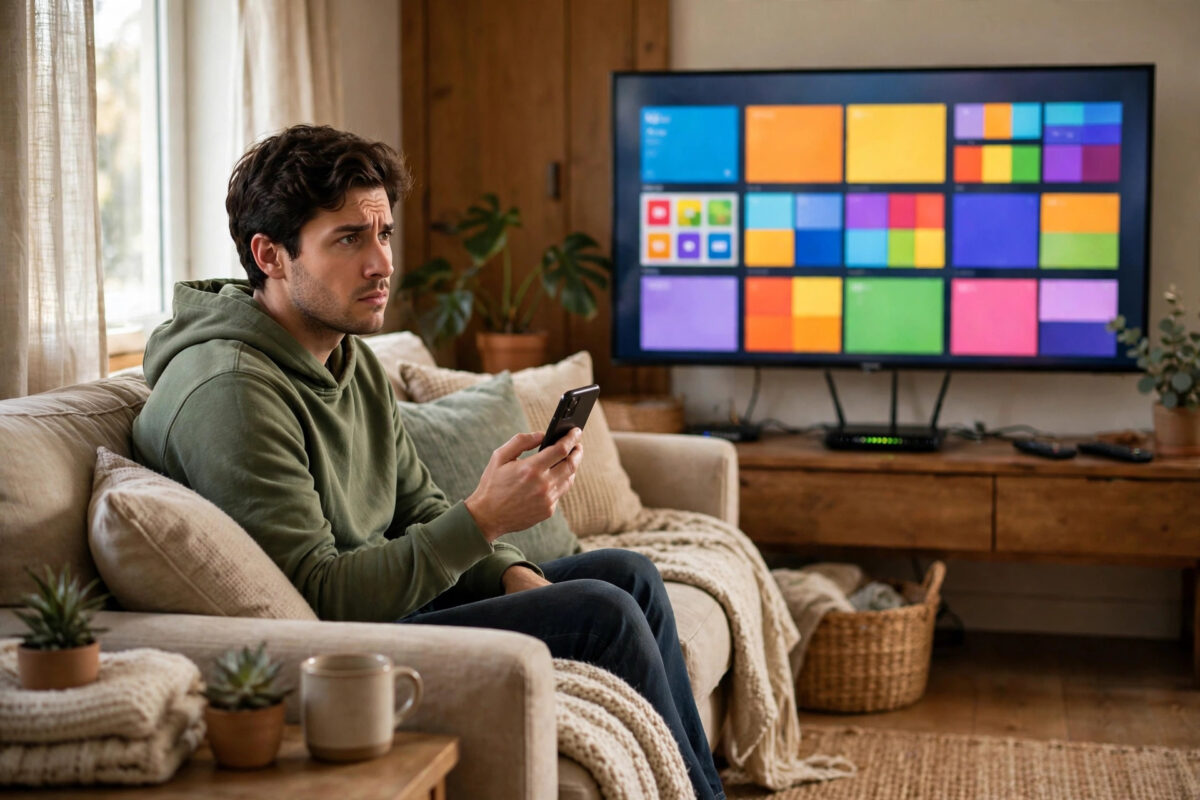
You open YouTube or Netflix, tap the cast icon, and your Chromecast is simply not there. No device name, no TV, nothing to tap. It is one of the most common casting problems, and it usually means your phone and your Chromecast cannot see each other on the network, even if both seem to be online.
Quick Answer
If your Chromecast does not show up when you try to cast, first make sure your phone and the Chromecast are on exactly the same Wi-Fi network and the same band. Restart the Chromecast, your phone, and the router, and make sure the TV is on the correct HDMI input with the Chromecast powered on. Turn off VPNs and check that AP isolation is disabled on your router. In most cases the device reappears within a minute of a proper restart on the same network.
How Casting Discovery Actually Works
When you tap the cast icon, your phone does not connect to the internet to find your Chromecast. It sends a small discovery message across your local network and waits for the Chromecast to answer. This only works when both devices are on the same local network and the router allows devices to talk to each other.
That explains most cases. If your phone is on the guest network and the Chromecast is on the main network, they cannot meet. If the Chromecast has no power, it cannot answer at all.
Check These Basics First
Is the Chromecast Actually On?
Look at the TV screen and check the small light on the Chromecast is on. If the TV is set to a different HDMI port, the Chromecast may be running perfectly on another input.
Also confirm the Chromecast has power from its adapter. If it is plugged into a TV USB port, it may switch off whenever the TV goes to sleep, so it will be missing every time you try to cast while the TV is in standby.
Are Both Devices on the Same Wi-Fi?
- On your phone, open Wi-Fi settings and note the exact network name you are connected to.
- Open the Google Home app and tap your home, then look for the Chromecast in the device list.
- If it appears in Google Home, open its settings and check the Wi-Fi network listed there.
- If the names differ even slightly, including a name ending in 5G, the devices are on different networks.
Router names can be confusing. Many routers broadcast two networks with similar names, and phones happily jump between them. A phone on the 5 GHz network and a Chromecast on the 2.4 GHz network usually can still see each other on most routers, but some routers keep the bands partly separate. Putting both on the same band for a test quickly tells you if that is your problem.
For a full walkthrough of checking your setup, Google publishes clear steps in its guide to fixing a Chromecast that is not found by the Google Home app.
Step-by-Step Fixes When the Device Is Missing
1. Restart in the Right Order
Close the app you are casting from completely. Restart your phone. Unplug the Chromecast for 30 seconds and plug it back in. If the device is still missing, restart the router as well and wait until your Wi-Fi is fully back before testing again. Discovery can take up to a minute after everything reconnects, so give it a little time before assuming it failed.
2. Turn Off VPNs and Private Relays
A VPN routes your phone’s traffic through a remote server, which breaks local discovery. The same applies to private relay features and some security or ad-blocking apps that create a local VPN. Turn the VPN off, then try casting again. If it works, you have found the cause. Some VPN apps let you allow local network traffic or exclude the casting app, which is a good long-term solution.
3. Check You Are Not on a Guest Network
Guest networks are designed to give visitors internet access while hiding your home devices. That is exactly the opposite of what casting needs. Make sure your phone is on your main home network, not the guest one. If you set the Chromecast up while connected to a guest network by mistake, set it up again on the main network using the Google Home app.
4. Give the App the Right Permissions
On many phones, apps need permission to find devices on the local network. If you denied that prompt once, casting may never work in that app. On iPhone, check Settings, then Privacy and Security, then Local Network, and make sure the app you cast from is allowed. On Android, check the app permissions in Settings and allow nearby devices where that option exists. After changing a permission, close and reopen the app.
If casting fails in one app but works in another, our troubleshooting notes on fixing apps that stop working properly on a smart TV cover the app-side checks that often solve it.
5. Disable AP Isolation on the Router
AP isolation, sometimes called client isolation or wireless isolation, stops devices on Wi-Fi from seeing each other. It is useful in cafes but breaks casting at home. Log in to your router’s admin page, look in the wireless settings for each band, and make sure isolation is off. While you are there, also make sure multicast is enabled if your router has that option, because casting discovery relies on it.
6. Move Closer and Remove Interference
If the Chromecast has a very weak signal, it may drop off the network and stop answering discovery requests. Bring your phone into the same room for a test. Use the HDMI extender cable to move the Chromecast out from behind the TV. If the device appears when you are nearby but vanishes from another room, you have a coverage problem rather than a settings problem, and a mesh system or extender will help.
7. Try a Different Device and the Google Home App
Open the Google Home app and see if the Chromecast is listed there. If it appears in Google Home and you can adjust its volume or open its backdrop settings, the device is on the network and the fault lies with the app you were casting from. Update that app, or uninstall and reinstall it. If the Chromecast is missing in Google Home too, try another phone or a laptop with the Chrome browser. This quickly separates a phone problem from a network problem.
8. Set the Chromecast Up Again
If the Chromecast appears in Google Home as unavailable or offline and nothing revives it, remove it from the home and set it up again. As a final step, factory reset it by holding its button until the light changes, then complete setup while standing near the router with your phone on the correct main network. A clean setup fixes corrupted Wi-Fi details that restarts cannot.
Special Cases Worth Knowing
Casting from a computer: In Chrome, the cast option lives in the three-dot menu. A work laptop with strict firewall rules may block discovery, so try a personal device to compare.
Hotel and shared Wi-Fi: Most hotel and student networks isolate every device, so casting will not work there. A travel router is the usual workaround.
After a router change: If you replaced your router or changed your Wi-Fi name or password, the Chromecast is still trying to join the old network. It will not appear until you reset it and set it up on the new details.
Common Mistakes to Avoid
- Assuming similar network names are the same: HomeWiFi and HomeWiFi-5G are different networks. Match them exactly.
- Leaving a VPN running: It is the most overlooked cause. Always test with the VPN off.
- Checking while the TV is in standby: A USB-powered Chromecast may be off. Turn the TV fully on and select the right input first.
- Restarting only the phone: The router and Chromecast need restarts too, in the right order.
- Using the guest network for convenience: Guest networks hide devices by design. Keep both devices on the main network.
- Giving up after ten seconds: After a restart, discovery can take a minute. Wait before testing again.
Conclusion
A Chromecast that does not show up is almost always a network visibility problem, not a broken device. Confirm the Chromecast is powered and on the right HDMI input, put your phone on exactly the same main Wi-Fi network, turn off any VPN, and restart the Chromecast, phone, and router in order. Check app permissions and router isolation settings if it is still missing. Once both devices can see each other on the same network, the cast icon returns and works as expected.
Frequently Asked Questions
Why does my Chromecast show in Google Home but not in YouTube?
That usually means the YouTube app is at fault. Update it, check its local network permission, and make sure no VPN is filtering its traffic. If other apps cast fine, reinstalling the problem app normally fixes it.
Why did my Chromecast disappear after I changed my router?
The Chromecast still holds your old network name and password, so it cannot join the new router. Factory reset it and set it up again with the new Wi-Fi details in the Google Home app.
Can my phone cast while using mobile data?
No. Casting is a local network feature. Your phone must be connected to the same Wi-Fi as the Chromecast. If Wi-Fi drops and the phone switches to mobile data, the Chromecast will vanish from the cast list.
Does distance from the router affect discovery?
Yes. A Chromecast with a very weak signal may connect briefly and then stop responding. Improve its position with the HDMI extender, reduce walls between it and the router, or add a mesh node nearby.
Why does casting work for my family but not for me?
Your phone likely differs in one setting: a VPN, a denied local network permission, or a connection to the guest network. Compare your Wi-Fi name and settings with a phone that works and match them.



Leave a Reply