
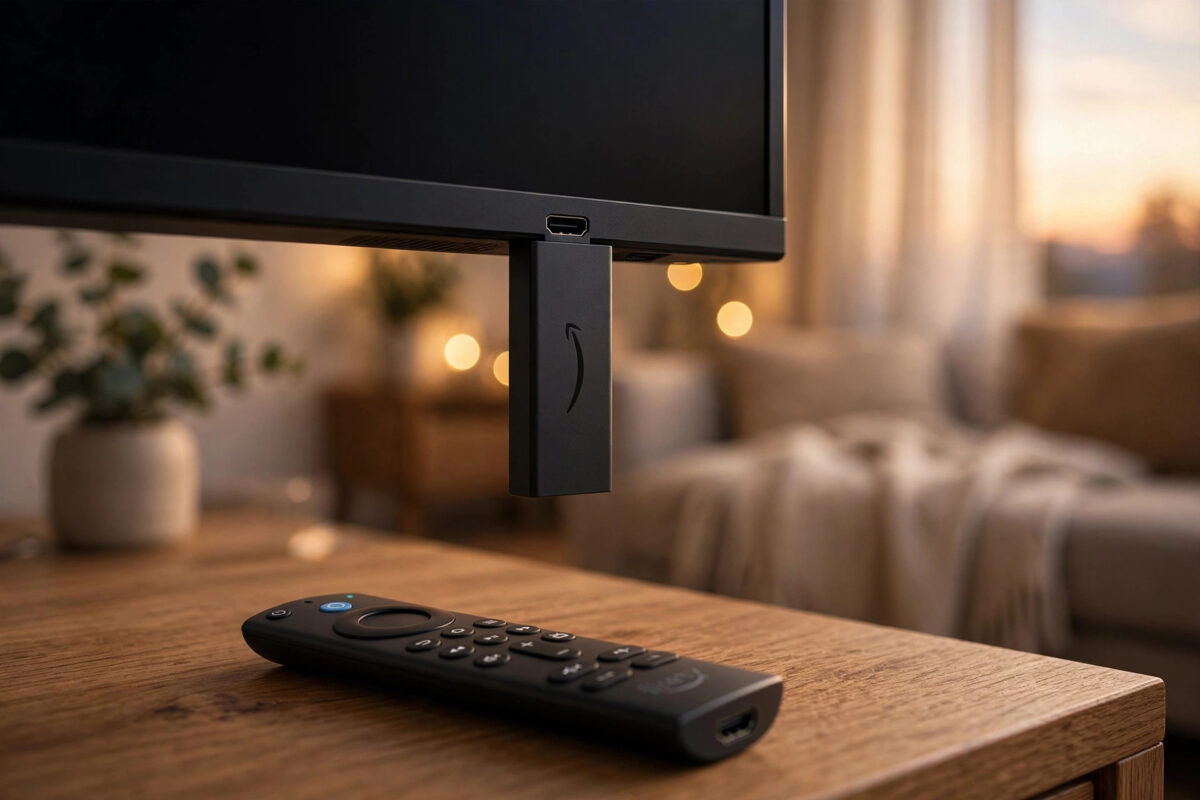
Your Fire TV Stick gives you access to thousands of apps through the Amazon Appstore, but not every useful app is listed there. Sometimes a developer releases an app directly, an older version works better on your device, or a streaming or utility tool is only available from its own website. In those cases you can install the app manually, a process often called sideloading.
Sideloading can be safe when you do it carefully. It can also be risky when you download files from random websites or skip basic checks. This guide walks you through the safest way to install apps that are not in the Amazon store and how to check a file before you open it.
Quick Answer
To safely install an app outside the Amazon store, only download the APK file from the app developer’s official website, turn on Apps from Unknown Sources for the Downloader app, and install using the free Downloader app from Amazon. Before installing, check the app name, developer, file size, and permissions, and delete the APK file after installation to save space and stay secure.
Is Sideloading Legal and Is It Safe?
Sideloading itself is not illegal. Your Firestick is your device, and Amazon includes the setting that allows it. What matters is what you install. Installing a free app from its official maker is very different from installing a pirated app that promises free movies or sports that normally cost money.
Safety depends on the source. An APK file is the install package for Android-based systems, and Fire TV is based on Android. A clean APK from a trusted developer behaves just like an Appstore app. A modified APK from an unknown site can contain ads, trackers, or harmful code that slows your stick or steals data. That is why source checking is the most important step in this whole process.
What You Need Before You Start
You do not need a computer or any special cables. You only need a few things ready on the Firestick itself.
- A Fire TV Stick, Fire TV Cube, or Fire TV television connected to Wi-Fi
- Your Amazon remote and a stable internet connection
- The free Downloader app, which is available in the Amazon Appstore
- The exact official website address for the app you want to install
- At least 500 MB of free storage for the download and installation
Check your free storage first. Go to Settings, then My Fire TV, then About, then Storage. If the bar is almost full, uninstall one or two apps you no longer use. A failed install is often just a storage problem, not a problem with the file.
Step by Step: Install an App Safely
Step 1: Install the Downloader App
- From the Home screen, go to Find and then Search.
- Type Downloader and select the orange Downloader app by AFTVnews.
- Select Download or Get and wait for it to install.
- Do not open it yet. You need to change one setting first.
Downloader is the safest tool for this job because it is in the official store, it is free, and it lets you enter a direct web address or short code from the developer. Avoid random file manager apps that ask for many permissions.
Step 2: Allow Installs for Downloader Only
- Go to Settings, then My Fire TV, then Developer Options.
- If you do not see Developer Options, go to Settings, My Fire TV, About, and press the Select button on your Fire TV name seven times until you see a message that Developer Mode is on.
- Open Developer Options and find Install Unknown Apps or Apps from Unknown Sources.
- Select Downloader and set it to ON. Leave other apps set to OFF.
This detail matters. You are not opening your whole device to every website. You are only trusting Downloader to install files. Keep ADB Debugging off unless a developer specifically tells you to use it for a trusted reason.
Step 3: Download Only From the Official Source
Open Downloader and allow it to access files when it asks. In the URL box, type the full official address given by the app developer. Do not search for phrases like free APK download and pick the first result. Many of those sites bundle extra software into the file.
Good sources share a few signs. The website uses the developer’s real name and logo, it explains what the app does without exaggerated claims, and it lists a version number and recent update date. If the page is full of fake download buttons and pop-ups, close it and find the real site.
For more general guidance on keeping your home devices secure, our guide on how to secure your home Wi-Fi network step by step explains simple settings that protect every streaming device in the house.
Step 4: Check the File Before Installing
When Downloader finishes, it will show the install screen. Pause here and check three things before you press Install.
- App name and icon: Does it match the app you expected? If the name is slightly different, cancel.
- Permissions: A simple video player should not ask for access to your contacts or messages. Unusual permissions are a warning sign.
- Update message: If it says it will update an existing app, make sure that existing app is the same one from the same developer.
If anything looks wrong, press Cancel, delete the file inside Downloader, and go back to the official source. It is always better to download again than to install a file you do not trust.
Step 5: Install, Test, and Clean Up
- Select Install and wait. Most apps install in under a minute.
- Select Done, not Open, so you return to Downloader.
- Select Delete to remove the APK file, then confirm Delete again. The installed app stays on your device, but the installer file is gone.
- Go to Home, open Your Apps, and launch the new app to test it.
Deleting the APK after install saves space and stops anyone from reinstalling an old file later. This habit also prevents buffering and update errors.
How to Check for Updates
Apps from the Amazon store update automatically. Sideloaded apps do not. You will need to repeat the download process when the developer releases a new version. Check the app’s own settings for an update notice, or visit the official website once a month if you rely on the app often.
Never install an update from a different website than the original. Installing a version from another source can break the app signature and cause it to fail, or worse, replace a clean app with a modified one. If the install fails with a signature error, uninstall the old version first, then install the new official file fresh.
How to Remove a Sideloaded App
Removal works the same as any other app. Press and hold the Home button, open Apps, highlight the app, press the Menu button on the remote, and select Uninstall. You can also go to Settings, Applications, Manage Installed Applications, select the app, and choose Uninstall.
After uninstalling, restart the Firestick once from Settings, My Fire TV, Restart. This clears leftover temporary files and gives you a clean check that the problem app is fully gone.
Common Mistakes to Avoid
- Downloading from the first search result: Popular app names are often copied by unsafe sites. Always use the developer’s official address.
- Turning on unknown sources for every app: Only Downloader needs this permission. Turning it on everywhere increases risk for no benefit.
- Keeping old APK files: Old installers waste storage and can be confused with newer safe versions later.
- Ignoring permissions: Take ten seconds to read what the app asks for. That pause prevents most bad installs.
- Installing apps that promise everything for free: If an app promises every premium channel, film, and sports event for free forever, it is not a safe or legal source.
- Skipping a restart after problems: If an app crashes on first launch, restart the stick before assuming the file is broken.
Amazon’s help pages also cover managing apps and storage. Review the official Amazon Fire TV Help and support resources for device settings, and the Amazon Fire TV product and help hub for setup guidance.
Conclusion
Installing apps outside the Amazon store can give your Firestick useful tools that are not listed in the Appstore, and it does not have to be risky. The safe method is simple every time: use Downloader, allow installs for Downloader only, download only from the developer’s official website, check the name and permissions before you install, and delete the APK file when you are done. Follow that routine and you will avoid the storage problems, fake files, and confusing update errors that cause most sideloading trouble. When in doubt, do not install. A missing app is a small problem, while a bad app can slow your whole device.
Frequently Asked Questions
Will sideloading void my Firestick warranty?
No, using the built-in Developer Options setting to install an app does not void the standard device warranty. Damage caused by harmful software is not covered in the same way, which is another reason to use only official sources.
Do I need to keep Developer Options on all the time?
No. You can turn Install Unknown Apps for Downloader back to OFF after you finish installing. Turn it on again only when you need to install a trusted update.
Why does my Firestick block the installation?
The most common reasons are low storage, a file made for a different Android version, or Downloader not having permission. Free up space, check the permission setting, and download the file again from the official site.
Can I sideload apps on a Fire TV television the same way?
Yes. Fire TV televisions use the same Fire OS system and the same Settings menu. The steps with Downloader and Developer Options work in the same way.
How do I know if an APK is safe?
There is no perfect test on the device itself, so trust comes from the source. An official developer website, a correct app name and icon, sensible permissions, and a recent version number are the best signs of a safe file.



Leave a Reply